
Introduction
This manual provides comprehensive instructions for the AGPTEK Xbox One Cooling Fan. This accessory is designed to enhance the cooling performance of your Xbox One console and provide additional USB connectivity. Please read this manual carefully before installation and use to ensure proper operation and longevity of your device.
Product Features
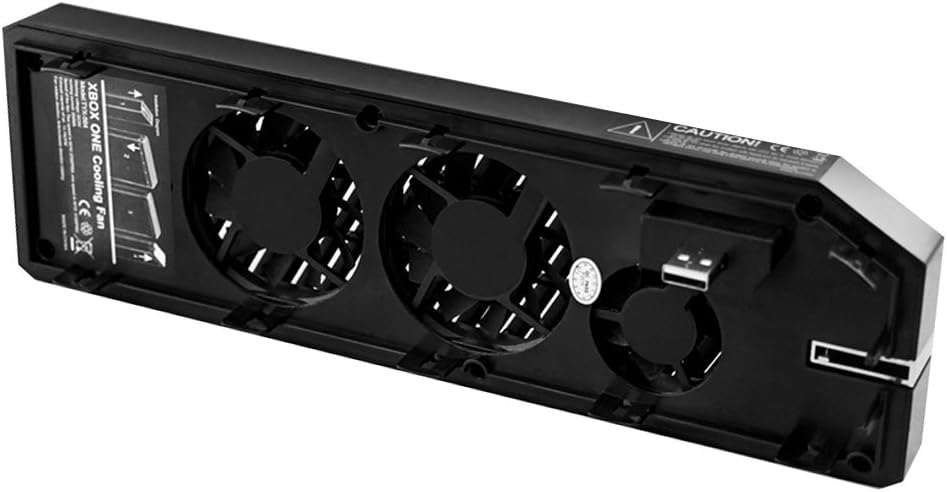
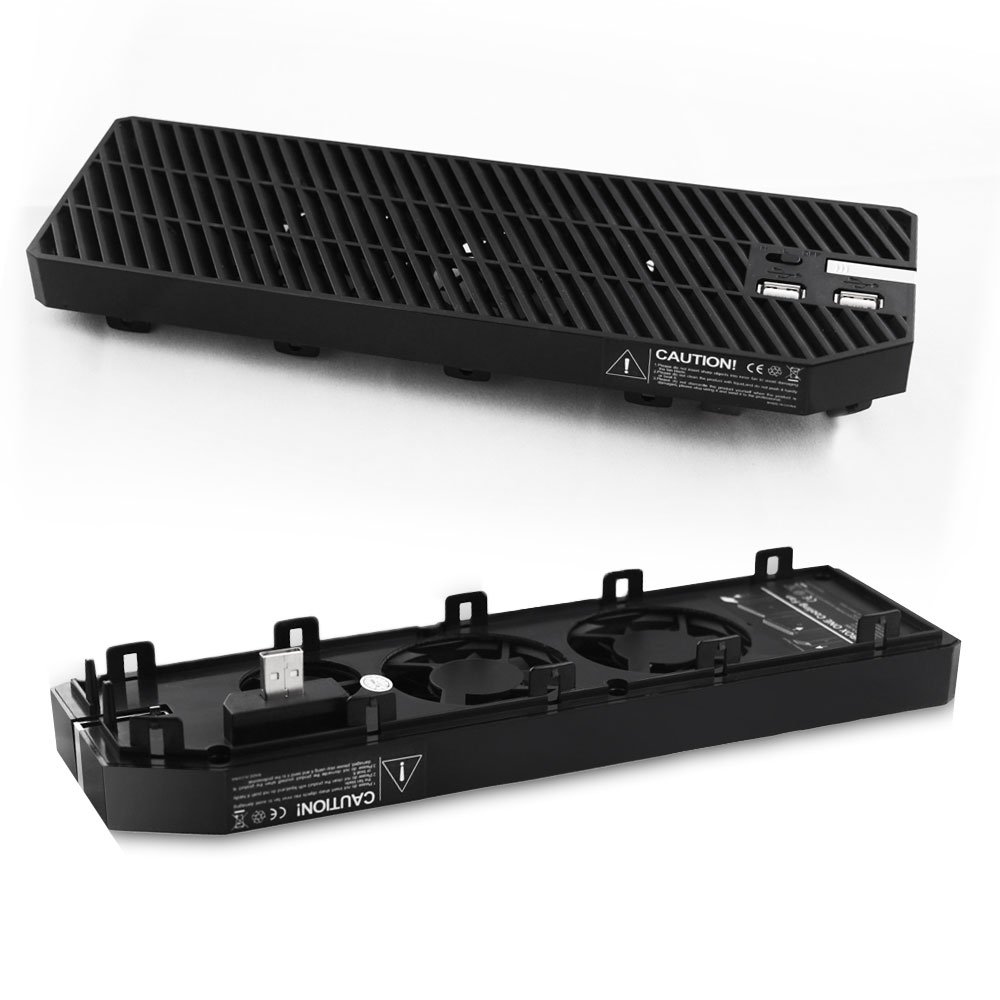
- Efficient Cooling: Equipped with three high-speed fans to effectively dissipate heat from your Xbox One console.
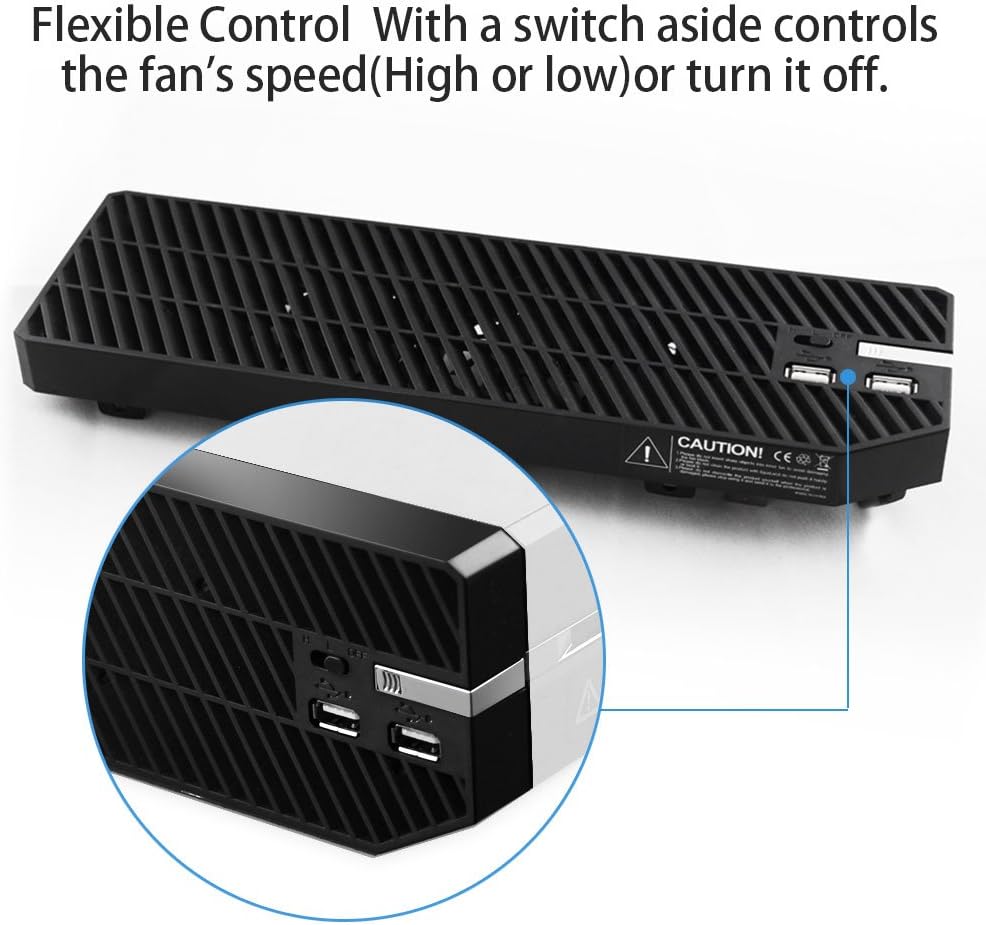
- Integrated USB Hub: Features two additional USB ports for connecting accessories or charging devices.
- Adjustable Fan Speed: A convenient switch allows you to select between High, Low, or Off fan settings.
- Direct Power Supply: Draws power directly from the console's USB port, eliminating the need for an external power adapter.
- Seamless Integration: Designed to fit snugly onto the side of the Xbox One console for a streamlined appearance.
Setup and Installation
Follow these steps to properly install the AGPTEK Xbox One Cooling Fan onto your console:
- Ensure your Xbox One console is powered off and unplugged from the power outlet.
- Locate the left side vent panel on your Xbox One console. This panel is designed to be removable.
- Gently remove the existing vent panel from the console. No tools are typically required; it should slide or unclip.
- Align the AGPTEK cooling fan unit with the console's vent opening and the corresponding USB port. The fan unit has an integrated USB plug that needs to connect to the console's USB port.
- Carefully push the cooling fan into place until it is securely connected and flush with the console's body. Ensure the integrated USB plug is fully inserted into the console's USB port.
- Once installed, reconnect your Xbox One console to the power outlet and power it on.

Operating Instructions
After successful installation, operate the cooling fan as follows:
- Power On/Off: Locate the switch on the side of the cooling fan unit. Move the switch to the "High" or "Low" position to activate the fans. To turn the fans off, move the switch to the "Off" position.
- Fan Speed Control: The switch allows you to select between two fan speeds: "High" for maximum cooling performance, and "Low" for quieter operation with reduced cooling.
- USB Ports: The two integrated USB ports can be used to connect various Xbox One accessories, such as controllers, headsets, or external storage devices. They can also be used for charging compatible USB devices.
Note: The cooling fan operates independently of the console's power state. You must manually turn the fan off using its switch when the console is powered down if you do not wish for it to continue running.
Maintenance
Regular maintenance helps ensure optimal performance and extends the lifespan of your cooling fan:
- Cleaning: Periodically inspect the fan grilles and vents for dust accumulation. Use a soft, dry cloth or a can of compressed air to gently clean away any dust or debris.
- Avoid Liquids: Do not use liquid cleaners or abrasive materials on the cooling fan unit.
- Clear Airflow: Ensure that the areas around the Xbox One console and the cooling fan are kept clear to allow for unrestricted airflow.
Troubleshooting
If you encounter issues with your AGPTEK Xbox One Cooling Fan, refer to the following troubleshooting guide:
- Problem: The cooling fan is not turning on.
- Ensure the fan unit is securely connected to the Xbox One console's USB port.
- Check the power switch on the fan unit to ensure it is set to "High" or "Low" and not "Off".
- Verify that your Xbox One console is powered on and functioning correctly.
- Problem: The fan is making excessive noise.
- Ensure the fan unit is properly seated and not vibrating against the console or other surfaces.
- Inspect the fan blades for any obstructions (e.g., loose wires, debris).
- Dust accumulation can sometimes cause increased noise. Refer to the Maintenance section for cleaning instructions.
- Problem: The integrated USB ports are not functioning.
- Confirm that the cooling fan unit's integrated USB plug is fully and correctly inserted into the console's USB port.
- Test with different USB devices to determine if the issue is with the port or the connected device.
- Note that some USB ports on cooling fans may have specific power or data transfer capabilities.
Specifications
| Model | Xbox One Cooling Fan |
| Compatibility | Xbox One Console (Standard Model) |
| Number of Fans | 3 |
| USB Ports | 2 (Integrated Hub) |
| Power Source | Console USB Port |
| Dimensions (Approx.) | 10.98 x 3.31 x 1.69 inches (27.89 x 8.41 x 4.29 cm) |
| Weight (Approx.) | 7.2 ounces (204 grams) |
| Manufacturer | AGPTEK |
| ASIN | B01N6JCIZX |
Warranty and Support
For specific warranty details, product registration, or technical assistance, please refer to the documentation included with your purchase or visit the official AGPTEK website. It is recommended to retain your purchase receipt as proof of purchase for any warranty claims.
For further support, you may contact AGPTEK customer service through their official channels.