
1. Introduction
The TKSTAR TK905 GPS Tracker is a versatile and robust tracking device designed for vehicles, motorcycles, and trucks. It features real-time tracking, anti-theft alarms, and a strong magnetic mount for easy installation. This manual provides detailed instructions for setting up, operating, and maintaining your device to ensure optimal performance.

Image: Front view of the TKSTAR TK905 GPS Tracker, showcasing its compact and durable design.
2. Package Contents
Please verify that all items listed below are included in your package:
- 1 x TKSTAR TK905 GPS Tracker
- 1 x SIM Card (international, for optional use)
- 1 x Charging Cable (USB)
- 2 x SIM Adapters
- 1 x Storage Bag
- 1 x User Manual (this document)

Image: All components included in the TKSTAR TK905 GPS Tracker package, laid out for inspection.
3. Specifications
| Network | 4G LTE, GSM/GPRS (2G) |
| GPS Accuracy | 16-32 ft (5-10m) |
| LBS Accuracy | 328-3280 ft (100-1000m) |
| Battery | 5000mAh rechargeable Li-ion battery |
| Working Time | 3-14 days |
| Standby Time | Approximately 50 days |
| Dimensions (L x W x H) | 90 x 72 x 22mm (3.54" x 2.83" x 0.87") |
| Weight | 168g (5.9oz) |
| Waterproof Rating | IP65 |
| Special Features | Anti-Theft, Geo-Fence, Location History, Magnetic Mounting, Real-Time Tracking |

Image: A comparison table highlighting the features and benefits of the TKSTAR GPS Tracker against generic alternatives.
4. Setup
4.1 SIM Card Installation and Activation
The TK905 tracker requires a 4G/2G SIM card with a data plan (minimum 50MB/month) to function. An international SIM card is included for convenience, offering a free trial and flexible subscription plans. Alternatively, you can use your own activated SIM card.
- Insert SIM Card: Open the SIM card slot on the device and carefully insert the activated SIM card. Ensure it is correctly oriented.
- Reset Tracker (for other SIM cards): If using a SIM card other than the included one, send the SMS command "reset123456" to the phone number of the SIM card inserted in the tracker. This helps the tracker recognize the new SIM.
4.2 APN Settings Configuration
For the tracker to connect to the internet and transmit data, you may need to configure the Access Point Name (APN) settings. Contact your SIM card carrier to obtain the correct APN name, username, and password.
Once you have the APN information, use your mobile phone to send the following SMS commands to the SIM card number in the tracker:
- 1. apn123456 APNname (e.g., apn123456 mobilenet for Speedtalk)
- 2. apnuser123456 APNusername (Omit if no username)
- 3. apnpasswd123456 APNpassword (Omit if no password)
- 4. CQ (Confirmation command)
Note: There is a space after "123456" in the commands.
4.3 Initial Charging
Before first use, fully charge the device using the provided USB charging cable. Connect the cable to the tracker's charging port and a standard USB power adapter (not included). The charging indicator light will show the charging status.
4.4 Installation
The TK905 features strong built-in magnets for easy and flexible installation on any iron surface of a vehicle. Common installation locations include:
- Under the chassis
- Inside the trunk
- Front or Rear Bumper
- Door Glove Box or Sundries Box
- Driving Seat Sundries Box
Ensure the device is securely attached and not obstructed by metal parts that could interfere with GPS signal reception.

Image: A visual guide illustrating various magnetic mounting locations on a vehicle for the TKSTAR GPS Tracker.
5. Operating Instructions
5.1 Real-Time Tracking
The TK905 provides precise real-time location tracking using GPS and LBS (Location Based Service) dual-mode positioning. GPS is used when a strong satellite signal is available, offering higher accuracy. LBS is used in areas with weak or no GPS signal, providing approximate location based on cellular towers.
Access real-time tracking via the dedicated mobile application (TKSTAR GPS or Winnes GPS) or the web platform. The platform allows you to view the current location of your device on a map.
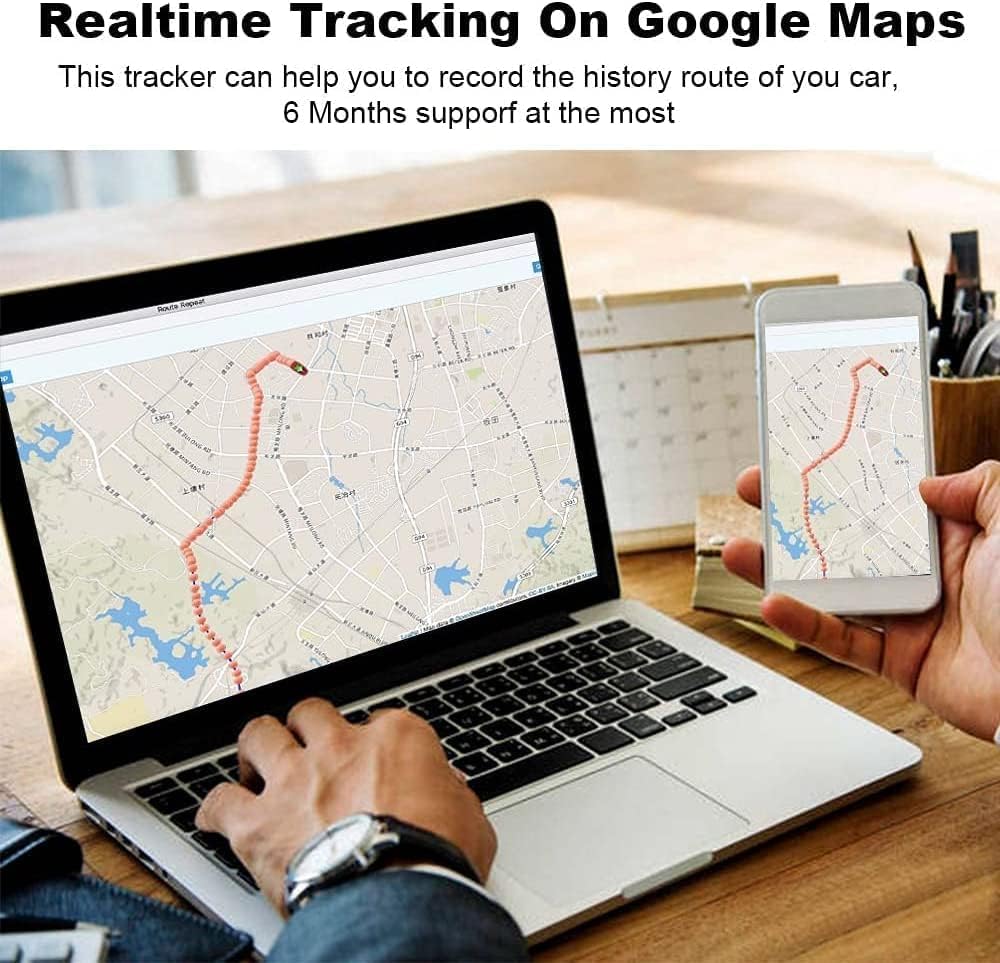
Image: A display showing the real-time tracking interface on both a laptop and a smartphone, with a vehicle's route overlaid on a Google Map.
5.2 Geo-Fencing
Set up virtual boundaries (geo-fences) on the tracking platform. You will receive an alert notification on your app or web server whenever the tracker enters or exits these predefined areas. This feature is useful for monitoring specific zones or ensuring a vehicle stays within a designated region.

Image: An aerial view of a city with three cars, illustrating a circular geo-fence boundary. Alerts are triggered when a car crosses this boundary.
5.3 Multiple Alarms
The TK905 is equipped with various alarm functions to enhance security and monitoring:
- Shake Alarm: Notifies you if the device detects significant vibration or movement.
- Overspeed Alert: Sends an alert if the tracked vehicle exceeds a preset speed limit.
- Low Battery Alarm: Informs you when the device's battery level is critically low, prompting a recharge.
- Movement Alarm: Alerts you if the device starts moving after being stationary for a period.

Image: Four distinct panels depicting visual representations of the shake alarm, overspeed alarm, low battery alarm, and movement alarm features.
5.4 Historical Playback
The tracking platform allows you to review the historical routes of the device for up to 6 months. This feature is useful for analyzing past movements and verifying travel logs.
5.5 Mobile Application and Web Platform
Manage and monitor your TK905 GPS Tracker using the free mobile application (available for iOS and Android) or the web-based tracking platform. These platforms provide a user-friendly interface for real-time tracking, setting alarms, viewing history, and managing device settings.
Download the app from your respective app store or access the web platform at http://www.mytkstar.net/. You can also find download links at http://www.mytkstar.net/download.htm.
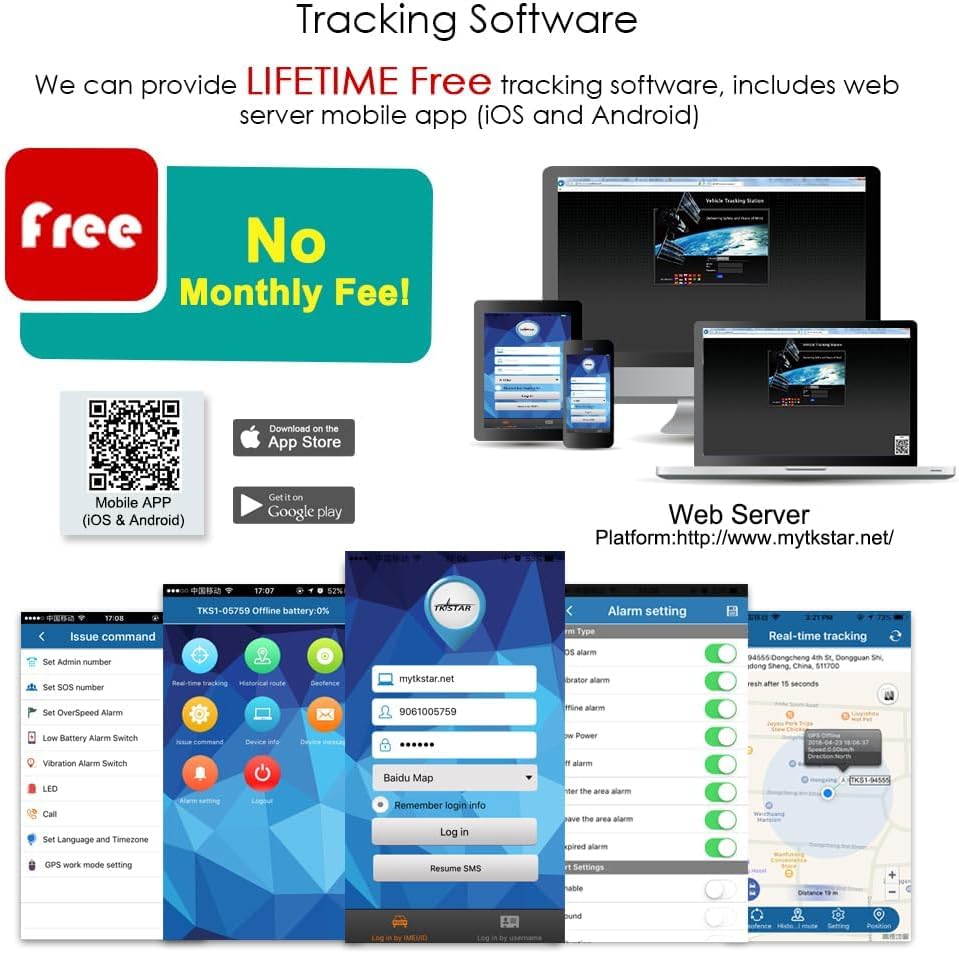
Image: A collage of screenshots demonstrating the TKSTAR tracking software interface on a laptop, tablet, and smartphone, highlighting its cross-platform compatibility.
6. Maintenance
6.1 Charging
To ensure continuous operation, regularly charge your TK905 GPS Tracker. The device has a 5000mAh battery, providing 3-14 days of working time and approximately 50 days of standby time. Recharge the device when the low battery alarm is triggered or when convenient.

Image: A composite image highlighting the TKSTAR GPS tracker's key features: free magnetic installation, IP65 waterproof rating, and long battery life.
6.2 Waterproof Rating
The TK905 has an IP65 waterproof rating, meaning it is protected against dust ingress and low-pressure water jets from any direction. While it can withstand rain and splashes, it is not designed for submersion in water. Avoid exposing the device to extreme temperatures or harsh chemicals.
7. Troubleshooting
- Device shows "Offline" on the app/platform:
- Ensure the SIM card is properly inserted and activated with a data plan.
- Verify that the APN settings are correctly configured (refer to Section 4.2). Incorrect APN is a common cause.
- Check if the device has sufficient battery charge.
- Confirm that the SIM card has network coverage in the device's current location.
- Inaccurate GPS location or "GPS Offline":
- Ensure the device is in an open area with a clear view of the sky for optimal GPS signal reception. Indoor or underground locations may result in LBS positioning or no signal.
- Avoid placing the device under heavy metal obstructions in the vehicle.
- Device not responding to SMS commands:
- Verify the SIM card in the tracker has SMS functionality and sufficient balance.
- Double-check the SMS command format, including spaces and capitalization.
- Ensure the SIM card number you are sending to is correct.
If you encounter persistent issues, please refer to the support section for assistance.
8. Warranty and Support
Winnes provides a 12-month warranty for the TKSTAR TK905 GPS Tracker, covering manufacturing defects and malfunctions under normal use. Additionally, lifetime technical support is available to assist you with any questions or issues you may encounter.
For technical assistance or warranty claims, please contact Winnes customer support. You can typically find contact information on the product packaging or through the seller's platform. Expect a response within 12 hours.
For more information and resources, visit the official platform website: http://www.mytkstar.net/.


