Introduction
This manual provides essential information for setting up, operating, maintaining, and troubleshooting your Acer Aspire E5-553-T5K4 laptop. Please read this manual thoroughly before using your device to ensure proper function and longevity.
Package Contents
Verify that all items are present in the package:
- Acer Aspire E5-553-T5K4 Laptop
- AC Power Adapter
- Power Cord
- Quick Start Guide (if included)
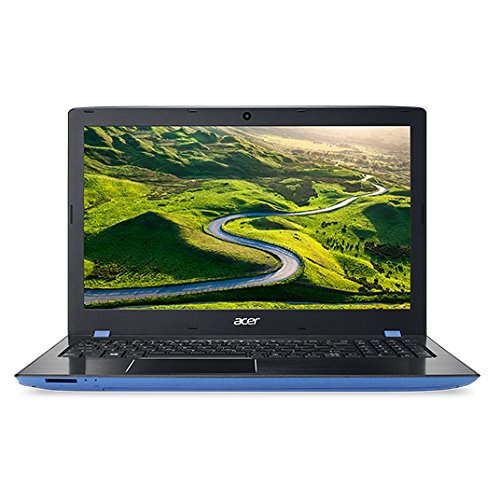
Image: Acer Aspire E5-553-T5K4 Laptop. This image displays the laptop's exterior design, including the screen, keyboard, and touchpad.
Setup
1. Connecting the Power Adapter
- Connect the AC adapter to the power jack on the side of your laptop.
- Plug the power cord into the AC adapter.
- Plug the other end of the power cord into a grounded electrical outlet.
The laptop battery will begin charging automatically.
2. Initial Power On
- Open the laptop lid.
- Press the power button, usually located above the keyboard or on the side.
- Follow the on-screen instructions to complete the Windows 10 setup process. This includes selecting your region, language, and setting up a user account.
3. Connecting to Wi-Fi
- Once Windows 10 setup is complete, click the Wi-Fi icon in the system tray (bottom-right corner of the screen).
- Select your desired wireless network from the list.
- Click "Connect" and enter the network security key (password) if prompted.
Operating Your Laptop
Keyboard and Touchpad
- Keyboard: The laptop features a full-size keyboard with a numeric keypad.
- Touchpad: Use the touchpad for navigation. Tap to click, two-finger tap for right-click, and pinch to zoom.
Ports and Connectors
Your laptop is equipped with various ports for connectivity:
- USB 2.0 Ports: For connecting older USB devices.
- USB 3.0 Ports: For faster data transfer with compatible USB 3.0 devices.
- HDMI Port: For connecting to external displays or TVs.
- Ethernet (RJ-45) Port: For wired network connection.
- Audio Jack: For headphones or external speakers.
- SD Card Reader: For reading memory cards.
Battery Management
- To maximize battery life, adjust screen brightness and power settings in Windows.
- Avoid fully discharging the battery frequently.
- Store the laptop in a cool, dry place if not used for extended periods.
Maintenance
Cleaning
- Screen: Use a soft, lint-free cloth lightly dampened with water or a screen cleaner. Do not spray liquid directly onto the screen.
- Keyboard and Chassis: Use a soft cloth. For stubborn dirt, a slightly damp cloth is acceptable. Avoid harsh chemicals.
- Vents: Periodically clean the ventilation openings with compressed air to prevent dust buildup, which can cause overheating.
Software Updates
Regularly update your operating system and drivers to ensure optimal performance and security:
- Windows Updates: Go to Settings > Update & Security > Windows Update.
- Driver Updates: Check the official Acer support website for the latest drivers for your model.
Storage
When not in use, store your laptop in a protective sleeve or bag to prevent scratches and dust accumulation.
Troubleshooting
This section addresses common issues you might encounter with your laptop.
Laptop Does Not Power On
- Ensure the AC adapter is securely connected to both the laptop and a working power outlet.
- Check if the power outlet is functional by plugging in another device.
- If the battery is completely drained, it may take a few minutes of charging before the laptop can power on.
Wi-Fi Disconnection Issues
- Restart Router/Modem: Power cycle your wireless router and modem.
- Update Wi-Fi Driver: Ensure your wireless adapter drivers are up to date. Visit the Acer support website for your model.
- Power Management Setting: In Windows, go to Device Manager > Network adapters, right-click your Wi-Fi adapter, select Properties > Power Management, and uncheck "Allow the computer to turn off this device to save power."
- Move Closer to Router: Ensure you are within range of your Wi-Fi router.
Slow Performance
- Close Unused Applications: Close any programs running in the background that you are not actively using.
- Check for Updates: Ensure Windows and all drivers are updated.
- Scan for Malware: Run a full system scan using reputable antivirus software.
- Disk Cleanup: Use Windows Disk Cleanup to remove temporary files.
- RAM Upgrade: Consider upgrading the RAM if you frequently run demanding applications. The laptop supports up to 32 GB DDR4 RAM.
Screen Issues
- No Display: Connect an external monitor to check if the issue is with the laptop's internal display.
- Flickering/Distorted Display: Update your graphics drivers.
Specifications
| Feature | Detail |
|---|---|
| Model Name | Acer Aspire E5-553-T5K4 (NX.GMSAA.001) |
| Display Size | 15.6 Inches |
| Screen Resolution | 1920 x 1080 pixels (Full HD) |
| Processor | AMD A10-9600P Quad-core (2.4 GHz) |
| RAM | 8 GB DDR4 SDRAM (1866 MHz) |
| Max Memory Supported | 32 GB DDR4 |
| Hard Drive | 1024 GB (1 TB) HDD, Serial ATA, 5400 RPM |
| Graphics Card | Integrated AMD Graphics |
| Operating System | Windows 10 Home (64-bit) |
| Wireless Connectivity | 802.11b/g/n |
| USB Ports | 1x USB 2.0, 1x USB 3.0 |
| Special Feature | Numeric Keypad |
| Item Weight | 5.07 pounds |
| Product Dimensions (LxWxH) | 9.6 x 13.5 x 1.01 inches |
Warranty and Support
For warranty information, please refer to the warranty card included with your product or visit the official Acer support website. You can find drivers, FAQs, and contact information for technical support there.
Acer Support Website: www.acer.com/support