
1. Product Overview
The Xtreme Cables HDMI 3 Port Switch allows you to connect up to three HDMI source devices to a single HDMI display. This device is ideal for expanding the HDMI input capabilities of your television or monitor, enabling easy switching between devices such as DVD players, gaming consoles, and streaming sticks. It supports high-definition video and audio transmission.
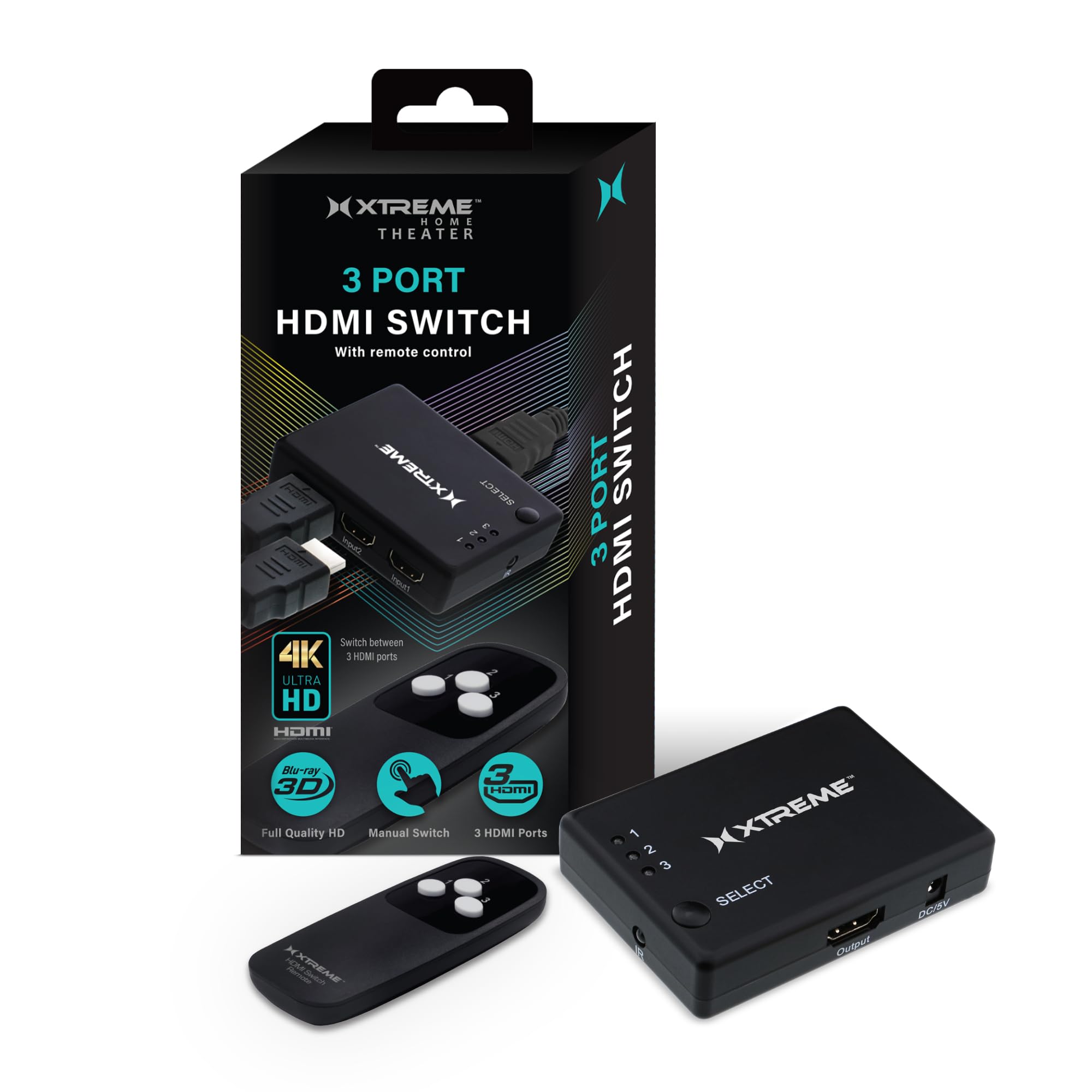
Figure 1: Front and rear view of the HDMI 3 Port Switch, highlighting its components including 3 HDMI Inputs, HDMI Output, DC/5V Power Port, LED Indicator Lights, HDMI Port Selector button, and IR receiver. The remote control is also shown.
2. Setup Instructions
- Connect HDMI Source Devices: Plug up to three HDMI source devices (e.g., DVD player, game console, cable box) into the HDMI Input 1, Input 2, and Input 3 ports on the switch.
- Connect to Display: Connect one end of an HDMI cable to the HDMI Output port on the switch and the other end to an HDMI input port on your television or monitor.
- Connect Power: Insert the DC/5V power adapter into the DC/5V Power Port on the switch, then plug the adapter into a standard electrical outlet. The switch will power on automatically.
- Install Remote Control Batteries: Open the battery compartment on the remote control and insert two AAA batteries (not included), ensuring correct polarity.

Figure 2: The HDMI 3 Port Switch connected to three HDMI input cables, illustrating a typical setup for multiple source devices.
3. Operating Instructions
Once all connections are made and the switch is powered on, you can select your desired input source using either the manual button on the switch or the included remote control.
3.1. Using the Manual Select Button
- Press the 'SELECT' button on the front of the HDMI switch to cycle through the connected HDMI input sources (Input 1, Input 2, Input 3).
- The corresponding LED indicator light (1, 2, or 3) will illuminate to show which input is currently active.
3.2. Using the Remote Control
- Point the remote control towards the IR receiver on the front of the HDMI switch.
- Press the '1', '2', or '3' button on the remote control to directly select the corresponding HDMI input source.
- Ensure there are no obstructions between the remote control and the switch's IR receiver for optimal performance.

Figure 3: The HDMI 3 Port Switch alongside its remote control, demonstrating the two methods of input selection.
4. Maintenance
- Cleaning: Use a soft, dry cloth to clean the exterior of the switch. Do not use liquid cleaners or abrasive materials.
- Storage: Store the device in a cool, dry place away from direct sunlight and extreme temperatures.
- Handling: Avoid dropping the switch or subjecting it to strong impacts. Do not attempt to disassemble the unit.
5. Troubleshooting
- No Picture/Signal:
- Ensure all HDMI cables are securely connected to both the source devices, the switch, and the display.
- Verify that the power adapter is properly connected and the switch is receiving power.
- Confirm that your display is set to the correct HDMI input channel.
- Try selecting a different input on the switch using both the manual button and the remote control.
- Test with different HDMI cables if possible, as faulty cables can cause signal loss.
- Remote Control Not Working:
- Check if the batteries in the remote control are correctly installed and not depleted. Replace with new AAA batteries if necessary.
- Ensure there is a clear line of sight between the remote control and the IR receiver on the front of the switch.
- Move closer to the switch when operating the remote.
- Intermittent Signal or Flickering:
- Ensure all HDMI cables are of good quality and are not excessively long.
- Try connecting the source device directly to the display to rule out issues with the source or display.
- Ensure the power adapter is providing stable power to the switch.
6. Specifications
| Feature | Specification |
|---|---|
| Brand | XTREME |
| Model | HDMI 3 Port Switch |
| Color | Black |
| Connector Type | HDMI |
| Number of Ports | 3 HDMI Inputs, 1 HDMI Output |
| Compatible Devices | DVD Player, Gaming Consoles, Streaming Devices, Laptops, etc. |
| Power Input | DC/5V |
| Item Weight | 1 Pound |
| UPC | 805106204532 |
| ASIN | B01N4IJEH5 |
7. Warranty Information
This product is covered by a manufacturer's warranty. For specific details regarding warranty coverage, duration, and claims process, please refer to the documentation included with your purchase or contact the manufacturer directly.
8. Customer Support
If you encounter any issues not covered in this manual or require further assistance, please contact Xtreme Cables customer support. You can typically find contact information on the product packaging, the manufacturer's official website, or through your retailer.


