
Introduction
This manual provides essential information for setting up, operating, maintaining, and troubleshooting your HP Pro 6200 Mini Tower Desktop PC. Please read this manual thoroughly before using your computer to ensure proper function and longevity.

Image: The HP Pro 6200 Mini Tower Desktop PC shown with a wired keyboard and mouse, illustrating the complete system setup.
Setup Instructions
Follow these steps to set up your HP Pro 6200 Mini Tower Desktop PC:
- Unpack Components: Carefully remove the computer, keyboard, mouse, and power cord from their packaging.
- Connect Peripherals:
- Connect the keyboard and mouse to the available USB ports on the front or back of the computer.
- Connect your monitor to the appropriate video output port (VGA or DisplayPort) on the back of the computer.
- If using a wired network connection, connect an Ethernet cable to the RJ-45 port on the back.
- If using Wi-Fi, ensure the included Wi-Fi adapter is connected (if applicable).
- Power Connection: Connect the power cord to the computer's power input and then to a grounded electrical outlet.
- Initial Power On: Press the power button on the front of the computer. The system will boot into Windows 10 Home.
- Windows Setup: Follow the on-screen prompts to complete the initial Windows 10 Home setup, including language, region, and user account creation.

Image: The rear panel of the HP Pro 6200 Mini Tower, displaying ports for power, video (VGA, DisplayPort), USB, Ethernet, and audio connections.
Operating Instructions
Your HP Pro 6200 Mini Tower PC comes pre-loaded with Windows 10 Home 64-bit. Here are some basic operating guidelines:
- Power On/Off: Press the power button to turn the computer on. To shut down, click the Start button, then Power, and select "Shut down."
- Windows Activation: For Windows activation guidance, refer to the User Guide & Manual section in the Technical Specifications.
- Software: The system includes a Microsoft Office 365 FREE TRIAL, 90 Days Antivirus, and 30 Days Winzip Software.
- Optical Drive: The integrated DVD-ROM drive supports reading CD and DVD media. Insert discs gently into the drive slot.
- Connectivity: Utilize the multiple USB 2.0 ports (10 total) for connecting external devices. Wi-Fi connectivity is also available.
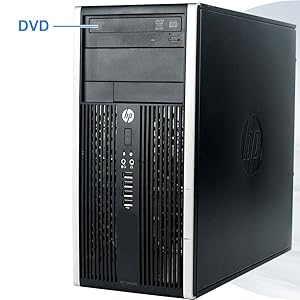
Image: A close-up of the HP Pro 6200 Mini Tower's front panel, highlighting the DVD-ROM drive for optical media access.
Maintenance
Regular maintenance helps ensure the optimal performance and longevity of your desktop PC:
- Software Updates: Regularly check for and install Windows updates to ensure system security and performance.
- Antivirus Scans: Perform regular scans with your antivirus software to protect against malware.
- Physical Cleaning: Keep the computer's exterior clean. Use a soft, dry cloth to wipe dust. Ensure ventilation grilles are free from obstructions to prevent overheating.
- Data Backup: Periodically back up important data to an external drive or cloud storage to prevent data loss.
Troubleshooting
If you encounter issues with your HP Pro 6200 Mini Tower PC, consider the following common solutions:
- No Power:
- Verify the power cord is securely connected to both the computer and the electrical outlet.
- Test the outlet with another device to ensure it is functional.
- No Display:
- Ensure the monitor is powered on and the video cable is firmly connected to both the computer and the monitor.
- Try a different video cable or monitor if available.
- Peripheral Not Responding (Keyboard/Mouse):
- Check USB connections. Try plugging the device into a different USB port.
- Restart the computer.
- Slow Performance:
- Close unnecessary applications running in the background.
- Ensure Windows and drivers are up to date.
- Run a full system scan with antivirus software.
- DVD-ROM Not Reading Discs:
- Ensure the disc is clean and free of scratches.
- Try a different disc to rule out a faulty disc.
- Check device manager for driver issues.
Specifications
| Feature | Detail |
|---|---|
| Processor | Intel Core i3-2100 3.1 GHz (Dual Core) |
| RAM | 6 GB DDR3 SDRAM |
| Hard Drive | 500 GB HDD (Serial ATA) |
| Graphics | Intel HD Graphics (Dedicated) |
| Optical Drive | DVD-ROM |
| Operating System | Windows 10 Home 64-bit |
| USB 2.0 Ports | 10 |
| Connectivity | Wi-Fi, Ethernet |
| Dimensions (LxWxH) | 14.9 x 7 x 17 inches |
| Item Weight | 20 pounds |
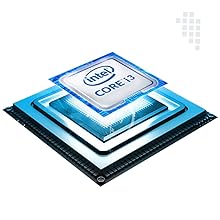
Image: An illustration of the Intel Core i3 processor, the central processing unit of the desktop.
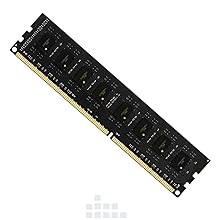
Image: A DDR3 RAM module, representing the system's memory component.
Warranty Information
This product comes with a Limited 1 Year Warranty for Labor and Parts. This warranty is designed to provide peace of mind regarding your purchase. For specific terms and conditions, please refer to the warranty card included in the package.
Customer Support
Should you have any inquiries or require assistance, please feel free to contact our Customer Support Team. We are committed to resolving your issues promptly.
Contact information for customer support can be found on the warranty card or product packaging.


