
TBS 4328474264
TBS SMIT Viaccess Professional CAM CI Module
Model: 4328474264 - Instruction Manual
1. Introduction
This manual provides essential information for the proper installation, operation, and maintenance of your TBS SMIT Viaccess Professional CAM (Conditional Access Module) CI Module. This module is designed to enable access to encrypted digital television services on DVB-CI compatible host devices, utilizing Viaccess smart cards.
Please read this manual thoroughly before using the product to ensure optimal performance and to prevent any potential issues.
2. Product Overview and Features
The SMIT Viaccess Professional CAM CI Module is an advanced conditional access solution built with proprietary technology to deliver secure and efficient descrambling of digital content.
Key Features:
- Official Viaccess Professional Module: Ensures compatibility and security with Viaccess systems.
- Advanced ASIC Chip: Incorporates a proprietary intellectual property right ASIC chip with an embedded 32-bit CPU (ARM7TDMI) for high performance.
- 0.18-micron Technology: Utilizes advanced manufacturing technology for efficiency and reliability.
- DVB-CI / PCMCIA Compatibility: Fully compliant with DVB-CI Profile 1 protocol for seamless integration into compatible host devices.
- ISO7816 Smart Card Interface: Features a built-in SmartCard reader compliant with ISO7816 protocol for secure smart card interaction.
- Embedded Linux System: Operates on a proprietary intellectual property rights embedded Linux system.
- Integrated Universal DVB Descrambler: Capable of descrambling multiple channels simultaneously.
- MPEG DEMUX: Multi-channel SECTION and PID filter configurable through software.
- Compact Design: Latest compact structure and design for easy assembly and integration.
- Multi-Channel Descrambling: Capable of descrambling 4 to 8 TV channels using a single module.
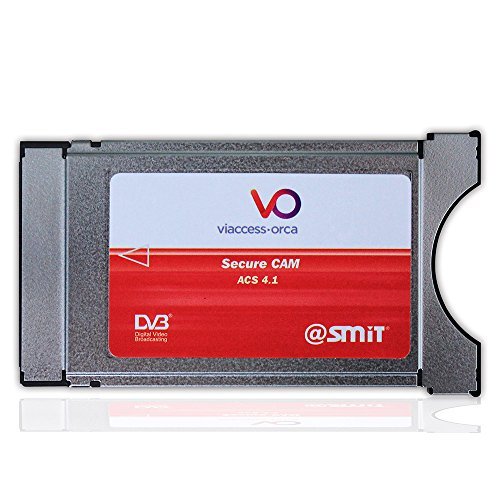
Figure 1: Front view of the SMIT Viaccess Professional CAM CI Module, showing the Viaccess-orca branding and secure CAM details.
3. Setup
3.1 Inserting the CAM Module
- Ensure your DVB-CI compatible host device (e.g., TV, set-top box, PC tuner card) is powered off.
- Locate the Common Interface (CI) slot on your host device. This slot is typically labeled "CI" or "PCMCIA".
- Carefully insert the SMIT Viaccess Professional CAM CI Module into the CI slot. Ensure the module is oriented correctly, usually with the label facing upwards or outwards, depending on the host device's design.
- Push the module firmly but gently until it is fully seated in the slot. Do not force the module.
3.2 Inserting the Smart Card
- With the CAM module inserted into the host device, locate the smart card slot on the CAM module itself.
- Insert your Viaccess smart card into the CAM module's smart card slot. The orientation of the smart card (chip facing up or down) may vary; refer to the markings on the CAM module or smart card for correct insertion.
- Push the smart card until it clicks into place or is fully inserted.
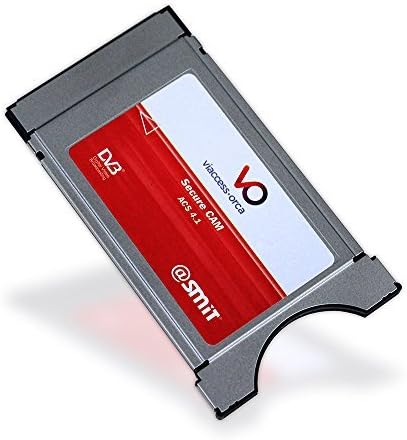
Figure 2: Angled view of the SMIT Viaccess Professional CAM CI Module, showing its compact form factor.
4. Operating Instructions
4.1 Initial Recognition
- Power on your DVB-CI compatible host device.
- The host device should detect the inserted CAM module. A message indicating the detection of a CI module may appear on the screen.
- The host device will then attempt to read the smart card within the CAM module. This process may take a few moments.
4.2 Accessing Encrypted Channels
- Once the CAM module and smart card are recognized, navigate to the encrypted channels that correspond to your Viaccess subscription.
- The CAM module will automatically descramble the authorized channels. If a channel remains encrypted, ensure your subscription is active and the smart card is correctly inserted and recognized.
- Some host devices may offer a CI/CAM menu within their settings, allowing you to view module information or perform diagnostics. Consult your host device's manual for details.
5. Maintenance
The SMIT Viaccess Professional CAM CI Module is designed for durability and requires minimal maintenance. Follow these guidelines to ensure its longevity:
- Handling: Always handle the module by its edges. Avoid touching the gold contacts or inserting it with excessive force.
- Cleaning: If necessary, gently wipe the exterior of the module with a soft, dry, lint-free cloth. Do not use liquid cleaners or solvents.
- Environment: Store and operate the module in a clean, dry environment, away from extreme temperatures, direct sunlight, and high humidity.
- Smart Card: Ensure the smart card is clean and free from dust or debris before insertion.
6. Troubleshooting
6.1 Module Not Recognized
- Check Insertion: Ensure the CAM module is fully and correctly inserted into the CI slot of your host device.
- Host Device Compatibility: Verify that your host device is DVB-CI compatible.
- Power Cycle: Power off your host device, remove and reinsert the CAM module, then power the device back on.
6.2 Channels Remain Encrypted
- Smart Card Check: Ensure the Viaccess smart card is correctly inserted into the CAM module and is clean.
- Subscription Status: Verify that your Viaccess subscription is active and covers the channels you are trying to view.
- Module Recognition: Confirm that the host device recognizes the CAM module (refer to "Module Not Recognized" section if needed).
- Signal Strength: Ensure you have adequate signal strength for the channels.
7. Specifications
| Feature | Detail |
|---|---|
| Product Dimensions | 4 x 1.2 x 2.2 inches |
| Item Weight | 4 ounces |
| Model Number | 4328474264 |
| ASIN | B01N464970 |
| Manufacturer | UTA Technology |
| Interface | DVB-CI / PCMCIA (DVB-CI Profile 1 compliant) |
| Smart Card Interface | ISO7816 compliant |
| Descrambling Capability | 4 to 8 TV Channels per module |
8. Safety Information
- Do not attempt to open or modify the module. Doing so will void any potential warranty and may cause damage.
- Keep the module away from water, moisture, and other liquids.
- Avoid exposing the module to extreme temperatures or direct heat sources.
- Ensure proper ventilation around the host device where the module is inserted.
- Dispose of electronic waste responsibly according to local regulations.
9. Warranty
No specific warranty information is provided with this product. Please refer to the purchase documentation or contact your retailer for details regarding any applicable warranty.
10. Support
For technical support related to the integration and operation of this CAM module with your specific host device, please refer to the instruction manual provided with your host device or contact the manufacturer of your host device. For issues directly related to the Viaccess smart card or subscription, please contact your service provider.
Ask a question about this manual
Ask about setup, troubleshooting, compatibility, parts, safety, or missing instructions. Manuals+ will review the question and use this page’s manual context to help answer it.