
eXuby EXB13.3LED
eXuby Small TV - 13.3 inch LED TV User Manual
Model: EXB13.3LED
Introduction
Thank you for purchasing the eXuby 13.3 inch LED TV. This compact television is designed for versatile use in various environments such as kitchens, RVs, offices, and more. It features multiple input options for connecting various devices and a built-in digital TV tuner for receiving free local HD channels. This manual provides essential information for setting up, operating, and maintaining your new eXuby TV.
What's in the Box

Image: All components included in the eXuby 13.3" TV package. This includes the TV unit, remote control, wall power adapter, car power adapter, AV cable, and the user manual.
- 1x eXuby 13.3” Small TV with Stand
- 1x Remote Control
- 2x AAA Batteries
- 1x Wall Power Adapter
- 1x Car Power Adapter
- 1x AV Cable
- 1x User Manual
Setup Guide
1. Unpacking and Placement
Carefully remove all components from the packaging. Place the TV on a stable, flat surface. Ensure adequate ventilation around the TV. The compact dimensions (13 7/8” W x 12” H with stand, 5” bottom base depth) allow for placement in various small spaces.

Image: Examples of the eXuby TV's versatile placement in a home office, an RV, and a kitchen. The image also illustrates its compatibility with various gaming consoles like PlayStation, Nintendo Wii U, and Xbox One.
2. Power Connection
Connect the provided Wall Power Adapter to the Power Input port on the back of the TV and then plug it into a standard electrical outlet. For mobile use, connect the Car Power Adapter to the same power input and plug it into your vehicle's 12V power outlet.
3. Connecting External Devices
The eXuby TV offers multiple input terminals for various devices:
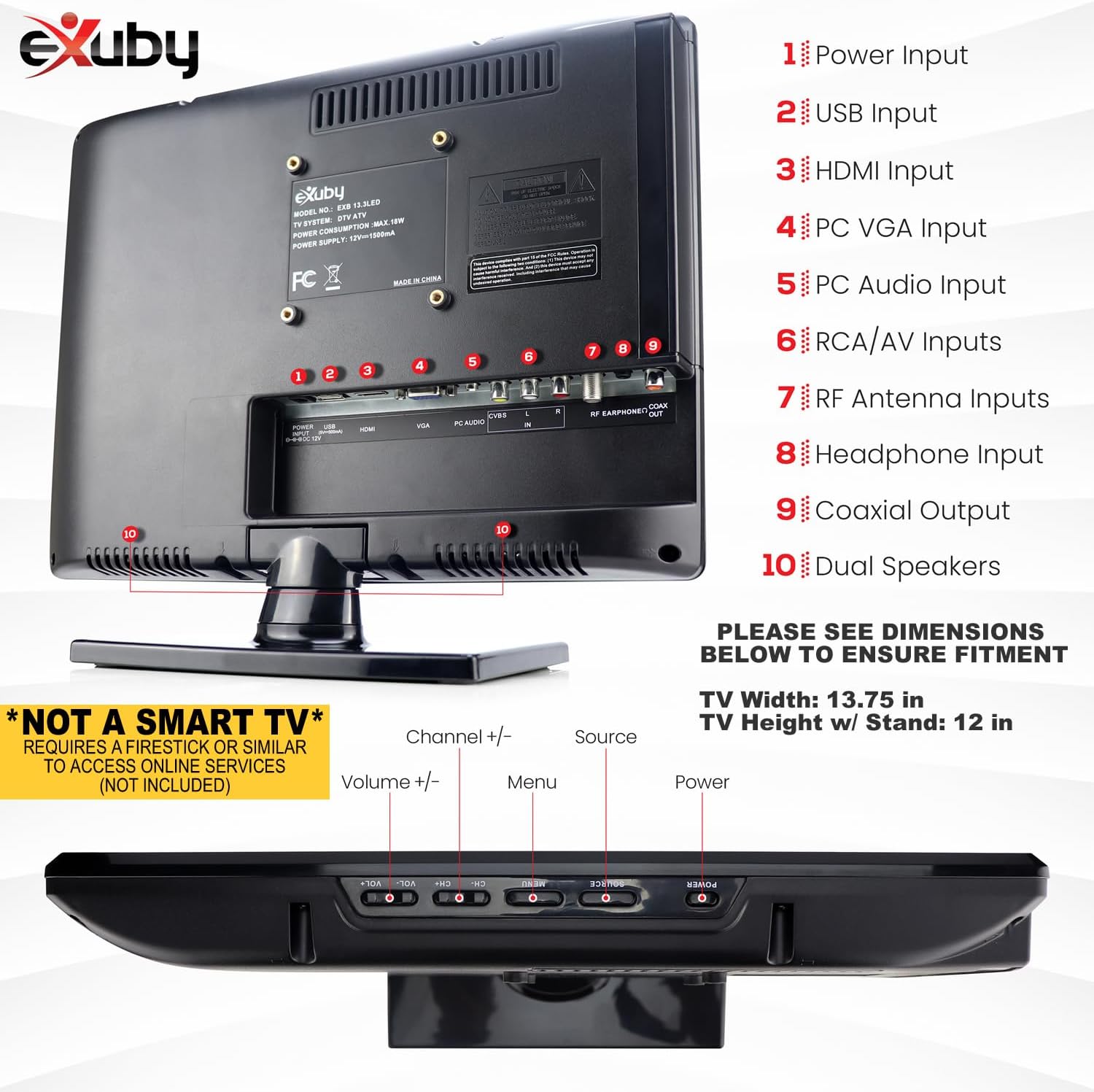
Image: Detailed view of the TV's rear panel, highlighting all available ports: Power Input, USB Input, HDMI Input, PC VGA Input, PC Audio Input, RCA/AV Inputs, RF Antenna Inputs, Headphone Input, Coaxial Output, and Dual Speakers.
- HDMI (x1): For high-definition audio and video from devices like cable boxes, game consoles, or streaming sticks.
- AV (RCA x1): For standard definition audio and video from older devices (e.g., DVD players).
- Antenna (RF x1): For connecting an external antenna (not included) to receive free local HD channels.
- Computer/PC VGA (x1) & PC Audio (x1): To use the TV as a computer monitor.
- USB (x1): For viewing photos or playing music from a USB drive.
- Earphone (x1): For connecting headphones.
- Coaxial Output (x1): For connecting to an external audio system.
Ensure all cables are securely connected to the correct ports.
Operating Instructions
1. Powering On/Off
Press the POWER button on the remote control or the TV's side panel to turn the TV on or off.
2. Remote Control Usage
The eXuby 13.3" TV ONLY WORKS WITH THE INCLUDED REMOTE. It is not compatible with any cable service provided remote or universal remotes.

Image: This image clearly indicates that the eXuby 13.3" TV is exclusively compatible with its dedicated remote control. Other remotes, such as those from DirecTV, Cox, or Spectrum, are shown as incompatible.
Familiarize yourself with the remote control buttons:
- POWER: Turns the TV on/off.
- MUTE: Mutes/unmutes the sound.
- 0-9: Number buttons for direct channel selection.
- P.MODE / S.MODE / CH.LIST: Picture mode, Sound mode, Channel list.
- INFO: Displays channel information.
- SLEEP: Sets sleep timer.
- MENU: Accesses the main menu.
- OK: Confirms selection in menus.
- Arrow Buttons: Navigate menus and change channels/volume.
- SOURCE: Selects input source (HDMI, AV, RF, VGA, USB).
- VOL +/-: Adjusts volume.
- CH +/-: Changes channels.
- MEDIA: Accesses media player for USB content.
- EPG: Electronic Program Guide (for digital channels).
- CC: Closed Captioning.
- FAV: Favorite channels.
- Colored Buttons (Red, Green, Yellow, Blue): Functionality varies by menu or mode.
- Playback Controls: Play, Pause, Stop, Rewind, Fast Forward (for media playback).
- APSC / MTS / TTS / AUTO: Advanced picture settings, Multi-channel Television Sound, Text-to-Speech, Auto-tuning.
3. Channel Scan (for Antenna TV)
To receive free local HD channels, connect an RF antenna (not included) to the Antenna (RF) input. Then, perform an auto-scan:
- Press the MENU button on the remote.
- Navigate to the "Channel" or "Setup" menu.
- Select "Auto Scan" or "Auto Tuning" and confirm.
- The TV will scan for available digital channels. This process may take several minutes.

Image: The back of the eXuby TV, illustrating the connection point for a digital antenna (not included) to enable reception of free local HD channels via the built-in ATSC tuner.
4. Selecting Input Source
Press the SOURCE button on the remote control repeatedly to cycle through available input sources (TV, HDMI, AV, VGA, USB) until your desired source is selected.
Maintenance
- Cleaning: Use a soft, dry cloth to clean the TV screen and cabinet. For stubborn marks, slightly dampen the cloth with water. Avoid using abrasive cleaners, waxes, or solvents.
- Ventilation: Ensure the ventilation openings on the back of the TV are not blocked. Do not place the TV on a bed, sofa, rug, or similar surface that may block the ventilation.
- Power Cord: Regularly check the power cord for any damage. If damaged, discontinue use and contact customer support.
- Storage: If storing the TV for an extended period, disconnect it from the power source and store it in a cool, dry place.
Troubleshooting
| Problem | Possible Cause / Solution |
|---|---|
| No power / TV does not turn on. |
|
| No picture / "No Signal" message. |
|
| No sound or low sound. |
|
| Remote control not working. |
|
| Poor picture quality (fuzzy, distorted). |
|
Specifications
| Feature | Detail |
|---|---|
| Model Number | EXB13.3LED |
| Screen Size | 13.3 inches (diagonal) |
| Max Screen Resolution | 1366 x 768 (720p) |
| Display Technology | LED |
| Aspect Ratio | 16:9 |
| Refresh Rate | 60 Hz |
| Product Dimensions (TV Frame) | 13 7/8 inches (W) x 12 inches (H) |
| Bottom Base Depth | 5 inches |
| Item Weight | 3 pounds |
| Power Consumption | 18 watts (On-mode: 78 watts) |
| Input Terminals | HDMI x1, AV x1, Antenna (RF) x1, Computer/PC VGA x1, PC Audio x1, USB x1 |
| Output Terminals | Coaxial Output x1, Earphone x1 |
| Special Feature | Perfect for RV & Kitchen |

Image: A visual representation of the eXuby 13.3" TV's actual dimensions (13.75" W x 12" H) compared to larger 24-inch and 42-inch TVs, and two soda cans for scale, emphasizing its compact size.
Warranty and Support
eXuby is committed to customer satisfaction. While specific warranty details are not provided in this manual, please retain your proof of purchase for any warranty claims. For technical support, troubleshooting assistance, or any inquiries regarding your eXuby Small TV, please contact eXuby customer service. Contact information can typically be found on the eXuby official website or through the retailer where the product was purchased.
The manufacturer encourages direct contact for any dissatisfaction, ensuring dedicated support for product users.
Ask a question about this manual
Ask about setup, troubleshooting, compatibility, parts, safety, or missing instructions. Manuals+ will review the question and use this page’s manual context to help answer it.