
CREATIVE 70GP006000000
Sound BlasterX Vanguard K08 SE Gaming Keyboard User Manual
Model: 70GP006000000 | Brand: CREATIVE
1. Introduction
This manual provides comprehensive instructions for the setup, operation, maintenance, and troubleshooting of your Sound BlasterX Vanguard K08 SE Gaming Keyboard. Designed for optimal gaming performance, this keyboard features ultra-responsive OMRON mechanical switches, 109 customizable keys, and a programmable Aurora Reactive lighting system.
2. Package Contents
Please verify that all items are present in your package:
- Sound BlasterX Vanguard K08 SE Gaming Keyboard
- Detachable Wrist Rest
- User Manual (this document)
3. Setup Guide
3.1 Connecting the Keyboard
To connect your Sound BlasterX Vanguard K08 SE Gaming Keyboard:
- Locate an available USB 2.0 port on your computer.
- Plug the USB connector from the keyboard into the USB port.
- The keyboard will be automatically detected by your operating system (Windows 10 or later recommended).

Figure 3.1: The Sound BlasterX Vanguard K08 SE Gaming Keyboard connected via USB.
3.2 Attaching the Wrist Rest
The keyboard includes a detachable wrist rest for enhanced ergonomic comfort. Align the wrist rest with the bottom edge of the keyboard and gently push until it clicks into place.
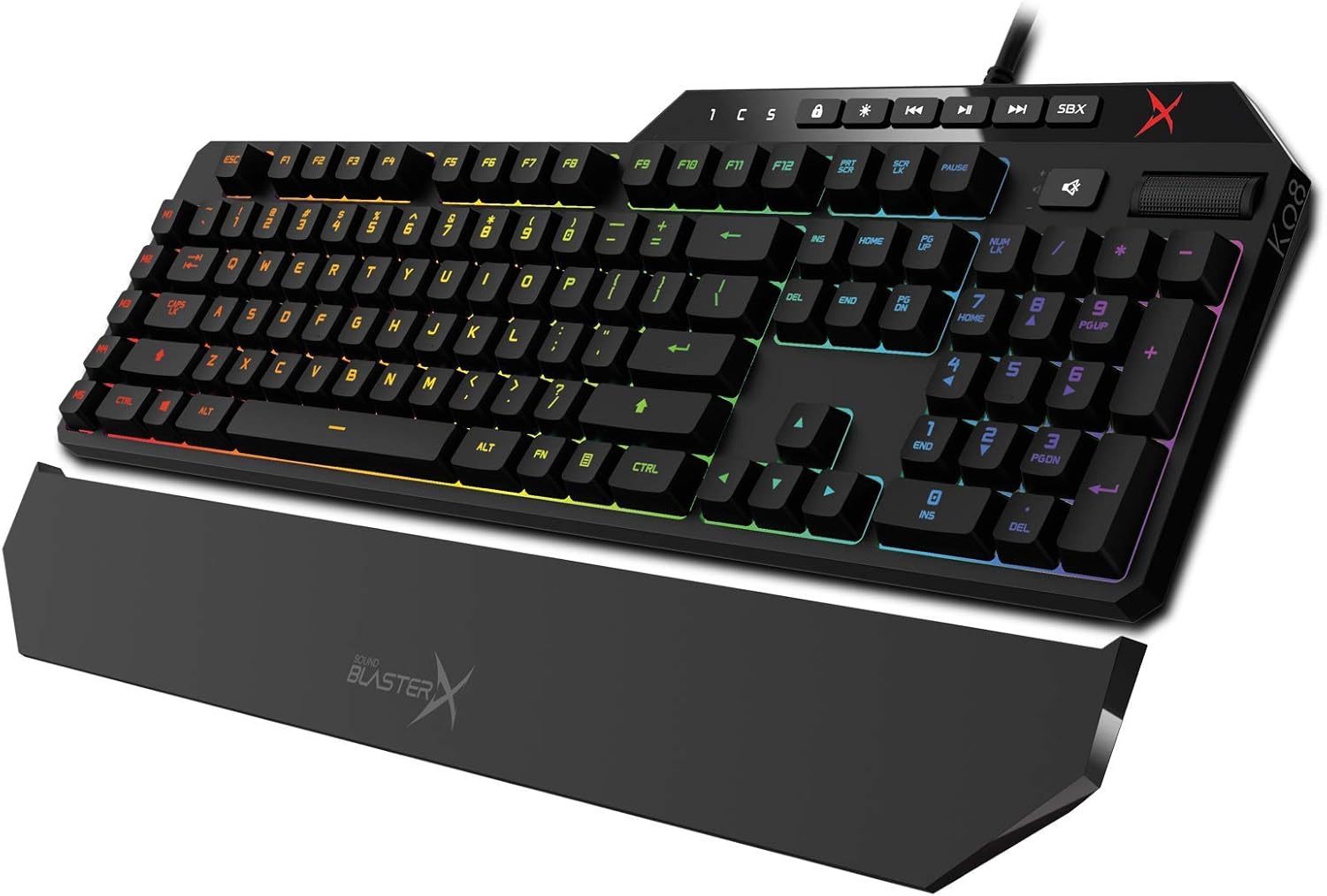
Figure 3.2: The Sound BlasterX Vanguard K08 SE Gaming Keyboard with its detachable wrist rest.
3.3 Software Installation
For full customization of the keyboard's features, including programmable keys and lighting effects, download and install the latest Sound BlasterX Acoustic Engine software from the official Creative website. This software is compatible with Windows 10.
4. Operating the Keyboard
4.1 Basic Functions
The Sound BlasterX Vanguard K08 SE functions as a standard 109-key keyboard for general typing and navigation. Its low-profile keycaps and OMRON mechanical switches provide a responsive and tactile typing experience.
4.2 Media and Volume Controls
Dedicated media keys and a rotary volume control are located on the upper right side of the keyboard for convenient access to audio playback and volume adjustments.
4.3 USB Pass-through Port
A High Speed USB 2.0 pass-through port is integrated into the keyboard, allowing you to connect other USB devices directly to your keyboard for easy access.
5. Customization and Lighting
5.1 Programmable Keys
The keyboard features 109 fully programmable keys. Using the Sound BlasterX Acoustic Engine software, you can assign macros, rebind keys, and create custom profiles for different applications and games.
5.2 Aurora Reactive Lighting System
The integrated Aurora Reactive lighting system allows for extensive customization of the keyboard's backlighting. It includes 10 ambient lighting presets and can be fully programmed via the software to create unique lighting effects and patterns.

Figure 5.1: The Aurora Reactive Lighting System logo, representing the customizable RGB lighting.

Figure 5.2: A close-up view of the keyboard keys demonstrating the vibrant RGB backlighting.

Figure 5.3: An exploded view illustrating the internal structure of a mechanical key switch with integrated RGB lighting.
6. Maintenance
6.1 Cleaning the Keyboard
To maintain the keyboard's appearance and functionality:
- Disconnect the keyboard from your computer before cleaning.
- Use a soft, lint-free cloth slightly dampened with water or a mild cleaning solution to wipe the surface.
- Avoid using harsh chemicals, abrasive cleaners, or spraying liquids directly onto the keyboard.
- Use compressed air to remove dust and debris from between the keys.
6.2 Storage
When not in use for extended periods, store the keyboard in a cool, dry place away from direct sunlight and extreme temperatures.
7. Troubleshooting
If you encounter issues with your Sound BlasterX Vanguard K08 SE Gaming Keyboard, please refer to the following common solutions:
- Keyboard not responding: Ensure the USB cable is securely connected to both the keyboard and the computer. Try a different USB port.
- Keys not registering: Check for any physical obstructions under the keycap. If specific keys are not working, ensure the keyboard drivers are up to date.
- Lighting issues: Verify that the Sound BlasterX Acoustic Engine software is installed and running. Check lighting settings within the software.
- Software not detecting keyboard: Reinstall the Sound BlasterX Acoustic Engine software. Ensure your operating system is up to date.
For further assistance, please visit the Creative support website.
8. Technical Specifications
| Feature | Detail |
|---|---|
| Brand | CREATIVE |
| Model Number | 70GP006000000 |
| Connectivity Technology | USB |
| Keyboard Description | Gaming |
| Special Features | Backlit, Ergonomic |
| Colour | Black |
| Number of Keys | 109 |
| Operating System | Windows 10 |
| Product Dimensions | 50.8 x 6.35 x 21.59 cm |
| Item Weight | 1.97 kg |
| Included Components | Sound BlasterX Vanguard K08 RGB Mechanical Gaming Keyboard |
9. Warranty and Support
Your Sound BlasterX Vanguard K08 SE Gaming Keyboard is covered by a limited manufacturer's warranty. Please refer to the warranty card included in your package or visit the official Creative website for detailed warranty terms and conditions.
For technical support, driver downloads, and frequently asked questions, please visit the Creative support portal: www.creative.com/support
Ask a question about this manual
Ask about setup, troubleshooting, compatibility, parts, safety, or missing instructions. Manuals+ will review the question and use this page’s manual context to help answer it.