1. Introduction
This manual provides detailed instructions for the installation, operation, and maintenance of your MSI B250M GAMING PRO micro-ATX motherboard and the included MSI DS B1 Gaming Mouse. Please read this manual thoroughly before beginning installation.
2. Package Contents
Verify that all items are present in your package:
- MSI B250M GAMING PRO Motherboard
- MSI DS B1 Gaming Mouse
- Cables and Connectors
- Quick Setup Guide
3. Motherboard Overview
The MSI B250M GAMING PRO is a micro-ATX motherboard designed for 7th/6th Gen Intel Core/Pentium/Celeron processors with an LGA 1151 socket. It supports DDR4-2400 Memory and features Gaming LAN with LAN Protect.

Image: MSI B250M GAMING PRO Motherboard and DS B1 Gaming Mouse, shown with product packaging.
Key Features:
- Supports 7th/6th Gen Intel Core/Pentium/Celeron processors for LGA 1151 socket
- Supports DDR4-2400 Memory
- Gaming LAN with LAN Protect
- Easy Debug LED
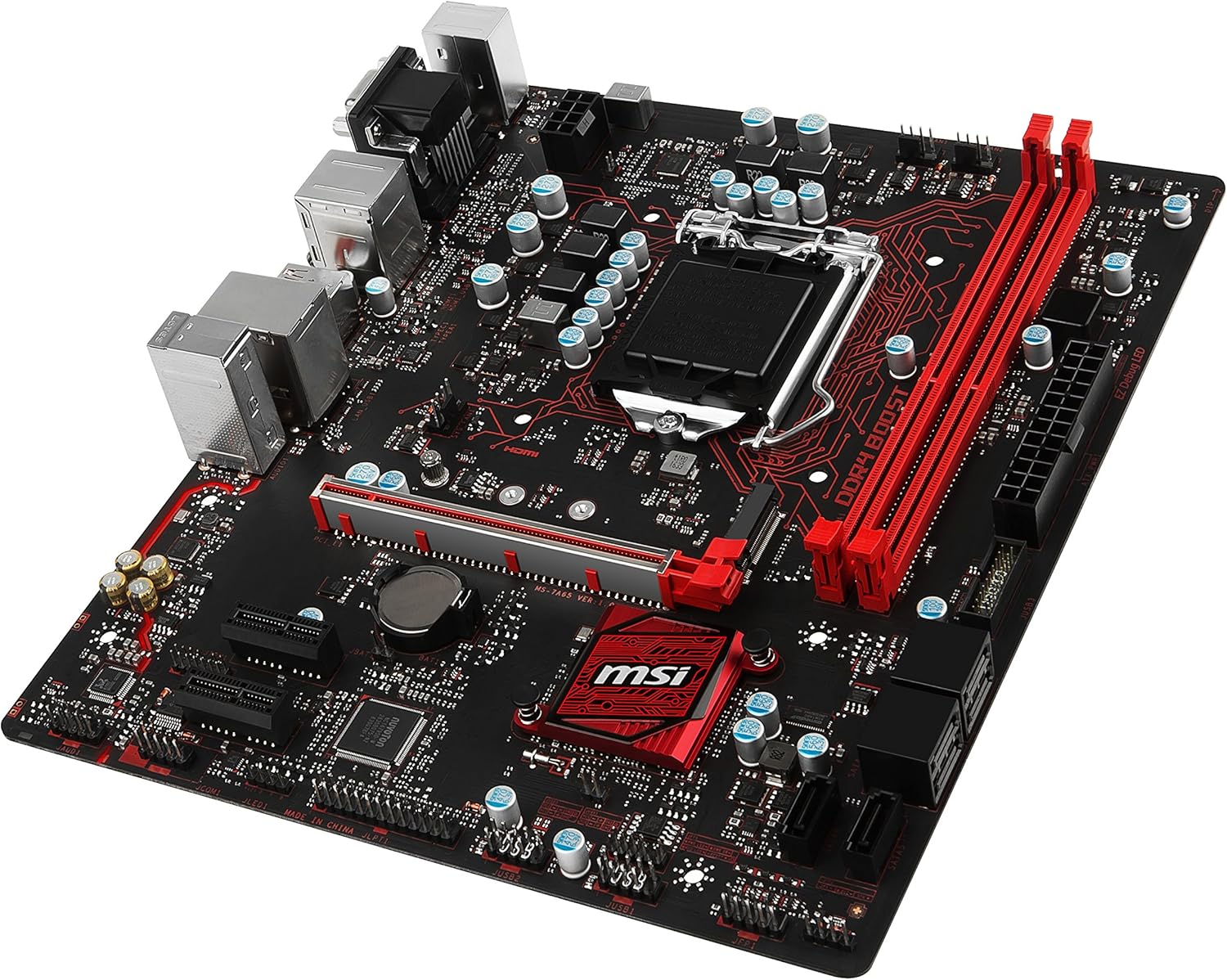
Image: Top-down view of the MSI B250M GAMING PRO Motherboard, highlighting the CPU socket, RAM slots, and PCIe slots.

Image: Angled view of the MSI B250M GAMING PRO Motherboard, showing various connectors and heatsinks.
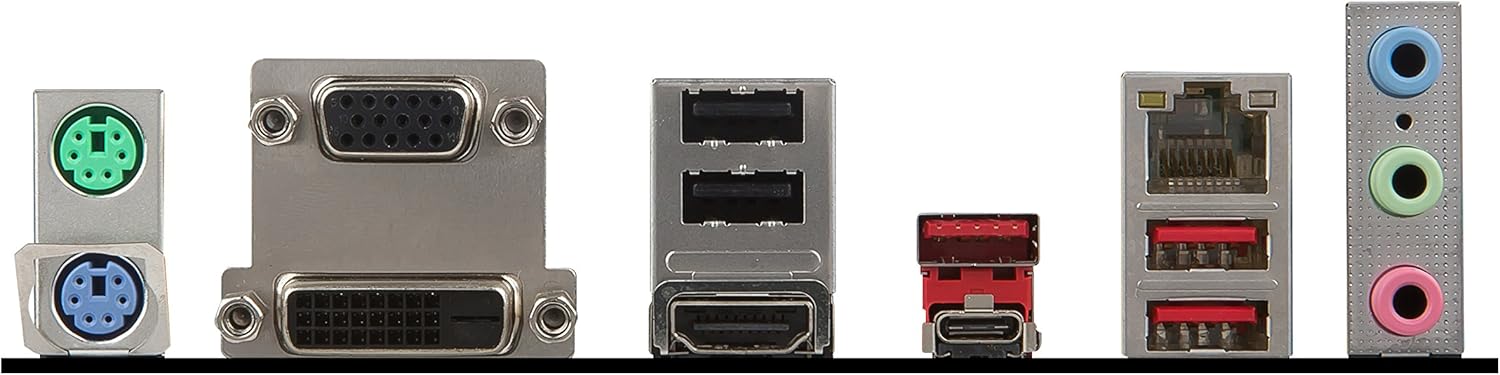
Image: Close-up of the rear I/O panel of the MSI B250M GAMING PRO Motherboard, displaying ports such as PS/2, DVI, HDMI, USB, LAN, and audio jacks.
4. DS B1 Gaming Mouse Overview
The MSI DS B1 Gaming Mouse is included with your motherboard. It features a gaming-grade optical sensor and adjustable weights for personalized control.
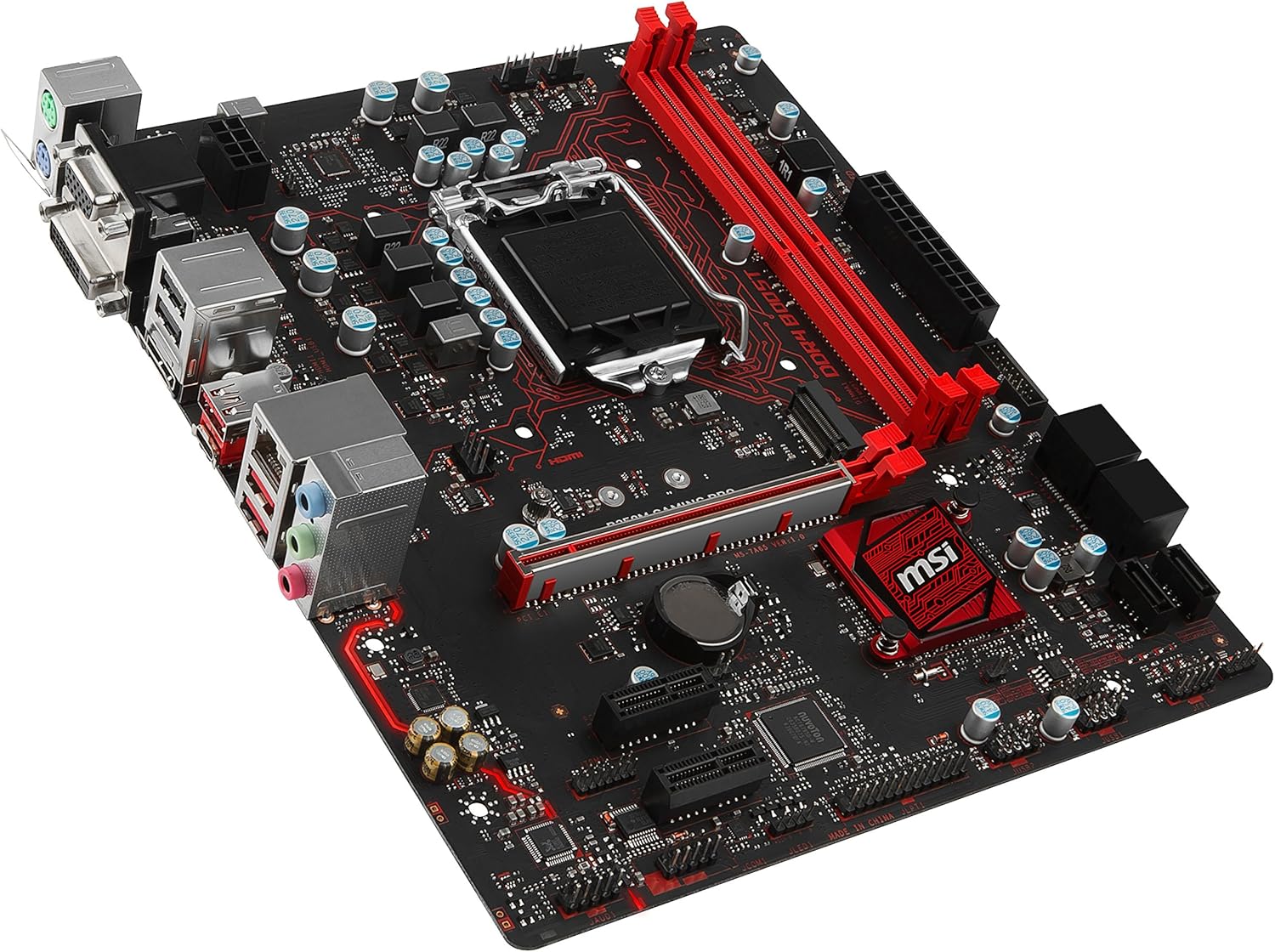
Image: The MSI DS B1 Gaming Mouse, featuring an ergonomic design and red accents.
Features:
- Gaming-grade optical sensor
- Eight 2-gram adjustable weights
- Ergonomic design
5. Setup
5.1 Motherboard Installation
- Prepare the Case: Ensure your computer case is compatible with micro-ATX motherboards. Install standoffs in the appropriate locations.
- Install the CPU: Open the CPU socket lever, align the CPU with the socket (match the golden triangle on the CPU to the triangle on the socket), gently place the CPU, and close the lever.
- Install the CPU Cooler: Follow the cooler manufacturer's instructions to install the CPU cooler. Connect the CPU fan cable to the "CPU_FAN" header on the motherboard.
- Install RAM: Open the clips on the DDR4 memory slots. Align the memory modules with the slots and press down firmly until the clips snap into place. Refer to the motherboard manual for recommended dual-channel configurations.
- Mount the Motherboard: Carefully place the motherboard into the case, aligning the screw holes with the standoffs. Secure the motherboard with screws.
- Connect Power: Connect the 24-pin ATX power connector and the 8-pin (or 4-pin) CPU power connector from your power supply to the motherboard.
- Connect Storage Devices: Connect SATA data cables from your storage drives (HDDs/SSDs) to the SATA ports on the motherboard. Connect SATA power cables from your power supply to the drives. If using an M.2 SSD, install it into the M.2 slot and secure it with the provided screw.
- Connect Front Panel Cables: Connect the power button, reset button, HDD LED, power LED, and front USB/audio cables from your case to the corresponding headers on the motherboard. Refer to the motherboard manual for exact pin layouts.
- Install Expansion Cards: If using a dedicated graphics card or other PCIe expansion cards, insert them into the appropriate PCIe slots and secure them. Connect any necessary PCIe power cables from your power supply.
5.2 DS B1 Gaming Mouse Connection
Connect the USB cable of the DS B1 Gaming Mouse to an available USB port on your computer. The mouse is plug-and-play and does not require additional drivers for basic functionality.
6. Operating
6.1 Initial Boot and BIOS Setup
- Power On: After connecting all components and peripherals, power on your computer.
- Access BIOS: During startup, repeatedly press the DEL key to enter the BIOS/UEFI setup utility.
- Configure Boot Order: In the BIOS, navigate to the boot section and set your preferred boot device (e.g., USB drive for OS installation, SSD/HDD).
- Save and Exit: Save your changes and exit the BIOS. The system will restart.
6.2 Operating System Installation
Insert your operating system installation media (USB drive or DVD) and follow the on-screen instructions to install your preferred OS. After installation, install the latest drivers for your motherboard components from the MSI website.
6.3 DS B1 Gaming Mouse Usage
The DS B1 Gaming Mouse operates immediately upon connection.
- DPI Adjustment: Use the dedicated DPI button (if present) to cycle through different sensitivity settings.
- Weight Adjustment: The mouse features a compartment for eight 2-gram weights. Open the compartment, add or remove weights to achieve your desired feel, and close the compartment.
7. Maintenance
7.1 General Cleaning
- Dust Removal: Regularly clean dust from the motherboard and case fans using compressed air. Ensure the system is powered off and unplugged before cleaning.
- Mouse Cleaning: Use a soft, dry cloth to clean the exterior of the mouse. For the optical sensor, use a cotton swab lightly dampened with isopropyl alcohol.
7.2 Driver and BIOS Updates
Periodically check the official MSI website for updated drivers and BIOS versions for your motherboard. Keeping drivers and BIOS up-to-date can improve system stability and performance. Follow the instructions provided by MSI for updating the BIOS.
8. Troubleshooting
- No Power/No Boot:
- Ensure all power cables (24-pin ATX, 8-pin CPU) are securely connected.
- Check that the power supply is switched on.
- Verify front panel power button connection.
- Utilize the Easy Debug LED on the motherboard to identify the component causing the boot failure (CPU, DRAM, VGA, BOOT).
- No Display:
- Ensure the monitor is connected to the correct video output (motherboard or graphics card).
- Reseat the graphics card and RAM modules.
- Peripherals Not Detected:
- Try connecting the peripheral (e.g., mouse, keyboard) to a different USB port.
- Ensure drivers are installed for specific peripherals if required.
- System Instability/Crashes:
- Check CPU and GPU temperatures.
- Ensure RAM modules are properly seated.
- Update drivers and BIOS to the latest versions.
- Run memory diagnostic tools.
9. Specifications
9.1 MSI B250M GAMING PRO Motherboard
| Feature | Specification |
|---|---|
| CPU Socket | LGA 1151 |
| Compatible Processors | 7th/6th Gen Intel Core/Pentium/Celeron |
| Chipset | Intel B250 |
| Memory Type | DDR4 SDRAM |
| Memory Speed | Up to 2400 MHz |
| Form Factor | micro-ATX |
| Dimensions (LxWxH) | 11.02 x 10.71 x 2.56 inches |
| USB 2.0 Ports | 6 |
9.2 MSI DS B1 Gaming Mouse
- Sensor Type: Optical
- Adjustable Weights: Eight 2-gram weights
- Connectivity: USB
10. Warranty and Support
For warranty information and technical support, please refer to the warranty card included with your product or visit the official MSI website.


