
Introduction
This manual provides detailed instructions for the installation, operation, and maintenance of the Commax DR-6UM 6-Button Audio Intercom Lobby Panel. The DR-6UM is designed for use in 6-apartment buildings, facilitating audio communication between the lobby and individual apartment units.
It is essential to read this manual thoroughly before installation and operation to ensure proper functioning and longevity of the device.
Package Contents
Upon opening the package, verify that all components are present and undamaged:
- 1 x Commax DR-6UM 6-Button Lobby Panel
- 1 x 4-pin connector
- 1 x 6-pin connector
- 1 x User Manual (this document)
Note: The Commax interphone DP-SS and the DC12V, 1Amp power supply (model RF-1A) are sold separately and are required for system operation.
Product Overview
The Commax DR-6UM is a flush-mounted audio intercom lobby unit constructed from durable aluminum. It features six call buttons, each corresponding to an apartment unit, and an integrated speaker and microphone for two-way audio communication.

Figure 1: Front view of the Commax DR-6UM lobby panel, showing the speaker grille, six call buttons, and nameplate slots.
Each button allows a visitor to directly call a specific apartment, initiating an audio conversation with the resident.
Specifications
The following table details the technical specifications of the Commax DR-6UM lobby panel:

Figure 2: Detailed specifications table for the DR-6UM, including model, power source, wiring, communication type, temperature range, dimensions, and communication distance based on cable diameter.
| Feature | Detail |
|---|---|
| Model | DR-6UM |
| Power Source | DC12V, 1Amp (Commax RF-1A, sold separately) |
| Wiring | Common 3 wires + Individual 1 wire (3 wires: 1, 2, 3; Individual 1 wire: L1) |
| Communication Type | 2-way audio |
| Operating Temperature | -10°C ~ 50°C |
| Dimensions (W x H x D) | 142 mm x 250 mm x 50 mm (approx. 5.59 x 9.84 x 1.97 inches) |
| Material | Aluminum |
| Mounting Type | Flush mounted |
Communication Distance based on Cable Diameter:
- Ø0.5 mm: 30 meters
- Ø0.65 mm: 50 meters
- Ø0.8 mm: 70 meters
- Ø1 mm: 100 meters
Setup and Installation
The Commax DR-6UM is designed for flush mounting. Proper installation requires careful wiring and connection to compatible Commax interphone units (e.g., DP-SS) and a DC12V power supply (RF-1A).
Wiring Diagram

Figure 3: Wiring diagram illustrating connections between the DR-nUM lobby panel, DP-SS interphones, and the DC12V power supply (RF-1A).
Mounting Dimensions
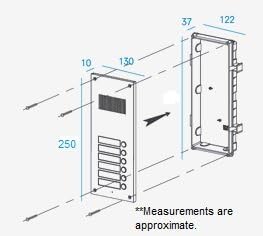
Figure 4: Approximate dimensions for flush mounting the DR-6UM, showing the panel and the required wall opening.
Installation Steps:
- Prepare the Mounting Location: Based on the dimensions provided in Figure 4, create a suitable opening in the wall for flush mounting the lobby panel. Ensure adequate space for wiring.
- Connect Wiring: Refer to the wiring diagram (Figure 3). Connect the 4-pin and 6-pin connectors to the DR-6UM.
- Connect the common 3 wires (1, 2, 3) and the individual 1 wire (L1) from each DP-SS interphone to the corresponding terminals on the DR-6UM.
- Connect the DC12V power supply (RF-1A) to the designated power input terminals on the DR-6UM.
- Secure the Panel: Carefully insert the DR-6UM into the prepared wall opening and secure it using appropriate screws. Ensure it is level and flush with the wall surface.
- Test System: After installation, test each apartment call button to confirm proper audio communication with the corresponding DP-SS interphone unit.
It is recommended that installation be performed by a qualified technician.
Operating Instructions
The Commax DR-6UM lobby panel provides straightforward operation for visitors to contact residents.
For Visitors:
- Identify Apartment: Locate the button corresponding to the desired apartment unit. Each button is typically labeled with the apartment number or resident's name.
- Press Call Button: Press the designated call button firmly. This will send a signal to the interphone unit inside the apartment.
- Communicate: Once the resident answers, speak clearly into the microphone located on the lobby panel. Listen for the resident's response through the panel's speaker.
For Residents (using DP-SS Interphone):
- When a visitor presses your apartment's call button, your DP-SS interphone unit will ring.
- Pick up the handset or press the talk button on your DP-SS unit to establish two-way audio communication with the visitor at the lobby panel.
- Speak clearly into your interphone's microphone and listen for the visitor's voice.
Maintenance
Regular maintenance helps ensure the longevity and optimal performance of your Commax DR-6UM lobby panel.
- Cleaning:
Wipe the aluminum surface with a soft, damp cloth. Avoid using abrasive cleaners, solvents, or harsh chemicals, as these can damage the finish and electronic components.
- Inspection:
Periodically inspect the panel for any signs of physical damage, loose connections, or wear. Ensure the call buttons operate smoothly.
- Environmental Conditions:
While designed for outdoor use, protect the unit from extreme weather conditions if possible, and ensure proper drainage around the installation area to prevent water accumulation.
Do not attempt to open or repair the unit yourself. Refer to qualified service personnel for any repairs.
Troubleshooting
If you encounter issues with your Commax DR-6UM lobby panel, refer to the following common problems and solutions:
| Problem | Possible Cause | Solution |
|---|---|---|
| No audio when call button is pressed. |
|
|
| Distorted or low audio quality. |
|
|
| Call button not responding. |
|
|
If the problem persists after attempting these solutions, contact Commax customer support or a qualified service technician.
Warranty and Support
For warranty information, please refer to the warranty card included with your product or visit the official Commax website. Warranty terms and conditions may vary by region.
For technical support, service, or inquiries regarding replacement parts, please contact Commax customer service. Have your product model number (DR-6UM) and purchase details ready when contacting support.
Commax Contact Information:
- Please refer to the official Commax website for the most current contact details.
- Online resources and FAQs may also be available.


