
Introduction
Thank you for choosing Symphonized XTC Red Wireless In-Ear Headphones. These headphones are designed to provide a high-quality audio experience with the convenience of wireless connectivity. Crafted from natural wood, they offer superior sound performance and a comfortable fit. This manual will guide you through the setup, operation, and maintenance of your new headphones.
Package Contents
Please verify that all items listed below are included in your package:
- Symphonized XTC Red Wireless In-Ear Headphones
- Carrying Pouch
- USB Charging Cable
- Multiple Sizes of Silicone Ear Tips (S/M/L)
- Multiple Sizes of Earhooks

Image: All included accessories, including the headphones, charging cable, ear tips, earhooks, and carrying pouch.
Product Overview
The Symphonized XTC headphones feature a durable design with natural wood housing for enhanced acoustics and an inline remote for convenient control.

Image: The Symphonized XTC Red Wireless In-Ear Headphones, showcasing the red cable, black inline remote, and wooden earbuds with earhooks.

Image: A detailed view of the earbud's wooden casing and metal accents, highlighting the craftsmanship.

Image: The headphones positioned beside a smartphone, illustrating their wireless compatibility.

Image: A close-up of one earbud, showing how the earhook provides a secure fit.
Setup
1. Charging the Headphones
Before first use, fully charge your headphones. Use the provided USB charging cable to connect the headphones to a USB power source (e.g., computer USB port, wall adapter). The LED indicator will show charging status and turn off or change color when fully charged.
2. Bluetooth Pairing
- Ensure the headphones are turned off.
- Press and hold the multi-function button (usually the 'O' button on the inline remote) until the LED indicator flashes red and blue alternately, indicating pairing mode.
- On your device (smartphone, tablet, computer), enable Bluetooth and search for available devices.
- Select "Symphonized XTC" from the list of found devices.
- Once connected, the LED indicator will typically flash blue slowly or turn solid blue. A voice prompt may confirm the connection.
3. Custom Comfort Fit
For optimal sound quality and comfort, select the ear tips and earhooks that best fit your ears. Experiment with the different sizes (S/M/L) provided to find the most secure and comfortable seal.
Operating Instructions
Inline Remote Controls
| Button/Action | Function |
|---|---|
| Multi-function Button (O) | Power On/Off (Press and hold), Play/Pause (Single press), Answer/End Call (Single press), Reject Call (Press and hold), Activate Voice Control (Double press) |
| Volume Up (+) | Increase Volume (Press and hold), Next Track (Single press) |
| Volume Down (-) | Decrease Volume (Press and hold), Previous Track (Single press) |
Making and Receiving Calls
- Answer Call: Press the multi-function button once.
- End Call: Press the multi-function button once during a call.
- Reject Call: Press and hold the multi-function button for 2 seconds.
- Redial Last Number: Double-press the multi-function button (functionality may vary by device).
Music Playback
- Play/Pause: Press the multi-function button once.
- Next Track: Press the Volume Up (+) button once.
- Previous Track: Press the Volume Down (-) button once.
- Volume Adjustment: Press and hold the Volume Up (+) or Volume Down (-) button.
Maintenance
Cleaning
Regularly clean your headphones to ensure optimal performance and hygiene.
- Wipe the earbuds and cable with a soft, dry, lint-free cloth.
- Remove ear tips and clean them with mild soap and water. Ensure they are completely dry before reattaching.
- Do not use harsh chemicals or abrasive materials for cleaning.
Storage
When not in use, store your headphones in the provided eco-friendly carrying pouch to protect them from dust, dirt, and damage.
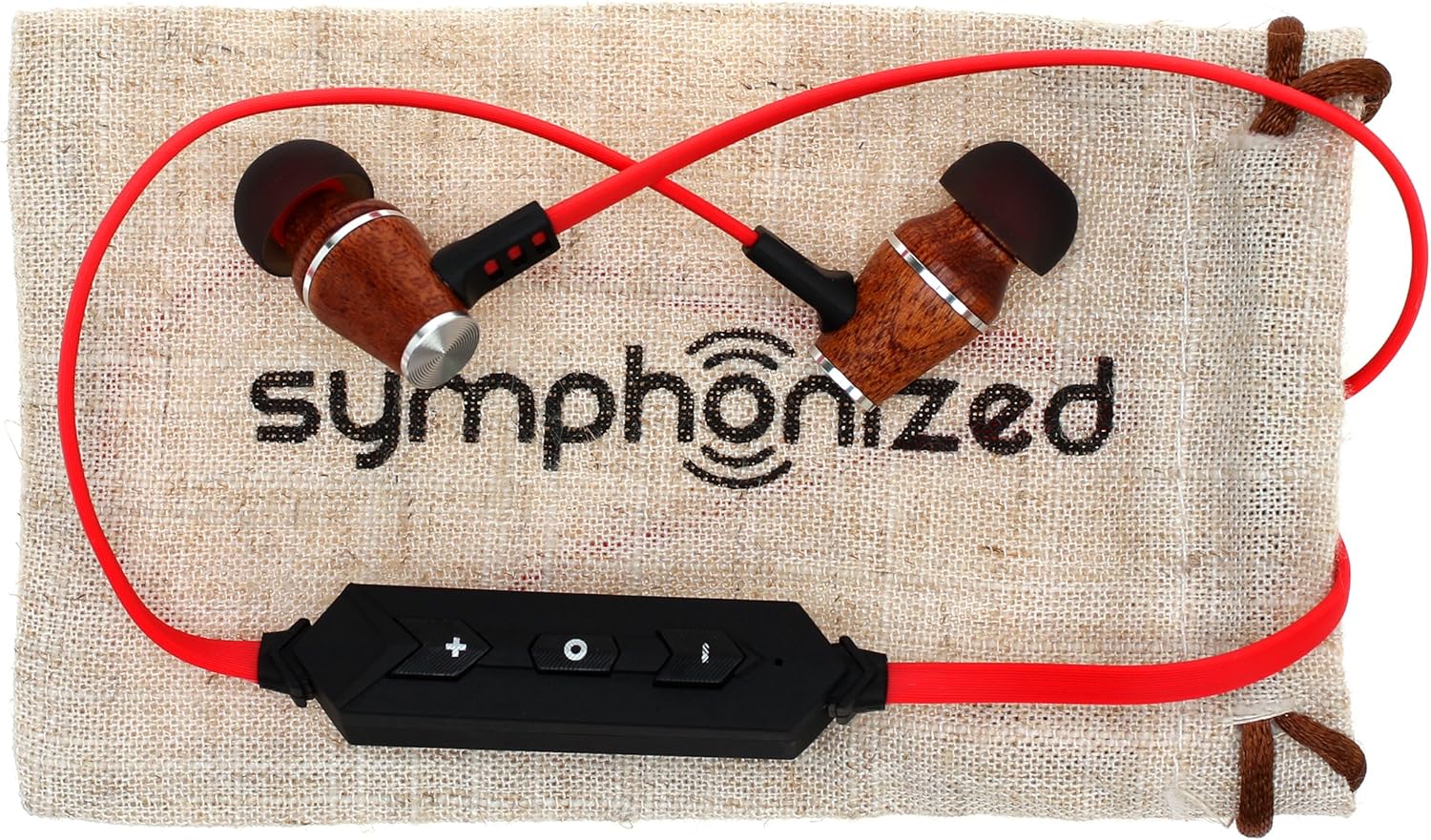
Image: Headphones neatly folded and placed on the Symphonized carrying pouch, ready for storage.
Troubleshooting
If you encounter issues with your headphones, please refer to the following common solutions:
- No Power: Ensure the headphones are fully charged. Connect them to a power source and check the charging indicator.
- Cannot Pair:
- Ensure the headphones are in pairing mode (LED flashing red and blue).
- Turn off Bluetooth on your device and turn it back on.
- Delete "Symphonized XTC" from your device's Bluetooth list and attempt to pair again.
- Move the headphones closer to your device.
- No Sound/Poor Sound Quality:
- Ensure the headphones are properly connected to your device.
- Adjust the volume on both the headphones and your connected device.
- Check that the ear tips are correctly sized and form a good seal in your ear canal.
- Ensure there are no obstructions between the headphones and your device that could interfere with the Bluetooth signal.
- Intermittent Connection: Move closer to your device and ensure there are no strong electromagnetic interferences nearby.
Specifications
| Feature | Detail |
|---|---|
| Model Name | XTC |
| Connectivity Technology | Wireless (Bluetooth) |
| Bluetooth Version | 4.0 |
| Bluetooth Range | 10 Meters |
| Noise Control | Sound Isolation |
| Frequency Range | 18Hz-22kHz |
| Impedance | 16 Ohm |
| Item Weight | 2.08 ounces |
| Material | Wood, Silicone |
| Included Components | Earphone, Carrying Pouch |
| Compatible Devices | Apple, Samsung, Huawei, LG, iPad, Blackberry, Nexus, Android, Kindle, Mac, Smartphone, PC, Notebook |
Safety Information
Please read and follow these safety guidelines for safe operation:
- Do not expose headphones to extreme temperatures, humidity, or liquids.
- Avoid listening at high volume levels for extended periods to prevent hearing damage.
- Do not use headphones while driving, cycling, or in situations where you need to hear your surroundings.
- Keep out of reach of children and pets.
- Use only the provided charging cable or a certified equivalent.
Warranty and Support
Symphonized products are designed for durability and performance. For any warranty claims, technical support, or inquiries, please refer to the contact information provided with your purchase or visit the official Symphonized website. Please retain your proof of purchase for warranty purposes.


