
1. Introduction
Thank you for purchasing the FIFINE K669 USB Condenser Microphone. This microphone is designed for high-quality audio capture with a simple plug-and-play setup, making it ideal for various applications including gaming, streaming, online calls, and home recording. Its durable metal construction and compact design ensure reliability and portability. Please read this manual carefully to ensure proper use and optimal performance.
2. Package Contents
Verify that all items listed below are included in your package:
- FIFINE K669 USB Condenser Microphone
- Foldable Tripod Stand
- USB Cable (1.8m, integrated)
- User Manual

Image: All components included with the FIFINE K669 USB Condenser Microphone, showing the microphone, tripod stand, and integrated USB cable.
3. Setup Instructions
- Assemble the Tripod Stand: Unfold the legs of the included tripod stand and place it on a stable, flat surface.
- Attach the Microphone: Screw the microphone onto the tripod stand. Ensure it is securely fastened. The microphone's angle can be adjusted up to 180 degrees for optimal positioning.
- Connect to Your Device: Plug the USB cable directly into an available USB port on your computer (Windows/Mac) or PlayStation console (PS4/PS5). The device will automatically recognize the microphone without requiring additional drivers.
- Select as Input Device: After connecting, go to your device's sound settings and select the FIFINE K669 as your default audio input device.

Image: The FIFINE K669 microphone mounted on its tripod, illustrating the 180-degree adjustable angle for flexible positioning.
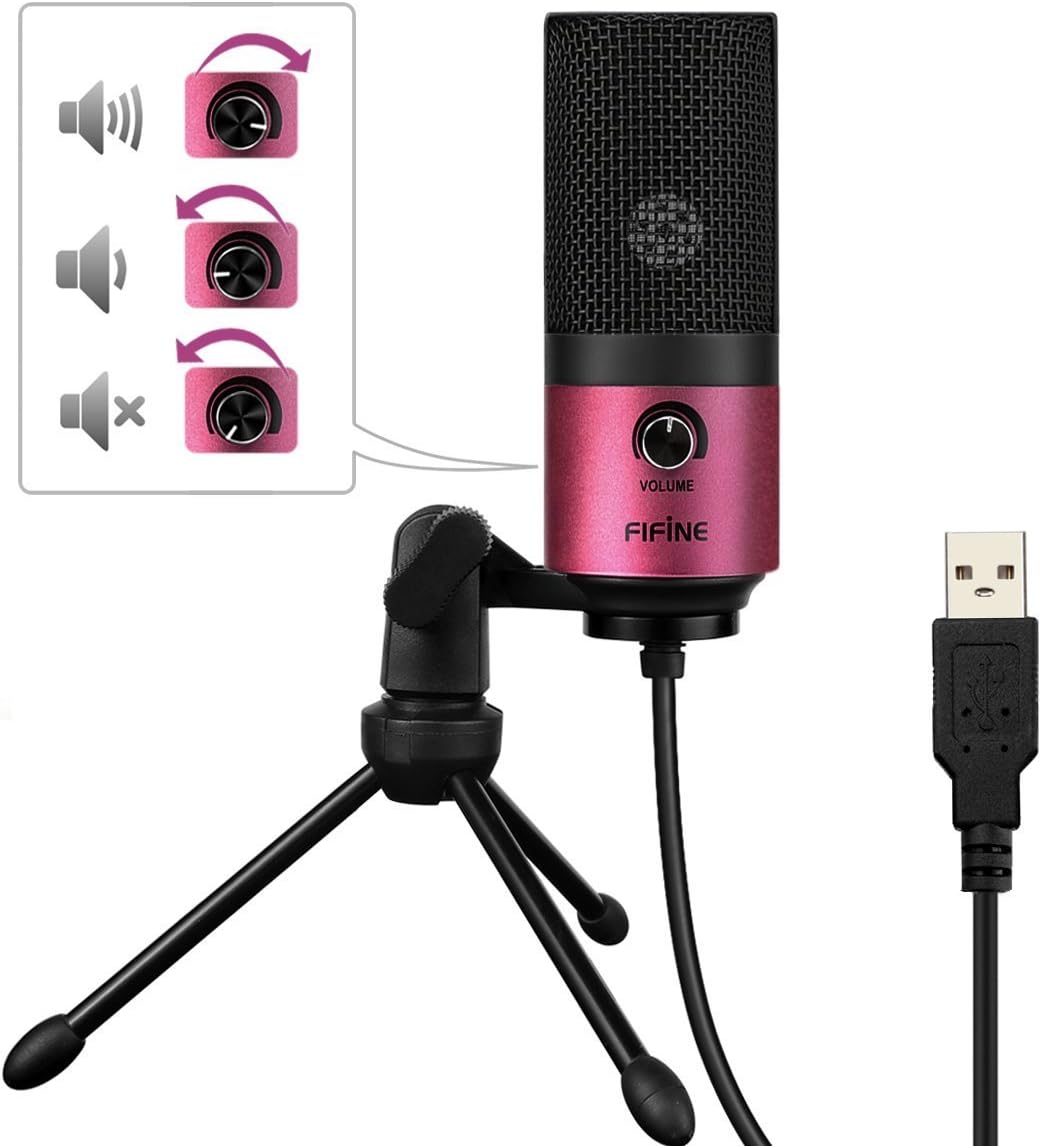
Image: A close-up of the FIFINE K669 microphone's USB cable being plugged into a laptop, demonstrating the plug-and-play connection.
Video: A short preview demonstrating the setup and key features of the FIFINE K669 microphone, including its plug-and-play functionality and volume control.
4. Operating Instructions
- Volume Control: The microphone features a volume knob on its body. Rotate the knob clockwise to increase the input volume and counter-clockwise to decrease it.
- Optimal Placement (Cardioid Pattern): The K669 utilizes a cardioid polar pattern, meaning it primarily picks up sound from the front. For best results, position the microphone directly in front of the sound source (e.g., your mouth) within a 30cm range. This helps to minimize background noise and capture clear audio.
Image: The volume control knob on the front of the FIFINE K669 microphone, indicating its function for adjusting audio input levels.

Image: A polar pattern diagram illustrating the cardioid pickup pattern of the FIFINE K669 microphone, highlighting its sensitivity to sounds directly in front (approximately 130-degree range).
5. Features
- Durable Metal Construction: Both the microphone body and stand are made from a robust alloy, providing excellent durability and stability.
- High Sensitivity & Noise Reduction: Equipped with special noise suppression technology and a cardioid pickup pattern, the microphone effectively reduces ambient noise and white noise, capturing clear and faithful sound from up to 30cm away.
- Plug & Play Connectivity: Connects easily via a single USB cable to PC, Mac, PS4, or PS5 without the need for complex driver installations.
- Portable Design: The included foldable tripod stand allows for easy storage and transport, making the microphone convenient for use anywhere.
- Wide Compatibility: Suitable for a broad range of applications including gaming, Skype calls, web conferences, live streaming, YouTube video creation, home recording, narration, and game commentary.

Image: A person using the FIFINE K669 microphone with a laptop during an online video call, demonstrating its use for communication.
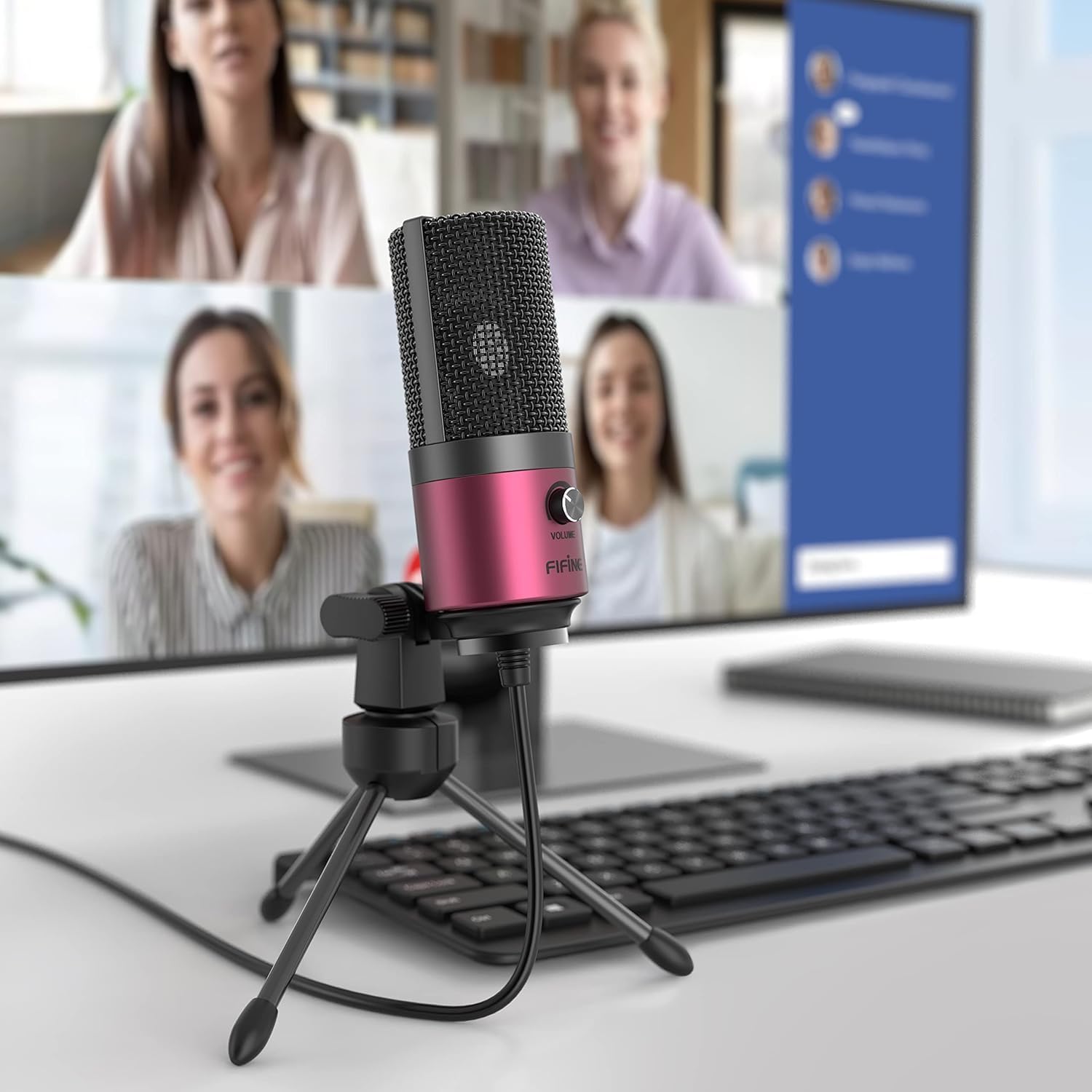
Image: The FIFINE K669 microphone positioned on a desk in front of a computer monitor displaying a video conference, highlighting its suitability for professional and casual online meetings.
6. Specifications
| Feature | Description |
|---|---|
| Brand | FIFINE |
| Model Number | K669 |
| Connectivity Technology | USB |
| Connector Type | USB Type-A |
| Special Features | Stand, Volume Control |
| Compatible Devices | Game Console, Laptop, PC |
| Color | Pink |
| Included Components | USB Cable, User Manual |
| Polar Pattern | Unidirectional (Cardioid) |
| Microphone Form Factor | Pin Microphone |
| Power Type | Corded Electric |
| Signal-to-Noise Ratio (S/N) | 78 dB |
| Hardware Platform | Game Console, Desktop PC, Laptop |
| Frequency Response | 20 Hz - 20 KHz |
| Material | Metal |
| UPC | 712383826909 |
7. Troubleshooting
- Microphone Not Recognized:
- Ensure the USB cable is securely connected to both the microphone and your device.
- Try a different USB port on your computer or console.
- Restart your computer or console.
- Check your device's sound settings to ensure the FIFINE K669 is selected as the input device.
- Low Volume or No Sound:
- Adjust the volume knob on the microphone itself.
- Increase the input volume level in your device's sound settings.
- Ensure the microphone is positioned correctly, facing the sound source directly.
- Check if any other applications are muting or lowering the microphone input.
- Background Noise:
- The K669 has a cardioid pattern; ensure you are speaking directly into the front of the microphone.
- Minimize ambient noise in your environment (e.g., close windows, turn off fans).
- Adjust microphone sensitivity in your device's sound settings if necessary.
8. Warranty and Support
The FIFINE K669 USB Condenser Microphone comes with a 1-year manufacturer's warranty.
For further assistance, technical support, or warranty claims, please contact FIFINE customer service. You can typically find contact information on the official FIFINE website or through the retailer where you purchased the product.
When contacting support, please have your product model (K669) and proof of purchase readily available.


