
1. Introduction
The Onvian Fixed Wireless Terminal (FWT) GSM Gateway OVUS0223 is a device designed to convert GSM mobile signals into standard analog telephone lines. This allows traditional landline telephones, PBX systems, or billing meters to connect to a cellular network for making and receiving calls. This manual provides essential information for the proper installation, operation, and maintenance of your device.
2. Product Overview
2.1 Package Contents
- Onvian Fixed Wireless Terminal GSM Gateway Unit
- GSM Antenna
- Power Adapter
- RJ11 Telephone Cable
- User Manual
2.2 Device Features
- Supports GSM 850/900/1800/1900MHz frequency bands.
- Converts GSM to analog telephone line.
- Equipped with LED indicators for status monitoring.
- Includes RJ11 ports for telephone connection.
2.3 LED Indicators
The device features several LED indicators on its front panel to display current operational status:
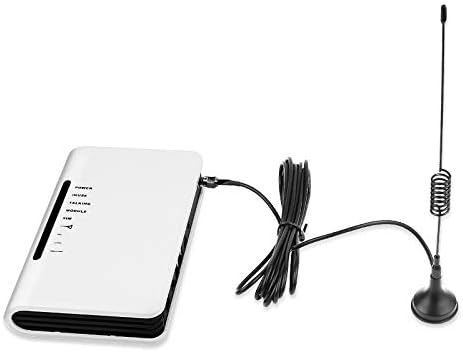
Image: Front view of the Onvian Fixed Wireless Terminal, highlighting the LED indicators for Power, Inuse, Talking, Module, and SIM status.
- POWER: Indicates the device is powered on.
- INUSE: Indicates an active telephone line connection.
- TALKING: Indicates an active call is in progress.
- MODULE: Indicates the status of the internal GSM module.
- SIM: Indicates the status of the SIM card (e.g., inserted, registered).
3. Setup Instructions
3.1 SIM Card Installation
- Ensure the device is powered off.
- Locate the SIM card slot on the side or bottom of the device.
- Insert a standard GSM SIM card into the slot with the gold contacts facing down and the notched corner oriented correctly. Push until it clicks into place.
- Ensure the SIM card is securely seated.

Image: Top-down view of the Onvian Fixed Wireless Terminal, illustrating the location of the SIM card slot for insertion.
3.2 Antenna Connection
- Locate the antenna connector on the rear of the device, typically labeled 'ANT'.
- Screw the provided GSM antenna clockwise onto the connector until it is finger-tight.
- Position the antenna vertically for optimal signal reception.
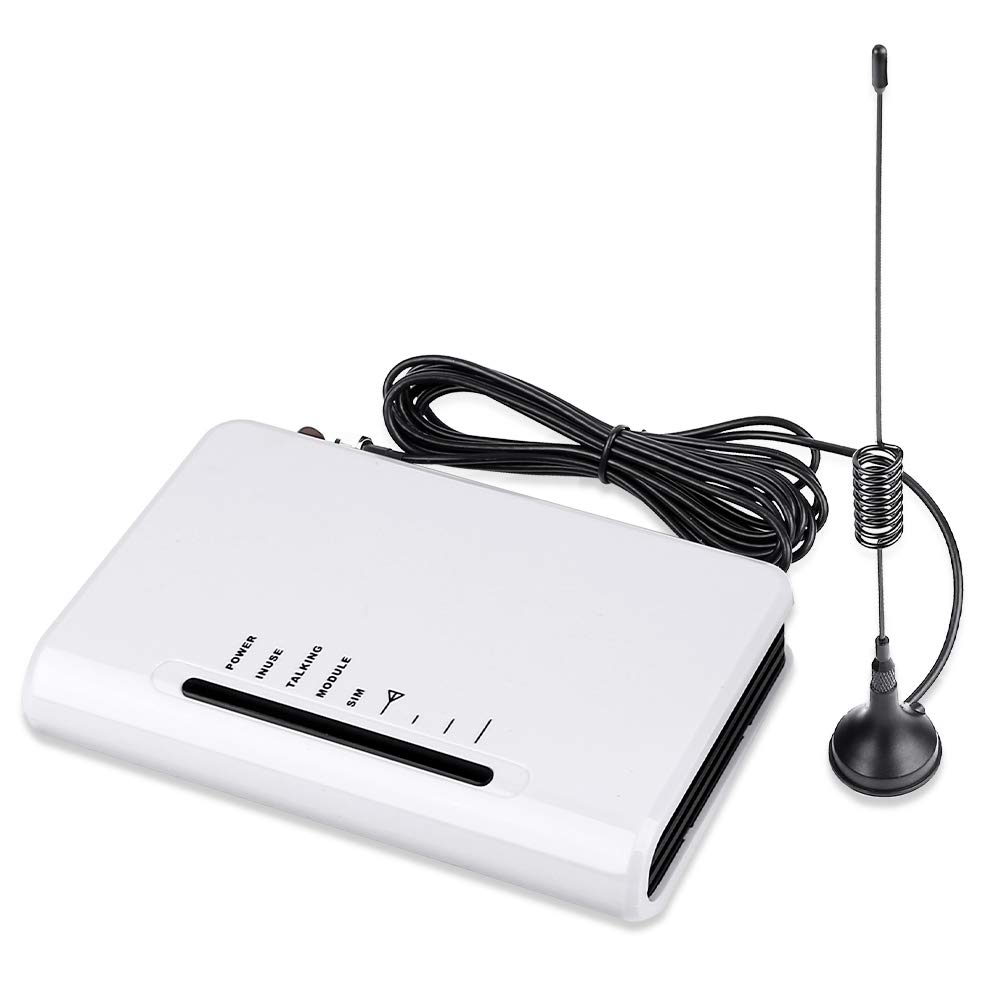
Image: The Onvian Fixed Wireless Terminal shown with its external GSM antenna properly connected to the device.
3.3 Power Connection
- Connect the power adapter to the 'DC 5V-12V' power input port on the rear of the device.
- Plug the power adapter into a standard electrical outlet.
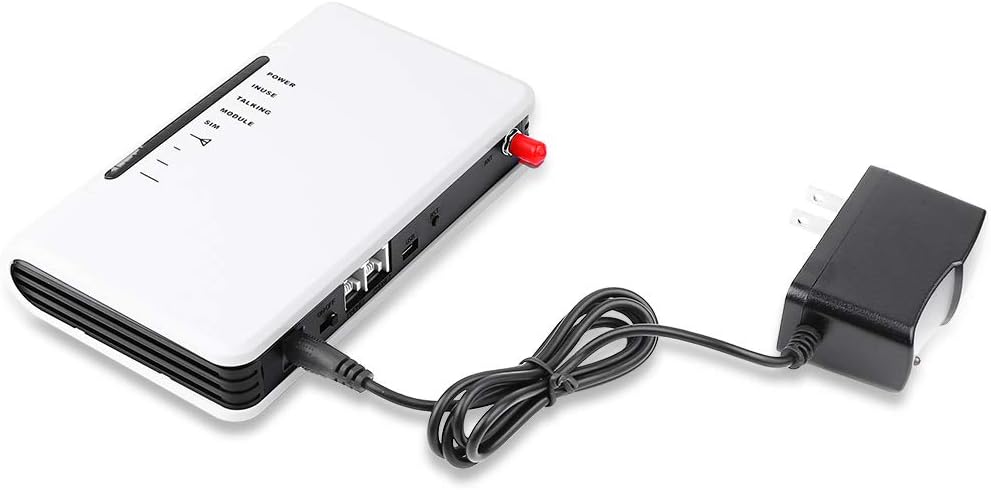
Image: The Onvian Fixed Wireless Terminal with its power adapter plugged into the DC input port, ready for power supply.
3.4 Telephone Connection
- Connect one end of the RJ11 telephone cable to an RJ11 port on the rear of the FWT device (labeled 'PHONE1' or 'PHONE2').
- Connect the other end of the RJ11 cable to your standard analog telephone, PBX system, or billing meter.
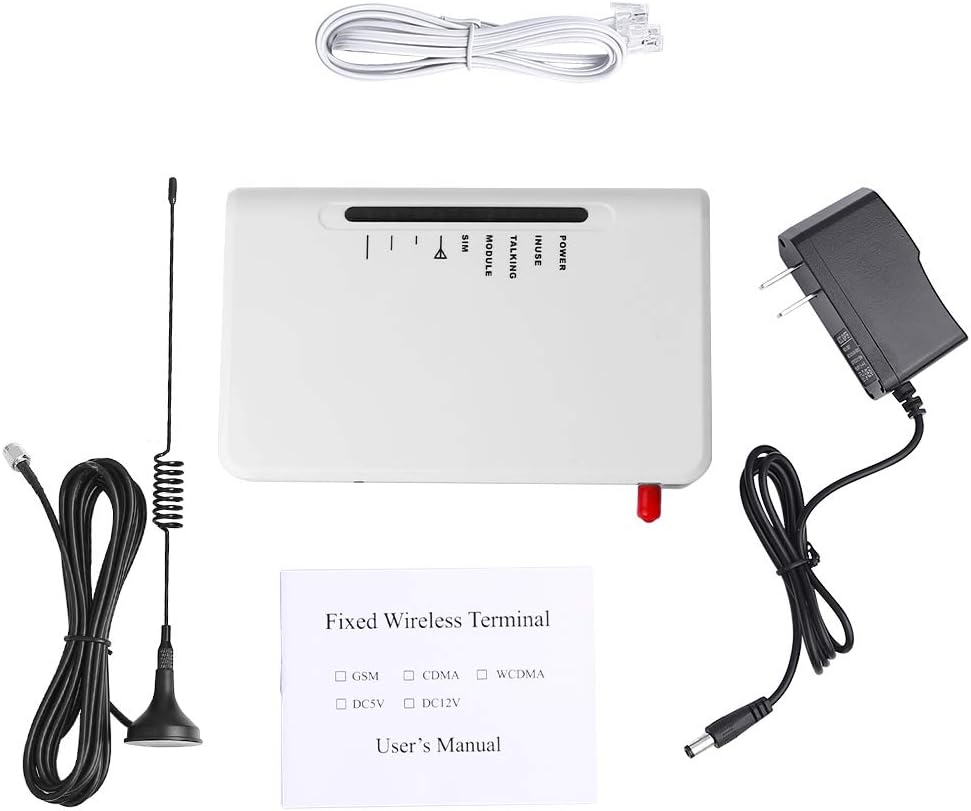
Image: Rear view of the Onvian Fixed Wireless Terminal, displaying the RJ11 ports for connecting external telephone devices.
3.5 Power On
- After all connections are made, locate the 'ON/OFF' switch on the rear of the device.
- Flip the switch to the 'ON' position.
- Observe the LED indicators. The POWER LED should illuminate. The SIM and MODULE LEDs should also light up and may blink as the device registers with the GSM network.
4. Operating Instructions
4.1 Making Calls
- Pick up the handset of the connected telephone. You should hear a dial tone.
- Dial the desired phone number.
- The TALKING LED will illuminate during an active call.
4.2 Receiving Calls
- When an incoming call is received, the connected telephone will ring.
- Pick up the handset to answer the call.
- The TALKING LED will illuminate during an active call.
4.3 Interpreting LED Status
- POWER (Solid Green): Device is powered on.
- SIM (Blinking): SIM card is inserted and attempting to register with the network.
- SIM (Solid Green): SIM card is successfully registered with the network.
- MODULE (Blinking): GSM module is active and searching for network.
- MODULE (Solid Green): GSM module is registered and ready.
- INUSE (Solid Green): An external telephone device is connected and active.
- TALKING (Solid Green): An active call is in progress.
5. Maintenance
5.1 Cleaning
- Ensure the device is powered off and unplugged before cleaning.
- Use a soft, dry cloth to wipe the exterior of the device.
- Do not use liquid cleaners, aerosols, or harsh chemicals.
5.2 Optimal Placement
- Place the FWT in an area with good GSM signal reception. Avoid basements, enclosed metal cabinets, or areas far from windows.
- Keep the device away from strong electromagnetic interference sources.
- Ensure adequate ventilation around the device to prevent overheating.
6. Troubleshooting
6.1 No Power
- Check if the power adapter is securely connected to both the device and the electrical outlet.
- Verify that the power outlet is functional.
- Ensure the 'ON/OFF' switch on the device is in the 'ON' position.
6.2 No Signal or Poor Signal
- Ensure the GSM antenna is securely connected and positioned vertically.
- Relocate the device to an area with better cellular signal reception.
- Check if the SIM card is properly inserted and activated by your mobile carrier.
- Observe the SIM and MODULE LEDs; they should be solid green when registered.
6.3 Cannot Make or Receive Calls
- Verify that the SIM card is active and has sufficient credit/plan.
- Check all cable connections, especially the RJ11 telephone cable.
- Ensure the device has a stable GSM signal (SIM and MODULE LEDs solid green).
- Test with a different analog telephone if possible to rule out telephone issues.
6.4 No Dial Tone
- Confirm the device is powered on and the SIM card is registered (SIM LED solid green).
- Check the RJ11 cable connection between the FWT and your telephone.
- Ensure the telephone itself is functioning correctly.
7. Specifications
| Brand | Onvian |
| Model Number | OVUS0223 |
| GSM Frequency Bands | 850/900/1800/1900MHz |
| Power Input | DC 5V-12V, 1A |
| Wireless Communication Standard | 802.11a (Note: This refers to the wireless compatibility standard, not Wi-Fi functionality for this specific device) |
| Connectivity | RJ11 for telephone, Antenna port, DC power input, USB (for service/firmware) |
| ASIN | B01N01TTUI |
| GTIN/UPC | 610600984626 |
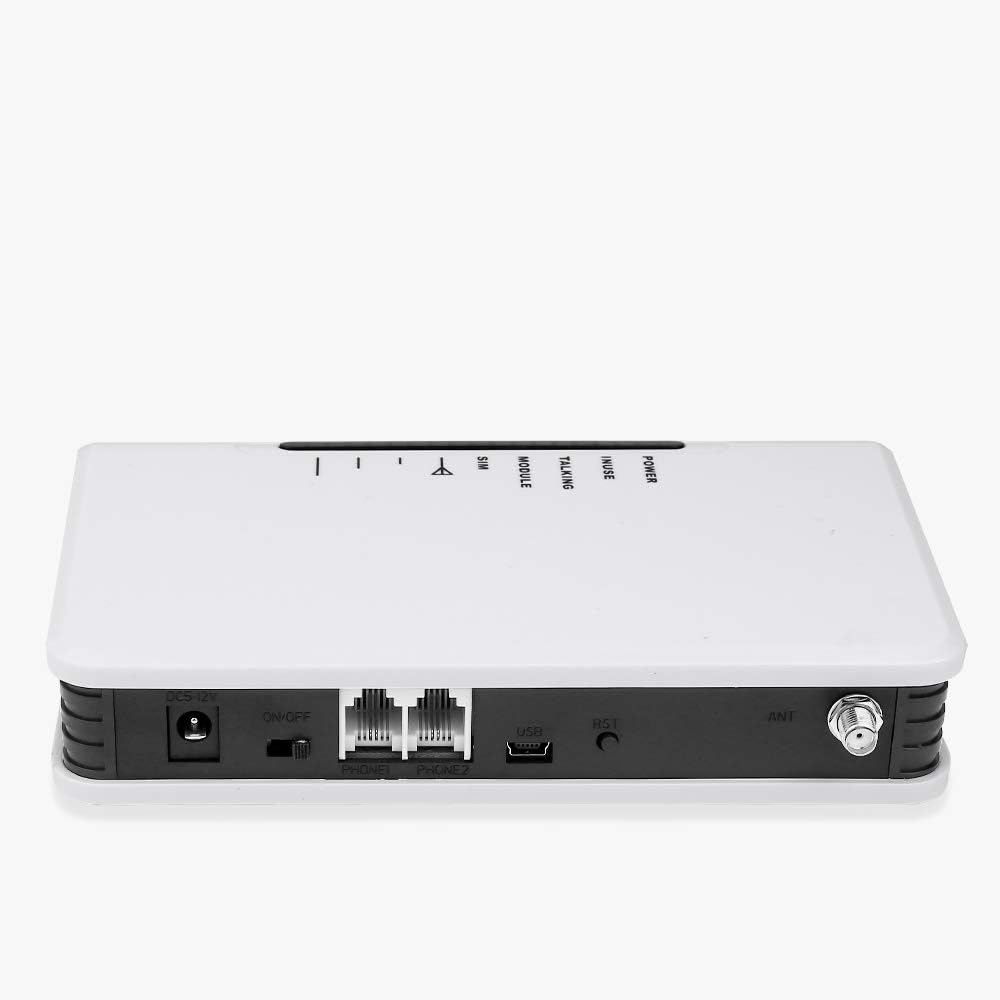
Image: Bottom view of the Onvian Fixed Wireless Terminal, displaying the product label which includes model number, power requirements, and compliance information.
8. Warranty and Support
For warranty information and technical support, please refer to the documentation provided with your purchase or contact your retailer or the manufacturer directly. Keep your proof of purchase for warranty claims.