
Introduction
Thank you for choosing the Logitech K375s Multi-Device Wireless Keyboard. This keyboard is designed for comfortable and quiet typing, offering seamless switching between multiple devices such as computers, smartphones, and tablets. This manual provides detailed instructions to help you set up, operate, and maintain your new keyboard.

Image: The Logitech K375s keyboard, showing its full layout, the included universal stand, and the USB Unifying receiver.
Package Contents
Ensure all items are present in the package:
- Logitech K375s Multi-Device Wireless Keyboard
- Universal Stand
- USB Unifying Receiver
- 2 AAA Batteries (pre-installed)
- User Documentation (this manual)
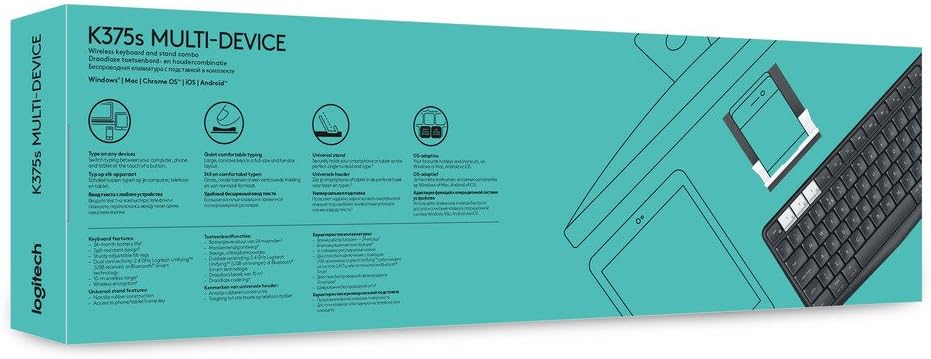
Image: Retail packaging for the Logitech K375s Multi-Device Keyboard, indicating its multi-device capabilities.
Setup
1. Battery Installation
The keyboard comes with two AAA batteries pre-installed. If you need to replace them:
- Locate the battery compartment cover on the back of the keyboard.
- Slide the cover off.
- Insert two new AAA batteries, ensuring correct polarity (+/-).
- Replace the battery compartment cover.
2. Connecting via USB Unifying Receiver
For devices that support a USB receiver:
- Remove the USB Unifying receiver from the keyboard's battery compartment or packaging.
- Plug the USB Unifying receiver into an available USB port on your computer.
- The keyboard should automatically connect. If not, press one of the Easy-Switch keys (1, 2, or 3) to select a channel.
3. Connecting via Bluetooth
For devices with Bluetooth connectivity:
- Turn on the keyboard using the On/Off switch located on the top right side.
- Press and hold one of the Easy-Switch keys (1, 2, or 3) for three seconds until the LED light above the key starts blinking rapidly. This indicates the keyboard is in pairing mode.
- On your device (computer, smartphone, or tablet), open Bluetooth settings.
- Select "Logitech K375s" from the list of available devices.
- Follow any on-screen prompts to complete the pairing process. The LED light on the keyboard will turn solid for 5 seconds and then turn off once connected.

Image: The Logitech K375s keyboard positioned next to a smartphone securely placed in the included universal stand, demonstrating multi-device usage.
4. Easy-Switch Functionality
The K375s keyboard allows you to connect to up to three devices simultaneously and switch between them with ease.
- The keys labeled 1, 2, and 3 are the Easy-Switch keys.
- To switch to a connected device, simply press the corresponding Easy-Switch key. The LED light above the key will illuminate briefly to confirm the switch.

Image: A diagram highlighting the multi-device capabilities of the K375s keyboard, showing connections to a computer, tablet, and smartphone.
Operating the Keyboard
Typing Experience
The K375s keyboard features full-size keys with a familiar layout for comfortable and quiet typing. The integrated numeric keypad and dedicated function keys enhance productivity.
Function Keys (F-keys)
The F-keys (F1-F12) have secondary functions. To use these secondary functions (e.g., media controls, volume adjustment, screen lock), press the Fn key simultaneously with the desired F-key.
To toggle the default behavior of the F-keys (i.e., to make the secondary functions primary without pressing Fn), you may need to use the Logitech Options software (available for download from the Logitech website) or check your operating system settings.
Maintenance
Cleaning
To clean your keyboard:
- Turn off the keyboard.
- Use a soft, lint-free cloth slightly dampened with water or a mild cleaning solution.
- Avoid excessive moisture and do not spray cleaners directly onto the keyboard.
- Do not use abrasive cleaners, solvents, or aerosol sprays.
Battery Replacement
When the battery indicator light (if present) flashes red, or if the keyboard becomes unresponsive, it's time to replace the batteries. Refer to the "Battery Installation" section under Setup for instructions.
Troubleshooting
- Keyboard not responding:
- Ensure the keyboard is turned on.
- Check battery levels and replace if necessary.
- Verify the USB Unifying receiver is securely plugged into a working USB port, or that Bluetooth is enabled on your device and the keyboard is paired.
- Try switching to a different Easy-Switch channel (1, 2, or 3).
- Move the keyboard closer to the receiver or Bluetooth device to ensure a strong connection.
- Lag or intermittent connection:
- Reduce interference by moving other wireless devices away from the keyboard and receiver.
- Ensure the keyboard is not too far from the connected device.
- Update your device's Bluetooth drivers or Logitech Unifying software.
- Keys not working correctly:
- Clean the keyboard to remove any debris that might be obstructing the keys.
- If specific keys are consistently malfunctioning, contact Logitech support.
Specifications
| Model Number | 920-008168 |
| Connectivity Technology | Bluetooth, RF (via USB Unifying Receiver) |
| Compatible Devices | Computers, Smartphones, Tablets |
| Batteries | 2 AAA batteries (included) |
| Product Dimensions | 17.15 x 5.41 x 0.81 inches (43.56 x 13.74 x 2.06 cm) |
| Item Weight | 15.9 ounces (450.7 grams) |
| Material | Plastic |
| Included Components | USB Unifying Receiver, Universal Stand |

Image: Side profile view of the Logitech K375s keyboard, showcasing its slim design and key height.
Warranty and Support
Logitech products are manufactured to high quality standards and are designed to provide years of reliable service. For detailed warranty information, please refer to the warranty card included with your product or visit the official Logitech website.
For technical support, frequently asked questions, or to download the latest software (such as Logitech Options for customizing your keyboard), please visit the Logitech support website: support.logi.com


