
1. Important Safety Instructions
Please read all instructions carefully before using this projector. Keep this manual for future reference.
- Do not block the ventilation openings. Ensure adequate airflow around the projector.
- Do not expose the projector to rain or moisture to prevent fire or electric shock.
- Avoid looking directly into the projector lens when the lamp is on, as the bright light can cause eye damage.
- Use only the power adapter supplied with the projector.
- Place the projector on a stable, level surface to prevent it from falling.
- Do not attempt to open or service the projector yourself. Refer all servicing to qualified personnel.
2. Product Overview
2.1 Projector Components
Familiarize yourself with the various parts of your UNIC UC36 projector.
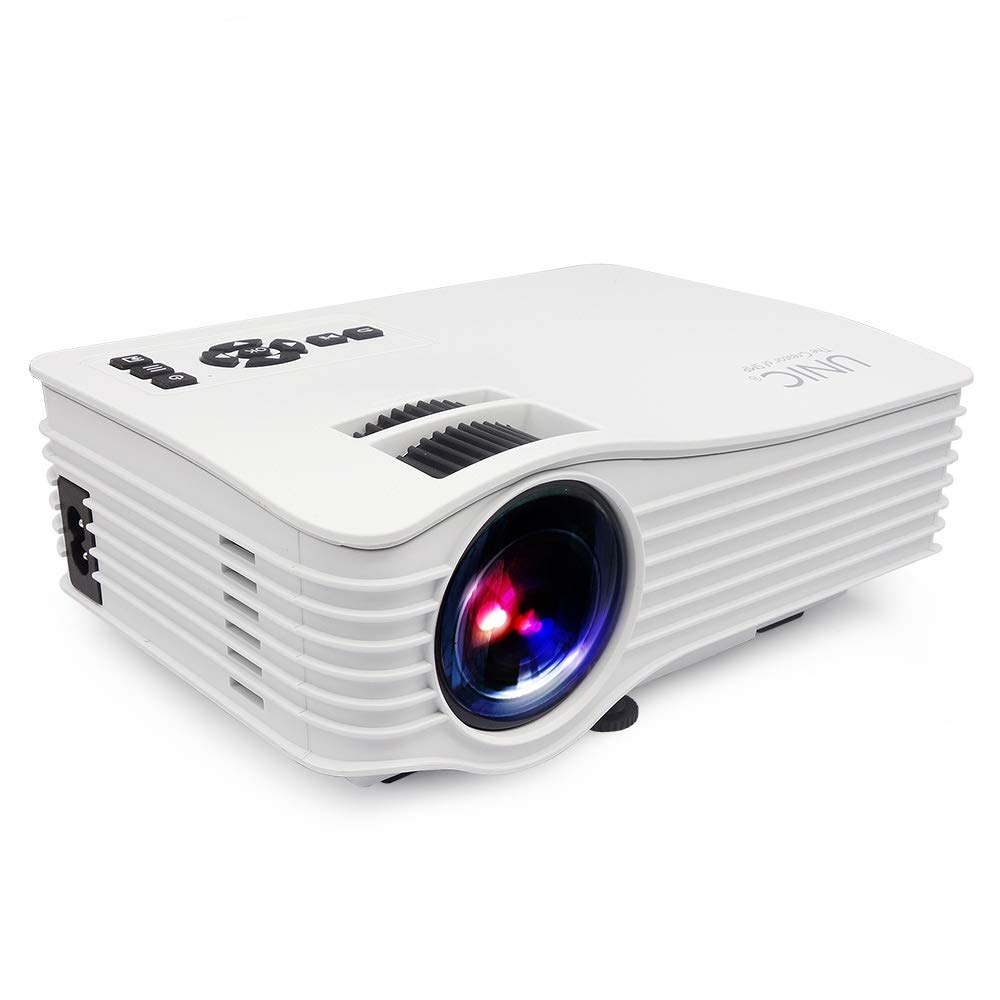
Image: Front view of the UNIC UC36 Mini LED Portable Projector, showing the lens and overall compact design.
Top Panel Controls

Image: Top view of the UNIC UC36 projector, highlighting the control panel. This includes buttons for Menu, Signal Source, Power On/Off, directional navigation (Up/Down/Left/Right/OK), Exit/Return, and Play/Pause. Below the control panel are the Focus and Keystone adjustment wheels.
Connectivity Ports

Image: Side view of the UNIC UC36 projector, detailing the input/output ports. From left to right, these include a 3.5mm earphone jack, AV input, HDMI port, USB port, 5V USB power output, SD card slot, and IR receiver.
Focus and Keystone Adjustment

Image: Close-up side view of the UNIC UC36 projector, showing the two adjustment wheels for focus and keystone correction, located near the lens.
Connectivity Diagram

Image: Diagram illustrating various devices that can be connected to the UNIC UC36 projector, including U disk, TV Box, Camera, Computer, HD Player, PS4, Laptop, and DVD player, demonstrating its versatile input options.
3. Setup
3.1 Power Connection
- Connect the power cable to the projector's power input port.
- Plug the other end of the power cable into a standard electrical outlet (100-240V, 50/60Hz).
3.2 Connecting Input Sources
The UC36 projector supports multiple input sources:
- HDMI: Connect an HDMI cable from your device (e.g., laptop, gaming console, Blu-ray player) to the projector's HDMI port.
- USB: Insert a USB flash drive into the USB port for direct media playback.
- AV: Use the provided AV cable to connect to devices with AV output (e.g., older DVD players, set-top boxes).
- SD Card: Insert an SD card into the SD card slot for direct media playback.
- Audio Output: Connect external speakers or headphones to the 3.5mm earphone jack for enhanced audio.
3.3 Projector Placement
Place the projector on a stable, flat surface. Ensure the projection distance is between 1.07m and 3.8m to achieve a screen size of 34 to 130 inches.
3.4 Focus and Keystone Adjustment
- Focus: Rotate the focus wheel (the larger wheel) until the projected image is clear and sharp.
- Keystone: If the projected image appears trapezoidal (wider at the top or bottom), rotate the keystone correction wheel (the smaller wheel) to adjust the image geometry until it is rectangular.
4. Operating Instructions
4.1 Powering On/Off
- Power On: Press the 'On/Off' button on the top panel or the remote control. The indicator light will turn on.
- Power Off: Press the 'On/Off' button again. Allow the projector to cool down before unplugging it.
4.2 Source Selection
After powering on, press the 'Signal Source' button on the top panel or the remote control to cycle through available input sources (HDMI, USB, AV, SD). Select the desired input source.
4.3 Menu Navigation
Press the 'Menu' button to access the projector's settings. Use the directional arrows (Up/Down/Left/Right) to navigate through options and 'OK' to confirm selections. Press 'Exit/Return' to go back or exit the menu.
4.4 Media Playback (USB/SD)
When a USB drive or SD card is inserted and selected as the source, the projector will display a file browser. Navigate to your desired media file (videos, photos, music, text) and press 'OK' to play. Use 'Play/Pause' for media control.
5. Maintenance
5.1 Cleaning the Lens
Use a soft, lint-free cloth or lens cleaning paper to gently wipe the projector lens. Do not use abrasive cleaners or excessive force, as this can scratch the lens.
5.2 Cleaning the Projector Body
Wipe the exterior of the projector with a soft, dry cloth. For stubborn dirt, a slightly damp cloth can be used, followed by a dry cloth. Avoid using chemical cleaners.
5.3 Lamp Life
The LED lamp in your UC36 projector has an estimated life of 20,000 hours (minimum). This means the lamp is designed to last for a significant period under normal usage conditions and typically does not require replacement.
6. Troubleshooting
- No Image:
- Ensure the projector is powered on and the power cable is securely connected.
- Verify that the correct input source is selected.
- Check the connection cable (HDMI, AV) between the projector and the source device.
- Blurry Image:
- Adjust the focus wheel until the image is sharp.
- Ensure the projection distance is within the recommended range (1.07m - 3.8m).
- Image is Trapezoidal:
- Adjust the keystone correction wheel to square the image.
- No Sound:
- Check the volume settings on both the projector and the source device.
- Ensure external speakers or headphones are properly connected to the 3.5mm earphone jack if used.
- If using HDMI, ensure the source device is sending audio through HDMI.
7. Specifications
| Model | UC36 |
| Image System | LCD |
| Lamp | LED |
| Brightness | 150 Lumens (150 ANSI Lumens) |
| Contrast Ratio | 500:1 |
| Native Resolution | 640x480p |
| Max Supported Resolution | 1920x1080p (Full HD via HDMI) |
| Input Ports | AV, USB, SD, HDMI, IR |
| Output Ports | 3.5mm Earphone, 5V USB Power |
| Lamp Life | 20,000 hours (minimum) |
| Projecting Distance | 1.07m - 3.8m (3.5 feet - 3.8 meters) |
| Projecting Size | 34 - 130 inches |
| Aspect Ratio | 4:3 / 16:9 |
| Power Supply | 100-240V, 50/60Hz |
| Power Consumption | 50W (Max) |
| Net Weight | 0.85 KGS |
| Dimensions | 190 x 132 x 69 mm |
8. Warranty and Support
8.1 Warranty Information
This UNIC UC36 projector comes with a 1-year complete warranty from the date of purchase. Please retain your proof of purchase for warranty claims. The warranty covers manufacturing defects and malfunctions under normal use.
8.2 Customer Support
For technical assistance, troubleshooting, or warranty inquiries, please contact UNIC customer support. Refer to the contact information provided with your purchase documentation or visit the official UNIC website.