
myTouchSmart 33862
myTouchSmart 33862 Outdoor/Indoor SunSmart 7-Day Plug-in Digital Timer
Instruction Manual
1. Product Overview
The myTouchSmart Plug-in SunSmart™ Outdoor/Indoor Timer is designed to simplify your routine and enhance home security by automating lighting and appliance schedules. This versatile digital timer is compatible with various bulb types, including LED, CFL, incandescent, and halogen, making it suitable for a wide range of applications both indoors and outdoors.

Figure 1: myTouchSmart 33862 Digital Timer. This image displays the timer unit alongside its packaging, highlighting its main features such as custom scheduling, weather resistance, and battery backup for settings.
Key features include:
- Programmable Schedules: Set custom ON/OFF times or utilize simple daily presets.
- SunSmart™ Technology: Automatically adjusts ON/OFF times based on local sunrise and sunset.
- Countdown Feature: Customizable countdown from one minute to 24 hours.
- Weather Resistant: Durable design suitable for both outdoor and indoor use.
- Battery Backup: Retains settings during power outages or when unplugged.
- Dual Grounded Outlets: Supports multiple plug-in devices.
- LED Indicator Lights: Blue LEDs indicate active settings.
- Broad Compatibility: Works with LED, CFL, incandescent, and halogen bulbs, including dimmable LED/CFL.
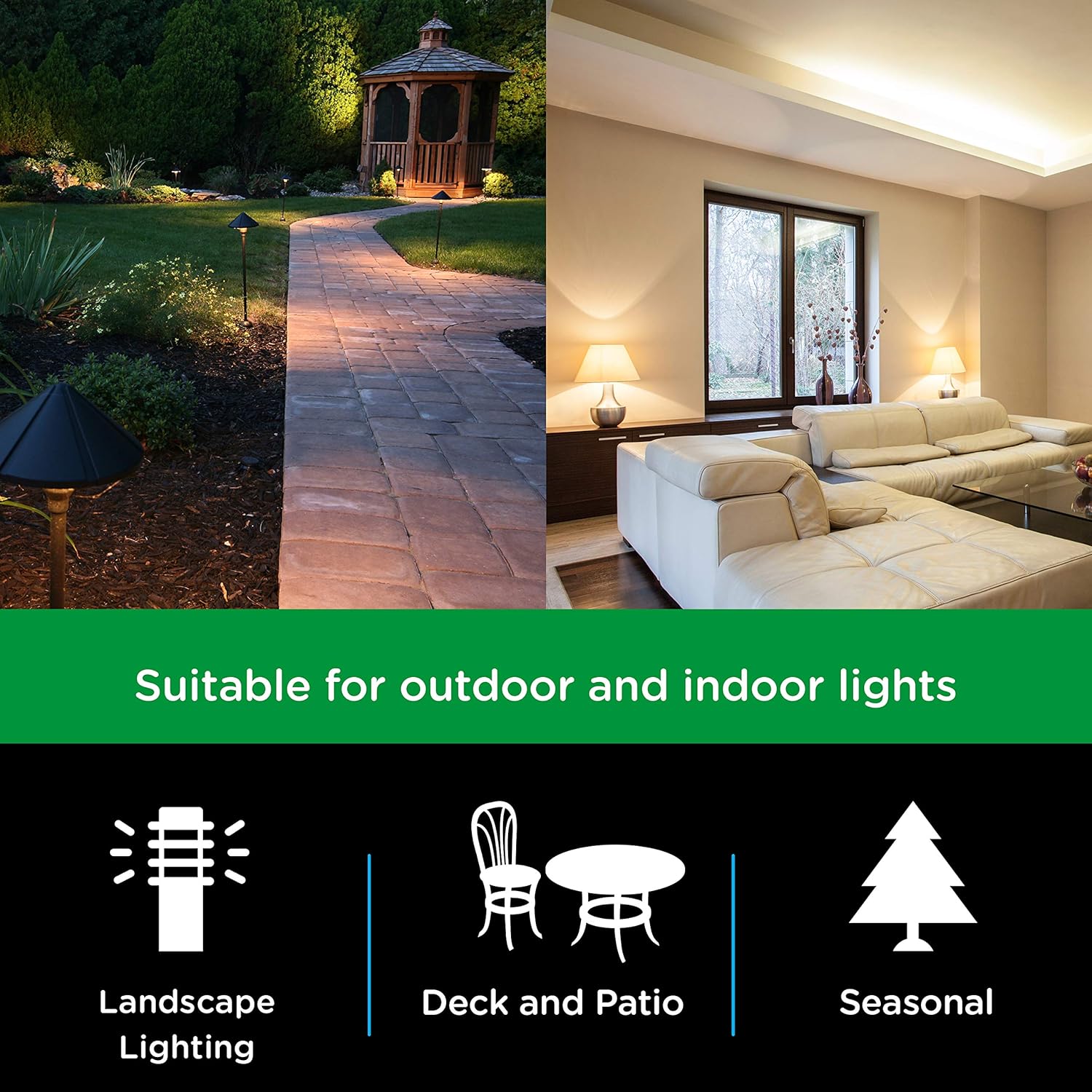
Figure 2: Versatile Application. This image illustrates the timer's suitability for various lighting applications, including landscape, deck and patio, and seasonal decorations.

Figure 3: Bulb Compatibility. This image confirms the timer's compatibility with LED, CFL, Incandescent, and Halogen bulb types.
2. Setup Instructions
Follow these steps to set up your myTouchSmart Digital Timer:
- Plug In the Timer: Insert the timer into a grounded 125V 50/60Hz outlet. For outdoor use, ensure the outlet is GFCI protected and the timer is mounted securely using the built-in options.
- Set Current Time:
- Press the CLOCK button. The display will show the current time setting.
- Use the UP (▲) or DOWN (▼) buttons to adjust the hour. Press and hold for faster adjustment.
- Press SET to move to minute adjustment. Use UP (▲) or DOWN (▼) buttons.
- Press SET again to confirm and exit time setting.
- Initial Charge: Allow the timer to charge for at least 30 minutes before programming to ensure the battery backup is fully functional.

Figure 4: Simple Setup Guide. This image visually guides the user through the initial setup process, including setting the current time and programming ON/OFF schedules.
3. Operating Instructions
The myTouchSmart timer offers several programming options to suit your needs:
3.1. Setting Custom ON/OFF Times (My ON/My OFF)
You can program up to 8 custom ON/OFF times for specific days or combinations of days.
- Press the MY ON TIME button to set an ON time. The display will show "ON" and the current program number.
- Use UP (▲) or DOWN (▼) to adjust the hour, then SET to move to minutes.
- Press SET to select the day(s) of the week for this program. Use UP (▲) or DOWN (▼) to cycle through options (e.g., everyday, weekdays, weekends, specific days).
- Repeat steps 1-3 for the corresponding MY OFF TIME button. Ensure the ON and OFF times are for the same program number.
- Press SET to save the program.
3.2. SunSmart™ Programming (Sunset ON/Sunrise OFF)
This feature automatically adjusts to local sunrise and sunset times.
- Press the SUNSET ON button to activate the timer at sunset.
- Press the SUNRISE OFF button to deactivate the timer at sunrise.
- The timer uses your set current time to determine your region's sunrise/sunset.
3.3. Evening Preset
This preset turns the timer ON at sunset and OFF at 12:00 AM.
- Press the EVENING ON - 12AM button to activate this preset.
3.4. Countdown Timer
Set a custom countdown for the timer to turn OFF after a specified duration (1 minute to 24 hours).
- Press the MY EXTRA PROGRAMS button until "CD" (Countdown) appears.
- Use UP (▲) or DOWN (▼) to set the desired countdown duration.
- Press SET to start the countdown.

Figure 5: Programming Options. This image details the different scheduling capabilities of the timer, such as custom ON/OFF times, automatic sunrise/sunset adjustments, and evening presets.
4. Maintenance
To ensure optimal performance and longevity of your myTouchSmart Digital Timer, follow these maintenance guidelines:
- Cleaning: Disconnect the timer from the power outlet before cleaning. Use a soft, dry cloth to wipe the exterior. Do not use harsh chemicals or abrasive cleaners.
- Environmental Conditions: While weather-resistant, avoid submerging the timer in water or exposing it to extreme temperatures beyond its operating range.
- Storage: If storing the timer for an extended period, unplug it and keep it in a cool, dry place.
- Battery Backup: The internal battery is designed to maintain settings during power interruptions. No user maintenance is required for the battery.

Figure 6: Weather Resistance. This image highlights the timer's weather-resistant design, making it suitable for outdoor environments.
5. Troubleshooting
If you encounter issues with your myTouchSmart Digital Timer, refer to the following common problems and solutions:
| Problem | Possible Cause | Solution |
|---|---|---|
| Timer not turning ON/OFF at programmed times. | Incorrect time setting, program not activated, or conflicting programs. | Verify the current time is set correctly. Ensure the desired program (My ON/OFF, SunSmart, Evening) is active. Check for overlapping or conflicting schedules. |
| Display is blank or not responding. | No power to the outlet or internal battery depleted. | Check if the outlet has power. Ensure the timer is fully plugged in. Allow the timer to charge for 30 minutes to activate the internal battery backup. |
| Settings lost after unplugging or power outage. | Internal battery backup not charged. | Plug the timer into an active outlet for at least 30 minutes to charge the internal battery. This battery retains settings during power interruptions. |
| Timer not responding to button presses. | Temporary software glitch. | Unplug the timer from the outlet for a few seconds, then plug it back in to reset. Reprogram if necessary. |
6. Specifications
Detailed technical specifications for the myTouchSmart 33862 Digital Timer:
- Model Number: 33862
- Color: Black Dual Outlet - Sunsmart
- Material: Plastic
- Product Dimensions: 2"D x 3"W x 6"H (5.08cm D x 7.62cm W x 15.24cm H)
- Item Weight: 0.6 Pounds (9.6 ounces / 272 grams)
- Number of Settings: 8 (custom programs)
- Electrical Rating: 125V~ 50/60Hz, 15A 1875W General Purpose/Resistive, 10A 1250W Tungsten, 1/2HP
- Compatibility: LED, CFL, Incandescent, Halogen bulbs (including dimmable LED/CFL)
- Certifications: CSA

Figure 7: Product Dimensions. This diagram provides precise measurements of the timer unit, including its height, width, depth, and cord length.
7. Warranty Information
This myTouchSmart Digital Timer is covered by a 1-year limited warranty from the date of purchase. This warranty covers defects in material and workmanship under normal use. For warranty claims or further details, please contact customer support.
8. Support
For additional assistance, technical support, or to inquire about replacement parts, please visit the official myTouchSmart website or contact their customer service department. Keep your product model number (33862) and purchase information readily available when seeking support.
You can also refer to the official user guide PDF for more detailed information: myTouchSmart 33862 User Manual (PDF)
Related Documents - 33862
 |
myTouchSmart SunSmart Plug-In Timer User Manual User manual for the myTouchSmart SunSmart Plug-In Timer, detailing setup, programming options, and specifications for indoor digital timing. Learn how to automate your indoor lighting and appliances. |
 |
myTouchSmart Simple Set Plug-In Timer - User Guide Instructions and specifications for the myTouchSmart Simple Set Plug-In Timer, an outdoor/indoor digital timer for automating lights and appliances. Learn how to mount, set the time, program on/off times, and understand safety warnings. |
 |
myTouchSmart Simple Set Indoor Plug-In Digital Timer - User Guide Learn how to set up and program your myTouchSmart Simple Set Indoor Plug-In Digital Timer for automated lighting control. Includes instructions for custom schedules, preset times, and countdown features. |
 |
myTouchSmart Simple Set Plug-In Timer: Setup and Programming Guide A concise guide to setting up and programming the myTouchSmart Simple Set Plug-In Timer for automated control of lights and appliances. Learn how to set on/off times, understand features, and follow safety instructions. |
 |
myTouchSmart Indoor Digital Plug-In Timer (33860) User Manual User manual for the myTouchSmart Indoor Digital Plug-In Timer (Model 33860). Includes setup instructions, programming options, and safety warnings. |
 |
myTouchSmart Indoor Digital Plug-In Timer User Manual (26745) Learn how to set up and program your myTouchSmart Indoor Digital Plug-In Timer (Model 26745). This guide covers initial setup, custom on/off time programming, and safety information. |
Ask a question about this manual
Ask about setup, troubleshooting, compatibility, parts, safety, or missing instructions. Manuals+ will review the question and use this page’s manual context to help answer it.