1. Product Overview
The Innova 3130e Diagnostic Scan Tool is a versatile device designed to assist in diagnosing and resolving issues with OBD2 compliant vehicles. It provides comprehensive diagnostic information, including trouble codes, live data, and repair solutions.
Key Features:
- Check Engine Light Diagnosis: Reveals the cause of "Check Engine" lights on any foreign or domestic 1996 and newer OBD2 car, light truck, SUV, and hybrids.
- Fix Assist: Provides the most likely fix for primary diagnostic trouble codes to help with engine diagnosis and repair.
- ABS Light Codes: Reads and erases ABS light trouble codes for most GM, Ford, Chrysler, Honda, and Toyota vehicles.
- Maintenance Light Reset: Resets oil and battery maintenance lights on most 1996 and newer OBD2 vehicles.
- Live Data Streaming: Streams and records real-time live data that can be reviewed at a later time on the tool screen or a Windows computer.

Figure 1.1: The Innova 3130e Diagnostic Scan Tool with its OBD2 connector cable.
2. Package Contents
Upon opening the package, please ensure all the following items are present:
- Innova 3130e Scan Tool
- AA Batteries (3 included)
- OBD2 Cable
- Quick Reference Guide (QRG)
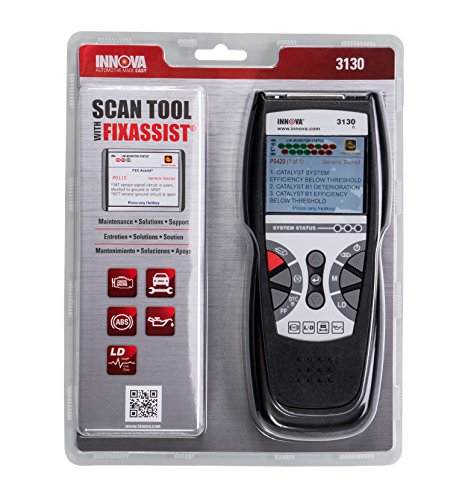
Figure 2.1: Innova 3130e Scan Tool retail packaging, showing the device and its included accessories.
3. Setup
3.1 Battery Installation
The Innova 3130e requires 3 AA batteries for operation. These are typically pre-installed or included in the package. If not, locate the battery compartment on the back of the device, open it, insert the batteries according to the polarity indicators, and close the compartment securely.
3.2 Connecting to Vehicle
- Locate the vehicle's Data Link Connector (DLC). This is typically found under the dashboard on the driver's side.
- Ensure the vehicle's ignition is OFF.
- Connect the OBD2 cable from the Innova 3130e to the vehicle's DLC. Ensure a firm connection.
- Turn the vehicle's ignition to the ON position (engine can be off or running, depending on the test). The scan tool will power on automatically.

Figure 3.1: The Innova 3130e connected to a vehicle's OBD2 port, with the device resting on the engine bay.
4. Operating Instructions
The Innova 3130e features a user-friendly interface with a color screen and intuitive buttons. Familiarize yourself with the button layout:
- DTC/FF: Diagnostic Trouble Code / Freeze Frame button.
- LD: Live Data button.
- M: Menu button.
- Up/Down Arrows: Navigate through menus and data.
- Left/Right Arrows: Navigate through screens or select options.
- Enter/Confirm: Confirm selections.
- Erase: Erase codes (use with caution).
4.1 Reading Diagnostic Trouble Codes (DTCs)
- Connect the tool to the vehicle's DLC and turn the ignition ON.
- The tool will automatically link with the vehicle.
- Press the DTC/FF button. The screen will display any stored or pending Diagnostic Trouble Codes.
- Use the Up/Down arrows to scroll through multiple codes if present.
- For detailed information on a specific code, select it and press Enter.
4.2 Using Fix Assist
After reading DTCs, the Fix Assist feature provides common solutions for the identified codes.
- With a DTC displayed, the tool may automatically prompt for Fix Assist. If not, navigate to the Fix Assist option in the menu.
- Press Enter to view the suggested fixes.
- Review the information provided, which typically includes the most likely causes and repair steps.
4.3 Erasing Diagnostic Trouble Codes
WARNING: Erasing DTCs clears all diagnostic data from the vehicle's computer. This should only be done after repairs have been completed and verified, or if instructed by a qualified technician. Clearing codes will also clear readiness monitors, which may prevent the vehicle from passing an emissions test immediately.
- Ensure the ignition is ON and the tool is connected.
- From the main menu or DTC display, press the Erase button.
- Confirm your decision when prompted on the screen.
- The tool will indicate when the codes have been successfully erased.
4.4 Reading ABS Light Codes
The 3130e can read and clear ABS codes for specific vehicle makes.
- Connect the tool and turn the ignition ON.
- Navigate to the "ABS" or "Enhanced Diagnostics" section in the main menu.
- Select your vehicle make (GM, Ford, Chrysler, Honda, Toyota).
- The tool will scan for ABS codes and display them.
4.5 Resetting Oil and Battery Maintenance Lights
This function allows you to reset service lights after performing maintenance.
- Connect the tool and turn the ignition ON.
- Navigate to the "Maintenance Reset" or "Service Functions" menu.
- Select "Oil Light Reset" or "Battery Maintenance Reset" as needed.
- Follow the on-screen prompts to complete the reset.
4.6 Streaming and Recording Live Data
Live data provides real-time sensor readings and operational parameters from the vehicle.
- Connect the tool and turn the ignition ON (engine can be running for active data).
- Press the LD (Live Data) button.
- The tool will display a list of available live data parameters.
- Use the Up/Down arrows to scroll through parameters.
- To record data, select the recording option (refer to the Quick Reference Guide for specific steps). Recorded data can be reviewed on the tool or a Windows computer.
5. Maintenance
5.1 Cleaning the Device
To maintain the longevity and performance of your Innova 3130e, keep it clean and free from dirt, grease, and moisture. Use a soft, damp cloth to wipe the exterior. Do not use abrasive cleaners or solvents.
5.2 Storage
When not in use, store the scan tool in a dry, cool place, away from direct sunlight and extreme temperatures. It is recommended to store it in its original packaging or a protective case to prevent damage.
5.3 Software Updates
Periodically check the Innova website (www.innova.com) for software updates. Updates may include new vehicle coverage, bug fixes, or enhanced features. The 3130e supports updates via a USB connection to a Windows computer.
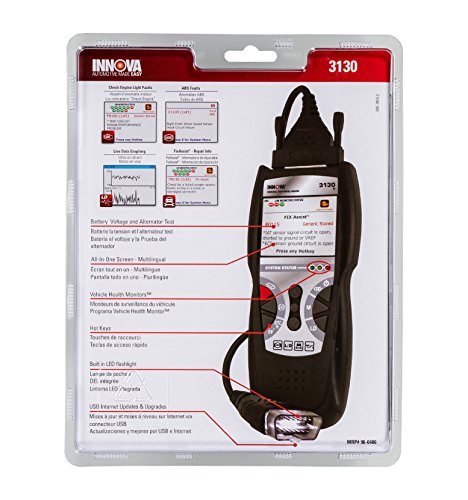
Figure 5.1: Back of the Innova 3130e packaging, highlighting features like USB internet updates.
6. Troubleshooting
| Problem | Possible Cause | Solution |
|---|---|---|
| Tool does not power on. |
|
|
| "Link Error" or "Communication Error" message. |
|
|
| Cannot erase codes. |
|
|
7. Technical Specifications
| Specification | Detail |
|---|---|
| Model Number | 3130e |
| Manufacturer | Innova |
| Dimensions (L x W x H) | Approx. 8 in x 3.5 in (20.3 cm x 8.9 cm) |
| Item Weight | 0.28 g (Note: This weight seems unusually low and might be a data entry error. Actual weight is likely higher.) |
| Screen Size | 2.8 Inches (Color Screen) |
| Power Source | 3 AA batteries (included) or vehicle OBD2 port |
| Connectivity | OBD2 cable, USB for updates |
| Supported Protocols | All OBD2 protocols (CAN, VPW, PWM, ISO9141, KWP2000) |
| UPC | 042173431304 |
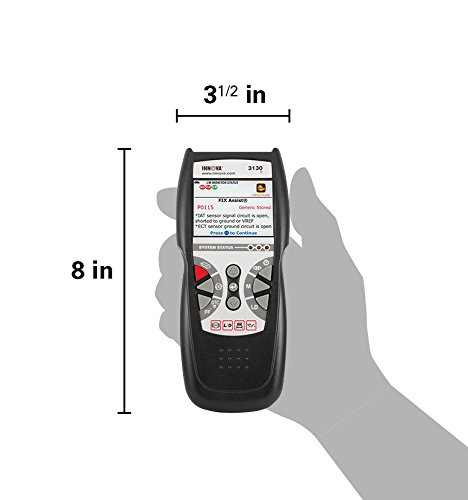
Figure 7.1: Approximate dimensions of the Innova 3130e scan tool.
8. Warranty and Support
8.1 Warranty Information
The Innova 3130e Diagnostic Scan Tool comes with a manufacturer's warranty. For specific details regarding the warranty period, coverage, and terms, please refer to the warranty policy document included with your product or visit the official Innova website. Keep your proof of purchase for warranty claims.
8.2 Customer Support
For technical assistance, troubleshooting, or warranty inquiries, please contact Innova customer support. Contact information can typically be found on the official Innova website (www.innova.com) or in the Quick Reference Guide provided with your tool.
Online resources such as FAQs, software downloads, and additional product information may also be available on the Innova website.
9. Official Product Videos
No official product videos from the seller were found for this product at the time of manual creation.


