
Introduction
Thank you for choosing the Smartby Universal Remote Control. This remote is designed to provide seamless control for a wide range of Samsung televisions and DVD/Blu-Ray players. It requires no complex programming for most Samsung models, offering a straightforward user experience. This manual provides essential information for setup, operation, maintenance, and troubleshooting to ensure optimal performance of your remote control.
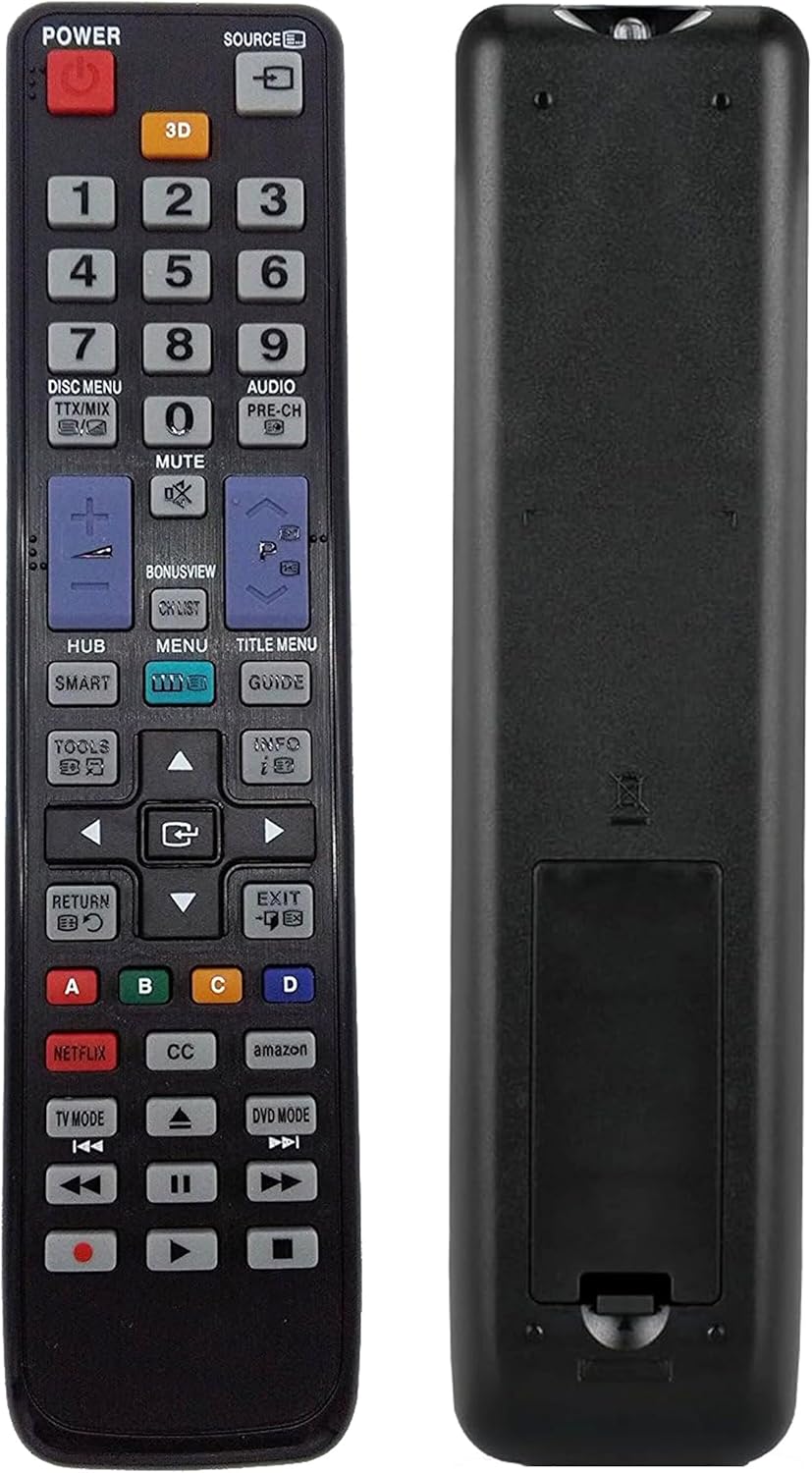
Image: The Smartby Universal Remote Control, highlighting its compatibility with Samsung TV and DVD Blu-Ray players.
Safety Information
- Keep batteries out of reach of children.
- Do not mix old and new batteries, or different types of batteries.
- Remove batteries if the remote control will not be used for an extended period to prevent leakage.
- Do not expose the remote control to direct sunlight, heat sources, or moisture.
- Avoid dropping or subjecting the remote control to strong impacts.
Setup
1. Battery Installation
The remote control requires two AA batteries (not included). Follow these steps to install them:
- Open the battery compartment cover on the back of the remote control by sliding it downwards.
- Insert two AA batteries, ensuring the positive (+) and negative (-) terminals match the diagrams inside the compartment.
- Close the battery compartment cover by sliding it back into place until it clicks.

Image: Front and back view of the remote control, illustrating the battery compartment location.
2. Initial Use (No Programming Required)
For most Samsung TV and DVD/Blu-Ray Player models, this remote control is ready to use immediately after battery installation. No programming is typically required.
- For TV Mode: Simply point the remote at your Samsung TV and press the POWER button.
- For DVD Mode: After installing batteries, press the DVD MODE button once within 1 second to activate DVD control.

Image: The remote control in a home environment, emphasizing its plug-and-play functionality.
3. Manual TV Code Search (If Remote Does Not Work Directly)
If the remote control does not operate your Samsung TV directly after battery installation, you may need to perform a quick code search:
- Ensure your TV is turned on.
- Press and hold both the POWER button and the 1 button simultaneously for approximately 2 seconds.
- Release both buttons. The remote will now attempt to find the correct code.
- Test the remote's functions (e.g., volume, channel, power). If it works, the setup is complete. If not, repeat the process.
4. Reset to Default TV Status
To revert the remote control to its default TV settings, follow these steps:
- Press and hold both the POWER button and the 0 button simultaneously for approximately 2 seconds.
- Release both buttons. The remote is now reset to its factory default TV configuration.
Operating Instructions
This remote control features a standard layout for easy navigation and control of your Samsung devices. Below is a general overview of key buttons and their functions:

Image: Detailed view of the remote control's buttons and layout.
- POWER: Turns the connected device (TV or DVD/Blu-Ray Player) on or off.
- SOURCE: Changes the input source on your TV.
- Number Buttons (0-9): Direct channel selection or inputting numbers.
- VOL +/-: Adjusts the volume level.
- CH +/-: Changes TV channels.
- MUTE: Mutes or unmutes the audio.
- MENU: Accesses the main menu of the TV or DVD/Blu-Ray Player.
- SMART HUB / HUB: Accesses Samsung Smart Hub features.
- Directional Pad (Up, Down, Left, Right) & ENTER: Navigates menus and confirms selections.
- RETURN / EXIT: Goes back to the previous screen or exits a menu.
- NETFLIX / amazon: Direct access buttons for streaming services.
- TV MODE / DVD MODE: Switches the remote's operating mode between TV and DVD/Blu-Ray Player control.
- Playback Controls (Play, Pause, Stop, Fast Forward, Rewind): Controls media playback on DVD/Blu-Ray Players.
Maintenance
- Cleaning: Use a soft, dry cloth to clean the remote control. Do not use liquid cleaners or abrasive materials.
- Battery Replacement: Replace batteries when the remote's response becomes sluggish or stops working. Always replace both batteries at the same time with new ones of the same type (AA).
- Storage: Store the remote in a cool, dry place away from direct sunlight and extreme temperatures.
Troubleshooting
| Problem | Possible Cause | Solution |
|---|---|---|
| Remote is not working at all. | Dead or incorrectly installed batteries. Obstruction between remote and device. |
|
| Remote controls TV but not DVD/Blu-Ray Player. | Remote is in TV Mode. | Press the DVD MODE button to switch to DVD control. |
| Remote controls DVD/Blu-Ray Player but not TV. | Remote is in DVD Mode. | Press the TV MODE button to switch to TV control. |
| Remote does not control my Samsung TV after battery installation. | TV model requires manual code search. | Perform the Manual TV Code Search (see Setup section, point 3). |
Specifications
| Brand | Smartby |
| Model Name | LYSB01MYLNEQV-ELECTRNCS |
| Model Number | LYSB01MYLNEQV-ELECTRNCS |
| UPC | 802405449305 |
| Compatible Devices | Samsung TV, Samsung DVD/Blu-ray Player |
| Connectivity Technology | Infrared (IR) |
| Special Feature | No Programming Required, Universal |
| Maximum Number of Supported Devices | 1 (operates TV and DVD/Blu-Ray sequentially) |
| Button Quantity | 10+ (standard remote buttons) |
| Controller Type | Button Control |
| Maximum Range | 10 Meters (approx. 33 feet) |
| Battery Type | 2 x AA (not included) |
| Item Weight | 0.14 Kilograms (approx. 0.31 lbs) |
Warranty and Support
For any questions, technical assistance, or support regarding your Smartby Universal Remote Control, please refer to the seller's contact information on your purchase platform or the Smartby brand store. While specific warranty details are not provided in this manual, most products come with a standard return or replacement policy. Please retain your proof of purchase for any warranty claims.
You can visit the Smartby Store on Amazon for more information.