
1. Product Overview
The TOPCHANCES 4 Axis TB6560 USBCNC Controller Driver Board is designed for controlling 2-phase stepper motors in CNC router, milling, and engraving machines. This board integrates 4 axes into a single unit, simplifying connection to a PC, power supply, and motors. It features a USB interface and operates with specialized USBCNC software, offering enhanced control capabilities including support for up to 8 limit switches per axis.
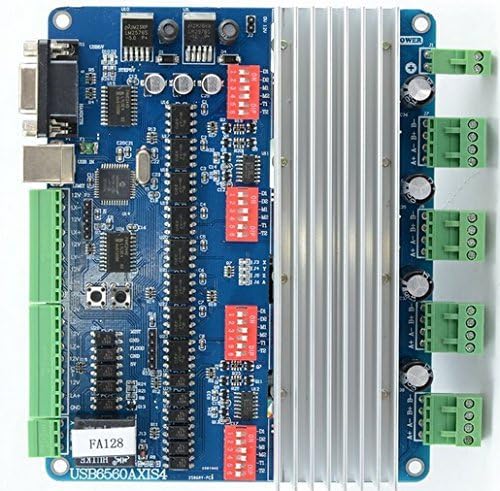
Figure 1: Top view of the TOPCHANCES 4 Axis TB6560 USBCNC Controller Driver Board.
2. Key Features
- Integrated 4-Axis Control: Manages up to four 2-phase stepper motors from a single board.
- USB Connectivity: Connects to a PC via a USB port for control.
- Dedicated USBCNC Software: Requires specific USBCNC software for operation; incompatible with Mach3, KCAM4, or other CNC software.
- Multiple Decay Modes: Supports 4 decay modes for optimal stepper motor performance.
- Adjustable Current Settings: Offers four current settings: 0.75A, 1.5A, 2.25A, and 3.0A for motors up to 3A.
- Automatic Current Reduction: Reduces current to 25% of full current when motors are stopped, protecting motors and IC chips.
- Extensive Limit Switch Support: Accommodates up to 8 limit switches (2 per axis) for enhanced safety and control.
- Offline Operation with Manual Control: Compatible with a manual control box for offline coordinate adjustment and tool setting.
- Isolated 12V Power Output: Provides a 12V isolated power supply for external applications like cooling fans.
- Optical Isolated Limit Ports: Limit ports are optically isolated with 12VDC input, suitable for proximity switches.

Figure 2: Angled view highlighting the heatsink and DIP switches on the controller board.
3. Setup Instructions
Before connecting the board, ensure all components are powered off. Refer to the port diagram for correct connections.

Figure 3: Detailed port diagram of the TB6560 USBCNC Controller Driver Board.
- 1: MANUAL CONTROL PORT: Connects to the RS232 Remote Controller.
- 2: USB PORT INPUT: Connects to your computer via the provided USB cable.
- 3: LIMIT INPUT PORT: Connects to limit switches (up to 8, 2 per axis).
- 4: MIST & FLOOD PORT: For mist and flood coolant control (if supported by software).
- 5: SPINDLE PORT: Note: This driver board does not support spindle control.
- 6: MOD SW: Mode switches (DIP switches) for current and decay settings.
- 7: CHANNEL RUN LED: Indicators for motor activity.
- 8: A AXIS PORT: Connects to the A-axis stepper motor.
- 9: Z AXIS PORT: Connects to the Z-axis stepper motor.
- 10: Y AXIS PORT: Connects to the Y-axis stepper motor.
- 11: X AXIS PORT: Connects to the X-axis stepper motor.
- 12: DC POWER INPUT: Connects to a 12VDC power supply.
- 13: 12VOUT: 12V isolated power output for external devices.
3.1. Hardware Connections
- Power Supply: Connect a 12VDC power supply to the DC POWER INPUT (12). Ensure the power supply is off during connection.
- Stepper Motors: Connect your 2-phase stepper motors to the respective X, Y, Z, and A AXIS PORTS (8, 9, 10, 11). Ensure correct wiring for each motor phase.
- Limit Switches: Connect up to 8 limit switches to the LIMIT INPUT PORT (3). These ports are optically isolated and accept 12VDC input.
- Manual Control Box: Connect the provided RS232 Remote Controller to the MANUAL CONTROL PORT (1). This allows for offline control.
- USB Connection: Connect the board to your computer using the provided USB cable via the USB PORT INPUT (2).
- External Devices (Optional): If using a cooling fan or other 12V external devices, connect them to the 12VOUT (13).
3.2. Software Installation
This driver board requires specific USBCNC software. The software is typically provided on a CD included with the product. Follow the instructions on the CD for proper installation. This board is not compatible with Mach3, KCAM4, or other standard CNC software.
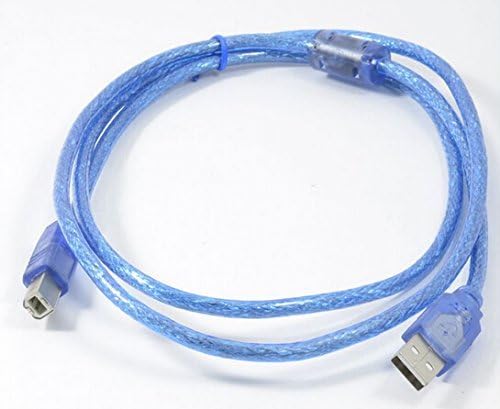
Figure 4: The USB cable used for connecting the controller board to a PC.
4. Operating Instructions
4.1. Initial Power-Up and Software Launch
- After all hardware connections are secure, power on the 12VDC power supply.
- Launch the USBCNC software on your computer.
- The software should detect the connected controller board. Refer to the software manual for initial configuration and calibration steps.
4.2. Motor Current and Decay Settings
The board features DIP switches (MOD SW - 6) to set the motor current and decay modes. Consult the USBCNC software documentation or the board's specific wiring diagram for the correct switch configurations for your stepper motors. Incorrect settings can lead to motor overheating or poor performance.
4.3. Offline Operation with Manual Control Box
The RS232 Remote Controller (manual control box) allows for offline operation, which is particularly useful for:
- Coordinate Adjustment: Manually move the CNC axes to precise positions.
- Tool Setting: Facilitates accurate tool length and offset measurements.
Refer to the manual control box's instructions for specific button functions and operational procedures.

Figure 5: The RS232 Remote Controller for manual, offline operation.
5. Technical Specifications
| Parameter | Value |
|---|---|
| Number of Axes | 4 |
| Driver IC | TB6560 |
| Motor Type Supported | 2-phase stepper motor |
| Maximum Motor Current | 3.0A per axis |
| Current Settings | 0.75A, 1.5A, 2.25A, 3.0A |
| Decay Modes | 4 modes |
| Limit Switch Support | Up to 8 (2 per axis), optically isolated, 12VDC input |
| Interface | USB Port |
| Control Software | USBCNC (dedicated software) |
| Offline Control | Yes, with manual control box |
| External Power Output | 12V isolated (for cooling fan, etc.) |
| Spindle Control | Not supported |
| Model Number | 110901 |
6. Troubleshooting
| Problem | Possible Cause | Solution |
|---|---|---|
| Board does not power on / No indicator lights |
|
|
| Software does not detect the board |
|
|
| Stepper motors not moving or moving erratically |
|
|
| Limit switches not functioning |
|
|
7. Maintenance
Proper maintenance ensures the longevity and reliable operation of your TOPCHANCES TB6560 USBCNC Controller Driver Board.
- Keep Clean: Regularly clean the board with a soft, dry brush or compressed air to remove dust and debris. Ensure power is disconnected before cleaning.
- Environment: Operate the board in a clean, dry environment, free from excessive moisture, dust, and extreme temperatures.
- Connections: Periodically check all wiring connections (power, motor, USB, limit switches) to ensure they are secure and free from corrosion.
- Heat Management: Ensure adequate airflow around the heatsink to prevent overheating, especially during prolonged operation.
- Software Updates: Keep your USBCNC software updated to the latest version as recommended by the manufacturer.
8. Warranty and Support
For technical support, warranty inquiries, or further assistance with your TOPCHANCES 4 Axis TB6560 USBCNC Controller Driver Board, please contact TOPCHANCES customer service through the retailer where the product was purchased or visit the official TOPCHANCES store page.
Please retain your proof of purchase for warranty claims.