1. Introduction
The Ubiquiti UniFi Switch 8 60W (US-8-60W) is an 8-port gigabit switch designed for network connectivity. It features four 802.3af Power over Ethernet (PoE) ports, capable of delivering up to 15.4W per port. This manual provides essential information for the setup, operation, maintenance, and troubleshooting of the device.
2. Product Overview
2.1. Key Features
- 8 Gigabit Ethernet Ports: Provides high-speed wired connectivity for network devices.
- 4 PoE (Power over Ethernet) Ports: Ports 5-8 support 802.3af PoE, delivering up to 15.4W per port to power compatible devices such as IP cameras, VoIP phones, and UniFi Access Points.
- 16 Gbps Switching Capacity: Ensures line-rate processing on all ports without packet loss.
- Compact Form Factor: Designed for flexible deployment in various environments.
- UniFi Controller Management: Centralized management through the UniFi Controller software, allowing for network monitoring, configuration, and statistics.
2.2. Package Contents
The package typically includes the following items:
- UniFi Switch 8 60W (US-8-60W)
- Power Adapter
3. Hardware Overview
3.1. Front Panel
The front panel of the US-8-60W features eight RJ45 Gigabit Ethernet ports and LED indicators.

Figure 1: Front Panel of US-8-60W. Ports 1-8 are visible, with "PoE OUT" labeled above ports 5-8. A blue LED indicator is on the left side.
- RJ45 Ports (1-8): Connect Ethernet cables from network devices. Ports 5-8 support 802.3af PoE output.
- System LED: Indicates device status (e.g., blue for ready, flashing blue for locating).
- Link/Activity/Speed LEDs (per port):
- Green: 1000 Mbps (Gigabit) link.
- Orange: 10/100 Mbps link.
- Blue: PoE output active on ports 5-8.
3.2. Rear Panel
The rear panel includes the power input and a reset button.
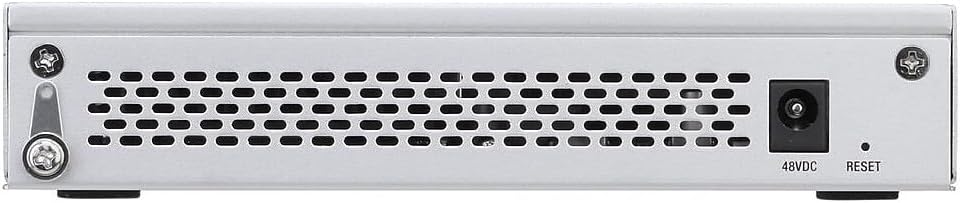
Figure 2: Rear Panel of US-8-60W. The 48VDC power input jack and a recessed RESET button are visible.
- 48VDC Power Input: Connect the included power adapter here.
- Reset Button: Used to restore the device to factory default settings. Press and hold for approximately 10 seconds until the System LED flashes.
3.3. Side Panel
The side panels feature ventilation grilles for heat dissipation.

Figure 3: Angled view of US-8-60W, highlighting the ventilation grilles on the side.
4. Setup
4.1. System Requirements
- A computer with a web browser for UniFi Controller access.
- UniFi Controller software (available for Windows, macOS, or Linux, or a UniFi Cloud Key).
- Ethernet cables.
4.2. Hardware Installation
- Power Connection: Connect the included power adapter to the 48VDC port on the rear panel of the US-8-60W, then plug the adapter into a power outlet.
- Network Connectivity: Connect an Ethernet cable from your router or existing network to any of the RJ45 ports (1-8) on the US-8-60W.
- Device Connections:
- For non-PoE devices (e.g., computers, printers), connect them to any of the RJ45 ports (1-8).
- For PoE-compatible devices (e.g., UniFi Access Points, IP cameras), connect them to ports 5-8. These ports will automatically detect and provide power if the device is PoE-compliant.
4.3. Software Configuration (UniFi Controller)
The US-8-60W is managed by the UniFi Controller software. Ensure the UniFi Controller is running on your network.
- Launch UniFi Controller: Open your web browser and navigate to the UniFi Controller interface.
- Device Adoption: The US-8-60W should appear in the "Devices" section of the UniFi Controller. Select the switch and click "Adopt" to integrate it into your UniFi network.
- Configuration: Once adopted, you can configure port settings, VLANs, and monitor traffic through the UniFi Controller interface.
5. Operating Instructions
5.1. LED Indicators
Monitor the LEDs on the front panel to understand the switch's status:
- System LED:
- Solid Blue: Device is ready and adopted by the UniFi Controller.
- Flashing Blue: Device is being located or is in discovery mode.
- White: Device is ready but not yet adopted.
- RJ45 Link/Activity/Speed LEDs (Ports 1-8):
- Solid Green: 1000 Mbps link established.
- Flashing Green: 1000 Mbps activity.
- Solid Orange: 10/100 Mbps link established.
- Flashing Orange: 10/100 Mbps activity.
- PoE LEDs (Ports 5-8):
- Solid Blue: PoE output is active on the port.
- Flashing Blue: PoE fault detected.
5.2. UniFi Controller Management
The UniFi Controller provides a comprehensive interface for managing your US-8-60W:
- Dashboard: View network status, connected devices, and overall performance.
- Devices: Access individual switch settings, including port configuration, PoE status, and statistics.
- Networks: Configure VLANs and network segments.
- Insights: Monitor traffic, client history, and switch statistics.
6. Maintenance
6.1. Firmware Updates
Regularly update the switch firmware through the UniFi Controller to ensure optimal performance, security, and access to new features. The Controller will typically notify you when updates are available.
6.2. Cleaning
Use a soft, dry cloth to clean the exterior of the switch. Do not use liquid cleaners or aerosols. Ensure ventilation grilles are free from dust and obstructions.
6.3. Ventilation
The US-8-60W is passively cooled and can generate heat during operation. Ensure the device is placed in a well-ventilated area, away from direct sunlight or heat sources, to prevent overheating and ensure stable performance.
7. Troubleshooting
7.1. No Power
- Verify the power adapter is securely connected to both the switch and a working power outlet.
- Check the power outlet with another device to confirm it is functional.
7.2. No Network Link
- Ensure Ethernet cables are properly seated in both the switch port and the connected device.
- Test with a different Ethernet cable.
- Verify the connected device is powered on and functioning correctly.
- Check the Link/Activity LED on the switch port; if it's off, there's no link.
7.3. PoE Device Not Receiving Power
- Ensure the PoE device is connected to one of the PoE-enabled ports (5-8).
- Verify the device is 802.3af PoE compliant.
- Check the PoE LED for the port; if it's off, PoE is not active. If flashing blue, there might be a PoE fault.
- Confirm that the total power budget (60W for the US-8-60W) is not exceeded by all connected PoE devices.
7.4. Reset to Factory Defaults
If the switch is unresponsive or you need to reset its configuration:
- Ensure the switch is powered on.
- Use a paperclip or similar pointed object to press and hold the Reset button on the rear panel for approximately 10 seconds.
- Release the button when the System LED begins to flash. The switch will restart with factory default settings.
8. Specifications
| Attribute | Value |
|---|---|
| Model | US-8-60W |
| Dimensions (L x W x H) | 5.83" x 1.21" x 3.92" (148 x 30.7 x 99.5 mm) |
| Weight | 15.24 oz (432.1 g) |
| Total Non-Blocking Throughput | 8 Gbps |
| Switching Capacity | 16 Gbps |
| Forwarding Rate | 11.9 Mpps |
| Power Method | 48VDC, Max. 2A |
| Max. Power Consumption | 12W (Switch only, excluding PoE output) |
| PoE Out Ports | Ports 5-8, 802.3af (2-Pair) |
| Max. PoE Wattage per Port | 15.4W |
| Total PoE Power Budget | 60W |
| Operating Temperature | 23 to 113° F (-5 to 45° C) |
| Operating Humidity | 5 to 95% Non-condensing |
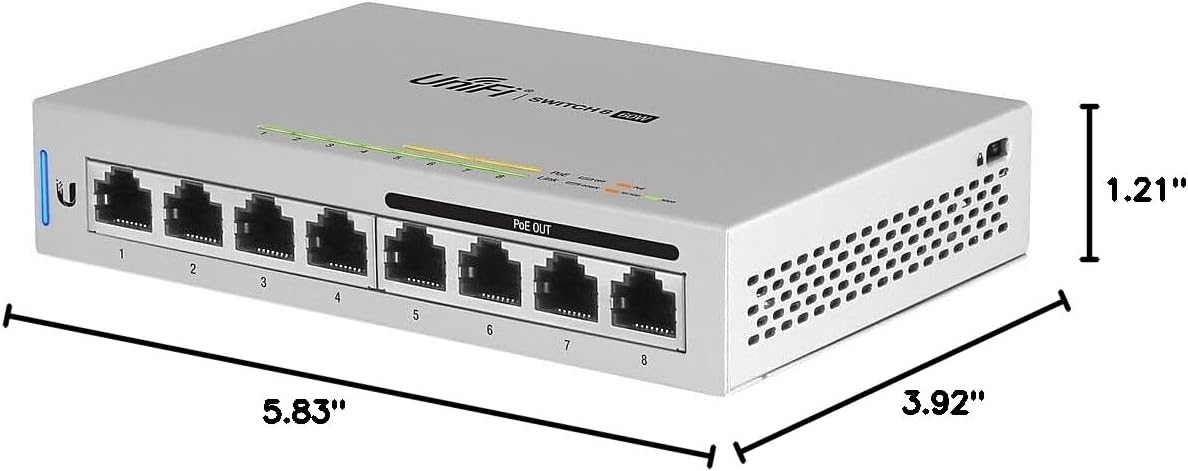
Figure 4: Dimensions of the US-8-60W.
9. Warranty and Support
For warranty information, please refer to the official Ubiquiti Networks website or the warranty card included with your product. Technical support is available through the Ubiquiti Networks support portal.
A detailed user guide in PDF format can be found here.


