
1. Product Overview
Introduction
The Gateman ASSA ABLOY A330-FH is a modern digital door lock designed for enhanced security and convenience. It features multiple access methods including fingerprint recognition, a digital keypad, and Bluetooth key functionality. Its unique push-pull handle design allows for intuitive and easy operation, making it a reliable choice for residential and light commercial applications.

Figure 1: Front view of the Gateman A330-FH Digital Door Lock, showcasing its sleek design and keypad.
2. Key Features
Features at a Glance
- Fingerprint Recognition: Secure and convenient unlocking with registered fingerprints, eliminating the need for physical keys.
- Digital Keypad: Access via a customizable PIN code, providing an alternative entry method.
- Bluetooth Key: Unlock the door using a smartphone via Bluetooth connectivity, offering modern convenience.
- Push-Pull Handle: Ergonomic design for easy opening and closing, allowing for single-action operation.
- Automatic Locking: Ensures the door is securely locked after closing, enhancing security without manual intervention.
- Emergency Power Supply: External terminal for temporary power using a 9V battery in case of main battery depletion.
- Internal Forced Lock: Provides additional security from the inside, preventing external access even with valid credentials.

Figure 2: Demonstrating fingerprint recognition for secure and keyless entry.

Figure 3: The intuitive push-pull mechanism for opening and closing the door.
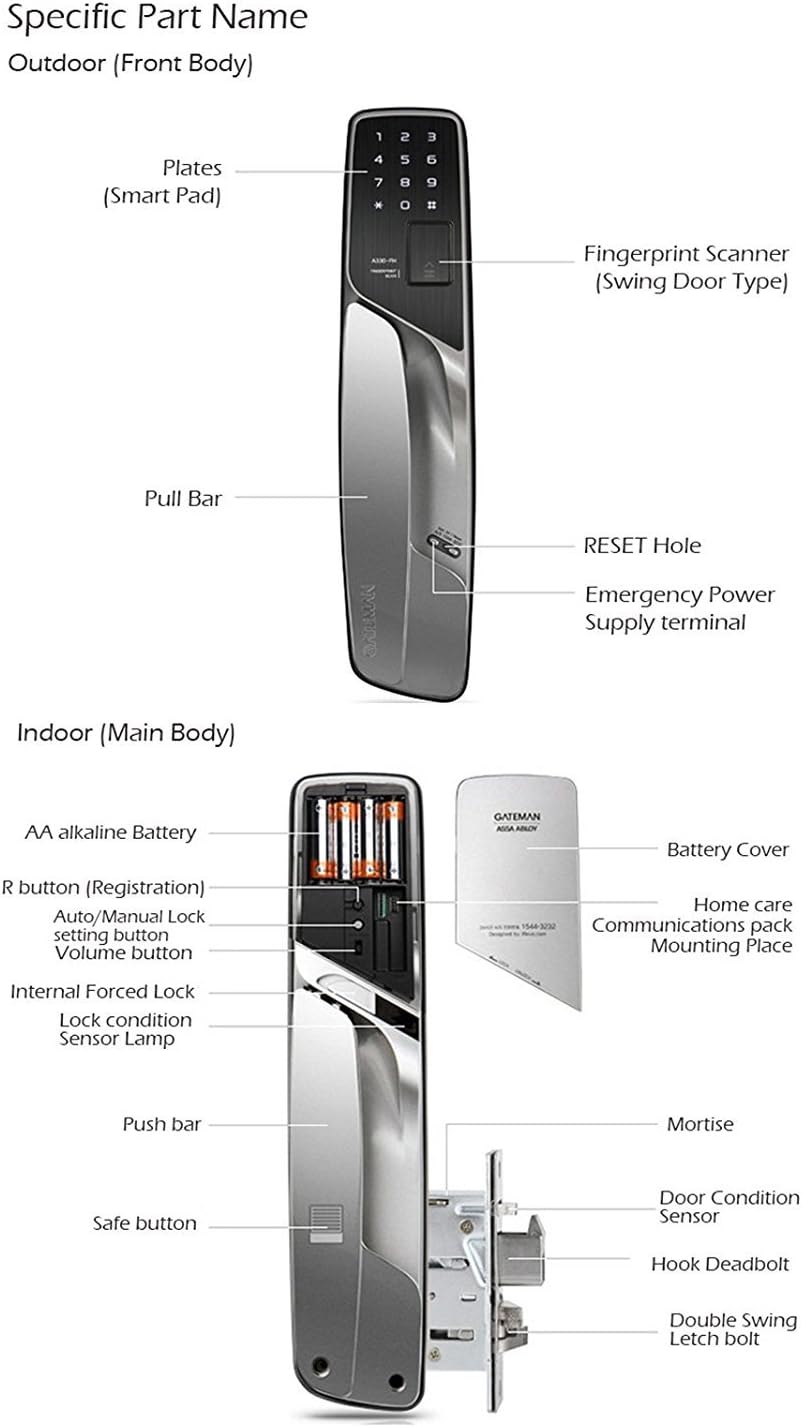
Figure 4: Overview of the Gateman Bluetooth Key module and its integration with a smartphone application.
3. Components Identification
Outdoor Unit (Smart Pad)
- Plates (Smart Pad): The main interface for keypad entry and displaying status.
- Fingerprint Scanner (Swing Door Type): For biometric authentication, integrated into the handle.
- Pull Bar: The handle component used to pull the door open from the outside.
- RESET Hole: A small opening for resetting the lock to factory settings using a pin.
- Emergency Power Supply terminal: Two external contacts for connecting a 9V battery to power the lock temporarily if internal batteries are depleted.
Indoor Unit (Main Body)
- AA alkaline Battery Compartment: Houses the AA alkaline batteries that power the lock.
- R button (Registration): Used for registering new fingerprints, passcodes, and Bluetooth keys.
- Auto/Manual Lock setting button: Toggles between automatic locking mode and manual locking mode.
- Volume button: Adjusts the sound level of the lock's operations and alerts.
- Internal Forced Lock: A lever or button to activate a privacy mode, preventing unlocking from the outside.
- Lock condition Sensor Lamp: An indicator light showing the current locked or unlocked status of the door.
- Push bar: The handle component used to push the door open from the inside.
- Safe button: An additional security feature on the push bar, requiring simultaneous press for operation.
- Battery Cover: Protects the battery compartment.
- Home care Communications pack Mounting Place: A designated slot for optional communication modules (e.g., for smart home integration).
- Mortise: The internal locking mechanism installed within the door.
- Door Condition Sensor: Detects whether the door is open or closed, crucial for automatic locking.
- Hook Deadbolt: A robust bolt that extends into the door frame for strong locking security.
- Double Swing Latch bolt: Ensures smooth door closure and secure latching.

Figure 5: Detailed breakdown of the outdoor and indoor components of the A330-FH lock.
4. Setup
4.1. Battery Installation
The Gateman A330-FH lock requires AA alkaline batteries for operation. Proper battery installation is crucial for the lock's functionality.
- Locate the battery cover on the indoor unit of the lock.
- Slide or remove the battery cover to access the battery compartment.
- Insert the required number of AA alkaline batteries (typically 4 or 8), ensuring correct polarity (+/-) as indicated inside the compartment.
- Replace the battery cover securely.
Note: Batteries are not included with the product. Please use new, high-quality alkaline batteries for optimal performance and longevity. Avoid mixing old and new batteries or different battery types.
4.2. Initial Registration (Master Passcode & Fingerprint)
Upon first power-up or after a factory reset, you will need to register a master passcode and/or master fingerprint. This is the primary access method for managing other user credentials.
- Open the battery cover on the indoor unit to expose the 'R' (Registration) button.
- Press the 'R' (Registration) button once.
- Follow the voice prompts or visual indicators on the smart pad to enter your desired master passcode (e.g., 4-12 digits followed by '#') or register your master fingerprint by placing your finger on the scanner multiple times as prompted.
- Confirm the registration as prompted by the lock.
It is highly recommended to register at least one master fingerprint and a master passcode immediately after installation for secure access and to enable further user registrations.
5. Operating Instructions
5.1. Unlocking the Door
Using Fingerprint Recognition
- Place a registered finger firmly and completely on the fingerprint scanner.
- The lock will verify the fingerprint. A successful verification will be indicated by an audible sound and/or a green light.
- Once unlocked, push or pull the handle to open the door.
Using Digital Passcode
- Touch the smart pad to activate the keypad. The numbers will illuminate.
- Enter your registered digital passcode (4-12 digits).
- Press the '#' button to confirm the passcode entry.
- Once unlocked, push or pull the handle to open the door.
Using Bluetooth Key (via Smartphone)
- Ensure Bluetooth is enabled on your smartphone and the official Gateman app is installed and configured with your lock.
- Open the Gateman app and select your registered lock from the device list.
- Follow the app's instructions to send the unlock command (e.g., tap an unlock icon).
- Once unlocked, push or pull the handle to open the door.
5.2. Locking the Door
Automatic Locking
The lock is designed to automatically lock approximately 3 seconds after the door is closed. This feature relies on the door condition sensor. Ensure the door is fully closed for the automatic locking mechanism to engage properly.
Manual Locking (from outside)
To manually lock the door from the outside, simply close the door. The lock will automatically engage after a short delay. No further action is typically required.
Manual Locking (from inside)
To manually lock the door from the inside, ensure the door is closed. The lock will automatically engage. For enhanced security, you can also activate the Internal Forced Lock feature.
5.3. Internal Forced Lock
The Internal Forced Lock feature provides an additional layer of security by preventing the door from being opened from the outside, even with a registered fingerprint or passcode. This is particularly useful when you are inside the property and desire maximum privacy and security.
- Locate the Internal Forced Lock lever or button on the indoor unit.
- Engage the Internal Forced Lock as per its specific mechanism (e.g., slide a lever to the 'locked' position, or press a dedicated button).
Caution: Ensure no one is locked out when engaging the Internal Forced Lock, as external entry will be disabled.
5.4. Safe Button Operation
The Safe button, located on the push bar of the indoor unit, provides an additional layer of security against unauthorized exit. When activated, it prevents the push bar from being operated without pressing the safe button first. This can deter attempts to open the door from the inside by small children or in certain emergency situations.
To operate the push bar when the safe button is active, press the safe button simultaneously while pushing the bar to open the door.
6. Maintenance
6.1. Cleaning
To maintain the appearance and optimal functionality of your Gateman A330-FH digital door lock:
- Wipe the lock's surface with a soft, dry, lint-free cloth.
- Avoid using abrasive cleaners, solvents, chemical sprays, or strong detergents, as these can damage the finish and internal electronic components.
- Keep the fingerprint scanner clean and free of dust, dirt, or debris for accurate recognition. Use a soft, dry cloth to gently wipe the scanner surface.
6.2. Battery Replacement
The lock will provide a low battery warning (typically an audible alarm or a visual indicator on the smart pad) when the batteries are running low. Replace all batteries promptly when this warning appears to ensure continuous operation.
- Open the battery cover on the indoor unit.
- Remove all old AA alkaline batteries from the compartment.
- Insert new AA alkaline batteries, ensuring correct polarity for each battery.
- Replace the battery cover securely.
Important: Always replace all batteries at once. Do not mix old and new batteries, or different brands/types of batteries. Dispose of used batteries responsibly according to local regulations.
6.3. Emergency Power Supply
In the event that the internal batteries completely deplete and you are unable to unlock the door from the outside, you can use a standard 9V battery for temporary emergency power.
- Locate the Emergency Power Supply terminal on the outdoor unit (typically two small metal contacts at the bottom).
- Press a 9V battery firmly against these terminals, ensuring correct polarity (positive to positive, negative to negative).
- While holding the 9V battery in place, use your registered fingerprint or passcode to unlock the door as usual.
- Once the door is unlocked and opened, replace the internal AA batteries immediately.
7. Troubleshooting
Common Issues and Solutions
| Problem | Possible Cause | Solution |
|---|---|---|
| Lock does not respond / No power. | Depleted batteries; incorrect battery installation. | Replace all AA alkaline batteries with new ones, ensuring correct polarity. Use a 9V battery for emergency power if locked out. |
| Fingerprint not recognized. | Finger not placed correctly; dirty scanner; unregistered fingerprint; damaged fingerprint. | Ensure finger is clean and placed firmly and completely on the scanner. Clean the scanner with a soft, dry cloth. Register the fingerprint if not already done, or re-register if damaged. |
| Passcode not working. | Incorrect passcode entered; keypad not activated; temporary glitch. | Ensure correct passcode is entered. Touch the smart pad to activate before entering. Try re-entering the passcode. |
| Door does not lock automatically. | Door not fully closed; Auto/Manual lock setting is off; door sensor issue. | Ensure the door is completely closed and aligned. Check the Auto/Manual lock setting button on the indoor unit to ensure it's set to 'Auto'. |
| Bluetooth connection issues. | Bluetooth off on phone; app not running; module not paired; interference. | Ensure phone Bluetooth is on. Restart the Gateman app. Re-pair the Bluetooth module if necessary. Move closer to the lock. |
If the problem persists after trying these solutions, please contact customer support for further assistance.
8. Specifications
Product Specifications
| Feature | Detail |
|---|---|
| Brand | Gateman |
| Model Number | A330-FH |
| Lock Type | Electronic Lock |
| Access Methods | Fingerprint, Digital Passcode, Bluetooth Key |
| Handle Type | Push-Pull |
| Power Source | AA Alkaline Batteries (not included) |
| Emergency Power | 9V Battery Terminal |
| Special Features | Keyless, Internal Forced Lock, Safe Button |
| Recommended Use | Security |
| Style | Modern |
| Shape | Rectangular |
9. Warranty and Support
Warranty Information
Specific warranty details for the Gateman ASSA ABLOY A330-FH Digital Door Lock are not provided within this manual. Please refer to the product packaging, purchase documentation, or the manufacturer's official website for comprehensive warranty terms and conditions applicable to your region and purchase.
Customer Support
For technical assistance, troubleshooting beyond the scope of this manual, or any inquiries regarding your product, please contact your retailer or the official Gateman customer support channels. When contacting support, please have your product model number (A330-FH) and purchase details readily available to facilitate faster service.


