
Product Overview
The Fotopro 40 Inch Lightweight Phone Tripod Stand, model MS-4K-US, is designed for versatility and portability. It supports both smartphones and cameras, offering stable support for various photography and videography needs. Its compact design makes it ideal for travel and outdoor activities.
Key features include:
- Lightweight and Portable: Weighing 0.39 kg (0.85 lb) and folding to just 11 inches, it's easy to carry for travel, climbing, and camping.
- Adjustable Height: Extends from 11 to 40 inches, providing flexible height options.
- 3-Way Pan Head with 360° Panorama: Allows for 90-degree vertical and 360-degree panoramic shooting, with a spirit level for precise horizontal alignment.
- Universal Compatibility: Includes a phone clamp for most smartphones (up to 3.3 inches width) and a 1/4-inch screw quick release plate for digital cameras and other devices.
- Remote Shooting: Supports long-distance shooting up to 33 feet away, ideal for group photos.
Setup Instructions
1. Unfolding the Tripod Legs
To set up the tripod, gently pull the legs outwards until they are fully extended and stable. The leg locks are designed for quick deployment.

Figure 1: Tripod with legs extended, ready for use.
2. Adjusting Tripod Height
The central column of the tripod can be extended to adjust the overall height. Loosen the central column lock, pull the column to your desired height, and then tighten the lock securely. Each leg also features quick-release clips to extend individual leg sections for additional height or uneven terrain.

Figure 2: Illustration of locking and retracting tripod leg sections for height adjustment.
3. Attaching Your Device (Phone/Camera)
The tripod comes with a versatile mounting system. For smartphones, attach the included phone clamp to the 1/4-inch screw on the quick release plate. Ensure your phone is securely gripped by the clamp. For cameras, directly screw the camera onto the 1/4-inch screw of the quick release plate.

Figure 3: Smartphone securely attached to the tripod head.
Video 1: Demonstrates the ease of attaching and detaching a device to the tripod head.
Operating Instructions
1. Adjusting the 3-Way Pan Head
The tripod features a 3-way pan head with a handle for precise adjustments. Use the handle to control horizontal panning (360 degrees) and vertical tilting (90 degrees). A built-in spirit level helps ensure your device is perfectly level for optimal shots.
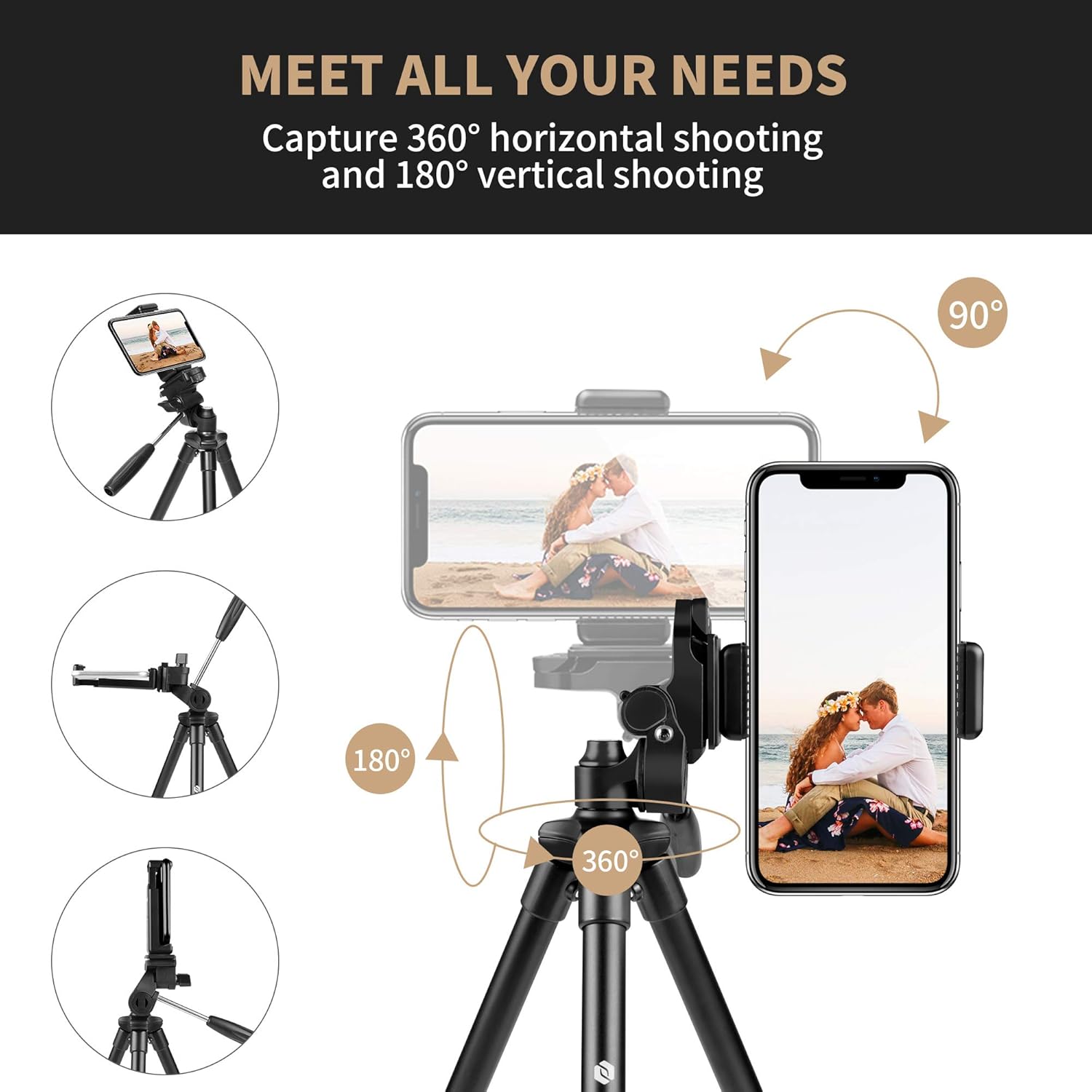
Figure 4: Detailed view of the 3-way pan head features, including the handle and bubble level.

Figure 5: Illustrates the range of motion for horizontal and vertical shooting with the tripod head.
2. Using the Remote Control
The tripod allows for long-distance shooting up to 33 feet away. Pair the included Bluetooth remote control with your smartphone to capture photos or start/stop video recording without touching your device, reducing camera shake and enabling convenient group shots.
Video 2: Shows the tripod in use, highlighting its portability and ease of setup for various shooting scenarios.
Maintenance
- Cleaning: Wipe down the tripod with a soft, dry cloth after each use to remove dust and dirt. For stubborn grime, use a slightly damp cloth and mild soap, then dry thoroughly.
- Storage: Store the tripod in its carry bag in a cool, dry place away from direct sunlight and extreme temperatures.
- Lubrication: Avoid applying lubricants to the moving parts unless specifically instructed by the manufacturer, as this can attract dust and impair function.
- Inspection: Periodically check all screws, clamps, and joints to ensure they are secure. Tighten any loose components carefully.
Troubleshooting
- Tripod Instability: Ensure all leg sections are fully extended and their quick-release clips are securely locked. For added stability, especially with heavier devices, hang a weight (like a backpack) from the central column hook if available.
- Device Not Fitting Securely: Check that your smartphone's width is within the 3.3-inch limit of the phone clamp. For cameras, ensure the 1/4-inch screw is fully tightened into the camera's tripod mount.
- Head Movement Issues: If the pan head is too loose or too stiff, adjust the tension knobs on the head until the desired movement is achieved. Ensure the quick release plate is firmly attached to the head.
- Remote Control Not Connecting: Ensure Bluetooth is enabled on your smartphone and the remote control is charged. Follow your smartphone's instructions for pairing new Bluetooth devices.
Specifications
| Product Dimensions | 11.5 x 2.7 x 2 inches (folded) |
| Item Weight | 1 pounds (0.45 kg) |
| Maximum Height | 40 Inches |
| Minimum Height | 11 Inches |
| Weight Limit | 2.2 Pounds (1 kg) |
| Material | Aluminum |
| Tripod Head Type | Pan Heads (3-way) |
| Compatible Devices | Camera, Smartphone, iPhone |
| Model Number | MS-4K-US |
| Included Accessories | Phone Mount, Bluetooth Shutter Remote, Carry Bag |
Warranty Information
Fotopro products are manufactured to high-quality standards. For specific warranty details regarding your Fotopro 40 Inch Lightweight Phone Tripod Stand, please refer to the warranty card included in your product packaging or visit the official Fotopro website. Keep your proof of purchase for any warranty claims.
Customer Support
Should you encounter any issues or have questions about your Fotopro 40 Inch Lightweight Phone Tripod Stand, please contact Fotopro customer support. You can typically find contact information (email, phone, or support portal) on the official Fotopro website or in your product's user manual booklet.

