
1. Introduction
The HyperX Cloud Pro Gaming Headset is engineered for serious console and PC gamers, offering superior comfort and audio performance. Featuring a durable aluminum frame, memory foam ear cushions, and 53mm drivers, this headset delivers crystal clear highs, mids, and lows. The convenient in-line audio control provides easy access to volume adjustments and microphone muting, ensuring an immersive gaming experience.
2. Package Contents
- HyperX Cloud Pro Gaming Headset
- Detachable Noise-Cancelling Microphone
- In-line Audio Control Box
- PC Extension Cable (2M) with Stereo and Mic Plugs
- Carrying Pouch

Image: All components included with the HyperX Cloud Pro Gaming Headset.
3. Product Overview
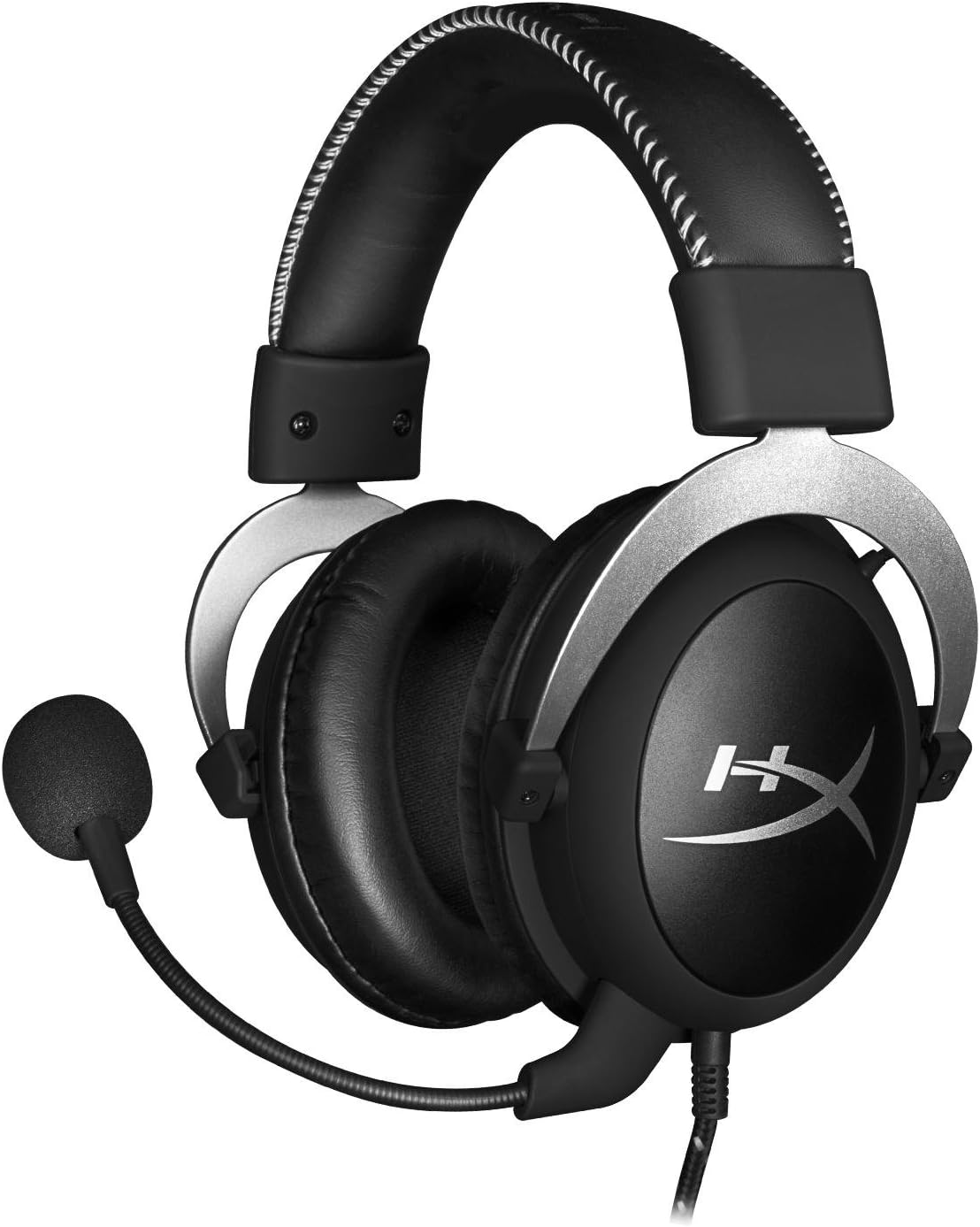
Front view of the headset with microphone.
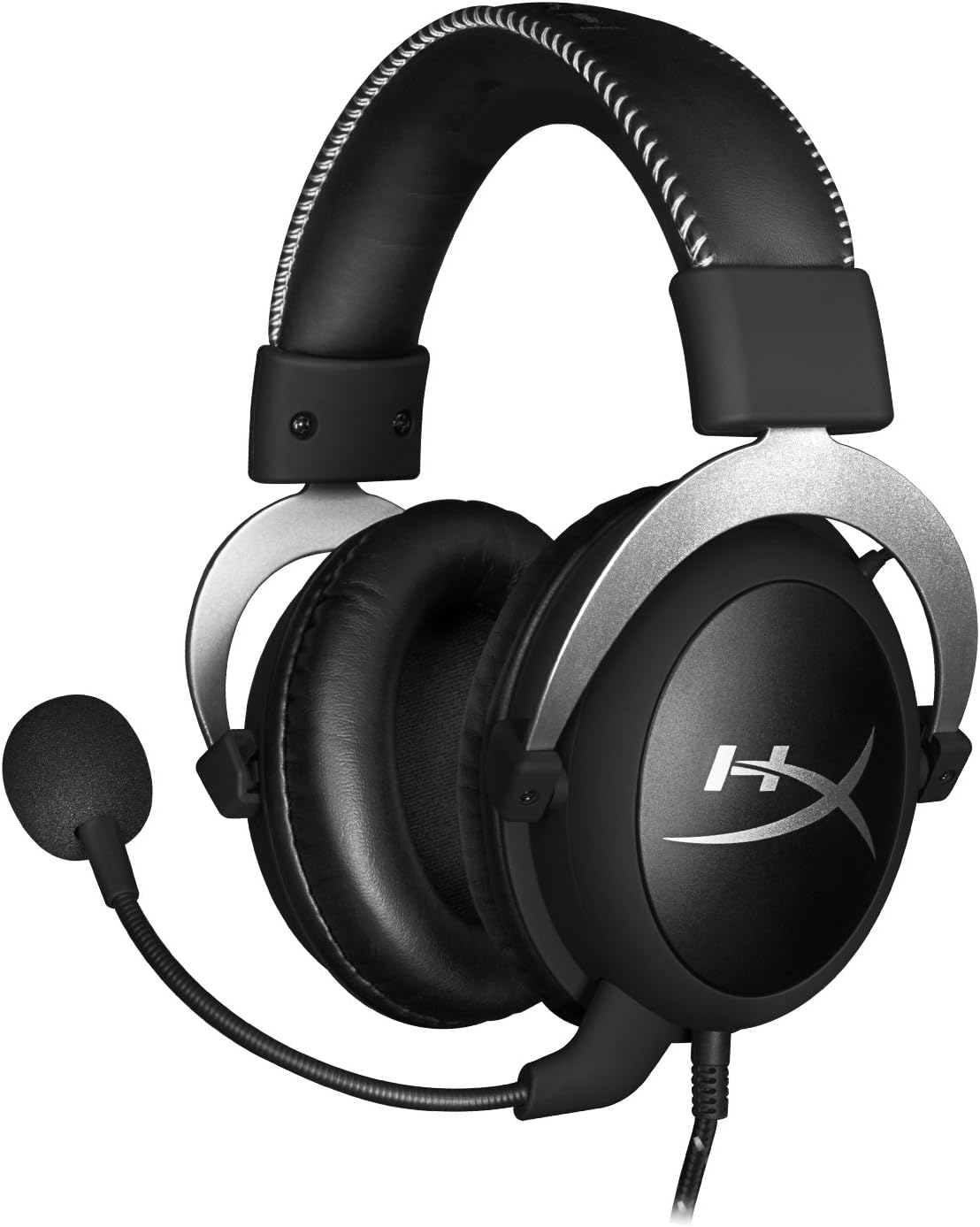
Side view of the headset.

Headset folded flat for storage.

Top view of the headband.
Key Components:
- Headband: Padded with leatherette for comfort during extended use.
- Ear Cups: Over-ear design with memory foam cushions, providing passive noise isolation.
- Detachable Microphone: Flexible, noise-cancelling microphone for clear communication.
- In-line Audio Control: Integrated unit on the cable for volume adjustment and microphone mute.
4. Setup and Connection
4.1 PC Connection
- Connect the headset's 3.5mm plug to the in-line audio control box.
- Attach the PC extension cable to the in-line audio control box.
- Plug the green audio jack of the extension cable into your PC's audio output (headphone) port.
- Plug the pink microphone jack of the extension cable into your PC's microphone input port.
- Ensure the detachable microphone is securely inserted into the headset's microphone port.
4.2 Console Connection (PS4, Xbox One, Wii U)
- Connect the headset's 3.5mm plug directly into your console controller's 3.5mm port.
- Ensure the detachable microphone is securely inserted into the headset's microphone port.
- Adjust audio settings on your console as needed to route chat and game audio through the headset.
4.3 Mobile Device Connection
- Connect the headset's 3.5mm plug directly into your mobile device's 3.5mm audio jack.
- The microphone can be attached for calls or detached if not needed.

Image: In-line audio control unit.
5. Operating Instructions
5.1 Volume Control
The in-line audio control features a rotary volume wheel. Rotate the wheel upwards to increase volume and downwards to decrease volume. This adjusts the headset's output volume independently of your device's master volume.
5.2 Microphone Mute
A switch on the in-line audio control allows you to quickly mute or unmute the microphone. Slide the switch to the 'Mute' position to disable the microphone, and slide it back to enable it. This is useful for privacy or when you do not wish your voice to be transmitted.
6. Maintenance and Care
- Cleaning: Use a soft, dry cloth to wipe down the headset. For ear cushions, a slightly damp cloth can be used, but ensure they are completely dry before use. Avoid harsh chemicals or abrasive cleaners.
- Storage: When not in use, store the headset in the provided carrying pouch to protect it from dust and scratches. Avoid extreme temperatures and humidity.
- Cable Care: Do not excessively bend or pull the cables. Store them neatly to prevent tangling and damage.
7. Troubleshooting
| Issue | Possible Cause | Solution |
|---|---|---|
| No audio from headset | Incorrect connection; Volume too low; Device audio settings. | Ensure all cables are securely connected. Increase volume using the in-line control and device settings. Verify audio output settings on your PC/console. |
| Microphone not working | Microphone muted; Incorrect connection; Device microphone settings. | Check the microphone mute switch on the in-line control. Ensure the microphone is fully inserted. Verify microphone input settings on your PC/console. |
| Poor sound quality / Static | Loose connection; Interference; Damaged cable. | Reconnect all cables. Test on another device to rule out interference. If issues persist, the cable may be damaged. |
| Headset uncomfortable | Improper fit. | Adjust the headband for a comfortable fit. The memory foam ear cushions are designed for extended comfort. |
8. Technical Specifications
- Model Name: HyperX Cloud Pro Gaming Headset - Silver - with In-Line Audio Control
- Model Number: HX-HSCL-SR/NA
- Connectivity: Wired (3.5mm Jack)
- Drivers: 53mm Dynamic Drivers
- Frequency Response: 15 Hz - 25 kHz
- Material: Foam, Aluminum, Leather
- Item Weight: 0.6 Kilograms (1.32 pounds)
- Compatible Devices: PS5, PS4, Xbox One, Wii U, Mac, Mobile Devices, PC
- Control Type: Volume Control, Microphone Mute
- Noise Control: Active Noise Cancellation (Microphone)
9. Warranty and Support
The HyperX Cloud Pro Gaming Headset is backed by a 2-year warranty. For technical support or warranty claims, please contact HyperX customer service. You can also refer to the official User Manual (PDF) for additional information.


