
Fame G-300
Fame G-300 61-Note Portable Keyboard User Manual
Model: G-300 | Brand: Fame
1. Introduction
This manual provides detailed instructions for the setup, operation, and maintenance of your Fame G-300 61-Note Portable Keyboard. Please read this manual thoroughly before using the instrument to ensure proper and safe operation. The Fame G-300 is designed for musicians of all levels, offering a wide range of sounds and features for creative expression.

Figure 1.1: Top view of the Fame G-300 Portable Keyboard, showing the 61 keys, control panel, and integrated speakers.
2. Setup
2.1 Unpacking and Inspection
Carefully remove the keyboard from its packaging. Inspect the instrument for any signs of damage that may have occurred during transit. Retain the original packaging for future transport or storage.
2.2 Power Connection
Connect the included power adapter to the DC IN jack on the rear of the keyboard. Plug the other end into a standard electrical outlet. Ensure the power switch is in the OFF position before connecting the power.
2.3 Connecting Peripherals
The Fame G-300 offers various connectivity options:
- Headphones: Connect standard 6.35mm stereo headphones to the PHONES jack for private practice.
- USB MIDI: Use the USB port to connect the keyboard to a computer for MIDI data transfer. This allows you to use the keyboard as a MIDI controller with music software.
- Sustain Pedal: Connect an optional sustain pedal to the SUSTAIN jack for expressive playing.

Figure 2.1: Rear panel connections, including USB, headphone, and sustain pedal jacks.
3. Operating Instructions
3.1 Power On/Off
Press the POWER button located on the control panel to turn the keyboard on or off. The display will illuminate upon power-on.
3.2 Volume Control
Adjust the overall volume using the VOLUME knob. Turn clockwise to increase volume and counter-clockwise to decrease.
3.3 Selecting Voices (Tones)
The G-300 features a wide variety of instrument voices. Use the dedicated voice category buttons (e.g., Piano, Guitar, Strings) and the data entry knob or number pad to select your desired voice. The selected voice name will appear on the LCD display.
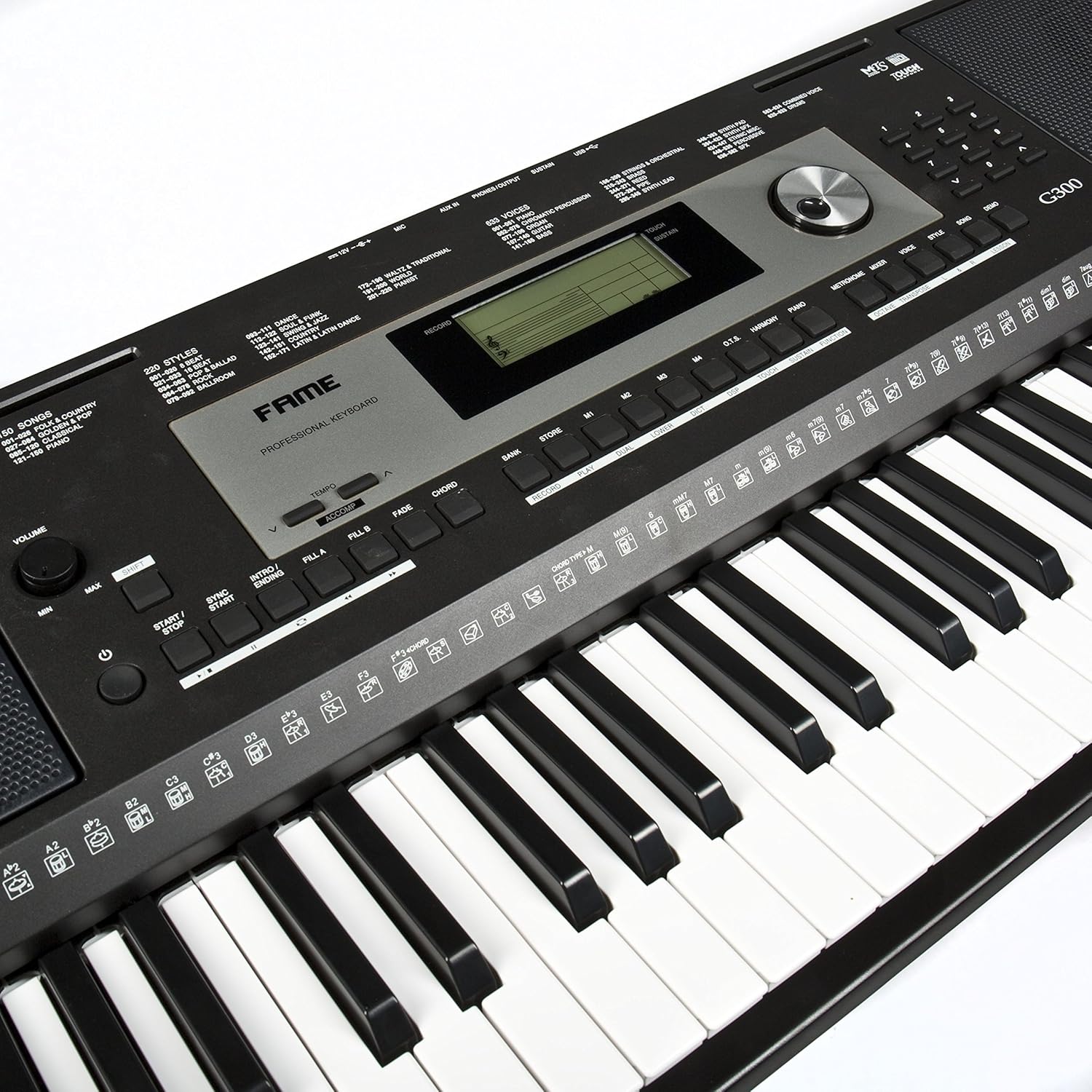
Figure 3.1: Detailed view of the control panel, showing the LCD display, voice selection buttons, and data entry knob.
3.4 Using Styles (Rhythms)
The keyboard includes numerous accompaniment styles. Press the STYLE button and use the data entry knob or number pad to browse and select a style. Press START/STOP to begin or end the accompaniment. Use SYNC START to start the style automatically when you play a chord.
3.5 Pitch Bend Wheel
The pitch bend wheel allows you to smoothly raise or lower the pitch of notes while playing. Move the wheel up to raise the pitch and down to lower it. It automatically returns to the center (normal pitch) when released.

Figure 3.2: The pitch bend wheel located on the left side of the keyboard, used for expressive pitch modulation.
3.6 Recording Functions
The G-300 allows you to record your performances. Refer to the detailed instructions in the full manual for multi-track recording and playback procedures.
4. Maintenance
4.1 Cleaning
Wipe the keyboard's surface with a soft, dry cloth. For stubborn dirt, slightly dampen the cloth with water and a mild, non-abrasive cleaner. Avoid using harsh chemicals, solvents, or abrasive materials, as they can damage the finish.
4.2 Storage
When not in use, store the keyboard in a cool, dry place away from direct sunlight, extreme temperatures, and high humidity. If storing for an extended period, it is recommended to disconnect the power adapter.
4.3 General Care
- Avoid placing heavy objects on the keyboard.
- Do not expose the keyboard to water or other liquids.
- Keep out of reach of small children and pets.
5. Troubleshooting
| Problem | Possible Cause | Solution |
|---|---|---|
| No sound from speakers/headphones. | Volume too low; headphones not fully inserted; power off. | Increase volume; ensure headphones are fully plugged in; check power connection and turn on. |
| Keyboard does not power on. | Power adapter not connected; faulty outlet. | Ensure power adapter is securely connected; try a different power outlet. |
| Keys are not responding. | Keyboard may be in a demo mode or specific setting. | Try resetting the keyboard (refer to full manual for factory reset procedure); power cycle the unit. |
| MIDI connection issues. | Incorrect USB cable; driver issues on computer. | Ensure you are using a proper USB A-to-B cable; install necessary drivers if required by your operating system (check Fame website). |
If you encounter problems not listed here, or if the issue persists, please contact Fame customer support.
6. Specifications
| Feature | Detail |
|---|---|
| Model | Fame G-300 |
| Keys | 61 (standard size) |
| Connectivity | USB (MIDI), 6.35mm Headphone Jack, Sustain Pedal Input |
| Power Source | Cable electric (AC Adapter) |
| Dimensions (L x W x H) | 103.2 x 45 x 20.5 cm (40.6 x 17.7 x 8.1 inches) |
| Weight | 7.4 Kilograms (16.3 lbs) |
| Special Feature | Touch-sensitive keys (Hammer action) |
7. Warranty and Support
7.1 Warranty Information
The Fame G-300 Portable Keyboard comes with a standard manufacturer's warranty. Please refer to the warranty card included with your product for specific terms, conditions, and duration. Keep your proof of purchase for warranty claims.
7.2 Customer Support
For technical assistance, troubleshooting, or warranty inquiries, please contact Fame customer support. Contact details can typically be found on the manufacturer's official website or on the product packaging.
Note: Availability of spare parts is currently unavailable as per product information.
Related documentsG-300


Ask a question about this manual
Ask about setup, troubleshooting, compatibility, parts, safety, or missing instructions. Manuals+ will review the question and use this page’s manual context to help answer it.