
1. Product Overview
The Thermaltake The Tower 900 is a full tower PC case designed for high-end PC enthusiasts and modders. Developed in collaboration with Watermod France, this chassis emphasizes a unique vertical installation layout and features durable 5mm tempered glass panels to showcase internal components. It supports extensive liquid cooling configurations and offers ample space for various hardware components.

Figure 1: Front view of the Thermaltake The Tower 900 showcasing internal components and custom liquid cooling setup.
Key features include a spacious interior for custom liquid cooling loops, support for XL ATX motherboards, and multiple drive bays for storage. The design prioritizes both aesthetic display and functional cooling performance.
2. Setup and Installation
This section provides general guidelines for assembling your PC components within The Tower 900 chassis. Due to its modular design, many parts can be disassembled for easier installation.
2.1 Unboxing and Initial Inspection
Carefully remove the chassis from its packaging. Inspect for any damage that may have occurred during transit. Keep all packaging materials for future transport or warranty claims.

Figure 2: Exploded view illustrating the modular components of The Tower 900 for easier assembly.
2.2 Removing Side Panels
The tempered glass side panels are secured with thumbscrews. Unscrew these to remove the panels, providing full access to the interior for component installation.
2.3 Motherboard Installation
- Install the necessary motherboard standoffs onto the motherboard tray according to your motherboard's form factor (XL ATX, ATX, microATX).
- Carefully place your motherboard onto the standoffs, aligning the screw holes.
- Secure the motherboard with screws.
2.4 Power Supply Unit (PSU) Installation
The PSU is mounted at the rear of the chassis. Ensure proper orientation and secure it with screws. Route cables through the designated cutouts for clean management.

Figure 3: View of the power supply unit mounting area at the rear of the chassis.
2.5 Storage Drive Installation
The case features multiple drive bays for 3.5-inch HDDs and 2.5-inch SSDs. Utilize the removable drive trays for easy installation. The case supports up to six 3.5-inch drives or twelve 2.5-inch drives.
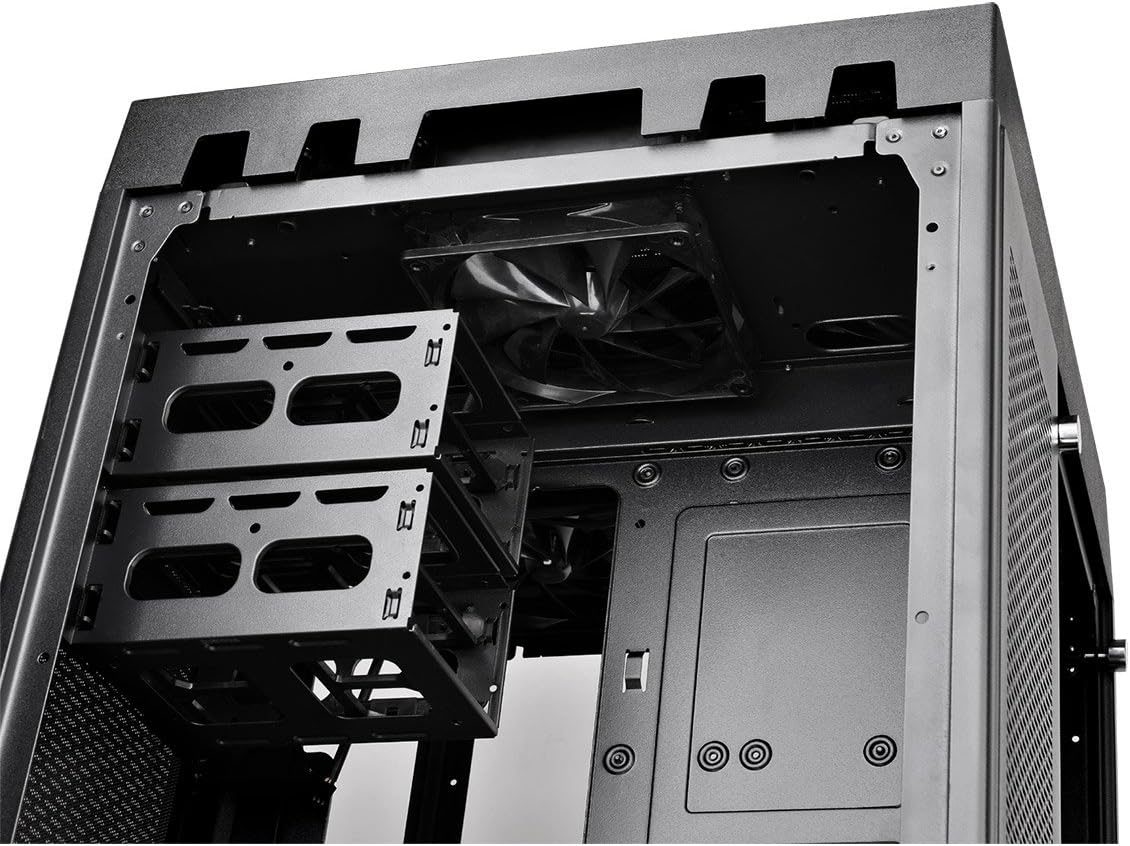
Figure 4: Removable drive trays for 3.5-inch and 2.5-inch storage devices.
2.6 Cooling System Installation (Fans/Radiators)
The Tower 900 is optimized for liquid cooling, supporting up to two 560mm radiators. Install fans and radiators in the designated areas, ensuring proper airflow direction. The case comes with two pre-installed 140mm fans at the top.

Figure 5: Side view showing fan mounting locations, ideal for radiator installation.
For custom liquid cooling, the case provides dedicated space for pumps and reservoirs. Note that pump brackets are designed for Thermaltake D5 pumps; other pump models may require custom mounting solutions.
2.7 Cable Management
Utilize the numerous cable routing holes and tie-down points behind the motherboard tray to ensure a clean build and optimal airflow. Long SATA and PSU cables are recommended for this large chassis.
3. Operating Instructions
Once all components are installed and secured, and the side panels are reattached, connect your peripherals and power cable.
3.1 Front I/O Panel
The top front panel provides convenient access to essential ports and controls:
- Power Button: To turn the system on/off.
- Reset Button: To restart the system.
- USB 3.0 Ports (x4): For high-speed data transfer.
- Audio Jacks (Headphone/Microphone): For audio input/output.

Figure 6: Close-up of the top I/O panel featuring USB 3.0 ports, audio jacks, and power/reset buttons.
3.2 System Power On
Press the power button on the front I/O panel to start your system. Ensure all cables are securely connected before powering on.
4. Maintenance
Regular maintenance helps ensure optimal performance and longevity of your PC components.
4.1 Dust Filter Cleaning
The Tower 900 is equipped with magnetic dust filters on various intake points. These filters should be cleaned regularly (e.g., monthly in a living area) to prevent dust buildup inside the chassis, which can impede airflow and cooling efficiency.

Figure 7: Various magnetic dust filters included with the chassis for easy removal and cleaning.
- Gently remove the magnetic dust filters from their respective locations.
- Clean the filters using compressed air or by rinsing them with water. Ensure they are completely dry before reattaching.
4.2 Tempered Glass Panel Care
Clean the tempered glass panels with a soft, lint-free cloth and a glass cleaner. Avoid abrasive materials that could scratch the surface.
4.3 Internal Cleaning
Periodically, use compressed air to remove dust from internal components such as fans, heatsinks, and graphics cards. Ensure the system is powered off and unplugged before performing internal cleaning.
5. Troubleshooting
This section addresses common issues that may arise during or after PC assembly.
5.1 System Does Not Power On
- Verify that the power cable is securely connected to both the PSU and the wall outlet.
- Ensure the PSU's power switch is in the "ON" position.
- Check all internal power connections, especially the 24-pin ATX and 8-pin CPU power cables to the motherboard.
- Confirm that the front panel power switch cable is correctly connected to the motherboard's header.
5.2 Excessive Noise
- Identify the source of the noise (e.g., fan, HDD).
- Ensure all fans are securely mounted and free from obstructions.
- Check for loose cables or components that might be vibrating against the chassis.
- If using HDDs, ensure they are properly secured in their drive bays to minimize vibration.
5.3 Poor Cooling Performance
- Clean all dust filters and internal components as described in the Maintenance section.
- Verify that all fans are spinning and oriented correctly for optimal airflow (intake/exhaust).
- Ensure radiators are not obstructed and have adequate airflow.
- For liquid cooling systems, check pump operation and coolant levels.
6. Specifications
| Feature | Detail |
|---|---|
| Brand | Thermaltake |
| Model Name | The Tower 900 |
| Case Type | Full Tower |
| Motherboard Compatibility | XL ATX, ATX, Micro ATX |
| Material | Steel, Tempered Glass |
| Color | Black |
| Dimensions (D x W x H) | 48.3P x 42.6l x 75.2H cm (19.02 x 16.77 x 29.61 inches) |
| Weight | 24.5 kg (54 lbs) |
| Drive Bays | 6 x 3.5" or 12 x 2.5" (internal) |
| Expansion Slots | 7 |
| Front I/O Ports | 4 x USB 3.0, HD Audio |
| Cooling Method | Air, Liquid (supports up to 2x 560mm radiators) |
| Pre-installed Fans | 2 x 140mm (top) |
| Power Supply Type | Standard PS2 PSU (rear mount) |
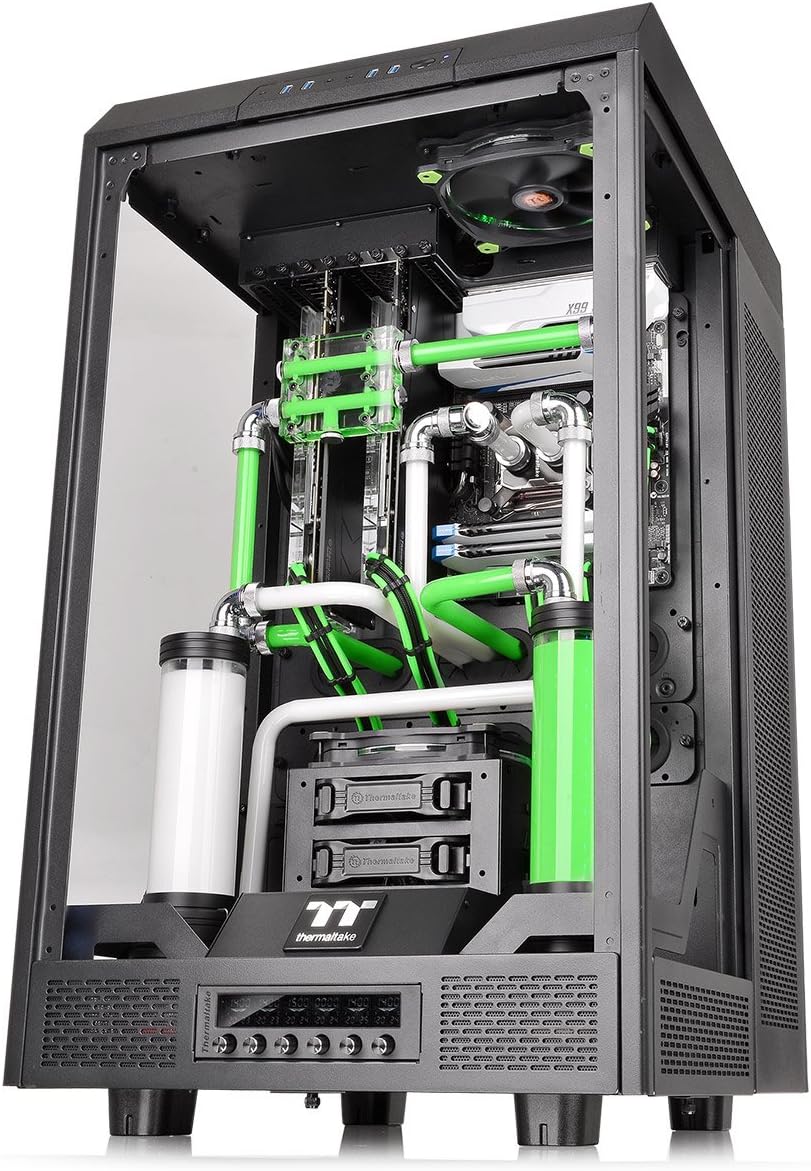
Figure 8: Diagram illustrating the dimensions of The Tower 900 chassis.
7. Warranty and Support
7.1 Warranty Information
The Thermaltake The Tower 900 comes with a 2-year manufacturer's warranty. Please retain your proof of purchase for warranty claims. The warranty covers defects in materials and workmanship under normal use.
7.2 Customer Support
For technical assistance, troubleshooting, or warranty inquiries, please contact Thermaltake customer support. Refer to the official Thermaltake website for the most up-to-date contact information and support resources.
- Online Support: Visit the Thermaltake official website for FAQs, driver downloads, and support tickets.
- Contact Information: Specific regional contact details can be found on the support section of the Thermaltake website.
Thermaltake is committed to providing excellent support and innovative products, driven by a passion for DIY and PC modding.


