
Motorola MBP483
Motorola MBP483 2.8-inch Video Baby Monitor User Manual
Model: MBP483
1. Introduction
The Motorola MBP483 2.8-inch Video Baby Monitor is designed to provide parents with a clear view and audio monitoring of their child. This manual provides essential information for setting up, operating, and maintaining your baby monitor.
Product Features
- 2.8-inch Diagonal Color Screen
- Digital Zoom Functionality
- Two-Way Communication
- Room Temperature Display
- Infrared Night Vision
- High Sensitivity Microphone
- Wireless Technology: 2.4 GHz FHSS
- Up to 1000ft Range with Out-of-Range Alert
- Includes 5 Lullabies
- LED Sound Level Indicator
- Rechargeable Battery with Low Battery Alert on the Parent Unit
What's in the Box
- Parent Unit (Monitor)
- Baby Unit (Camera)
- Power Adapter for Parent Unit
- Power Adapter for Baby Unit
- Quick Start Guide (this document serves as a comprehensive guide)

The Motorola MBP483 system includes a baby unit (camera) and a parent unit (monitor) for comprehensive baby monitoring.
2. Important Safety Instructions
WARNING: Strangulation Hazard
- Keep all cords out of reach of children (at least 3 feet / 1 meter away). Never place the camera or cords within a crib or playpen.
- Do not place the baby unit or parent unit where a child could reach them.
WARNING: Choking Hazard
- This product contains small parts. Keep out of reach of children.
General Safety
- Do not expose the product to water or moisture. Do not use near bathtubs, sinks, laundry tubs, swimming pools, or wet basements.
- Do not place the product near heat sources such as radiators, heat registers, stoves, or other appliances that produce heat.
- Ensure proper ventilation. Do not block any ventilation openings.
- Use only the AC adapters provided. Using other adapters may damage the device and void your warranty.
- The parent unit contains a rechargeable battery. Do not attempt to replace it yourself. Dispose of batteries properly. Do not expose batteries to excessive heat.
- Clean only with a dry cloth.
3. Setup
3.1 Unpacking and Initial Charge
- Carefully unpack all components from the box.
- Connect the power adapter to the Parent Unit and plug it into an electrical outlet. Charge the Parent Unit for at least 16 hours before first use to ensure optimal battery performance.
- Connect the power adapter to the Baby Unit and plug it into an electrical outlet.
3.2 Positioning the Baby Unit (Camera)
Place the Baby Unit on a flat surface in your baby's room, such as a dresser or shelf. Ensure the camera provides a clear view of your baby's crib or sleeping area. Keep the Baby Unit and its cord at least 3 feet (1 meter) away from the crib.

Proper placement of the baby unit ensures a clear view of your child in their crib.
3.3 Powering On the Units
- To power on the Baby Unit, slide the ON/OFF switch located on the side of the unit to the 'ON' position.
- To power on the Parent Unit, press and hold the Power button until the screen illuminates.

The baby unit features an ON/OFF switch for easy power control.
3.4 Pairing (Automatic)
The Baby Unit and Parent Unit are pre-paired at the factory. If you experience connection issues or need to add additional cameras (up to 4 total), refer to the 'Troubleshooting' section for manual pairing instructions.
4. Operating the Monitor
4.1 Parent Unit Display and Controls
The Parent Unit features a 2.8-inch color screen and intuitive controls for managing the monitor's functions.
4.2 Digital Zoom
To zoom in on the video feed, press the 'Zoom' button (often represented by a magnifying glass icon) on the Parent Unit. Press again to zoom out or return to the normal view.
4.3 Two-Way Communication
To speak to your baby through the Baby Unit, press and hold the 'Talk' button (microphone icon) on the Parent Unit. Release the button to hear your baby again.
4.4 Infrared Night Vision
The Baby Unit automatically activates infrared night vision in low-light conditions, providing a clear black and white image on the Parent Unit display.
4.5 Room Temperature Display
The Parent Unit displays the room temperature detected by the Baby Unit, allowing you to ensure your baby's room is comfortable.
4.6 Lullabies
The monitor includes 5 pre-programmed lullabies. Refer to the Parent Unit's menu options to select and play lullabies. You can usually control playback (play/pause/skip) from the Parent Unit.
4.7 Alerts
- Out-of-Range Alert: The Parent Unit will notify you if it loses connection with the Baby Unit, indicating you are too far away or there is interference.
- Low Battery Alert: The Parent Unit will display an icon or message when its battery level is low, prompting you to recharge it.
4.8 LED Sound Level Indicator
The LED lights on the Parent Unit indicate the sound level detected by the Baby Unit, providing a visual cue even when the volume is low or muted.
Product Features Overview
This video provides a visual overview of the Motorola MBP483 Video Baby Monitor's key features, including the 2.8-inch color screen, room temperature display, lullabies, high sensitivity microphone, out-of-range alerts, digital zoom, two-way communication, and infrared night vision.
5. Maintenance
5.1 Cleaning the Units
- Ensure both units are powered off and unplugged before cleaning.
- Use a soft, dry, lint-free cloth to clean the surfaces of the Baby Unit and Parent Unit.
- Do not use cleaning sprays or liquid cleaners.
5.2 Battery Care
- The Parent Unit uses a rechargeable battery. For optimal battery life, fully charge the unit before initial use.
- Avoid exposing the battery to extreme temperatures.
- If the monitor will not be used for an extended period, store it with a partially charged battery in a cool, dry place.
6. Troubleshooting
| Problem | Solution |
|---|---|
| No image/sound on Parent Unit | Ensure both units are powered on and connected to power. Check if the Parent Unit battery is charged. Move the Parent Unit closer to the Baby Unit. |
| Poor image quality | Ensure there are no obstructions between the Baby Unit and Parent Unit. Adjust the Baby Unit's position for better lighting. |
| Out-of-Range alert | Move the Parent Unit closer to the Baby Unit. Ensure there are no large metal objects or other electronic devices causing interference. The maximum range is up to 1000ft in an open field, but indoor range will be less due to walls and obstacles. |
| Parent Unit battery drains quickly | Ensure the Parent Unit was fully charged for 16 hours before first use. Reduce screen brightness. Turn off the screen when not actively viewing. Battery life is approximately 8 hours. |
| Interference (static, buzzing) | Move the monitor away from other electronic devices (e.g., Wi-Fi routers, cordless phones, microwaves). |
| Cannot pair additional cameras | Refer to the Parent Unit's menu for 'Add Camera' or 'Pairing' options. Follow the on-screen instructions to initiate pairing. Ensure the new camera is powered on and within range during the pairing process. |
7. Specifications
- Model: MBP483
- Wireless Technology: 2.4 GHz FHSS
- Screen Size: 2.8 inches diagonal
- Video Capture Resolution: 720p
- Range: Up to 1000 feet (line of sight)
- Power Source: Battery Powered (Parent Unit), AC Adapter (Baby Unit)
- Parent Unit Battery Life: Approximately 8 hours
- Dimensions (Parent Unit): 2.62 x 4.85 x 1.15 inches
- Item Weight: 4 ounces
- Special Features: Digital Zoom, Two-Way Audio, Room Temperature Display, Infrared Night Vision, Lullabies, LED Sound Level Indicator
- Connectivity Protocol: Wi-Fi (for internal communication, not external internet)
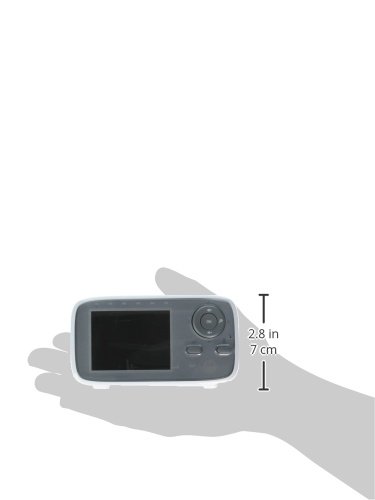
The parent unit is designed for portability, fitting comfortably in hand.
8. Warranty and Support
Motorola products are designed for reliability and performance. For warranty information or technical support, please refer to the warranty card included with your product or visit the official Motorola support website. Keep your purchase receipt as proof of purchase.
For further assistance, you may visit the Motorola support page: www.motorola.com/us/support
Related documentsMBP483


Ask a question about this manual
Ask about setup, troubleshooting, compatibility, parts, safety, or missing instructions. Manuals+ will review the question and use this page’s manual context to help answer it.