
Introduction
The SteelSeries Apex 100 Gaming Keyboard is designed for optimal gaming performance, featuring Quick Tension Switches for fast reaction times, tactile feedback, and quiet operation. It includes blue LED backlighting, advanced anti-ghosting, and is built with splash resistance for durability.
Setup
1. Connecting the Keyboard
Connect the keyboard's USB-A cable to an available USB port on your computer. The keyboard is plug-and-play, and your operating system should automatically detect and install the necessary drivers.

Image: Top view of the SteelSeries Apex 100 Gaming Keyboard, showing the full QWERTY layout with blue LED backlighting and the attached USB cable.
2. Software Installation (Optional)
For advanced customization, including macro programming and backlighting adjustments, download and install the SteelSeries Engine 3 software from the official SteelSeries website (steelseries.com/engine). Follow the on-screen instructions for installation.
Operating the Keyboard
Key Features
- Quick Tension Switches: Designed to mimic mechanical switches, providing a tactile feel and fast actuation.
- Blue LED Backlighting: Offers brilliant ground effects backlighting. Intensity can be adjusted via SteelSeries Engine 3.
- Advanced Anti-Ghosting: Ensures all key presses are registered accurately during intense gaming sessions.
- Media Controls: Integrated media control functions are accessible via function keys (F7-F12) in combination with the Fn key.
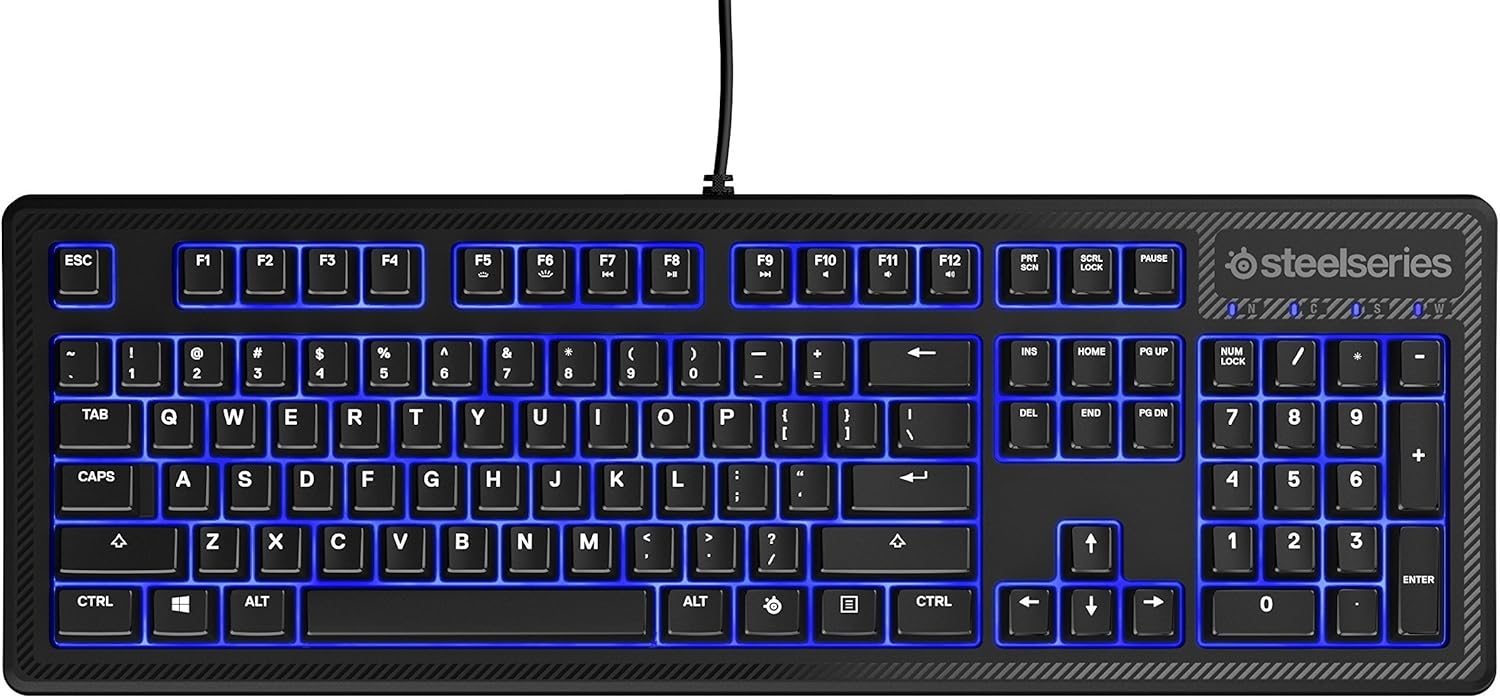
Image: Side view of the SteelSeries Apex 100 Gaming Keyboard, highlighting its ergonomic design and keycap profile.
Customization with SteelSeries Engine 3
The SteelSeries Engine 3 software allows you to:
- Create and assign macros to any key.
- Adjust the intensity of the blue LED backlighting.
- Configure polling rates and other performance settings.
Maintenance
Cleaning
To clean your keyboard, disconnect it from your computer. Use a soft, dry cloth to wipe down the keys and chassis. For stubborn dirt, a slightly damp cloth with mild soap can be used, ensuring no liquid enters the key switches or internal components. The keyboard is splash resistant, but not waterproof; avoid submerging it or exposing it to excessive liquids.
Durability
The Apex 100 keyboard features a guaranteed 20-million click lifespan for its switches, ensuring long-term reliability under heavy use.

Image: Bottom view of the SteelSeries Apex 100 Gaming Keyboard, showing the drainage channels and adjustable feet.
Troubleshooting
Keyboard Not Responding
- Ensure the USB cable is securely connected to both the keyboard and the computer.
- Try connecting the keyboard to a different USB port.
- Restart your computer.
- If using a USB hub, try connecting directly to the computer.
Backlighting Issues
- Check the backlighting settings within the SteelSeries Engine 3 software.
- Ensure the keyboard's brightness level is not set to minimum.
Keys Not Registering
- Clean around the affected keys to remove any debris.
- If the issue persists, consider reinstalling the SteelSeries Engine 3 software or updating your USB drivers.
For further assistance, please refer to the SteelSeries support website.
Specifications
| Feature | Detail |
|---|---|
| Brand | SteelSeries |
| Model Name | Apex 100 |
| Model Number | 64435 |
| Connectivity Technology | USB-A |
| Keyboard Description | Gaming |
| Recommended Uses | Gaming |
| Special Feature | Backlit |
| Color | Blue |
| Keyboard Backlighting Color Support | Single Color (Blue) |
| Style | Whisper Quiet – Tactile & Silent |
| Product Dimensions | 18.21"L x 6.13"W x 1.58"H |
| Power Source | USB |
| Switch Type | Tactile (Quick Tension Switches) |
| Keyboard Layout | QWERTY |
| Button Quantity | 104 |
| Compatible Operating System Family | Windows |
| Number of Keys | 100 |
| Enclosure Material | Plastic |
| Item Weight | 2.42 Pounds |
| UPC | 813682020101 |
Warranty Information
According to product information, this item comes with no warranty. Please check with your retailer for their return or exchange policies.
Support
For additional support, driver downloads, or frequently asked questions, please visit the official SteelSeries support website:


