
1. Introduction
The Amkette Trubeats S50 is a versatile smart wireless Bluetooth speaker designed to enhance your audio experience. It features multiple connectivity options including Bluetooth, USB, Micro SD card, and AUX input, along with an integrated FM radio. The speaker also includes a digital clock with alarm functions and can be controlled via a dedicated smartphone application. Additionally, it can function as a power bank to charge your mobile devices.
2. Package Contents
Please check the box for the following items:
- Amkette Trubeats S50 Smart Wireless Bluetooth Speaker
- USB Charging Cable
- AUX Cable
- User Manual (this document)
3. Product Overview
Familiarize yourself with the various parts and controls of your Amkette Trubeats S50 speaker.
3.1 Front View

Figure 1: Front view of the Amkette Trubeats S50 speaker, showing the speaker grille and LED display.
3.2 Top Control Panel

Figure 2: Labeled diagram of the Amkette Trubeats S50 speaker's top control buttons: Mode, Volume Down/Previous, Play/Pause/Answer Call, Volume Up/Next, Clock, and Microphone.
- MODE Button: Press to switch between Bluetooth, FM, AUX, USB, and Micro SD modes.
- K-/ Button: Press to decrease volume; long press for previous track/station.
- Play/Pause/Answer Call Button: Press to play/pause audio; press to answer/end calls.
- +/N Button: Press to increase volume; long press for next track/station.
- CLOCK Button: Press to set time and alarms.
- Microphone: For hands-free calling.
3.3 Rear Ports and Switch

Figure 3: Labeled diagram of the Amkette Trubeats S50 speaker's rear ports: AUX, Micro SD, USB Host, USB DC, and On/Off switch.
- AUX Input: Connect external audio devices using the 3.5mm AUX cable.
- Micro SD Card Slot: Insert a Micro SD card for audio playback.
- USB Host Port: Insert a USB drive for audio playback or use as a power bank.
- USB DC Input: Connect the USB charging cable to power the speaker.
- ON/OFF Switch: Power the speaker on or off.
4. Setup
4.1 Charging the Speaker
- Connect the small end of the USB charging cable to the USB DC Input port on the rear of the speaker.
- Connect the large end of the USB charging cable to a USB power adapter (not included) or a computer's USB port.
- The LED indicator will show charging status. A full charge typically takes approximately 4 hours.
Note: The speaker does not have a visible battery level indicator. It is recommended to charge fully before first use and when the battery is low.
4.2 Powering On/Off
- To power on, slide the ON/OFF Switch on the rear of the speaker to the 'ON' position.
- To power off, slide the ON/OFF Switch to the 'OFF' position.
5. Operating Instructions
5.1 Bluetooth Pairing

Figure 4: Speaker in Bluetooth pairing mode, indicated by 'BT' on the display.
- Power on the speaker. It will automatically enter Bluetooth pairing mode, indicated by 'BT' flashing on the LED display.
- Enable Bluetooth on your smartphone or other device.
- Search for available devices and select "Amkette S50" from the list.
- Once paired, the speaker will emit a confirmation tone, and 'BT' will stop flashing.
- You can now play audio from your device through the speaker.
5.2 Using AUX Input

Figure 5: Speaker connected to a smartphone via AUX cable for wired audio playback.
- Connect one end of the 3.5mm AUX cable to the AUX Input port on the rear of the speaker.
- Connect the other end of the AUX cable to the audio output jack of your external device (e.g., smartphone, MP3 player, laptop).
- Press the MODE Button repeatedly until the speaker enters AUX mode.
- Play audio from your connected device.
5.3 Using USB/Micro SD Card
- Insert a USB drive into the USB Host Port or a Micro SD card into the Micro SD Card Slot on the rear of the speaker.
- Ensure your audio files (MP3 format recommended) are stored on the drive/card.
- Press the MODE Button repeatedly until the speaker enters USB or Micro SD mode. Playback will begin automatically.
- Use the K-/ and +/N buttons for track navigation and volume control.
5.4 FM Radio Operation

Figure 6: Speaker displaying FM frequency, with app control for station selection.
- Press the MODE Button repeatedly until the speaker enters FM radio mode.
- Auto Scan: In FM mode, long press the Play/Pause button to initiate an automatic scan for available FM stations. The speaker will save detected stations.
- Manual Tuning: Use the K-/ and +/N buttons to navigate through saved stations.
- For precise tuning and station management, use the Amkette Trubeats Smart Speaker App (see section 5.7).
5.5 Digital Clock and Alarm Setup

Figure 7: Speaker displaying the current time on its LED screen.
- Setting Time: Press and hold the CLOCK Button. The hour display will flash. Use the K-/ and +/N buttons to adjust the hour. Press the CLOCK Button again to set minutes, and adjust with K-/ and +/N. Press CLOCK Button once more to confirm.
- Setting Alarms: Briefly press the CLOCK Button to cycle through Alarm 1 and Alarm 2 settings. When an alarm time is displayed, long press the CLOCK Button to enter alarm setting mode. Adjust hour and minute using K-/ and +/N, confirming each with a short press of the CLOCK Button. You can also set the alarm source (FM/SD Card/USB) via the app.
5.6 Using as a Power Bank
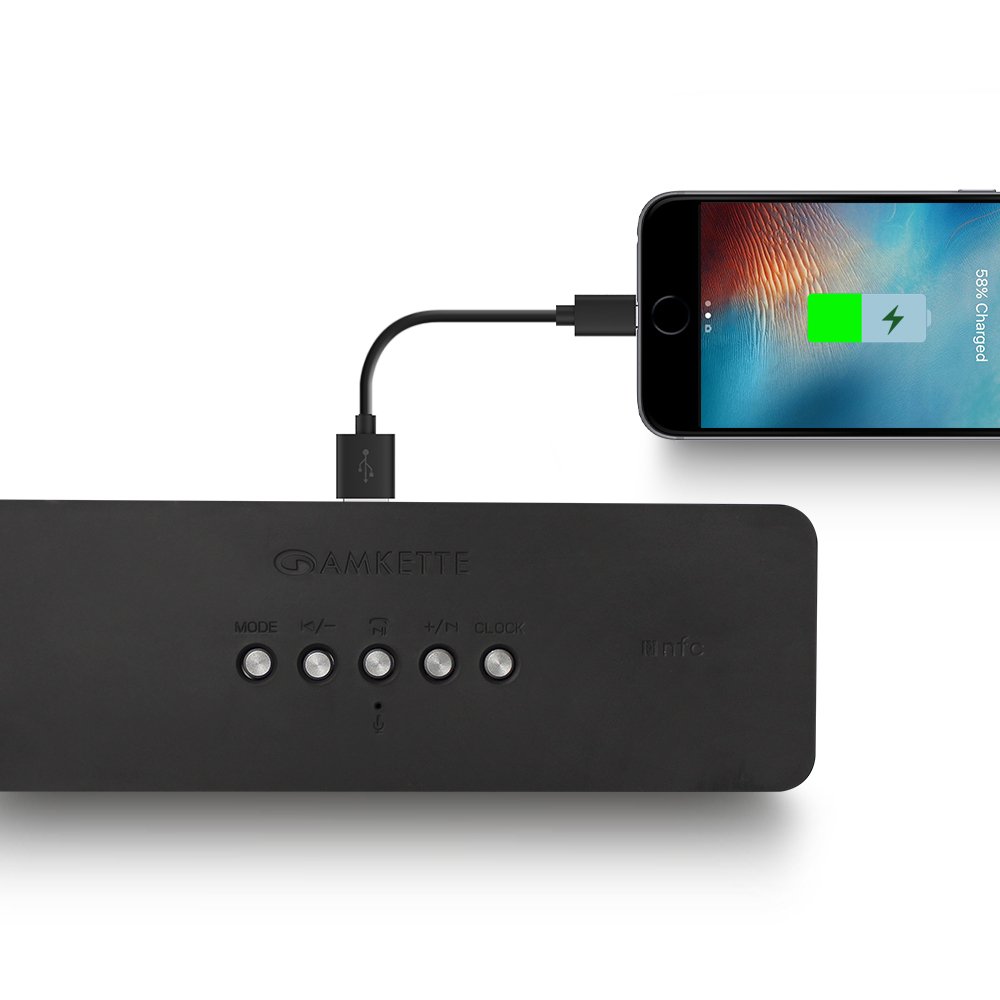
Figure 8: Speaker providing power to a smartphone through its USB Host port.
The Amkette Trubeats S50 can charge your smartphone or other USB-powered devices. Connect your device's charging cable to the USB Host Port on the rear of the speaker. The speaker's internal battery will then supply power to your device.
5.7 App Control (Android Only)

Figure 9: Smartphone displaying the Amkette Trubeats Smart Speaker App interface.
For enhanced control, download the Amkette Trubeats Smart Speaker App from the Google Play Store (for Android phones). The app allows you to:
- Switch between different audio modes.
- Control volume and track playback.
- Manage FM radio stations and perform precise tuning.
- Set and customize alarms, including alarm source.
Ensure your speaker is connected via Bluetooth to your smartphone for app functionality.
5.8 Call Handling
When connected via Bluetooth to a smartphone, the speaker can be used for hands-free calling:
- Answer Call: Press the Play/Pause/Answer Call Button once.
- End Call: Press the Play/Pause/Answer Call Button once during a call.
- Reject Call: Long press the Play/Pause/Answer Call Button.
6. Maintenance
- Keep the speaker away from extreme temperatures, direct sunlight, and moisture.
- Clean the speaker with a soft, dry cloth. Do not use abrasive cleaners or solvents.
- Avoid dropping the speaker or subjecting it to strong impacts.
- When not in use for extended periods, store the speaker in a cool, dry place and charge it periodically to maintain battery health.
7. Troubleshooting
| Problem | Possible Cause | Solution |
|---|---|---|
| Speaker does not power on. | Battery is depleted. | Charge the speaker fully. |
| No sound from speaker. | Volume is too low; incorrect mode selected; device not connected properly. | Increase speaker and source device volume. Ensure correct mode (Bluetooth, AUX, etc.) is selected. Reconnect the device. |
| Bluetooth pairing fails. | Speaker not in pairing mode; device too far; interference. | Ensure speaker is in pairing mode ('BT' flashing). Move device closer to speaker. Turn off other Bluetooth devices. |
| Poor FM radio reception. | Weak signal; environmental interference. | Relocate the speaker to an area with better reception. Perform an auto-scan again. |
| App not connecting to speaker. | Bluetooth not connected; app issue. | Ensure speaker is paired via Bluetooth to your phone. Restart the app and try again. |
8. Specifications
- Model: S50
- Brand: Amkette
- Speaker Type: Portable Bluetooth Speaker (Outdoor)
- Connectivity: Bluetooth, USB, Micro SD, AUX, FM Radio
- Wireless Communication Technology: Bluetooth
- Control Method: Buttons, App (Android)
- Audio Output Mode: Stereo
- Audio Wattage: 10 Watts
- Power Source: Battery Powered
- Battery Life: Up to 12 hours (average)
- Charging Time: Approximately 4 hours
- Compatible Devices: Laptop, Mobile, Tablet
- Dimensions (LxWxH): 26.7 x 10.9 x 7.9 cm
- Item Weight: 703 Grams
- Waterproof: Yes
- Mounting Type: Tabletop Mount
9. Warranty and Support
The Amkette Trubeats S50 Smart Wireless Bluetooth Speaker comes with a 1-year warranty from the date of purchase. This warranty covers manufacturing defects under normal use.
For warranty claims, technical assistance, or any other support inquiries, please contact Amkette customer support through their official website or the contact information provided with your purchase documentation.
Please retain your purchase receipt as proof of purchase for warranty purposes.