
Introduction
This manual provides instructions for the proper setup, operation, and maintenance of your Targus W600 Wireless Optical Mouse. Please read this manual thoroughly before using the device to ensure optimal performance and longevity.
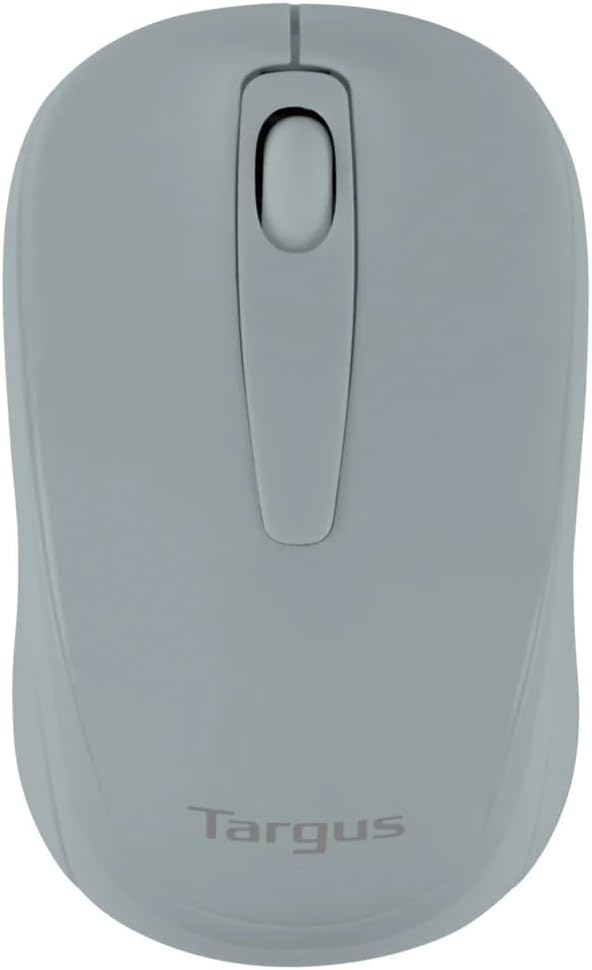
Figure 1: Targus W600 Wireless Optical Mouse (Quarry Gray)
Package Contents
Ensure all items are present in the package:
- Targus W600 Wireless Optical Mouse
- USB Receiver
- User Manual (this document)
Note: 1 AA battery is required and sold separately.
Product Features
- 2.4 GHz Wireless Technology for reliable connection
- 1600 DPI Optical Sensor for precise tracking
- Ergonomic design for comfortable use
- Compatible with Windows and Mac operating systems
- Integrated USB receiver storage compartment
Setup
1. Installing the Battery
- Turn the mouse over to locate the battery compartment cover.
- Gently slide the cover off.
- Insert one (1) AA battery, ensuring correct polarity (+/-).
- Replace the battery compartment cover.
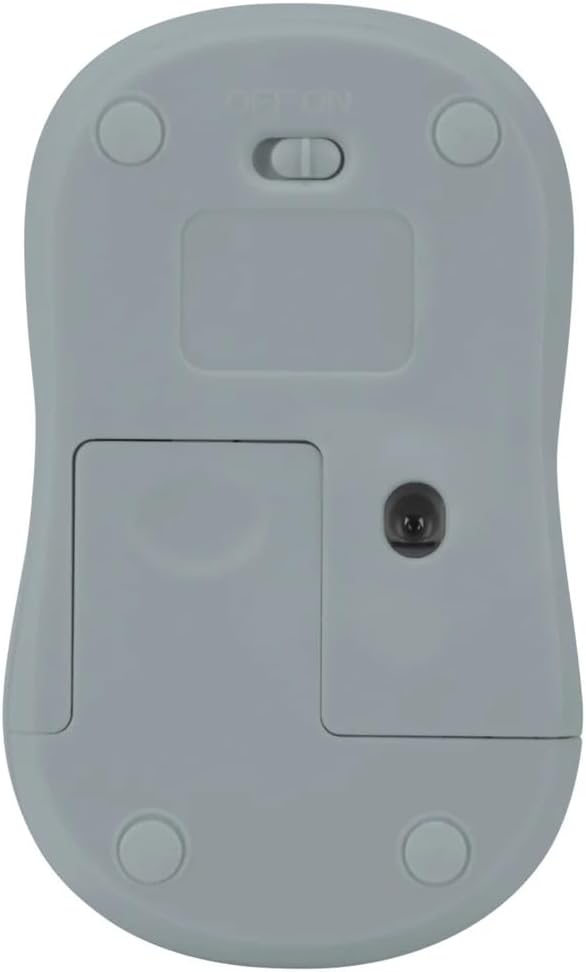
Figure 2: Bottom view of the mouse with battery compartment and power switch.
2. Connecting the USB Receiver
- Locate the USB receiver, typically stored inside the mouse's battery compartment or a dedicated slot.
- Plug the USB receiver into an available USB port on your computer.
- Your computer should automatically detect and install the necessary drivers. This may take a few moments.
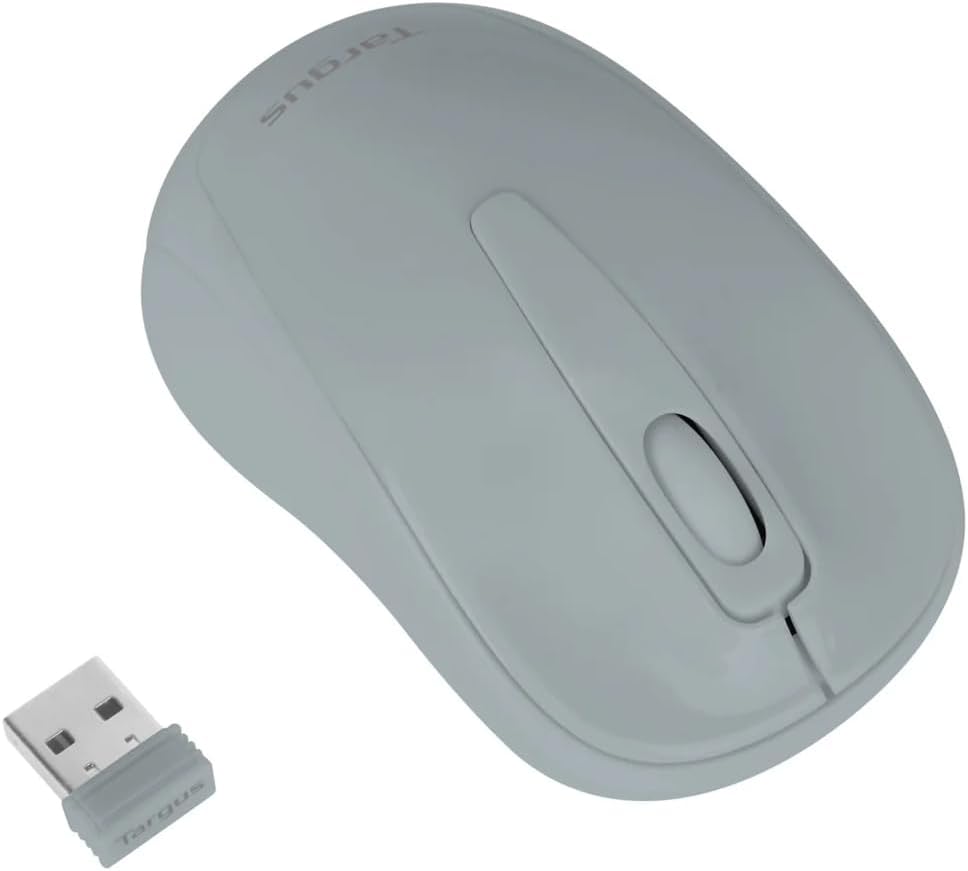
Figure 3: Targus W600 mouse and its USB receiver.

Figure 4: USB receiver plugged into a laptop, with the mouse nearby.
3. Powering On the Mouse
On the bottom of the mouse, slide the ON/OFF switch to the "ON" position. The mouse is now ready for use.
Operating the Mouse
The Targus W600 Wireless Optical Mouse functions like a standard 3-button mouse. It features a left button, a right button, and a scroll wheel that also acts as a middle button.
- Left Click: Primary action, selection, opening items.
- Right Click: Opens contextual menus.
- Scroll Wheel: Scrolls documents and web pages vertically. Pressing the scroll wheel acts as a middle click, often used for opening links in new tabs or specific application functions.
The 1600 DPI optical sensor provides smooth and accurate cursor control on most surfaces. For best performance, use on a mouse pad or a non-reflective, uniform surface.
Maintenance
Cleaning
To clean your mouse, gently wipe the surface with a soft, damp cloth. Avoid using harsh chemicals or abrasive cleaners, as these can damage the finish or internal components. Ensure no liquid enters the mouse.
Battery Replacement
When the mouse performance degrades or stops responding, it may be time to replace the battery. Follow the steps outlined in the "Installing the Battery" section to replace the AA battery. Dispose of used batteries responsibly according to local regulations.
Troubleshooting
| Problem | Solution |
|---|---|
| Mouse not responding |
|
| Erratic cursor movement |
|
| Short wireless range |
|
Specifications
| Model Number | AMW60006AP-55 |
| Connectivity | 2.4 GHz Wireless (USB Receiver) |
| Sensor Technology | Optical |
| DPI | 1600 DPI |
| Number of Buttons | 3 (Left, Right, Scroll Wheel/Middle Click) |
| Power Source | 1 x AA Battery (not included) |
| Compatible Operating Systems | Windows, Mac |
Note: Specifications are subject to change without notice.
Warranty and Support
For warranty information and technical support, please refer to the official Targus website or contact their customer service. Keep your purchase receipt as proof of purchase for warranty claims.
Targus Official Website: www.targus.com


