
1. Introduction
This manual provides essential instructions for the safe and efficient operation of your beFree Sound BFS-6445 Projection Party Light Dome Subwoofer Bluetooth Portable Speaker. Please read this manual thoroughly before using the product and retain it for future reference.
The beFree Sound BFS-6445 is a versatile portable speaker system featuring a 10-inch subwoofer, Bluetooth connectivity, USB/SD input, FM radio, and a unique projection light dome. It includes a wireless microphone and a remote control for enhanced functionality.
2. Product Overview
2.1 Key Features
- 800 Watts Peak Power Output
- 10-inch Subwoofer for deep bass
- 7" x 4.5" LED Light Projection Dome
- Bluetooth Wireless Connectivity
- USB and SD Card Input for media playback
- FM Radio Tuner
- Microphone and Guitar Inputs with priority switch
- Bass, Treble, Echo, Mic Volume, and Guitar Volume Controls
- Built-in Side Handles, Rolling Handle, and Wheels for portability
- Includes Wireless Microphone and Remote Control
2.2 Speaker Components and Controls
Refer to the image below for a visual guide to the speaker's main components and control panel.

Figure 1: Front view of the beFree Sound BFS-6445 speaker, showing the projection light dome, control panel, 10-inch subwoofer grille, and included wireless microphone and remote control. The inset images highlight the light dome's color variations (green, blue, red), USB/SD card slots, Bluetooth logo, and FM radio icon.
The control panel, located on the top front of the speaker, provides access to various functions including volume, input selection, equalization, and light dome control.
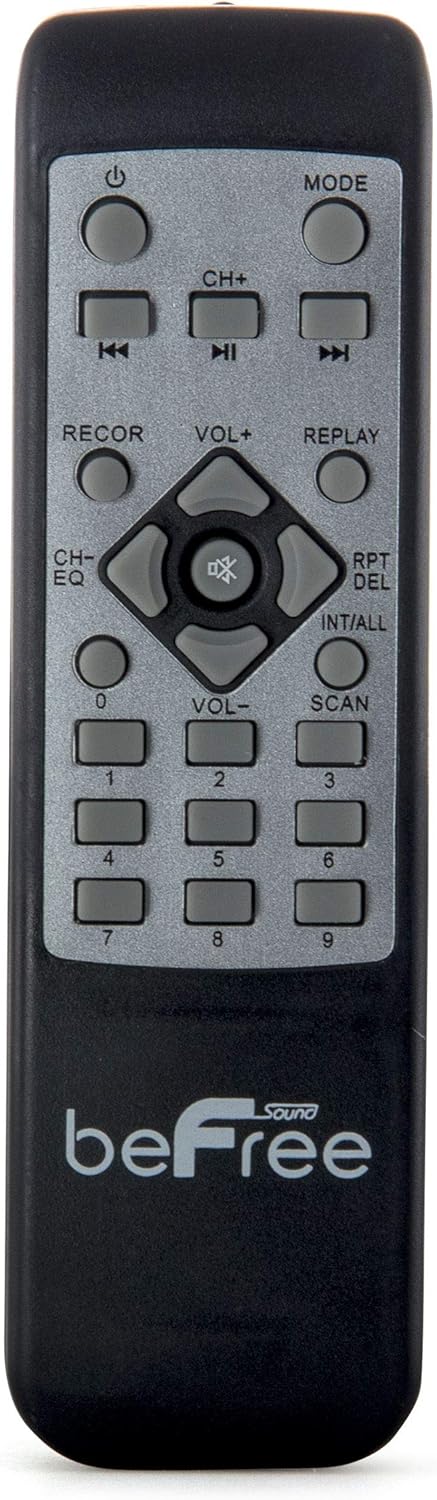
Figure 2: Close-up view of the beFree Sound BFS-6445 remote control. It features buttons for power, mode selection, track navigation, volume adjustment, EQ, record, replay, scan, and numerical input.
The remote control allows for convenient operation of the speaker from a distance.
3. Setup
3.1 Unpacking and Placement
- Carefully remove the speaker and all accessories from the packaging.
- Place the speaker on a stable, flat surface. Ensure adequate ventilation around the unit.
- The speaker is equipped with rolling wheels and an extendable handle for easy transport.
3.2 Power Connection
- Connect the provided AC power cord to the speaker's AC input port (AC 100-240V, 50/60Hz).
- Plug the other end of the power cord into a suitable wall outlet.
- The speaker can operate on AC power.
3.3 Battery Installation (Remote Control & Wireless Microphone)
- Remote Control: Open the battery compartment on the back of the remote control. Insert 2 x AAA batteries, ensuring correct polarity (+/-). Close the compartment.
- Wireless Microphone: Open the battery compartment on the microphone. Insert 2 x AA batteries, ensuring correct polarity (+/-). Close the compartment.
4. Operating Instructions
4.1 Power On/Off
Press the POWER button on the control panel or remote control to turn the speaker on or off.
4.2 Input Mode Selection
Press the MODE button on the control panel or remote control to cycle through available input modes: Bluetooth, USB, SD, FM Radio, and AUX (if an external device is connected via audio input).
4.3 Bluetooth Pairing
- Turn on the speaker and select Bluetooth mode using the MODE button. The display will indicate Bluetooth mode, and a pairing tone may sound.
- Enable Bluetooth on your mobile device (smartphone, tablet, etc.).
- Search for available Bluetooth devices. The speaker will appear as "beFree Sound BFS-6445" or similar.
- Select the speaker from the list to pair. Once paired, a confirmation tone will sound.
- You can now play audio from your device through the speaker.
4.4 USB/SD Card Playback
- Insert a USB flash drive or SD card into the respective slot on the control panel.
- The speaker will automatically switch to USB or SD mode and begin playing compatible audio files. If not, press the MODE button to select the correct input.
- Use the PLAY/PAUSE, PREVIOUS, and NEXT buttons on the control panel or remote to control playback.
4.5 FM Radio Operation
- Select FM Radio mode using the MODE button.
- Press and hold the SCAN button (often the PLAY/PAUSE button) to automatically scan and save available FM stations.
- Use the PREVIOUS and NEXT buttons to navigate through the saved stations.
4.6 Microphone and Guitar Inputs
- Connect a wired microphone to the MIC INPUT jack.
- Connect a guitar to the GUITAR INPUT jack.
- Adjust the MIC VOLUME and GUITAR VOLUME knobs on the control panel to set desired levels.
- Use the MIC PRIORITY SWITCH to enable or disable microphone priority. When enabled, the music volume will automatically lower when the microphone is in use.
- Adjust the ECHO knob for microphone echo effects.
4.7 Light Projection Dome
The speaker features an integrated LED light projection dome. Use the LIGHT POWER SWITCH on the control panel to turn the light dome on or off. The dome projects various colored patterns to enhance the ambiance.
4.8 Audio Adjustment
Use the BASS and TREBLE knobs on the control panel to adjust the low and high frequencies of the audio output.
The main VOLUME knob controls the overall output level of the speaker.
4.9 Using as Main or Passive Speaker
This speaker supports dual audio input/output, allowing it to be used in conjunction with another unit. Connect the audio output of one speaker to the audio input of another using an AV cable to amplify sound or create a stereo setup.
5. Maintenance
5.1 Cleaning
- Always unplug the speaker from the power outlet before cleaning.
- Use a soft, dry cloth to wipe the exterior surfaces of the speaker.
- Do not use abrasive cleaners, waxes, or solvents as they may damage the finish.
- Keep the speaker grilles free of dust and debris.
5.2 Storage
When not in use for extended periods, store the speaker in a cool, dry place, away from direct sunlight and extreme temperatures. If possible, use the original packaging for protection.
6. Troubleshooting
| Problem | Possible Cause | Solution |
|---|---|---|
| No power | Power cord not connected; outlet not active; power switch off. | Ensure power cord is securely connected. Check wall outlet with another device. Turn the speaker's power switch on. |
| No sound | Volume too low; incorrect input mode; device not paired (Bluetooth); media error (USB/SD). | Increase master volume. Select the correct input mode. Re-pair Bluetooth device. Check USB/SD card for compatible files and proper insertion. |
| Bluetooth not connecting | Speaker not in Bluetooth mode; device too far; interference; speaker already paired to another device. | Ensure speaker is in Bluetooth mode. Move device closer to speaker. Turn off other Bluetooth devices. Disconnect from previous device. |
| Microphone not working | Microphone not powered; volume too low; incorrect input. | Check microphone batteries (if wireless) or connection (if wired). Increase MIC VOLUME. Ensure MIC PRIORITY switch is set correctly. |
| Light dome not working | Light power switch off. | Ensure the LIGHT POWER SWITCH is in the ON position. |
7. Specifications
- Speaker Type: Subwoofer
- Speaker Size: 10 Inches
- Speaker Maximum Output Power: 800 Watts
- Connectivity Technology: Bluetooth, USB
- Special Features: Portable, Projection Light Dome, FM Radio, USB/SD Input, Microphone/Guitar Input
- Control Method: Remote, On-unit controls
- Power Source: AC 100-240V, 50/60Hz
- Product Dimensions (D x W x H): 13.5" x 12.5" x 29.75"
- Item Weight: 30.3 Pounds
- Remote Control Batteries: 2 x AAA (included)
- Wireless Microphone Batteries: 2 x AA (included)
- Model Number: BFS-6445
- UPC: 602573151884
8. Warranty and Support
beFree Sound products are designed for reliability and performance. For warranty information, technical support, or service inquiries, please refer to the warranty card included with your purchase or contact beFree Sound customer service directly.
Please retain your proof of purchase for warranty claims.