
Introduction
This manual provides comprehensive instructions for the installation, operation, and maintenance of your Sigma BC 14.16 STS Wireless Cycling Computer. Please read this manual carefully before first use to ensure proper functionality and to maximize your cycling experience.
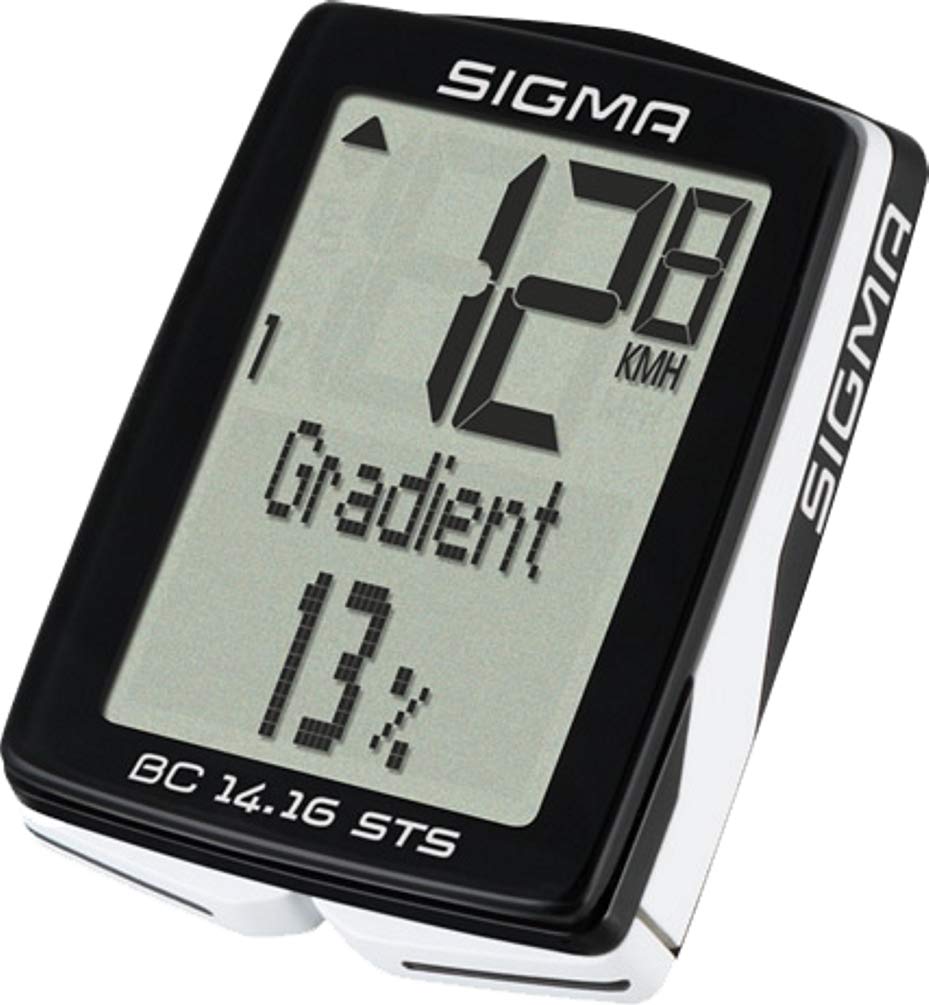
Image: The Sigma BC 14.16 STS Wireless Cycling Computer, showing the main display unit and associated speed sensor.
1. Setup
1.1 Unpacking and Component Identification
Carefully unpack all components and verify that all parts are present:
- BC 14.16 STS Computer Head Unit
- STS Speed Transmitter (Sensor)
- Power Magnet
- Handlebar/Stem Mount
- Mounting Material (O-rings, cable ties)
- CR2032 Batteries (pre-installed or separate)
1.2 Battery Installation
The computer and speed sensor use CR2032 batteries. If not pre-installed, insert them as follows:
- Computer Head Unit: Open the battery compartment cover on the back of the computer using a coin. Insert the CR2032 battery with the positive (+) side facing up. Close the cover securely.
- Speed Sensor: Open the battery compartment on the sensor. Insert the CR2032 battery with the positive (+) side facing up. Close the cover securely.

Image: Close-up view of a component, possibly illustrating battery insertion.
1.3 Mounting the Computer
Attach the handlebar/stem mount to your bicycle's handlebar or stem using the provided O-rings or cable ties. Ensure the mount is secure and positioned for easy viewing. Slide the computer head unit onto the mount until it clicks into place.
1.4 Mounting the Speed Sensor and Magnet
Mount the STS speed transmitter (sensor) on the bicycle fork using the provided O-rings or cable ties. Position the sensor so that the magnet on a spoke passes within 5-10 mm of the sensor's marking. Attach the power magnet to a spoke on the front wheel. Adjust the magnet's position to ensure it aligns with the sensor as the wheel rotates.

Image: Illustration of the speed sensor mounted on the bicycle fork and the magnet attached to a spoke.
1.5 Wheel Size Setting
Accurate wheel size setting is crucial for precise speed and distance measurements. Refer to the table below or measure your wheel circumference manually.
| Wheel Size | Circumference (mm) |
|---|---|
| 16 inch | 1272 |
| 20 inch | 1590 |
| 26 x 1.75 | 2070 |
| 27.5 inch | 2180 |
| 29 inch | 2300 |
| 700 x 23C | 2096 |
| 700 x 38C | 2180 |
To set the wheel size: Press and hold the SET button to enter the settings menu. Navigate to the wheel size option and adjust the value according to your wheel's circumference. Confirm with the SET button.
1.6 Initial Settings
After battery installation or a reset, the computer will prompt you to set basic parameters:
- Language: Select your preferred language.
- Units: Choose between km/h (metric) or mph (imperial).
- Time: Set the current time (12h/24h format).
- Altitude: Set your current starting altitude if known, or calibrate later.
Use the MODE button to cycle through options and the SET button to confirm.
1.7 NFC Pairing with SIGMA LINK App
The BC 14.16 STS supports NFC (Near Field Communication) for data transfer and configuration with the SIGMA LINK app on compatible Android smartphones.
- Download and install the free SIGMA LINK app from the Google Play Store.
- Enable NFC on your smartphone.
- Open the SIGMA LINK app.
- Hold your smartphone close to the BC 14.16 STS computer. The app will detect the computer and prompt you to transfer data or configure settings.
- Follow the on-screen instructions in the app to complete pairing and data transfer.

Image: A smartphone positioned near the cycling computer, demonstrating NFC data transfer.
2. Operating
2.1 Basic Functions
The BC 14.16 STS displays various cycling data. Use the MODE button to cycle through the main display functions:
- Current Speed: Displays your real-time speed.
- Trip Distance: Distance covered during the current ride.
- Total Distance: Cumulative distance across all rides.
- Ride Time: Duration of the current ride.
- Total Ride Time: Cumulative duration across all rides.
- Average Speed: Average speed for the current ride.
- Maximum Speed: Highest speed achieved during the current ride.
2.2 Altitude Functions
The BC 14.16 STS features enhanced altitude measurement:
- Current Altitude: Your current elevation.
- Gradient: Displays the current incline or decline percentage.
- Altitude Profile: A graphical representation of your altitude changes during the ride.
- Altitude Gain/Loss: Total ascent and descent for the current ride.
To calibrate the altitude, navigate to the altitude display and press the SET button. You can manually enter a known altitude or allow the device to auto-calibrate over time.
2.3 Menu Navigation
The computer typically has two main buttons: MODE and SET.
- MODE Button: Short press to cycle through display functions. Long press to enter/exit main menu or reset trip data.
- SET Button: Short press to confirm selections or change values within a setting. Long press to enter/exit sub-menus or specific settings.
2.4 Backlight Operation
To activate the backlight, typically press any button briefly. The backlight will illuminate for a few seconds to improve readability in low-light conditions.
3. Maintenance
3.1 Cleaning the Device
Clean the computer and sensor regularly with a soft, damp cloth. Do not use harsh chemicals or abrasive cleaners, as these can damage the display or casing. The device has an IP54 rating, meaning it is protected against dust and splashing water, but it is not designed for submersion.
3.2 Battery Replacement
When the "Low Battery" indicator appears on the display, replace the CR2032 battery in the computer head unit and/or the speed sensor. Follow the instructions in section 1.2. Ensure the battery compartment covers are sealed properly after replacement to maintain water resistance.
Note: Frequent battery replacement may be necessary for wireless units depending on usage.
3.3 Storage
When storing the computer for extended periods, especially in cold conditions, it is recommended to remove the batteries to prevent leakage and preserve battery life. Store the device in a cool, dry place away from direct sunlight.
4. Troubleshooting
4.1 Common Issues and Solutions
- No Speed Display:
- Check battery in speed sensor.
- Ensure sensor and magnet are correctly aligned and within 5-10 mm distance.
- Verify the computer is securely mounted and receiving signals.
- Incorrect Speed/Distance:
- Check wheel size setting (Section 1.5).
- Ensure magnet is securely attached and not slipping.
- "Low Battery" Warning:
- Replace batteries in the computer and/or sensor (Section 3.2).
- Display Frozen or Unresponsive:
- Remove and reinsert the computer battery to perform a soft reset.
4.2 Resetting the Device
To perform a full reset of the computer (clearing all data and settings), remove the battery for approximately 60 seconds, then reinsert it. You will need to reconfigure initial settings (Section 1.6) and wheel size (Section 1.5) after a full reset.
5. Specifications
| Feature | Detail |
|---|---|
| Model | BC 14.16 STS |
| Brand | Sigma |
| Connectivity | STS Wireless, NFC |
| Sensor Type | Speed Sensor (Cadence Sensor optional, not included in base model) |
| International Protection Rating | IP54 (Dust protected, splash water protected) |
| Human Interface Input | Buttons |
| Power Source | CR2032 Battery (Computer & Sensor) |
| Item Dimensions (LxWxH) | 1.59 x 0.48 x 2.09 inches (approx.) |
| Outer Material | Aluminum (partially) |
6. Warranty and Support
Sigma products are manufactured with high quality standards. For information regarding warranty terms and conditions, please refer to the official Sigma Sport website or the warranty card included with your product. For technical support, frequently asked questions, or to download the latest version of the SIGMA LINK app, please visit the official Sigma Sport support page:


