1. Introduction
This manual provides essential information for the safe and efficient use of your Lenovo IdeaPad Miix 510-12ISK 2-in-1 Tablet. The Miix 510 is a versatile device designed to function as both a laptop and a tablet, adapting to various tasks with its detachable keyboard and integrated kickstand. Please read this manual thoroughly before operating your device.
2. Package Contents
Verify that all items are present in your product packaging:
- Lenovo IdeaPad Miix 510-12ISK Tablet
- Detachable Keyboard
- Webcam (integrated)
- Power Adapter
- Quick Start Guide (if included)
3. Setup
3.1 Initial Charging
Before first use, connect the tablet to a power outlet using the provided power adapter. Allow the device to charge fully. The charging indicator light will typically change color or turn off when charging is complete.
3.2 Attaching the Keyboard
Align the magnetic connectors on the bottom edge of the tablet with the corresponding connectors on the keyboard. The keyboard will snap into place securely. To detach, gently pull the tablet away from the keyboard.

Image: The Lenovo IdeaPad Miix 510-12ISK in laptop mode, showing the tablet connected to its detachable keyboard. The screen displays the Windows 10 operating system interface.
3.3 First Power On
Press and hold the power button (usually located on the side or top edge of the tablet) until the Lenovo logo appears. Follow the on-screen instructions to complete the initial Windows 10 Pro setup, including language selection, network connection, and user account creation.
4. Operating Instructions
4.1 Power On/Off and Sleep Mode
- Power On: Press and hold the power button.
- Power Off: From the Windows Start menu, select Power > Shut down.
- Sleep Mode: Briefly press the power button, or select Power > Sleep from the Start menu.
4.2 Using Tablet and Laptop Modes
The Miix 510 automatically switches between tablet and laptop modes when the keyboard is attached or detached. You can also manually switch modes via the Action Center in Windows 10.
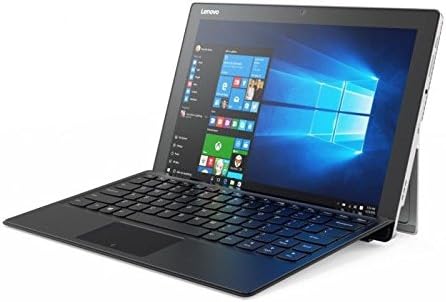
Image: An angled view of the Lenovo IdeaPad Miix 510-12ISK, showcasing its kickstand functionality when used with the detachable keyboard in laptop configuration.
4.3 Touch Screen and Keyboard Usage
- Touch Screen: Use gestures such as tap, swipe, pinch-to-zoom, and long-press for navigation and interaction.
- Keyboard: The detachable keyboard provides a full QWERTY layout and a touchpad for precise input.
4.4 Connectivity
Your device supports Wi-Fi and Bluetooth for wireless connectivity. Access network settings via the Windows Action Center or Settings app to connect to available networks and pair Bluetooth devices.
5. Maintenance
5.1 Cleaning
- Use a soft, lint-free cloth slightly dampened with water or a screen cleaner to clean the display.
- Wipe the exterior surfaces with a soft, dry cloth. Avoid harsh chemicals or abrasive materials.
5.2 Software Updates
Regularly check for and install Windows updates to ensure optimal performance, security, and compatibility. Access updates via Windows Settings > Update & Security.
5.3 Battery Care
To prolong battery life, avoid extreme temperatures and allow the battery to discharge partially before recharging. For long-term storage, charge the battery to approximately 50%.
6. Troubleshooting
6.1 Device Does Not Power On
- Ensure the device is charged. Connect the power adapter and wait a few minutes before attempting to power on.
- Try holding the power button for 10-15 seconds to perform a hard reset.
6.2 Screen Issues
- If the screen is blank, ensure the device is powered on and not in sleep mode.
- Adjust screen brightness settings.
6.3 Keyboard or Touchpad Not Responding
- Ensure the keyboard is securely attached to the tablet.
- Restart the tablet.
- Check for updated drivers in Windows Device Manager.
6.4 Wi-Fi or Bluetooth Connectivity Problems
- Toggle Wi-Fi or Bluetooth off and on in Windows settings.
- Restart your router/modem for Wi-Fi issues.
- Ensure devices are within range and properly paired for Bluetooth.
For persistent issues, refer to the Lenovo support website or contact customer service.
7. Specifications
| Brand | Lenovo |
| Model Name | 80U1006EUS |
| Screen Size | 12.2 Inches |
| Screen Resolution | 1920 x 1080 pixels |
| Processor | 2.3 GHz Intel Core i5-6200U |
| RAM | 8 GB |
| Hard Drive | 256 GB Solid State Drive (SSD) |
| Graphics Coprocessor | Intel HD Graphics 520 |
| Operating System | Windows 10 Pro |
| Wireless Type | Bluetooth |
| Item Weight | 2.78 pounds |
| Product Dimensions | 4.48 x 5.8 x 0.6 inches |
| Rear Webcam Resolution | 5 MP |
8. Warranty and Support
This product is covered by Lenovo's standard warranty. For detailed warranty terms, registration, and technical support, please visit the official Lenovo support website or contact their customer service. Keep your proof of purchase for warranty claims.
No official product videos were provided by the seller for this model.


