1. Introduction
Thank you for choosing the ZEALOT B21 Wireless Bluetooth Over-Ear Headphones. These headphones are designed to provide a high-quality audio experience with convenient wireless connectivity and intuitive touch controls. This manual will guide you through the setup, operation, and maintenance of your new headphones.
Package Contents
- ZEALOT B21 Wireless Bluetooth Over-Ear Headphones
- USB Charging Cable
- 3.5mm Audio Cable
- User Manual

Image 1.1: Contents of the ZEALOT B21 headphone package, showing the headphones, charging cable, audio cable, and user manual.
2. Setup
2.1 Charging the Headphones
Before first use, fully charge the headphones. Connect the supplied USB charging cable to the charging port on the headphones and the other end to a USB power source (e.g., computer USB port, USB wall adapter). The LED indicator will show charging status and turn off or change color when fully charged. A full charge provides approximately 12 hours of music playback or 300 hours of standby time.
2.2 Powering On/Off
- To Power On: Press and hold the Power button until the LED indicator lights up.
- To Power Off: Press and hold the Power button until the LED indicator turns off.
2.3 Bluetooth Pairing
To connect your headphones to a Bluetooth-enabled device:
- Ensure the headphones are powered off.
- Press and hold the Power button for approximately 5-7 seconds until the LED indicator flashes blue and red alternately, indicating pairing mode.
- On your device (smartphone, tablet, computer), enable Bluetooth and search for available devices.
- Select "ZEALOT B21" from the list of found devices.
- Once paired, the LED indicator on the headphones will flash blue slowly, and you will hear an audible confirmation.
The headphones will automatically attempt to reconnect to the last paired device when powered on, if the device's Bluetooth is active and within range.

Image 2.1: The ZEALOT B21 headphones, illustrating their over-ear design and touch control area on the ear cup.
3. Operating Instructions
3.1 Touch Control Panel
The ZEALOT B21 headphones feature an integrated touch control panel on the right ear cup for easy management of music and calls.
- Play/Pause: Tap the center of the touch panel once.
- Volume Up: Slide your finger upwards on the touch panel.
- Volume Down: Slide your finger downwards on the touch panel.
- Next Track: Slide your finger forward (towards the front of the ear cup) on the touch panel.
- Previous Track: Slide your finger backward (towards the rear of the ear cup) on the touch panel.
- Voice Dial (when standby): Press and hold the center of the touch panel.

Image 3.1: Visual guide to the touch control gestures for managing music playback and volume on the headphones.
3.2 Call Functions
The built-in HD microphone allows for hands-free calling.
- Answer/End Call: Tap the center of the touch panel once.
- Reject Call: Press and hold the center of the touch panel for 2 seconds.
3.3 AUX Line-in Mode
You can use the headphones as a wired headset even when the battery is depleted or with non-Bluetooth devices. Connect one end of the supplied 3.5mm audio cable to the AUX port on the headphones and the other end to your audio source's 3.5mm jack. In AUX mode, the microphone functionality is not available.

Image 3.2: The ZEALOT B21 headphones, highlighting their capability for continuous music playback, including via AUX cable.
4. Comfort and Design
The ZEALOT B21 headphones are designed for extended listening comfort.
- Ergonomic Ear Cups: The closed circumaural ear cups are made with breathable protein leather and memory foam padding, providing comfort and effective noise isolation.
- Adjustable Headband: The solid steel headband is adjustable to ensure a secure and comfortable fit for various head sizes, enhancing durability.

Image 4.1: A detailed view of the soft, ergonomic ear cup designed for comfort and sound isolation.
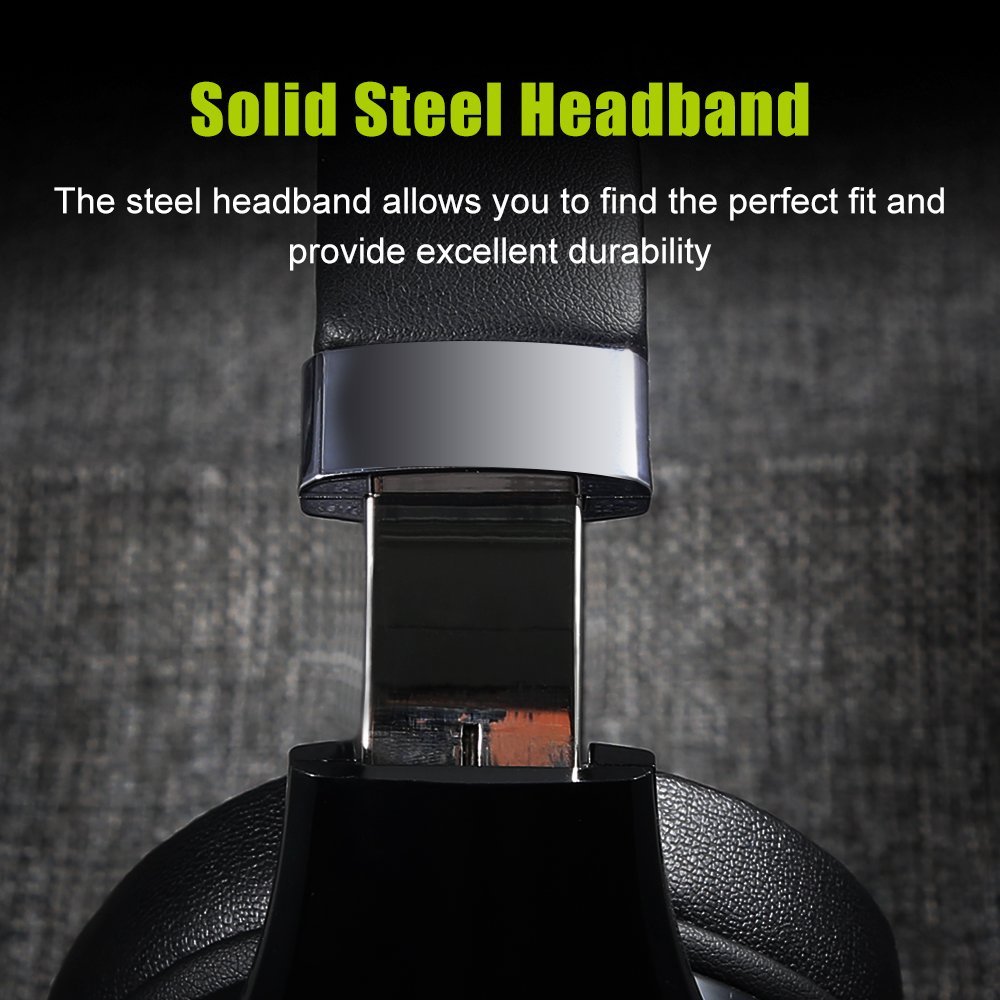
Image 4.2: A close-up of the durable, adjustable steel headband component.
5. Maintenance
5.1 Cleaning
To maintain the condition of your headphones:
- Wipe the surfaces with a soft, dry cloth.
- Do not use abrasive cleaners, alcohol, or chemical solvents.
- Avoid getting moisture into any openings.
5.2 Storage
When not in use, store the headphones in a cool, dry place, away from direct sunlight and extreme temperatures. Using the provided storage bag can help protect them from dust and scratches.
6. Troubleshooting
If you encounter issues with your ZEALOT B21 headphones, refer to the following solutions:
| Problem | Possible Solution |
|---|---|
| Headphones do not power on. | Ensure the headphones are fully charged. Connect to a power source and try again. |
| Cannot pair via Bluetooth. | Ensure headphones are in pairing mode (flashing blue/red). Turn off and on your device's Bluetooth. Move headphones closer to the device. Clear previous Bluetooth connections on your device. |
| No sound or low volume. | Check volume levels on both headphones and the connected device. Ensure headphones are properly paired. If using AUX cable, ensure it is fully inserted. |
| Poor sound quality. | Move closer to the connected device to reduce interference. Ensure there are no obstacles between the headphones and the device. Try a different audio source. |
| Touch controls not responding. | Ensure your fingers are clean and dry. Power off and restart the headphones. |
7. Specifications
| Feature | Detail |
|---|---|
| Model Name | B21 |
| Connectivity Technology | Wireless (Bluetooth) |
| Wireless Communication Technology | Bluetooth 4.0 (CSR8635 chipset) |
| Operating Distance | Up to 10 meters |
| Headphones Jack | 3.5 mm Jack (for AUX mode) |
| Frequency Response | 20 Hz - 20000 Hz |
| Impedance | 32 Ohm |
| Microphone Format | Built-In (HD microphone with CVC6.0 Noise Cancelling) |
| Control Type | Touch Control, Volume Control |
| Battery | 500mAh Polymer Lithium Battery |
| Standby Time | Up to 300 hours |
| Music Playback Time | Up to 12 hours |
| Material | Faux Leather (earmuffs) |
| Item Weight | 771 g (1.7 Pounds) |
| Product Dimensions | 21.34 x 18.03 x 10.67 cm |
| Compatible Platforms | Laptop, PC, Smartphone, Tablet |
8. Warranty and Support
For warranty information and technical support, please refer to the warranty card included in your product packaging or visit the official ZEALOT website. Keep your purchase receipt as proof of purchase for any warranty claims.


