
1. Introduction
This manual provides detailed instructions for the installation, operation, and maintenance of your MICROSEVEN M7B4K-WPSAA 4K/8MP UltraHD Duo 2 WiFi+PoE IP Camera. Please read this manual thoroughly before using the product to ensure proper setup and functionality. Keep this manual for future reference.
2. Safety Information
- Ensure the power supply matches the camera's requirements to prevent damage.
- Install the camera in a stable location to avoid falling.
- Avoid exposing the camera to extreme temperatures, humidity, or direct sunlight for prolonged periods.
- Do not attempt to disassemble or modify the camera. Refer all servicing to qualified personnel.
- Keep the camera away from strong magnetic fields.
- Clean the camera lens with a soft, dry cloth. Avoid harsh chemicals.
3. Package Contents
Verify that all items are present in the package:
- MICROSEVEN M7B4K-WPSAA IP Camera
- Power Adapter
- Ethernet Cable
- Mounting Screws and Anchors
- Quick Start Manual
- Waterproof Connector Kit
- Hex Key
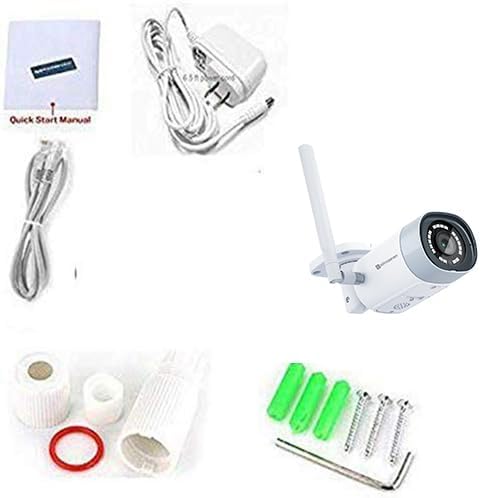
Image: Contents of the MICROSEVEN M7B4K-WPSAA camera package, showing the camera, power supply, network cable, mounting kit, and quick start guide.
4. Product Overview
4.1 Key Features
- 4K/8MP Ultra HD Resolution: Provides 3840x2160 video with a Sony CMOS Sensor.
- Wide-Angle Lens: 2.8mm lens offers a 150° wide-angle view.
- Dual-Band WiFi & PoE: Supports 2.4/5 GHz WiFi and Power over Ethernet (PoE) for flexible connectivity.
- Two-Way Audio: Built-in amplified microphone and speaker for real-time communication.
- Advanced Night Vision: 18 IR LEDs provide up to 100ft (30m) clear night vision. IR lights can be manually disabled via M7 Software.
- Human/Vehicle Detection: Intelligent motion detection reduces false alerts.
- Flexible Storage: Supports up to 256GB microSD card (not included), Microseven Cloud, NVR, and FTP server.
- Open Source Compatibility: Works with Blue Iris, Milestone, ZoneMinder, NAS, and other third-party software.
- Weatherproof Design: IP66 rated all-metal casing for outdoor use.

Image: Front view of the MICROSEVEN M7B4K-WPSAA outdoor IP camera, highlighting its bullet design and antenna.
4.2 Resolution Comparison
The 8MP resolution provides significantly more detail compared to lower resolutions like 5MP or 2MP, allowing for clearer identification of objects and faces.

Image: Visual comparison demonstrating the clarity difference between 8MP, 5MP, and 2MP camera resolutions in a street environment.
5. Setup
5.1 Physical Installation
- Choose a Location: Select a suitable outdoor or indoor location that provides the desired viewing angle and is within range of your network (for WiFi) or near a PoE switch/injector (for PoE). Ensure the mounting surface is strong enough to support the camera.
- Mount the Camera:
- Use the included mounting template (if provided) to mark drill holes.
- Drill pilot holes and insert wall anchors if mounting on drywall or masonry.
- Secure the camera's mounting bracket to the surface using the provided screws.
- Adjust the camera's angle using the universal ball mount for optimal coverage.
- Waterproof Connections: For outdoor installations, use the included waterproof connector kit for the Ethernet cable to protect against moisture.
5.2 Network Connection
5.2.1 Power over Ethernet (PoE) Connection
- Connect one end of an Ethernet cable to the camera's Ethernet port.
- Connect the other end of the Ethernet cable to a PoE switch or a PoE injector.
- Ensure the PoE device is powered on. The camera will receive both power and data through this single cable.
5.2.2 WiFi Connection (2.4GHz or 5GHz)
- Connect the camera to the power adapter and plug it into a power outlet.
- For initial setup, it is recommended to connect the camera to your router via an Ethernet cable.
- Download and install the "M7 App" on your iOS or Android device, or the "M7 Software" for Windows/macOS.
- Open the M7 App/Software and follow the on-screen instructions to add your camera. During this process, you will be prompted to select your WiFi network (2.4GHz or 5GHz) and enter the password.
- Once connected to WiFi, you can disconnect the Ethernet cable if desired.
5.3 Software and App Installation
The MICROSEVEN camera can be managed via dedicated software and mobile applications.
- Mobile App: Search for "M7 App" on the Apple App Store (iOS) or Google Play Store (Android) and install it.
- Desktop Software: Download the "M7 Software" (CMS - Camera Management System) from the official MICROSEVEN website for Windows or macOS. This software allows management of up to 16 cameras on one screen.
- Third-Party Software: The camera is compatible with various third-party software like Blue Iris, Milestone, ZoneMinder, and NAS systems. Refer to the respective software's documentation for integration instructions.

Image: Overview of the MICROSEVEN software platform, illustrating compatibility with various operating systems and smart home devices like Alexa.

Image: A desktop monitor displaying the Camera Management System (CMS) interface, showing live feeds from multiple security cameras.
6. Operating Instructions
6.1 Live View
Access the live video feed from your camera using the M7 App or M7 Software. This allows real-time monitoring of the camera's view.
6.2 Two-Way Audio
The camera features a built-in microphone and speaker. Through the M7 App or Software, you can listen to audio from the camera's location and speak through the camera's speaker.
- To listen: Tap the speaker icon in the live view interface.
- To speak: Tap and hold the microphone icon to transmit your voice. Release to stop speaking.
6.3 Recording Options
The camera offers multiple recording methods:
- MicroSD Card: Insert a microSD card (up to 256GB, not included) into the camera's slot for local storage. Configure recording schedules (24/7, scheduled, or motion-activated) via the M7 App/Software.
- Microseven Cloud: The camera includes 24-hour cloud storage for motion alert images and video clips. Access and download these via the M7 App or Microseven website.
- NVR (Network Video Recorder): Connect the camera to a compatible NVR for continuous recording and centralized management.
- FTP Server: Configure the camera to send video clips and images to an FTP server upon motion detection or on-demand.
6.4 Motion Detection and Alerts
The camera features intelligent human/vehicle detection to minimize false alarms.
- Configuration: In the M7 App/Software settings, enable motion detection and select "human-only" or "regular" detection modes. You can also define specific alert zones.
- Alerts: Upon detection, the camera can send push notifications to your mobile phone with video clips, and email notifications with images.

Image: A mobile phone screen displaying a list of motion alerts with corresponding video clips and timestamps, alongside a desktop view of live camera feed.

Image: A still from camera footage demonstrating human motion detection, with a person highlighted as detected near a vehicle.
6.5 Night Vision
The camera automatically switches to night vision in low-light conditions. The 18 IR LEDs provide clear black and white video up to 100ft. You can manually enable or disable IR lights via the M7 Software.
6.6 Time-Lapse Recording
Configure the camera to capture time-lapse videos, allowing you to condense long periods into short video clips. This feature is useful for monitoring slow-changing events.
6.7 Broadcasting
The camera supports live streaming as a webcam and broadcasting to platforms like YouTube, Facebook, and Microseven.tv. Refer to the M7 Software for configuration details.
7. Maintenance
7.1 Cleaning
- Lens: Gently wipe the camera lens with a soft, lint-free cloth. For stubborn dirt, use a lens cleaning solution designed for optics.
- Body: Clean the camera body with a damp cloth. Avoid using abrasive cleaners or solvents.
7.2 Firmware Updates
Regularly check for firmware updates via the M7 App or M7 Software. Firmware updates can improve performance, add new features, and enhance security. Follow the instructions provided with the update carefully.
7.3 Storage Management
If using a microSD card, periodically review and manage recorded footage. Old footage may be overwritten automatically depending on your settings. For cloud storage, footage is typically retained for 24 hours.
8. Troubleshooting
| Problem | Possible Cause | Solution |
|---|---|---|
| Camera not powering on. | No power, faulty adapter/PoE. | Check power connection. Ensure adapter is working or PoE switch is active. |
| Cannot connect to WiFi. | Incorrect password, weak signal, wrong band. | Verify WiFi password. Ensure camera is within router range. Confirm router supports 2.4GHz or 5GHz. Try connecting via Ethernet for initial setup. |
| No video feed. | Network issue, camera offline. | Check network connection. Restart camera and router. Ensure M7 App/Software is updated. |
| Motion alerts are too frequent/infrequent. | Sensitivity settings, detection zone. | Adjust motion detection sensitivity. Refine detection zones to exclude irrelevant areas. Enable human/vehicle detection. |
| Two-way audio not working. | Microphone/speaker disabled, volume low. | Check audio settings in the M7 App/Software. Ensure device volume is up. |
9. Specifications
| Feature | Detail |
|---|---|
| Model Number | M7B4K-WPSAA |
| Resolution | 4K/8MP (3840x2160) |
| Sensor | Sony CMOS Sensor |
| Lens | 2.8mm, 150° wide-angle |
| Night Vision | 18 IR LEDs, up to 100ft (30m) |
| Connectivity | Dual-Band WiFi (2.4/5 GHz), PoE (802.3af) |
| Audio | Built-in amplified microphone & speaker (Two-Way Talk) |
| Storage | MicroSD slot (up to 256GB, not included), Microseven Cloud (24hr), NVR, FTP |
| Motion Detection | Human/Vehicle Detection |
| Weather Resistance | IP66 Rated |
| Compatible Devices | Desktop (Windows, macOS), Smartphone (iOS, Android), Tablet, Alexa |
| Material | Glass, Metal |
| Item Weight | 1.44 ounces |
| Package Dimensions | 8.27 x 4.61 x 0.79 inches |
10. Warranty Information
MICROSEVEN products typically come with a limited warranty covering manufacturing defects. For specific warranty terms and duration, please refer to the warranty card included with your product or visit the official MICROSEVEN website. Keep your purchase receipt as proof of purchase for warranty claims.
11. Support
For technical assistance, troubleshooting, or further inquiries, please contact MICROSEVEN customer support through the following channels:
- Official Website: Visit www.microseven.com for FAQs, support resources, and contact information.
- Email Support: Refer to the quick start manual or website for the dedicated support email address.
- Online Community: Engage with other users and find solutions on the Microseven forums or community pages.

Image: A collage of logos representing the broad compatibility of MICROSEVEN cameras with various NVRs, software, and smart home systems.