
1. Introduction
The Safescan TP-230 is a compact and efficient thermal receipt printer designed to integrate seamlessly with compatible Safescan money counters. It enables instant, detailed cash reporting by printing a comprehensive report for each denomination and the total sum counted. This printer utilizes modern thermal technology, ensuring quick, quiet, and clear printing of results in less than a minute. It is an essential accessory for maintaining accurate records and streamlining daily cash reporting processes.
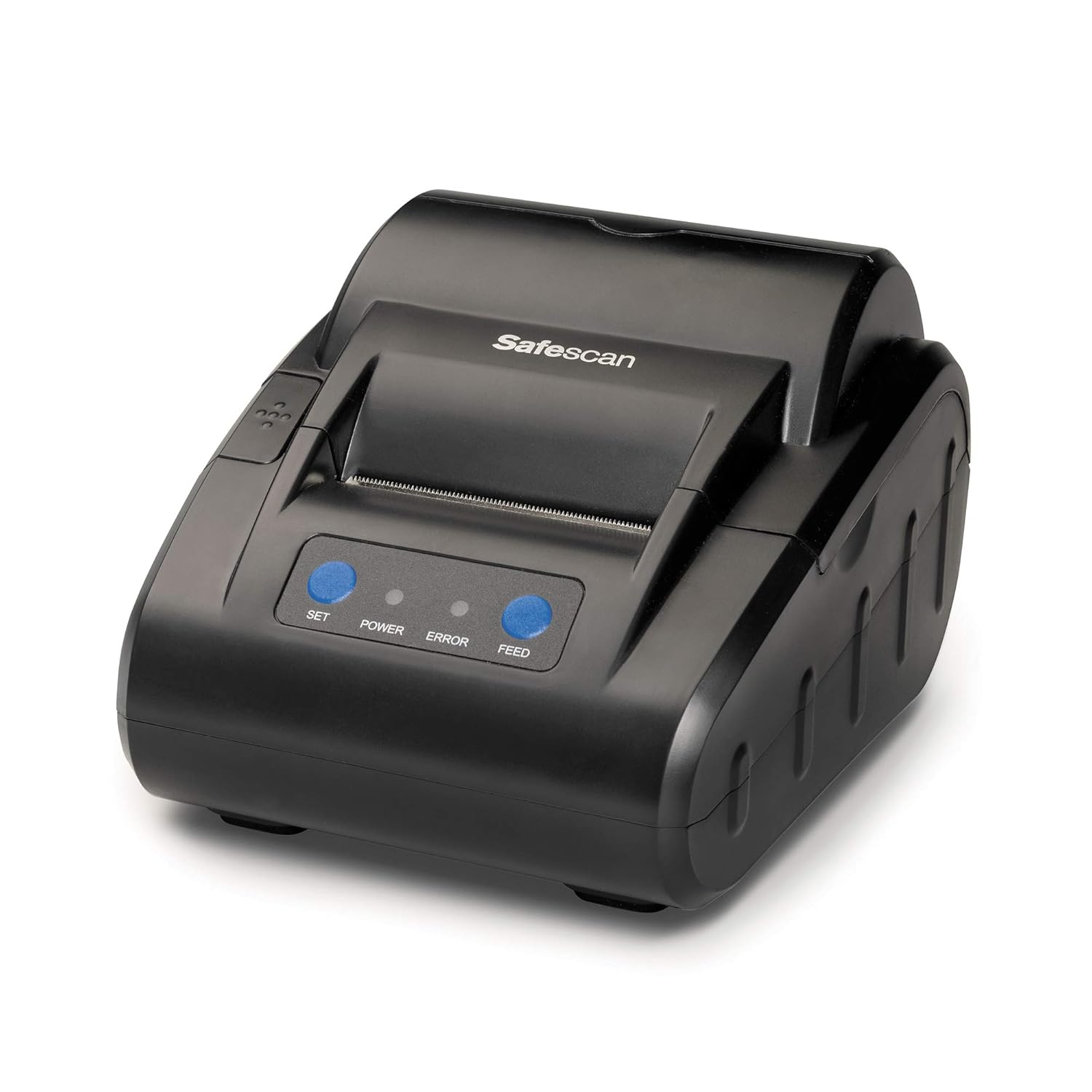
Image 1: Front view of the Safescan TP-230 Thermal Receipt Printer, showcasing its compact design and control buttons.
2. What's in the Box
Upon unpacking your Safescan TP-230 Thermal Receipt Printer, please ensure all the following items are present:
- Safescan TP-230 Thermal Receipt Printer
- Power Adapter
- USB Printer Cable
- Serial Printer Cable
- Thermal Paper Roll (starter roll)
- User Manual (this document)

Image 2: All components included with the Safescan TP-230 printer: the printer unit, power adapter, USB cable, serial cable, a roll of thermal paper, and the instruction manual.
3. Setup
3.1 Connecting the Printer
- Ensure the Safescan TP-230 printer and your Safescan money counter are both powered off.
- Locate the appropriate port on the back of your Safescan money counter (either USB or Serial).
- Connect one end of the provided USB or Serial printer cable to the corresponding port on the back of the TP-230 printer.
- Connect the other end of the cable to your Safescan money counter.
- Connect the power adapter to the printer's power input port and then plug it into a suitable power outlet.
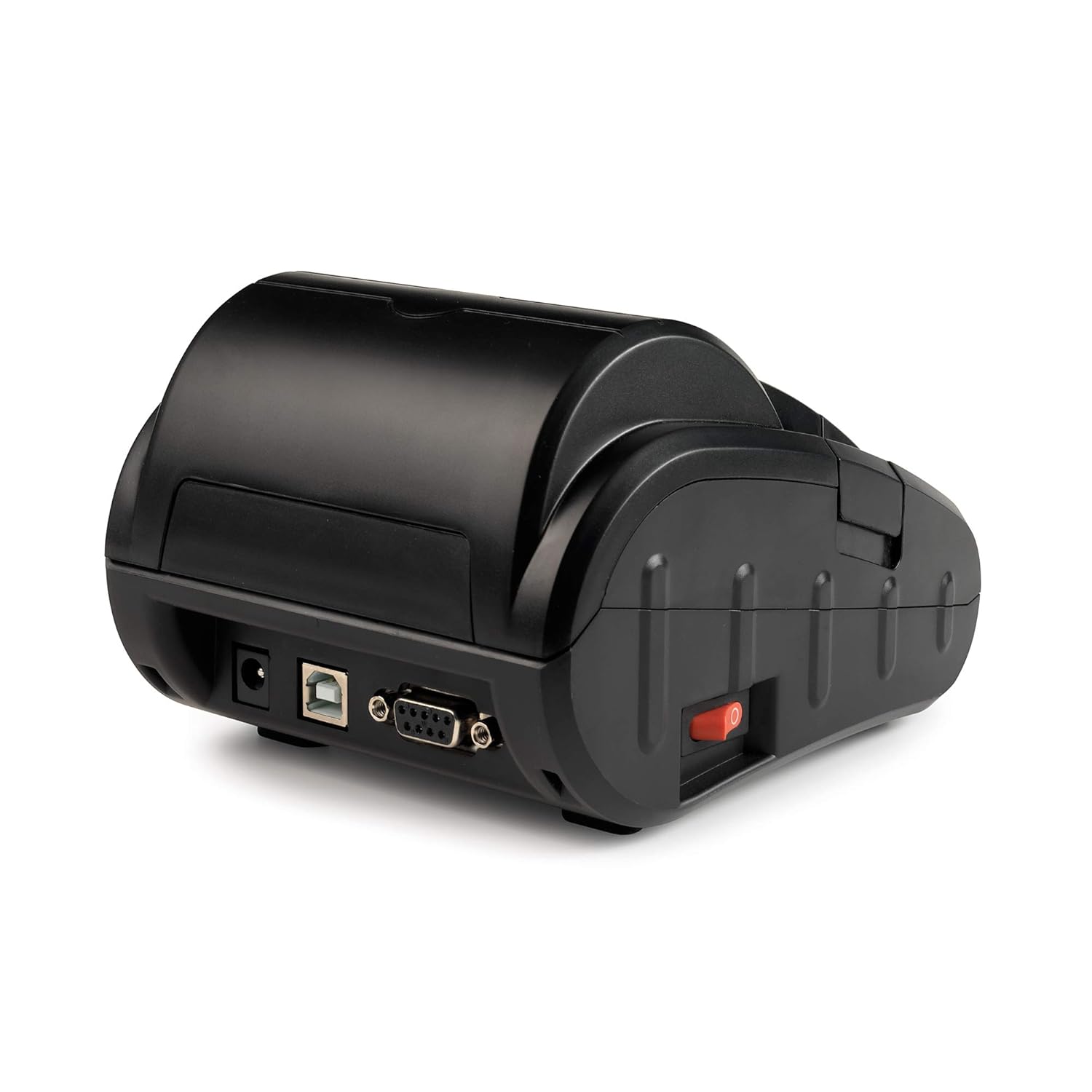
Image 3: Rear view of the Safescan TP-230 printer, showing the power input, USB port, and serial port for connection to a money counter.
3.2 Loading Thermal Paper
- Gently press the lid release button or lift the lid cover of the printer.
- Insert the thermal paper roll into the compartment with the paper feeding from the bottom and exiting towards the front. Ensure the paper is aligned correctly.
- Pull a small amount of paper out past the cutting edge.
- Close the lid firmly until it clicks into place.
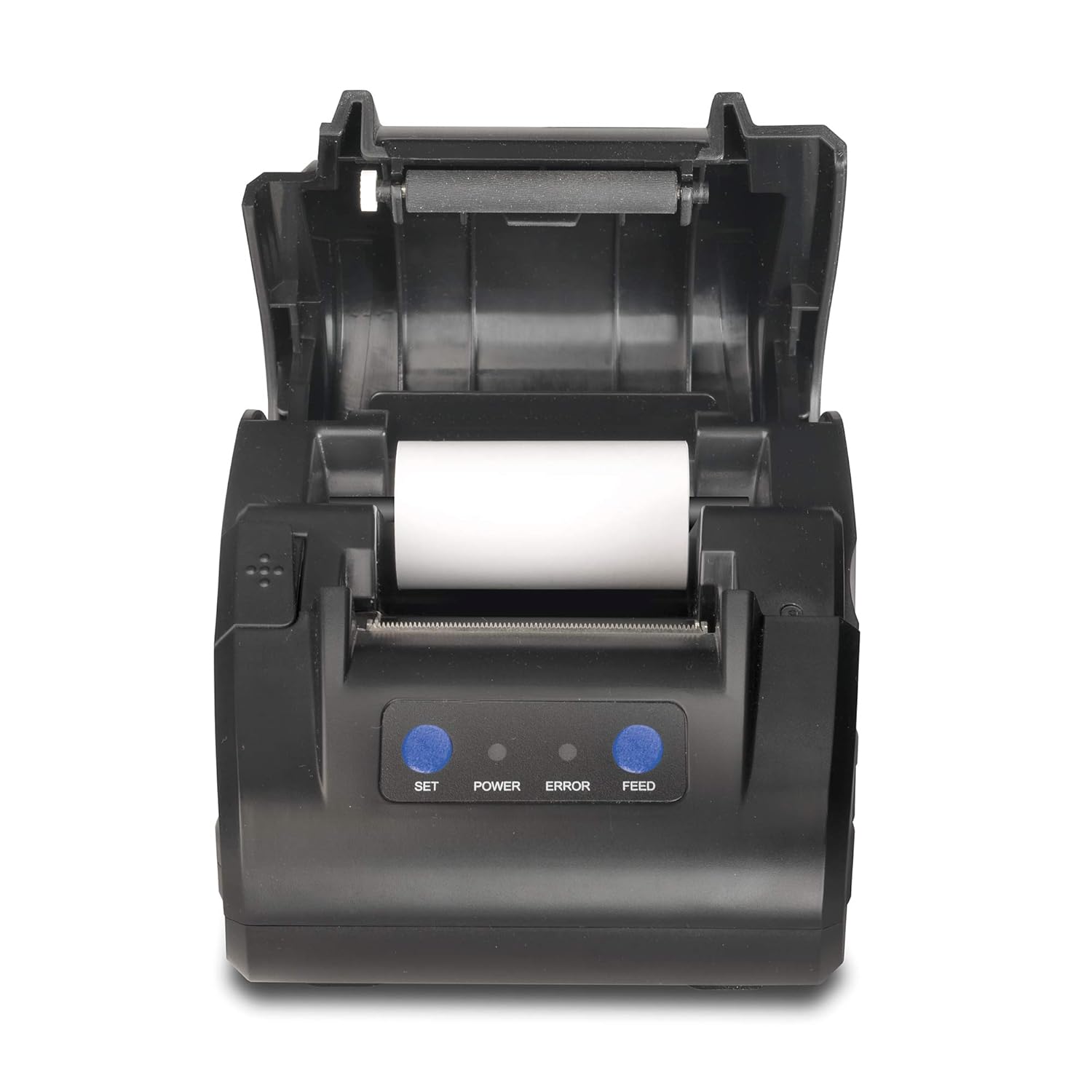
Image 4: Top view of the Safescan TP-230 printer with the lid open, illustrating the correct placement of a thermal paper roll for printing.
4. Operating Instructions
4.1 Compatibility
The Safescan TP-230 Thermal Receipt Printer is compatible with the following Safescan money counters:
- Safescan 6165
- Safescan 6185
- Safescan 2885-S
- Safescan 2985-SX

Image 5: The Safescan TP-230 printer positioned next to a Safescan 6185 money counter, demonstrating a typical setup.
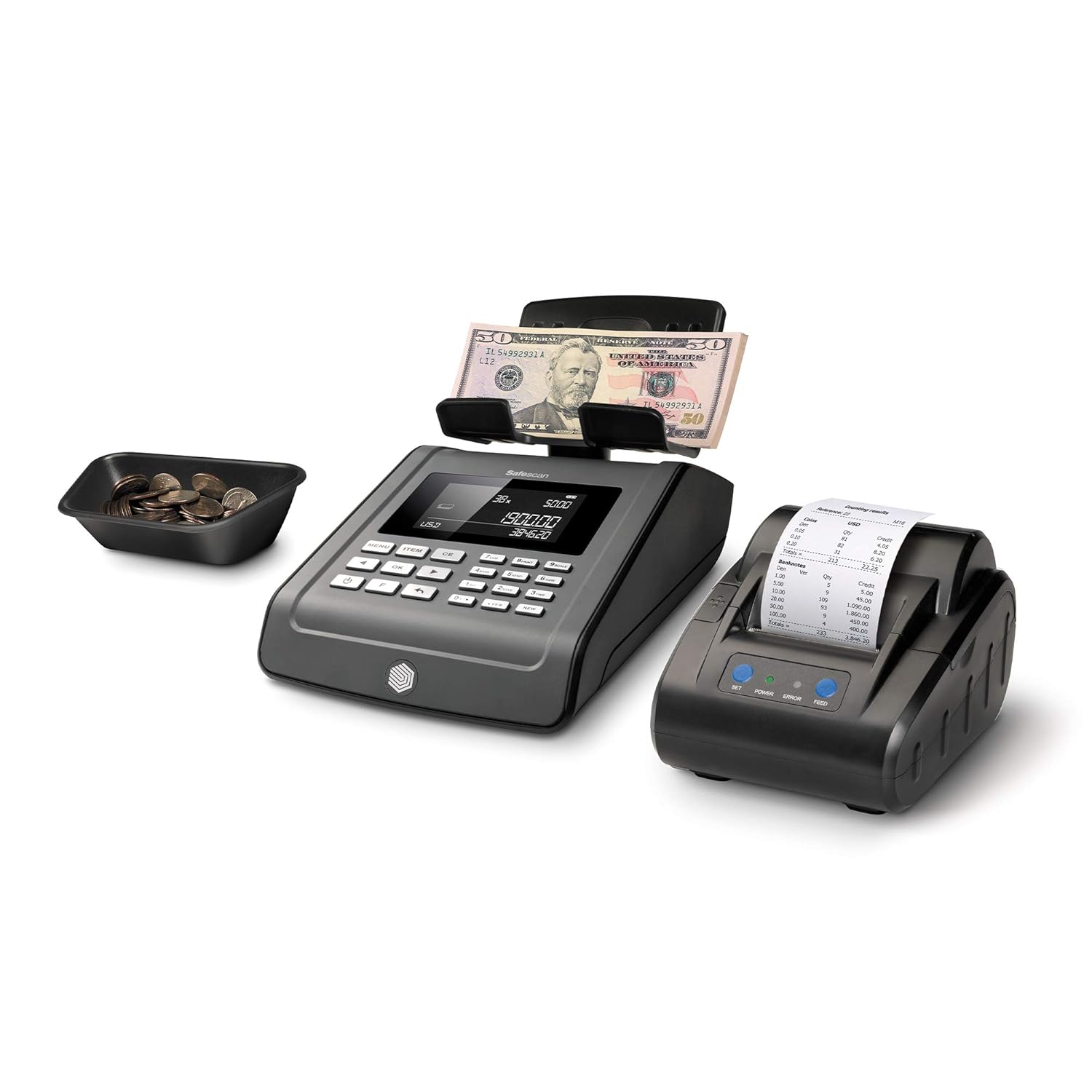
Image 6: The Safescan TP-230 printer alongside a Safescan 2250 money counter, illustrating another compatible configuration.
4.2 Printing Reports
Once the printer is connected and powered on, and your money counter is also on, you can initiate printing directly from your Safescan money counter. Refer to your specific money counter's user manual for detailed instructions on how to generate and print reports. The TP-230 will automatically print a detailed report showing the total counting result per denomination.
4.3 Indicator Lights and Buttons
The front panel of the TP-230 features indicator lights and buttons:
- POWER Light: Indicates the printer is powered on.
- ERROR Light: Illuminates to indicate a printer error (e.g., out of paper, lid open).
- SET Button: Used for specific printer settings or diagnostics (refer to advanced manual if applicable).
- FEED Button: Press to manually advance the paper.
5. Maintenance
5.1 Replacing Thermal Paper
When the printer runs out of paper, the ERROR light will illuminate. Follow the steps in Section 3.2 to load a new standard thermal paper roll.
5.2 Cleaning
To ensure optimal performance and longevity of your printer:
- Regularly wipe the exterior of the printer with a soft, dry cloth.
- Avoid using abrasive cleaners or solvents.
- Periodically clean the thermal print head with a specialized thermal printer cleaning pen or isopropyl alcohol on a cotton swab. Ensure the printer is off and cooled down before cleaning the print head.
6. Troubleshooting
If you encounter issues with your Safescan TP-230 printer, refer to the following common problems and solutions:
| Problem | Possible Cause | Solution |
|---|---|---|
| Printer does not power on | Power cable not connected; Power outlet faulty | Check power cable connection; Try a different power outlet. |
| ERROR light is on | Out of paper; Lid not closed properly | Replace thermal paper roll; Ensure lid is firmly closed. |
| No print output | Incorrect cable connection; Printer not selected on money counter; Paper loaded incorrectly | Verify USB/Serial cable connection; Check money counter settings; Re-load paper as per Section 3.2. |
| Faint or blank print | Thermal paper loaded upside down; Print head dirty | Flip the paper roll; Clean the thermal print head (Section 5.2). |
If the problem persists after attempting these solutions, please contact Safescan customer support.
7. Specifications
| Feature | Detail |
|---|---|
| Model Number | 134-0535 |
| Printing Technology | Thermal |
| Connectivity | USB, Serial |
| Printer Output | Monochrome |
| Maximum Print Speed | Up to 60 units/second (Monochrome) |
| Product Dimensions (D x W x H) | 6.4" x 4.6" x 3.5" (16.26 cm x 11.68 cm x 8.89 cm) |
| Product Weight | 2.34 Pounds (1.06 kg) |
| Color | Black |
| Special Feature | Lightweight design |
8. Warranty Information
For detailed warranty terms and conditions applicable to your Safescan TP-230 Thermal Receipt Printer, please refer to the warranty card included with your product packaging or visit the official Safescan website. Warranty coverage typically includes manufacturing defects for a specified period from the date of purchase.
9. Support
Should you require further assistance, technical support, or have questions not covered in this manual, please contact Safescan customer support. You can find contact information and additional resources on the official Safescan website:


