
1. Introduction
The Ricoh Theta SC is a compact and lightweight 360-degree camera designed for capturing fully spherical photos and videos. It features high-precision stitching technology for immersive 360-degree experiences. The camera is equipped with dual fish-eye lenses and a 1/2.3-inch image sensor, providing approximately 14-megapixel output for still images. Its bright F2.0 lens supports low-light shooting and manual mode with shutter speeds up to 60 seconds. The Theta SC offers various shooting modes, including DR Compensation, Multi-shot noise reduction, and HDR composition. It can record Full HD 360-degree video for up to 5 minutes per clip.
This manual provides essential information for setting up, operating, and maintaining your Ricoh Theta SC camera.
2. Package Contents
Verify that all the following items are included in your package:
- Ricoh Theta SC Camera
- Soft Case
- USB Cable
3. Camera Overview
Familiarize yourself with the physical features and controls of your Ricoh Theta SC camera.
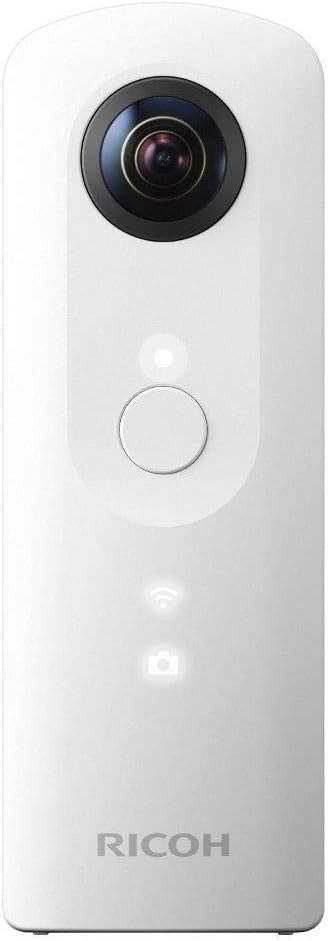
Figure 3.1: Front view of the Ricoh Theta SC camera, highlighting the main lens and power button.

Figure 3.2: Side view of the Ricoh Theta SC camera, illustrating the location of the power, Wi-Fi, and mode buttons.
Key Components:
- Front Lens: Captures the front half of the 360-degree image.
- Rear Lens: Captures the rear half of the 360-degree image.
- Power Button: Turns the camera on or off.
- Wi-Fi Button: Activates or deactivates the camera's Wi-Fi function for smartphone connection.
- Mode Button: Switches between still image and video recording modes. LED status lights indicate the current mode.
- Shutter Button: Press to capture a photo or start/stop video recording.
- USB Port: For charging the camera and transferring data.
4. Setup
4.1 Charging the Battery
Before initial use, fully charge the camera battery. Connect the supplied USB cable to the camera's USB port and to a USB power adapter or a computer's USB port. The charging indicator LED will illuminate during charging and turn off when complete.
4.2 Connecting to a Smartphone
The Ricoh Theta SC requires a smartphone or tablet for full functionality, including live view, remote control, and image transfer. Download the official Ricoh Theta app from the App Store (iOS) or Google Play Store (Android).
- Turn on the Ricoh Theta SC camera by pressing the Power button.
- Press the Wi-Fi button on the side of the camera to activate its Wi-Fi hotspot. The Wi-Fi indicator LED will blink.
- On your smartphone, go to Wi-Fi settings and select the network name (SSID) that starts with "THETA" followed by the camera's serial number.
- Enter the password. The default password is the serial number of the camera (excluding the "THETA" prefix and any letters, if applicable, as noted in some user experiences). Refer to the sticker on your camera or packaging for the exact serial number.
- Once connected, open the Ricoh Theta app on your smartphone. The app should automatically detect and connect to the camera, providing a live view and control options.
5. Operating the Camera
5.1 Taking 360° Photos
To capture a 360-degree photo:
- Ensure the camera is powered on and in still image mode (check the mode LED).
- Position the camera as desired. For best results, hold it vertically or mount it on a tripod.
- Press the Shutter button on the camera, or use the Ricoh Theta app on your smartphone for remote control and live preview.
- The camera will capture the image, and the status LED will blink.
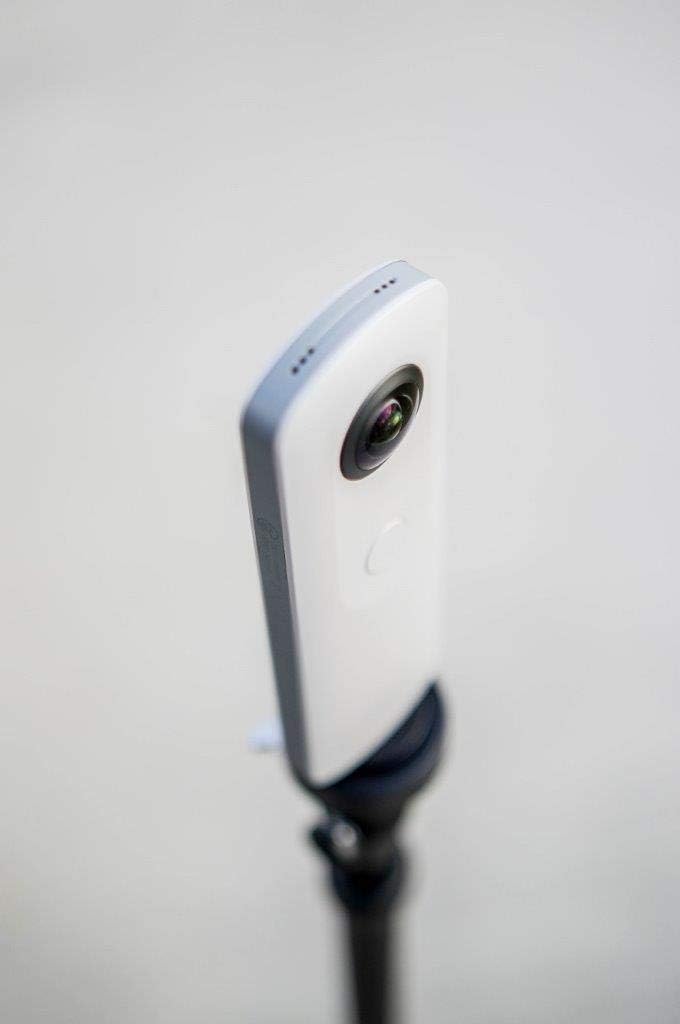
Figure 5.1: The Ricoh Theta SC camera positioned on a tripod for stable 360-degree image capture.
5.2 Recording 360° Videos
To record a 360-degree video:
- Ensure the camera is powered on and in video recording mode (check the mode LED).
- Press the Shutter button once to start recording. The recording indicator LED will illuminate.
- Press the Shutter button again to stop recording.
- Videos can be up to 5 minutes in length at Full HD resolution.
5.3 Using the Ricoh Theta App
The Ricoh Theta app enhances your camera experience:
- Live View: Use your smartphone as a viewfinder to preview your shots.
- Remote Control: Adjust camera settings, switch modes, and trigger the shutter remotely.
- Image Transfer: Easily transfer captured photos and videos to your smartphone.
- Editing: Utilize the dedicated Theta+ App for editing spherical images and the Theta+V App for editing spherical videos, adding filters, and background music.
- Sharing: Share your 360-degree content directly to social media platforms like Facebook and YouTube.
Video 5.1: An official video demonstrating the Ricoh Theta 360° experience, showcasing various uses and the interactive viewing of spherical content on a smartphone.
6. Maintenance
6.1 Cleaning the Camera
To maintain optimal image quality, keep the lenses clean. Use a soft, lint-free cloth specifically designed for camera lenses to gently wipe away dust or smudges. Avoid using abrasive materials or chemical cleaners.
6.2 Storage
When not in use, store the camera in its soft case in a cool, dry place away from direct sunlight and extreme temperatures. This helps protect the lenses and internal components.
7. Troubleshooting
This section addresses common issues you might encounter with your Ricoh Theta SC.
7.1 Camera Does Not Turn On
- Ensure the battery is charged. Connect the camera to a power source using the USB cable and allow it to charge for at least 30 minutes.
- If the camera still does not turn on, try performing a factory reset by holding down the Wi-Fi button until the power turns off, then attempt to power on again.
7.2 Unable to Connect to Smartphone (Authentication Problem)
- Verify that the Wi-Fi function on the camera is activated (Wi-Fi LED blinking).
- Double-check the Wi-Fi password. The default password is the numeric part of the camera's serial number. Ensure no letters or special characters are included unless specified in your camera's documentation.
- Ensure your smartphone is close to the camera to maintain a strong Wi-Fi signal.
- Try restarting both the camera and your smartphone.
- Update the camera's firmware to the latest version using the desktop application, if available.
7.3 Poor Image Quality / Dark Photos
- Ensure lenses are clean and free from smudges or dust.
- In low-light conditions, image quality may be reduced. Use the Ricoh Theta app to adjust manual settings like ISO and shutter speed, or utilize features like Multi-shot noise reduction or HDR composition.
- Avoid shooting directly into bright light sources to minimize lens flare.
7.4 Rapid Battery Drain
- Turn off the camera when not in use.
- Deactivate Wi-Fi when not actively connected to a smartphone.
- Continuous use of live view or video recording will consume battery faster.
8. Specifications
Detailed technical specifications for the Ricoh Theta SC camera.
| Feature | Specification |
|---|---|
| Brand | Ricoh |
| Model Name | Theta SC |
| Connectivity Technology | Bluetooth, USB, Wi-Fi |
| Still Image Resolution | L: 5376 x 2688, M: 2048 x 1024 |
| Video Resolution/Frame Rate/Bit Rate | L: 1920 x 1080/30 fps/16 Mbps, M: 1280 x 720/15 fps/6 Mbps |
| Item Weight | 0.22 Pounds (approx. 100g) |
| Optical Sensor Technology | CCD |
| Media Type | JPG (for images) |
| Minimum System Requirements | Any modern computer operating system with a USB port |
| UPC | 026649107405 |
9. Warranty and Support
For warranty information, please refer to the documentation included with your product or visit the official Ricoh website. For technical support, firmware updates, and additional resources, please visit the Ricoh support page or contact their customer service.
Official Ricoh Website: www.ricoh.com


