1. Introduction
The CableCreation Short Micro USB to Micro USB OTG Cable is designed to facilitate data transfer and charging between Micro USB equipped devices. This cable allows an OTG-capable smartphone or tablet to act as a host, connecting to another Micro USB device for various functions.

Image: The CableCreation Micro USB to Micro USB OTG Cable, featuring a "Host" labeled connector on one end and "Cable Creation" on the other.
2. Key Features
- OTG Capability: This Micro to Micro USB OTG cable enables an OTG-capable smartphone or tablet to function as a host, connecting to another Micro USB equipped device for charging or data transfer.
Note: Please ensure the device intended to be the host has OTG functionality.
- High-Speed Data Transfer: Supports data synchronization at 480 Mbps, ensuring efficient transfer of files between devices.
- Durable Construction: Features gold-plated connectors for enhanced durability and improved signal transmission. Foil and braid shielding reduce electromagnetic interference, ensuring a stable connection.
- Compact Design: The short cable length (0.66 feet / 20CM) is ideal for minimizing clutter and preventing dangling wires, especially when connecting devices like drone controllers.
3. Compatible Devices
This cable is designed for a wide range of Micro USB equipped devices. Below is a non-exhaustive list of common compatible devices and applications:
- DJI Drones: Specifically designed for DJI Spark and Mavic series drone remote controllers.
- Smartphones & Tablets: Android and Windows smartphones/tablets with Micro USB ports (e.g., Samsung Galaxy S7/S6, LG G4/G3, Motorola Moto X, Sony Xperia Z3/Z5).
- Gaming Controllers: Connects game controllers (e.g., PS3, PS4) to compatible phones/tablets for an enhanced gaming experience.
- Digital Audio Converters (DACs): Convenient for connecting DACs such as FIIO E10K and FIIO E17K.
- Other Devices: Bluetooth headsets, MP3 players, digital cameras, and other Micro USB equipped devices for data transfer or charging.

Image: Visual representation of various devices compatible with the Micro USB OTG cable, including a DJI drone, tablet, camera, Bluetooth headset, and Android smartphone.
4. Setup and Connection
Follow these steps to connect your devices using the CableCreation Micro USB OTG Cable:
- Identify the "Host" end of the cable. This end should be plugged into the device that will act as the controller or data source (e.g., DJI remote controller, smartphone acting as host).
- Connect the other end of the cable (labeled "Cable Creation") to the peripheral device (e.g., drone, another smartphone for charging, DAC).
- Ensure both devices are powered on and configured for the desired function (e.g., OTG mode enabled on the host device if required).

Image: A DJI Spark drone remote controller connected to a smartphone via the Micro USB OTG cable, facilitating a clean setup without dangling wires.
Setup Video Guide (DJI Spark Remote Controller)
Video: This video demonstrates how to connect the CableCreation Micro USB to Micro USB OTG Cable to a DJI Spark remote controller and a smartphone. It shows the process of powering on the drone and controller, connecting the cable, and launching the DJI Go 4 app to establish a connection for flight control.
5. Operating Instructions
5.1. Data Transfer
This cable is ideal for transferring data between two Micro USB devices. For example, you can transfer files from an old phone with a broken screen to a new device, or move photos and videos from a digital camera to a tablet.

Image: A Micro USB to Micro USB cable connecting two smartphones, illustrating the data transfer capability between devices.
5.2. Emergency Charging
Use the cable to charge one Micro USB device from another in emergency situations. Connect the "Host" end to the device with sufficient battery power and the other end to the device needing a charge.
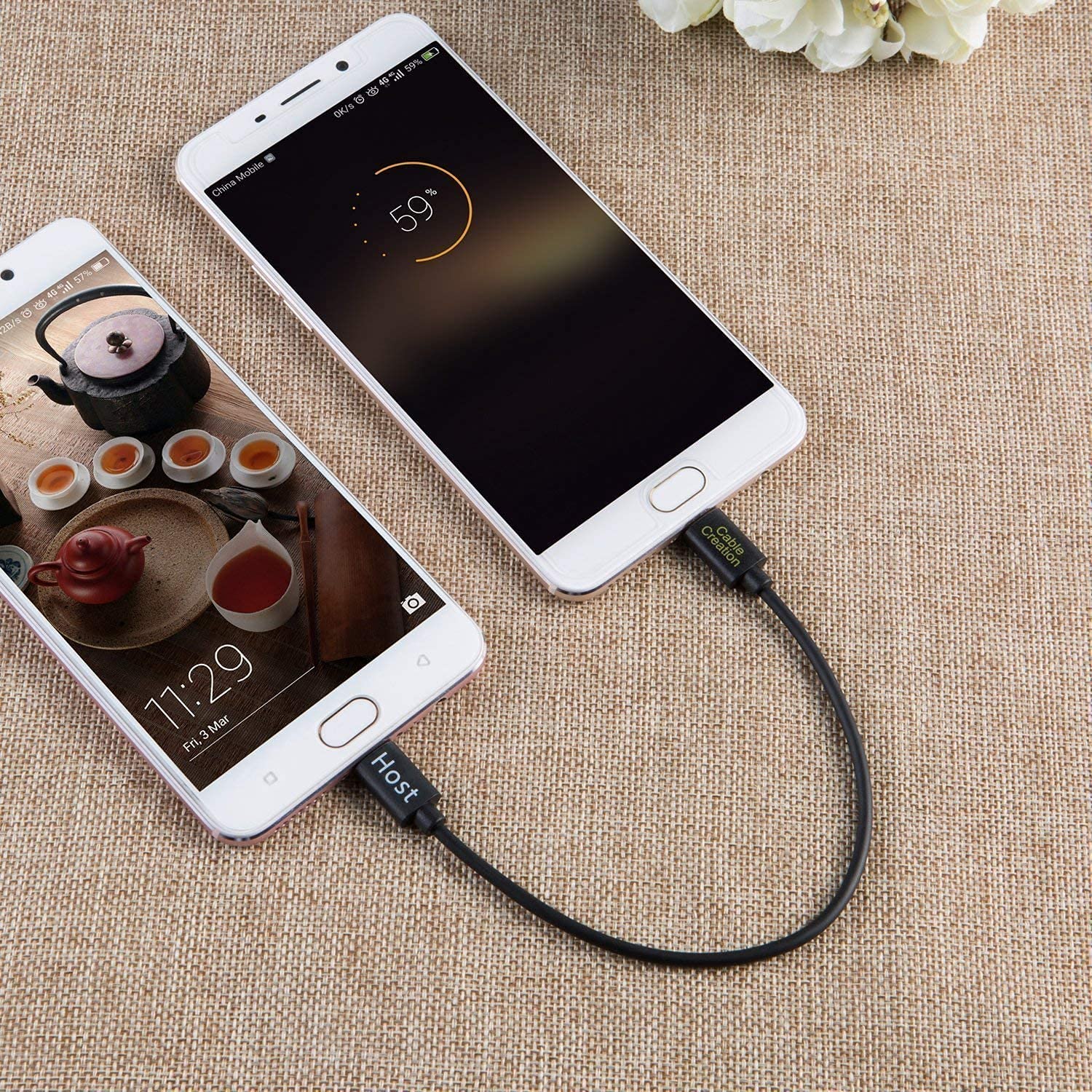
Image: Two smartphones connected by the Micro USB OTG cable, demonstrating the emergency charging function where one phone charges the other.
5.3. Connecting Peripherals
The OTG function allows you to connect various USB peripherals to your smartphone or tablet. This includes connecting a Bluetooth headset for charging or a digital camera for direct photo transfer.

Image: A smartphone connected to a Bluetooth headset via the Micro USB OTG cable, illustrating the charging capability for peripherals.

Image: A digital camera connected to a tablet via the Micro USB OTG cable, showing the process of reading photos directly from the camera.
6. Maintenance and Care
- Storage: Store the cable in a cool, dry place away from direct sunlight and extreme temperatures. Avoid tightly coiling or bending the cable at sharp angles to prevent internal damage.
- Cleaning: Use a soft, dry cloth to clean the cable and connectors. Do not use liquid cleaners or abrasive materials.
- Handling: Always grasp the connector head when plugging or unplugging the cable. Avoid pulling on the cable itself, as this can damage the internal wires and connections.
- Inspection: Periodically inspect the cable and connectors for any signs of wear, fraying, or damage. Discontinue use if any damage is observed.
7. Troubleshooting
| Problem | Possible Cause | Solution |
|---|---|---|
| Cable not recognized / No connection |
|
|
| Slow data transfer speed |
|
|
| Charging not working |
|
|
8. Product Specifications
| Specification | Detail |
|---|---|
| Model Number | CC0573 |
| Product Dimensions | 9.8 x 6.26 x 0.07 inches; 0.35 ounces |
| Cable Length | 0.66 Feet (20CM) |
| Connector Type | Micro USB Male to Micro USB Male |
| Data Transfer Speed | Up to 480 Mbps |
| Color | Black |
| Manufacturer | CableCreation |
| First Available Date | October 28, 2016 |
9. Warranty and Support
CableCreation provides a 24-month warranty for this product, covering any quality-related concerns. We are committed to offering lifetime technical support and friendly customer service to ensure your satisfaction.
For technical assistance, troubleshooting, or warranty claims, please contact CableCreation customer support through the official channels provided at the point of purchase or on the CableCreation website.