
1. Introduction
This manual provides detailed instructions for the installation, operation, and maintenance of your GIGABYTE GeForce GTX 1050 Ti 4GB GV-N105TD5-4GD graphics card. Please read this manual thoroughly before installation to ensure proper setup and optimal performance.
2. Safety Information
- Always disconnect power from your computer before installing or removing any components.
- Wear an anti-static wrist strap or frequently touch a grounded metal object to discharge static electricity, which can damage electronic components.
- Handle the graphics card by its edges to avoid touching sensitive components.
- Ensure adequate ventilation within your computer case to prevent overheating.
- Keep the graphics card away from moisture and extreme temperatures.
3. Package Contents
Verify that all items are present in your product package:
- GIGABYTE GeForce GTX 1050 Ti 4GB GV-N105TD5-4GD Graphics Card
- Instruction Manual
If any items are missing or damaged, please contact your retailer or GIGABYTE customer support.
4. Product Overview
The GIGABYTE GeForce GTX 1050 Ti 4GB GV-N105TD5-4GD graphics card is designed for enhanced visual performance. It features NVIDIA's Pascal architecture, 4GB of GDDR5 memory, and a custom-designed 90mm fan cooler for efficient heat dissipation.
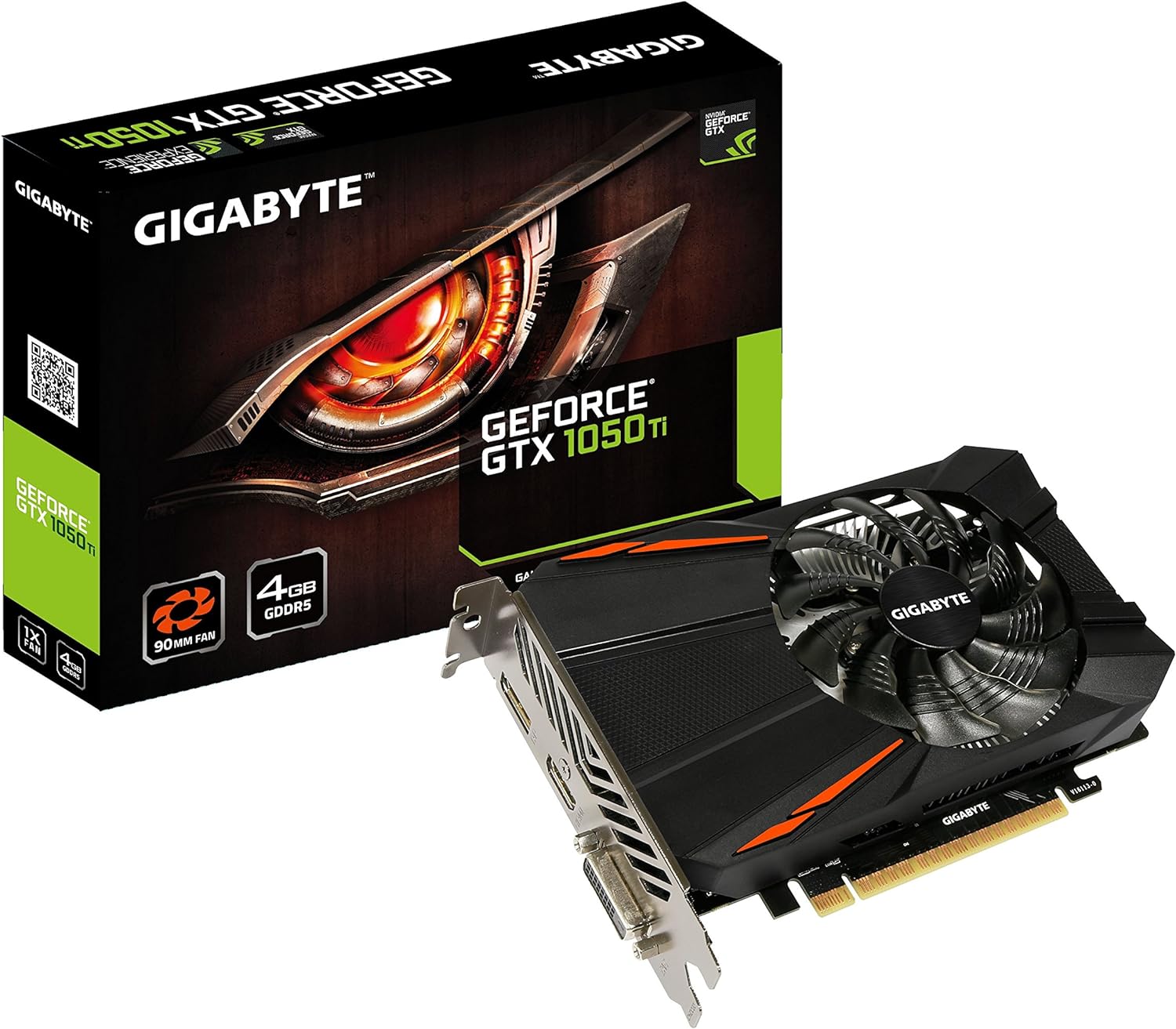
Image 1: GIGABYTE GeForce GTX 1050 Ti 4GB graphics card and retail box.

Image 2: Angled view of the graphics card, showcasing the custom 90mm fan and heatsink design.

Image 3: Top-down view of the graphics card, illustrating its compact form factor.

Image 4: Rear view showing the DisplayPort, HDMI, and DVI output ports.
Key Features:
- NVIDIA Pascal architecture for improved performance and power efficiency.
- Supports 1080P gaming at 60 FPS for classic and modern titles.
- Capable of supporting up to 8K display at 60Hz.
- Full support for the latest DirectX 12 features.
- Compact card size: H=40 L=229 W=118 mm.
5. Installation (Setup)
5.1 Pre-installation Checklist:
- Ensure your power supply unit (PSU) has a minimum rating of 300W.
- Verify your motherboard has an available PCI Express x16 slot.
- Back up any important data on your computer.
- Gather necessary tools: Phillips head screwdriver.
5.2 Hardware Installation Steps:
- Power Off and Disconnect: Shut down your computer completely and unplug the power cord from the wall outlet.
- Open Computer Case: Remove the side panel of your computer case.
- Locate PCIe Slot: Identify an available PCI Express x16 slot on your motherboard.
- Remove Slot Covers: Remove the metal slot cover(s) corresponding to the PCIe slot you will use.
- Insert Graphics Card: Carefully align the graphics card with the PCIe slot and press down firmly until it is securely seated. A click may be heard.
- Secure Card: Fasten the graphics card to the case with the screw(s) removed earlier.
- Close Case: Replace the computer case side panel.
- Reconnect Power: Plug the power cord back into the wall outlet and power on your computer.
6. Driver Installation
After physical installation, you must install the graphics drivers for optimal performance.
- Boot into Operating System: Start your computer. The operating system may install a generic display driver, or the screen resolution may be low.
- Download Drivers: Visit the official GIGABYTE product page for your model (http://www.gigabyte.com/products/product-page.aspx?pid=6051#kf) or the NVIDIA website to download the latest drivers for the GeForce GTX 1050 Ti.
- Run Installer: Execute the downloaded driver installer and follow the on-screen prompts.
- Restart Computer: After the installation is complete, restart your computer as prompted.
Your graphics card is now ready for use.
7. Operation
7.1 Connecting Displays:
Connect your monitor(s) to the available display output ports on the graphics card (DisplayPort, HDMI, DVI) using appropriate cables. The card supports multiple displays simultaneously.
7.2 Display Settings:
Once drivers are installed, you can adjust display settings (resolution, refresh rate, multi-monitor configuration) through your operating system's display settings or the NVIDIA Control Panel.
8. Maintenance
- Dust Removal: Periodically clean dust from the graphics card's fan and heatsink using compressed air. Ensure the computer is powered off and unplugged before cleaning.
- Driver Updates: Regularly check for and install the latest graphics drivers from the GIGABYTE or NVIDIA website to ensure optimal performance and compatibility.
- Temperature Monitoring: Use monitoring software to keep track of the graphics card's temperature, especially during heavy load, to ensure it operates within safe limits.
9. Troubleshooting
9.1 No Display Output:
- Ensure the monitor cable is securely connected to both the graphics card and the monitor.
- Verify the graphics card is fully seated in the PCIe slot.
- Check if your monitor is set to the correct input source.
- Test with a different display cable or monitor if possible.
9.2 Driver Installation Issues:
- Ensure you have downloaded the correct drivers for your operating system and graphics card model.
- Uninstall any previous graphics drivers using a utility like Display Driver Uninstaller (DDU) before attempting a fresh installation.
- Temporarily disable antivirus software during driver installation.
9.3 Performance Problems:
- Ensure your drivers are up to date.
- Check for adequate cooling; excessive temperatures can lead to performance throttling.
- Verify your power supply meets the recommended 300W requirement.
- Close unnecessary background applications.
10. Specifications
| Feature | Specification |
|---|---|
| Graphics Coprocessor | GeForce GTX 1050 Ti |
| Brand | GIGABYTE |
| Model Number | GV-N105TD5-4GD |
| Graphics Card Ram Size | 4 GB GDDR5 |
| Memory Speed | 1290 MHz |
| Max Screen Resolution | 8K |
| Video Output Interface | DisplayPort, HDMI, DVI |
| Item Weight | 1.1 pounds (approx. 0.5 kg) |
| Product Dimensions | 6.8 x 4.5 x 1.2 inches (approx. 17.3 x 11.4 x 3.0 cm) |
| Recommended PSU | 300W |
11. Warranty and Support
For warranty information and technical support, please refer to the official GIGABYTE website or contact your local GIGABYTE distributor. You can find product-specific information and support resources at the official product page: http://www.gigabyte.com/products/product-page.aspx?pid=6051#kf


