
1. Introduction
The Imperial DABMAN i400 is a versatile audio adapter designed to enhance your existing stereo system with modern radio and streaming capabilities. It provides access to thousands of internet radio stations, digital radio (DAB+), and traditional FM radio. Additionally, it supports audio streaming via Bluetooth, UPnP/DLNA, and USB, offering a comprehensive listening experience.
2. Safety Instructions
- Power Supply: Use only the provided power adapter. Ensure the voltage matches your local power supply.
- Water and Moisture: Do not expose the device to rain, moisture, or dripping/splashing liquids. Do not place objects filled with liquids, such as vases, on the device.
- Ventilation: Ensure adequate ventilation. Do not block ventilation openings. Avoid placing the device on soft surfaces that may obstruct airflow.
- Heat Sources: Keep the device away from heat sources such as radiators, heat registers, stoves, or other heat-producing appliances.
- Cleaning: Disconnect the power before cleaning. Use a soft, dry cloth. Do not use liquid or aerosol cleaners.
- Servicing: Do not attempt to service this product yourself. Refer all servicing to qualified service personnel.
3. Package Contents
Please check that all items are present in the package:
- Imperial DABMAN i400 Internet Digital Radio
- Power Adapter
- Telescopic Antenna with F-connector
- Wire Antenna with F-connector
- RCA Cable
- Audio Cable (3.5mm jack)
- Remote Control
- User Manual (this document)

Image: Imperial DABMAN i400 with its power adapter, telescopic antenna, wire antenna, RCA cable, 3.5mm audio cable, and remote control.
4. Product Overview
Front View

Image: The front of the Imperial DABMAN i400, showing its display and control buttons on the top edge.
The front of the DABMAN i400 features a clear 3.2-inch LCD display for navigation and information. Control buttons are located on the top edge of the device for easy access to functions like power, mode selection, volume, and station presets.
Rear View and Connections
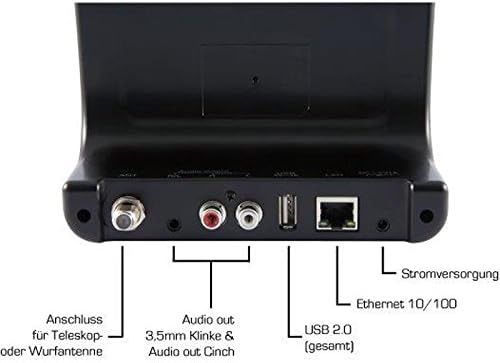
Image: The rear panel of the Imperial DABMAN i400, detailing its various connection ports. From left to right: Antenna connection (ANT), Audio output (RCA L/R and 3.5mm jack), USB 2.0 ports, Ethernet 10/100 (LAN), and Power supply (DC 5V/1A).
- ANT: F-connector for connecting the telescopic or wire antenna for DAB+/FM reception.
- Audio Output (R/L): RCA (Cinch) stereo audio output for connecting to an amplifier or stereo system.
- Audio Out (3.5mm Jack): 3.5mm stereo audio output for connecting to other audio devices.
- USB 2.0: USB port for playing media from a USB storage device.
- LAN: Ethernet port (RJ45) for wired network connection.
- DC 5V/1A: Power input for the included power adapter.
5. Setup
- Connect Antenna: Screw the telescopic antenna or connect the wire antenna to the ANT F-connector on the rear panel. Extend the telescopic antenna for optimal reception.
- Connect to Audio System: Use the provided RCA cable to connect the Audio Output (R/L) on the DABMAN i400 to an available audio input (e.g., AUX, CD, LINE IN) on your amplifier or stereo system. Alternatively, use the 3.5mm audio cable if your system has a compatible input.
- Network Connection:
- Wired (LAN): Connect an Ethernet cable from your router to the LAN port on the rear of the DABMAN i400.
- Wireless (WLAN): The device will prompt you to set up Wi-Fi during the initial startup wizard. Select your network and enter the password.
- Connect Power: Plug the power adapter into the DC 5V/1A input on the rear panel, then plug the adapter into a wall outlet. The device will power on automatically or enter standby mode.
- Initial Setup Wizard: Upon first power-on, the device will guide you through an initial setup process, including language selection, time/date settings, and network configuration. Follow the on-screen instructions.
6. Operating Instructions
Basic Navigation
Use the control buttons on the top of the device or the remote control to navigate menus, select options, adjust volume, and change modes.
Mode Selection
Press the 'Mode' button (or equivalent on remote) to switch between available modes:
- Internet Radio: Access thousands of online radio stations worldwide. Browse by genre, location, or search for specific stations.
- DAB+ Digital Radio: Enjoy high-quality digital radio broadcasts. The device will scan for available stations in your area.
- FM Radio: Tune into traditional analog FM radio stations.
- Bluetooth: Stream audio wirelessly from your Bluetooth-enabled smartphone, tablet, or computer.

Image: Bluetooth connectivity icon.
To pair: Select Bluetooth mode on the DABMAN i400. On your external device, search for available Bluetooth devices and select 'DABMAN i400'.
- UPnP/DLNA: Stream music files from compatible devices on your local network (e.g., a network-attached storage (NAS) drive or a computer running a media server).

Image: UPnP (Universal Plug & Play) icon.
- USB Playback: Play audio files (e.g., MP3) from a USB flash drive connected to the USB port on the rear of the device.

Image: MP3 music file icon.
Presets
Save your favorite stations as presets for quick access. Refer to the on-screen menu for instructions on how to save and recall presets.
Air Music Control App
Control your DABMAN i400 using the Air Music Control App available for smartphones and tablets. This app allows for convenient remote control and browsing of stations.

Image: Air Music Control App icon.
7. Maintenance
- Cleaning: Wipe the device with a soft, dry, lint-free cloth. Do not use abrasive cleaners, waxes, or solvents.
- Software Updates: Periodically check for available software updates through the device's system settings menu to ensure optimal performance and access to new features.
- Storage: If storing the device for an extended period, disconnect it from power and store it in a cool, dry place.
8. Troubleshooting
- No Power:
- Ensure the power adapter is securely connected to the device and a working power outlet.
- Try a different power outlet.
- No Sound:
- Check the volume level on both the DABMAN i400 and your connected audio system.
- Ensure the audio cables are correctly connected to the appropriate input on your audio system.
- Verify that your audio system is set to the correct input source.
- Cannot Connect to Wi-Fi/Internet:
- Ensure your Wi-Fi router is on and functioning correctly.
- Double-check the Wi-Fi password.
- Try moving the device closer to your Wi-Fi router or use a wired LAN connection.
- Restart your router and the DABMAN i400.
- Poor DAB+/FM Reception:
- Ensure the antenna is fully extended and positioned for optimal reception.
- Try repositioning the device or antenna.
- Check if you are in an area with good DAB+ or FM coverage.
- Bluetooth Pairing Issues:
- Ensure the DABMAN i400 is in Bluetooth pairing mode.
- Make sure your external device's Bluetooth is enabled and discoverable.
- Move your external device closer to the DABMAN i400.
- Try unpairing and re-pairing the devices.
9. Specifications
| Feature | Specification |
|---|---|
| Brand | Imperial |
| Model Number | 22-241-00 |
| Color | Black |
| Screen Size | 3.2 Inches |
| Connectivity Technology | Bluetooth, LAN (Ethernet), WLAN (Wi-Fi), RCA (Cinch) L/R, 3.5mm Audio Jack |
| Special Features | Portable (as an adapter), Internet Radio, DAB+, FM, UPnP/DLNA |
| Total USB Ports | 1 |
| Compatible Devices | Bluetooth devices, UPnP/DLNA compatible devices |
| Power Source | AC (via power adapter) |
| Supported Radio Bands | FM, DAB, DAB+, Internet Radio |
| Product Dimensions | 15L x 8.1W x 14H centimeters |
| Included Components | Power Adapter, Telescopic Antenna, Wire Antenna, RCA Cable, Audio Cable, Remote Control, User Manual |
| Languages Supported | German, English, French, Dutch |
10. Warranty and Support
Manufacturer's Warranty
The Imperial DABMAN i400 comes with a manufacturer's warranty. Please refer to the warranty card included in your package or the manufacturer's official website for specific terms and conditions. Spare parts availability is guaranteed for 1 year.
Customer Support
For technical assistance, troubleshooting beyond this manual, or warranty claims, please contact Imperial customer support. Contact information can typically be found on the manufacturer's website or in the product packaging.


