
1. Product Overview
The D-Link DFE-530TX+ is a 10/100BASE-TX Fast Ethernet PCI Adapter designed to provide high-speed network connectivity for desktop computers. This adapter supports both 100BASE-TX (Category 5 UTP cable) and 10BASE-T (Category 3/4/5 UTP cable) connections, operating at speeds of 10Mbps or 100Mbps. It features full-duplex capability, effectively doubling the network speed to 20/200Mbps, and includes Plug-and-Play functionality for simplified installation.
Key features include:
- PCI interface for desktop computer compatibility.
- Supports a wide range of operating systems.
- Full Duplex Mode support for 20/200Mbps operation.
- Half Duplex Mode support for 10/100Mbps operation.
- Compliant with PCI 2.1/2.2 ACPI Power Management.
- Wake-On-LAN (WOL) functionality, including Magic Packet, LinkChg, and Microsoft wake-up frame.
- Compliant with PC 99 Standard.
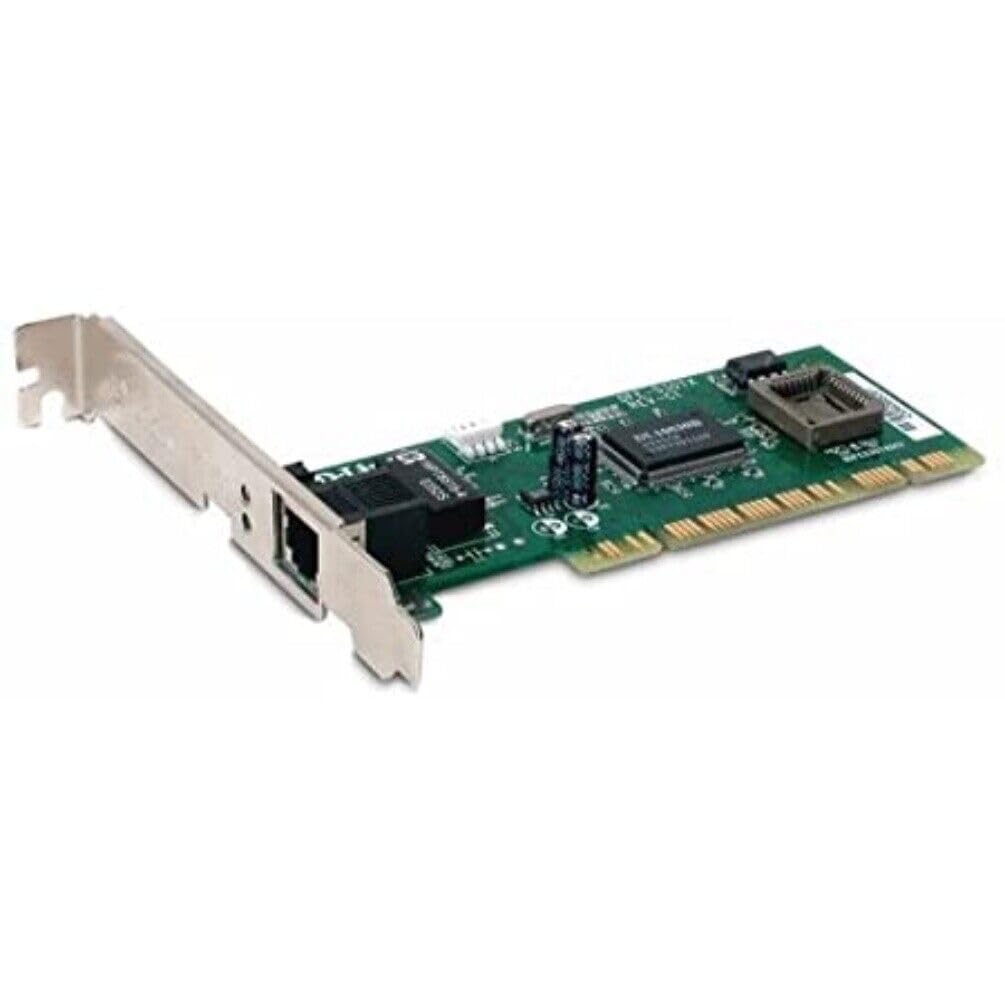
Figure 1: D-Link DFE-530TX+ Fast Ethernet PCI Adapter. This image shows the green circuit board with various electronic components, including chips and capacitors, and a silver PCI bracket with an RJ-45 Ethernet port.
2. Setup and Installation
Follow these steps to install your D-Link DFE-530TX+ PCI Adapter into your desktop computer.
- Prepare Your Computer:
- Power off your computer and unplug the power cord from the electrical outlet.
- Open the computer case. Refer to your computer's manual for instructions on how to safely open the case.
- Install the PCI Adapter:
- Locate an available PCI slot on your computer's motherboard.
- Remove the metal bracket cover from the chosen PCI slot on the back of your computer case.
- Carefully insert the DFE-530TX+ adapter into the PCI slot, ensuring it is firmly seated. Apply even pressure to both ends of the card.
- Secure the adapter with the screw removed from the metal bracket cover.
- Close the Computer Case:
- Replace the computer case cover and secure it.
- Plug the power cord back into the electrical outlet and power on your computer.
- Driver Installation:
- The DFE-530TX+ supports Plug-and-Play. Most modern operating systems (e.g., Windows 10) will automatically detect and install the necessary drivers upon startup.
- If drivers are not automatically installed, refer to the driver CD (if included) or download the latest drivers from the official D-Link support website.
3. Operating the Adapter
Once the adapter is physically installed and drivers are loaded, you can connect it to your network.
- Connect Ethernet Cable:
- Connect one end of a standard Ethernet cable (Category 5 or higher for 100Mbps) to the RJ-45 port on the DFE-530TX+ adapter.
- Connect the other end of the Ethernet cable to an available port on your network switch, router, or hub.
- LED Indicators:
The DFE-530TX+ features three on-board LEDs for diagnostics:
- Link LED: Indicates a successful network connection.
- Solid Green: A valid network link is established.
- Off: No network link detected.
- Activity LED: Indicates network data transmission.
- Flashing Green: Data is being transmitted or received.
- Off: No network activity.
- 10/100Mbps LED: Indicates the current connection speed.
- Solid Green: Connected at 100Mbps.
- Off: Connected at 10Mbps.
- Link LED: Indicates a successful network connection.
Verify that the Link LED is solid green and the Activity LED flashes when network traffic is present. The 10/100Mbps LED will indicate your current connection speed.
4. Maintenance
The D-Link DFE-530TX+ adapter requires minimal maintenance. To ensure optimal performance and longevity:
- Keep the computer's interior clean and free of dust to prevent overheating of components, including the network adapter.
- Ensure proper airflow within the computer case.
- Avoid exposing the adapter to extreme temperatures or humidity.
- Periodically check for updated drivers on the D-Link support website to ensure compatibility and performance enhancements.
5. Troubleshooting
If you encounter issues with your D-Link DFE-530TX+ adapter, refer to the following troubleshooting tips:
- No Link Light:
- Ensure the Ethernet cable is securely connected to both the adapter and the network device (switch/router).
- Try a different Ethernet cable.
- Verify that the network device (switch/router) is powered on and functioning correctly.
- Check if the adapter is properly seated in the PCI slot.
- Restart your computer.
- Slow Network Speed:
- Check the 10/100Mbps LED. If it's off, the connection is at 10Mbps. Ensure your network device supports 100Mbps and the cable is Category 5 or higher.
- Ensure your computer's drivers for the adapter are up to date.
- Test with a different Ethernet cable.
- Verify that other devices on your network are not consuming excessive bandwidth.
- Adapter Not Detected by Operating System:
- Ensure the adapter is correctly installed in the PCI slot.
- Check Device Manager (Windows) to see if the adapter is listed, possibly with a yellow exclamation mark. If so, reinstall or update the drivers.
- Try installing the adapter in a different PCI slot.
- Intermittent Connectivity:
- Check for loose cable connections.
- Ensure there is no electromagnetic interference from other devices.
- Update the adapter drivers.
- Consider replacing the Ethernet cable.
6. Specifications
| Model Number | DFE-530TX+ |
| Networking Type | Network adapter |
| Form Factor | Plug-in card |
| Networking Interface | PCI |
| Ports Quantity | 1 x RJ-45 (Ethernet 10Base-T/100Base-TX) |
| Data Transfer Rate | 100 Mbps |
| Data Link Protocol | Ethernet, Fast Ethernet |
| Connectivity Technology | Wired |
| Compliant Standards | IEEE 802.3, IEEE 802.3U |
| Cabling Type | Ethernet 10BASE-T, Ethernet 100Base-TX (Category 3/4/5 UTP) |
| PC Compatibility | PC, Mac, Unix |
| Features | Auto-negotiation, Full duplex capability, Wake on LAN (WOL) |
| Product Dimensions | 9.4 x 6.7 x 1.5 inches |
| Item Weight | 181 Grams (6.38 ounces) |
| UPC | 790069220333 |
7. Warranty and Support
The D-Link DFE-530TX+ Fast Ethernet PCI Adapter comes with a 2-year limited warranty from the date of purchase. This warranty covers defects in materials and workmanship under normal use.
For technical support, driver downloads, or further information, please visit the official D-Link support website. You may also find additional resources and FAQs there.
Please retain your proof of purchase for warranty claims.


