
1. Introduction
The Zmodo Beam (Model: ZM-SHRZ03W-A) is a versatile device designed to function as both a Wi-Fi range extender and a smart home hub. It enhances your existing Wi-Fi network coverage, reducing dead zones and providing a stronger signal throughout your home. Additionally, it acts as a central hub for Zmodo smart accessories, enabling you to connect and manage devices such as door and window sensors, and receive alerts directly on your mobile phone.
This manual provides essential information for the proper installation, operation, and maintenance of your Zmodo Beam. Please read it thoroughly before using the device.
2. Safety Information
- Ensure the device is plugged into a standard 90-240 VAC wall outlet.
- Do not expose the device to water, moisture, or extreme temperatures.
- Avoid placing the device near heat sources or in direct sunlight.
- Do not attempt to open or repair the device yourself. Refer all servicing to qualified personnel.
- Keep the device out of reach of children.
- Use only the accessories specified by the manufacturer.
3. Package Contents
Verify that all items are present in your package:
- Zmodo Beam Wi-Fi Extender
- Quick Guide
4. Product Overview
The Zmodo Beam features a compact design that plugs directly into a wall outlet. It includes a three-prong plug for secure connection and a perforated front panel, which may house indicator lights or a speaker for alerts.
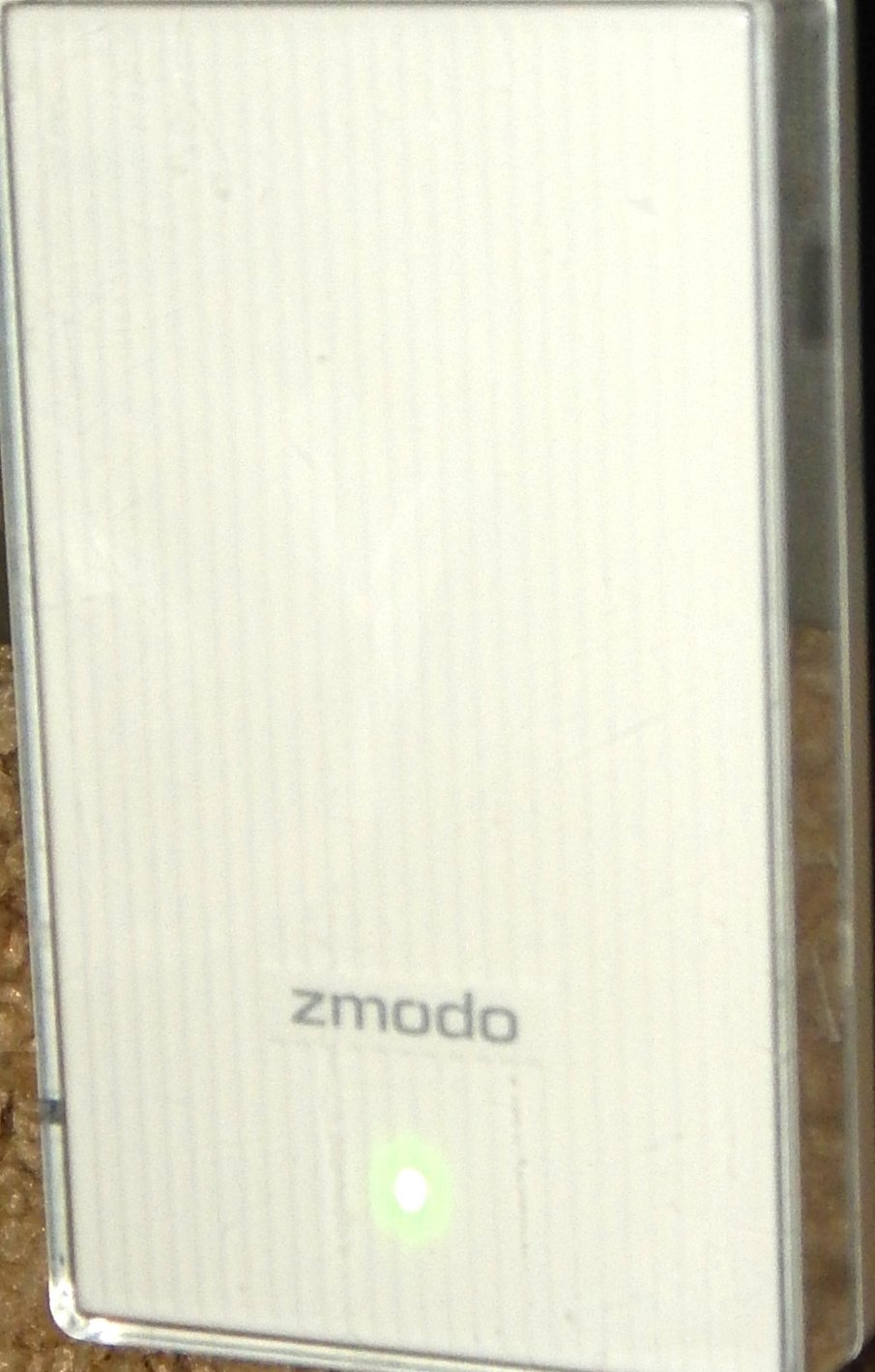
Figure 1: Zmodo Beam device with its three-prong plug and product label visible. The label displays model information (ZM-SHRZ03W), FCC ID (ZK8-SHRZ01W), a serial number (ZMD12LDC6001097), and indicates 'MADE IN CHINA'.
The product label, visible on the device, provides important identification details:
- Model: ZM-SHRZ03W
- FCC ID: ZK8-SHRZ01W
- Serial Number: ZMD12LDC6001097
- Origin: Made in China
5. Setup Instructions
Follow these steps to set up your Zmodo Beam:
- Download the Zmodo App: Download and install the Zmodo mobile application on your smartphone or tablet. The app is available for Android (version 4.0 and newer) and iOS (version 7 and newer) devices.
- Power On the Device: Plug the Zmodo Beam directly into a standard 3-prong (90-240 VAC) wall outlet in a central location within your home, ideally between your Wi-Fi router and the area where you need extended coverage.
- Connect to Wi-Fi:
- Ensure your home Wi-Fi network is a 2.4 GHz network with WPA/WPA2 encryption.
- Open the Zmodo app and follow the on-screen instructions to add a new device.
- The app will guide you through connecting the Beam to your existing Wi-Fi network.
- Beam Connect for Zmodo Devices: If you are setting up other Zmodo smart devices (e.g., Pivot, Greet), the Beam can simplify their configuration. Within the Zmodo app, use the "Beam Connect" feature and follow the prompts to pair your additional devices.
6. Operating Instructions
6.1. Wi-Fi Range Extension
Once configured, the Zmodo Beam automatically extends your existing Wi-Fi signal, providing up to 200 meters (656 feet) of additional coverage and speeds up to 300 Mbps. This helps eliminate Wi-Fi dead spots and improves overall network performance in areas previously experiencing weak signals.
6.2. Smart Home Hub Functionality
The Zmodo Beam serves as a central hub for Zmodo smart home accessories. You can connect various Zmodo sensors, such as door and window sensors, to the Beam.
- Connecting Accessories: Use the Zmodo app to pair compatible Zmodo accessories with your Beam. Follow the app's instructions for each specific accessory.
- Receiving Alerts: Once connected, the Beam will relay information from your sensors to the Zmodo app. You will receive real-time alerts on your phone whenever a connected sensor is triggered (e.g., a door opens).
- Scheduling Alerts: The Zmodo app allows you to customize and schedule when you receive alerts, providing flexibility for your home security and monitoring needs.
7. Maintenance
To ensure optimal performance and longevity of your Zmodo Beam, follow these simple maintenance guidelines:
- Cleaning: Gently wipe the device with a soft, dry cloth. Do not use liquid cleaners or abrasive materials.
- Placement: Ensure the device is placed in a well-ventilated area, away from direct heat sources or obstructions that could block airflow.
- Firmware Updates: Periodically check the Zmodo app for available firmware updates. Keeping your device's firmware up-to-date ensures you have the latest features and security enhancements.
8. Troubleshooting
If you encounter issues with your Zmodo Beam, refer to the following common problems and solutions:
| Problem | Possible Cause / Solution |
|---|---|
| Device not powering on. | Ensure the device is securely plugged into a working wall outlet. Test the outlet with another device. |
| Cannot connect to Wi-Fi. |
|
| Poor Wi-Fi signal extension. |
|
| Zmodo accessories not connecting. |
|
9. Specifications
| Model Number | ZM-SHRZ03W-A |
| Brand | Zmodo |
| Color | White |
| Power Input | 90-240 VAC |
| Wi-Fi Frequency | 2.4 GHz |
| Wi-Fi Encryption | WPA/WPA2 |
| Wi-Fi Range Extension | Up to 200 m (656 ft) |
| Wi-Fi Speed | Up to 300 Mbps |
| Mobile App Compatibility | Android 4.0+, iOS 7+ |
| UPC | 889490012973 |
| FCC ID | ZK8-SHRZ01W |
| Manufacturer Part Number | ZM-SHRZ03W-A |
10. Warranty and Support
For warranty information and technical support, please refer to the official Zmodo website or contact Zmodo customer service. Details regarding warranty periods and support channels are typically provided with your purchase documentation or on the manufacturer's website.
You can often find additional resources, FAQs, and contact information by visiting www.zmodo.com.


