
1. Introduction
Thank you for choosing the Redragon K551-N Mechanical Gaming Keyboard. This manual provides essential information for setting up, operating, and maintaining your keyboard to ensure optimal performance and longevity. The K551-N is a full-sized 104-key wired mechanical keyboard designed for PC gaming and general computer use, featuring durable steel and aluminum construction and clicky, tactile switches.
2. Package Contents
Please check the package contents to ensure all items are present:
- Redragon K551-N Mechanical Gaming Keyboard
- Keycap Puller
3. Setup
Setting up your Redragon K551-N keyboard is a straightforward process:
- Unpack the keyboard and its accessories from the box.
- Locate an available USB port on your computer.
- Plug the USB connector of the keyboard into the USB port.
- Your operating system will automatically detect and install the necessary drivers. No additional software installation is typically required.
- The keyboard is now ready for use.
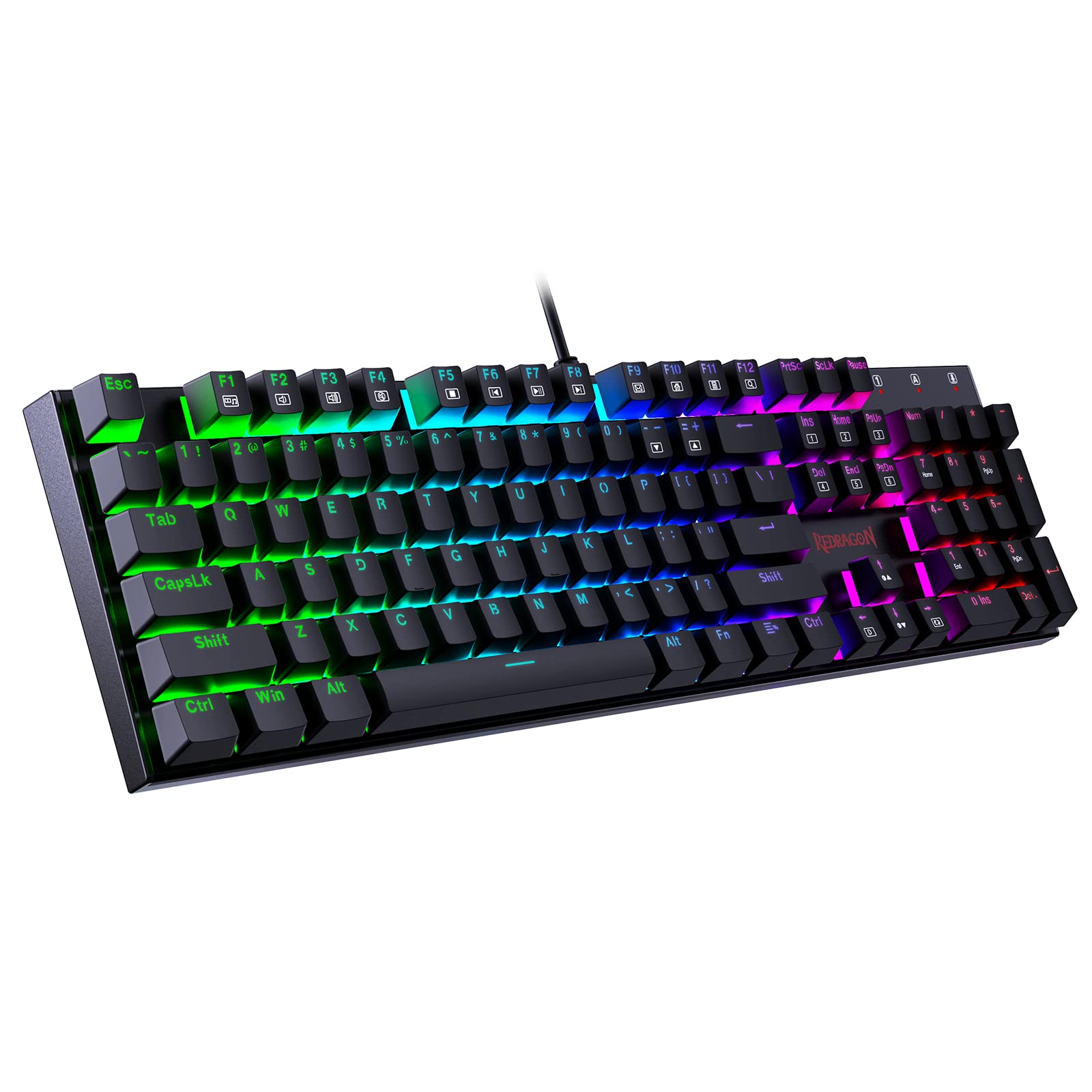
Image 1: The Redragon K551-N keyboard, ready for connection.
4. Operating Instructions
The Redragon K551-N features a standard 104-key QWERTY layout, providing a full range of keys for typing and gaming. It utilizes clicky, tactile mechanical switches for a responsive and audible typing experience.
4.1 Key Features
- Full-Size Layout: Includes a numeric keypad and function keys.
- Mechanical Switches: Provides a distinct click sound and tactile bump for each keystroke.
- Durable Construction: Built with steel and aluminum for enhanced stability and longevity.
- Non-Slip Design: Ensures the keyboard remains stable during intense use.

Image 2: Overview of the Redragon K551-N's full 104-key layout.
4.2 Multimedia Functions
The keyboard includes multimedia functions accessible via the Function (Fn) key combined with specific F-keys. Refer to the keycap legends for specific multimedia controls such as volume adjustment, media playback, and more.

Image 3: Close-up view of the mechanical key switches.
5. Maintenance
Proper maintenance ensures the longevity and performance of your keyboard.
5.1 Cleaning
- Disconnect the keyboard from your computer before cleaning.
- Use a soft, damp cloth to wipe the surface of the keyboard. Avoid harsh chemicals or abrasive materials.
- For dust and debris between keycaps, use compressed air or the included keycap puller to remove keycaps and clean underneath.
- The keyboard is designed with a degree of water resistance; however, avoid submerging it in liquids. If spills occur, disconnect immediately and allow to dry completely before reconnecting.

Image 4: Using the included keycap puller for maintenance.
6. Troubleshooting
If you encounter issues with your Redragon K551-N keyboard, refer to the following common solutions:
- Keyboard not responding: Ensure the USB cable is securely plugged into both the keyboard and the computer. Try a different USB port. Restart your computer.
- Keys not registering or double-typing: Clean the affected key switch area using compressed air. If the issue persists, carefully remove the keycap with the provided puller and clean any debris.
- Multimedia keys not working: Ensure no conflicting software or drivers are running. Some multimedia functions may require specific operating system settings or software.
7. Specifications
| Feature | Detail |
|---|---|
| Model Name | K551-N |
| Model Number | K551 RED LED (Note: This specific product variant is not backlit) |
| Connectivity | Wired USB |
| Number of Keys | 104 |
| Keyboard Layout | QWERTY |
| Switch Type | Clicky, Tactile Mechanical |
| Material | Acrylonitrile Butadiene Styrene, Aluminum, Metal, Steel |
| Special Features | Non-slip, Water Resistant |
| Compatible Devices | PC |
| Item Weight | 1100 Grams |
8. Warranty Information
Redragon products are manufactured to the highest quality standards. For specific warranty terms and conditions, please refer to the warranty card included with your product or visit the official Redragon website. Keep your proof of purchase for warranty claims.
9. Support
If you require further assistance or have questions not covered in this manual, please contact Redragon customer support. You can find contact information on the official Redragon website or through your retailer.


