
1. Introduction
The Philips SmartSleep Wake-up Light HF3532/01 is designed to enhance your wake-up and sleep experience through light therapy and natural sounds. Inspired by natural sunrise and sunset, this device helps you wake up more naturally and fall asleep more easily. It features customizable brightness levels, a selection of natural sounds, and smart functions like a night light and FM radio.
2. Safety Information
Please read this instruction manual carefully before using the appliance and save it for future reference. Incorrect use may lead to electric shock, fire, or other hazards. Always ensure the appliance is placed on a stable, flat surface. Do not immerse the appliance in water. Keep away from children. Use only the original power adapter provided.
3. Package Contents
Verify that your package contains the following items:
- 1 x Philips SmartSleep Wake-up Light HF3532/01
- 1 x Power Cable (150 cm)
- 1 x User Manual (this document)
4. Product Overview
The Philips SmartSleep Wake-up Light features an intuitive design with touch controls and a clear display. The main light dome simulates sunrise and sunset, while integrated speakers provide natural sounds or FM radio. The display automatically adjusts its brightness based on ambient light conditions.
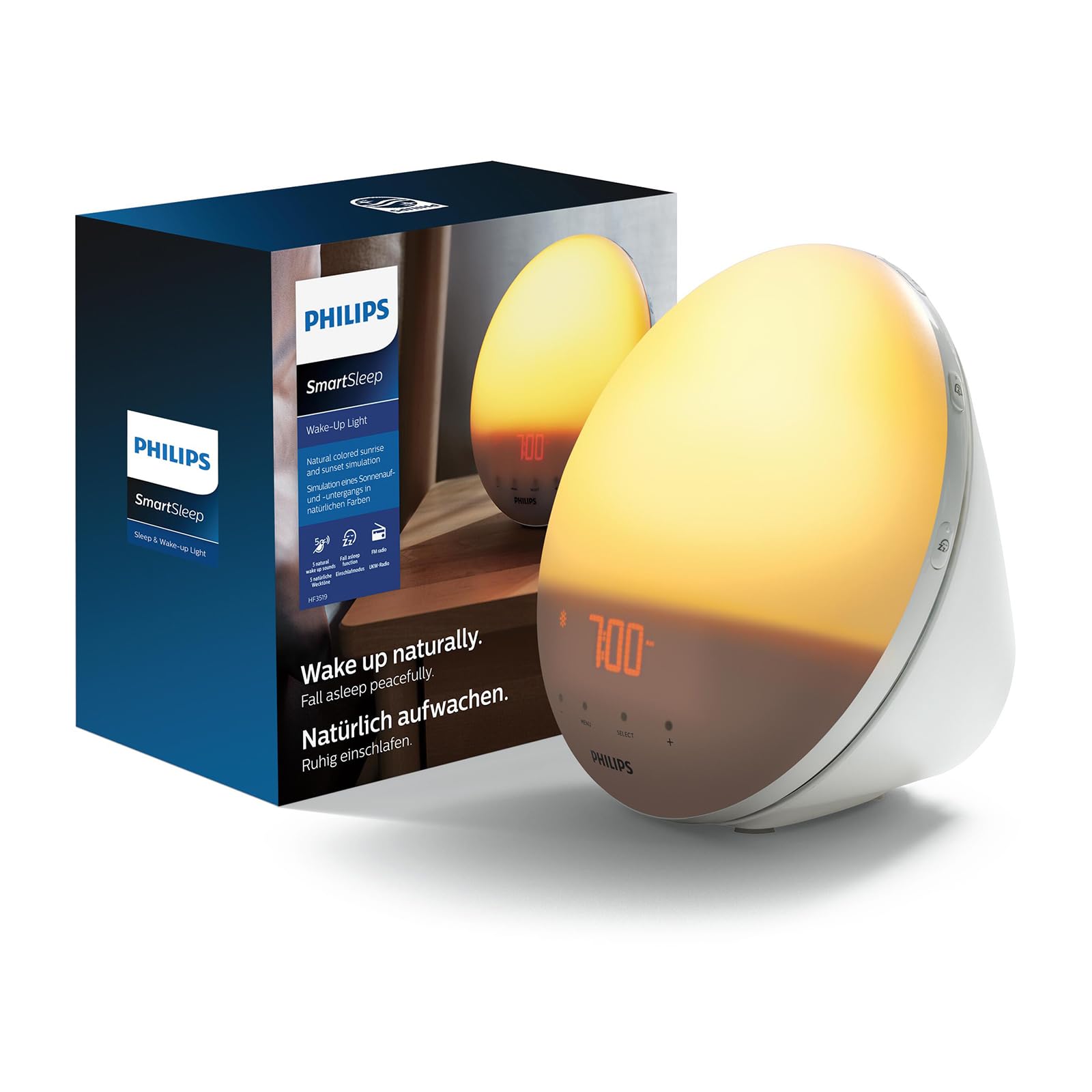
Image: The Philips SmartSleep Wake-up Light HF3532/01 on a bedside table, showing the time 7:00 AM with a warm, bright light.
5. Setup
5.1 Initial Placement
Place the Wake-up Light on a stable surface, such as a bedside table, ensuring it is within reach of a power outlet. Position it so the light can illuminate your face when you are in bed.
5.2 Power Connection
- Connect the power cable to the back of the Wake-up Light.
- Plug the adapter into a wall socket.
The display will light up, and you can proceed to set the time.
5.3 Setting the Time
Refer to the controls on the device (usually touch-sensitive buttons or a dial) to set the current time. The display intensity automatically adjusts to ambient light.
6. Operating Instructions
6.1 Sunrise Simulation Alarm
The Wake-up Light simulates a natural sunrise, gradually increasing light from a soft red to a warm orange, then to a bright yellow. This process occurs over a period of 5 to 60 minutes (adjustable), stimulating your body to wake up naturally before your chosen alarm sound.

Image: A visual representation of the sunrise simulation, showing the light transitioning from a dim red to a bright yellow over time.
6.2 Setting Alarms
You can set up to two alarms, which is useful for different schedules (e.g., weekday and weekend). Each alarm can be customized with:
- Wake-up Time: The exact time you wish to be fully awake.
- Light Intensity: Choose from 20 customizable brightness settings, up to 300 lux.
- Natural Sound: Select from 6 natural sounds to complement the light, such as birdsong or gentle melodies.
- Sunrise Duration: Adjust the duration of the light simulation (5-60 minutes).
6.3 Sunset Simulation for Sleep
To help you fall asleep, the device offers a sunset simulation. The light gradually dims from a bright yellow to a soft red, mimicking a natural sunset, over a customizable period. This helps prepare your body for sleep.

Image: A person sleeping soundly, with the Wake-up Light providing a gentle, warm glow on a bedside table, illustrating the sunset simulation feature.
6.4 Night Light Function
For navigating in the dark, the Wake-up Light includes a midnight night light function. Simply tap the device twice to activate a soft orange light, providing enough illumination without disturbing your sleep cycle.

Image: A hand reaching out to tap the Wake-up Light, which is emitting a soft orange light, demonstrating the night light function.
6.5 FM Radio
The device includes an FM radio function. Tune into your favorite stations to wake up to music or news, or to listen during the day. (Note: FM radio availability may vary by region).
6.6 Snooze Function
If you need a few extra minutes of sleep, simply tap the device to activate the snooze function. The alarm will pause and then resume after a short interval (typically 9 minutes).
7. Maintenance
7.1 Cleaning
To clean the Wake-up Light, unplug it from the power outlet. Use a soft, dry cloth to wipe the exterior. Do not use abrasive cleaning agents or solvents, as these can damage the surface. Do not immerse the device in water.
7.2 Storage
If you do not plan to use the device for an extended period, unplug it and store it in a dry, dust-free environment.
8. Troubleshooting
| Problem | Possible Cause | Solution |
|---|---|---|
| Device does not turn on. | Power cable not connected properly or power outlet is faulty. | Ensure the power cable is securely plugged into both the device and a working wall outlet. |
| Alarm does not sound or light up. | Alarm not activated or set incorrectly. | Check alarm settings to ensure it is enabled and the time, light, and sound preferences are correctly configured. |
| Difficulty setting time or alarm. | Unfamiliarity with controls. | Refer to the detailed operating instructions in section 6. The controls are typically touch-sensitive; ensure firm and precise touches. |
| Display is too bright or too dim. | Automatic brightness adjustment or manual setting. | The display brightness adapts automatically. If you prefer a different setting, check if there's a manual override option in the device settings. |
9. Specifications
| Feature | Specification |
|---|---|
| Brand | PHILIPS |
| Model Number | HF3532/01 |
| Dimensions (L x W x H) | 19.9 x 14.6 x 19.2 cm |
| Weight | 1.07 Kilograms |
| Material | Plastic, Acrylic (lampshade) |
| Light Source | LED |
| Luminous Flux | 300 lm |
| Power | 16.5 Watts |
| Voltage | 240 Volts |
| Special Features | Non-slip rubber, Snooze function, UV-free, Wake-up tones, Wake-up light |
| Number of Light Settings | 20 |
| Natural Sounds | 6 |
| Display | Automatic dimming |
| Power Outage Backup | Time settings retained for up to 8 hours |
10. Warranty and Support
For warranty information and customer support, please refer to the warranty card included with your product or visit the official Philips website. You can also contact Philips customer service for assistance with product setup, troubleshooting, or any other inquiries.
Online Support: www.philips.com/support


