Baseus CAAOTG-01

Baseus Mini Type-C to USB Adapter (Model CAAOTG-01) Instruction Manual

Model: CAAOTG-01 | Brand: Baseus

1. Product Overview

The Baseus Mini Type-C to USB Adapter (Model CAAOTG-01) is a compact and durable accessory designed to connect USB-C devices to standard USB-A ports. This adapter enables efficient data transfer, device synchronization, and fast charging capabilities up to 5 Amperes.

Baseus Mini Type-C to USB Adapter, front view

Image 1.1: Front view of the Baseus Mini Type-C to USB Adapter, showing the USB-A male connector and the Type-C female port.

2. Product Features

  • Compact Design: Small and lightweight, ideal for portability.
  • Durable Construction: Made from aluminum alloy for enhanced durability and heat dissipation.
  • High-Speed Data Transfer: Supports USB 2.0 standard with data transfer speeds up to 480 Mbps.
  • Fast Charging: Capable of delivering up to 5 Amperes for quick device charging.
  • Universal Compatibility: Connects USB-C devices (laptops, phones, tablets) to USB-A ports.

3. Package Contents

Verify that all items are present in the package:

  • 1 x Baseus Mini Type-C to USB Adapter (Model CAAOTG-01)
Baseus Mini Type-C to USB Adapter in retail packaging

Image 3.1: The Baseus Mini Type-C to USB Adapter shown in its retail packaging.

4. Setup

The Baseus Mini Type-C to USB Adapter is a plug-and-play device and requires no special driver installation.

  1. Identify the USB-A port on your host device (e.g., computer, wall charger, power bank).
  2. Insert the USB-A male connector of the adapter into the USB-A port of your host device. Ensure it is fully seated.
  3. Connect your USB-C cable or USB-C device into the Type-C female port of the adapter.
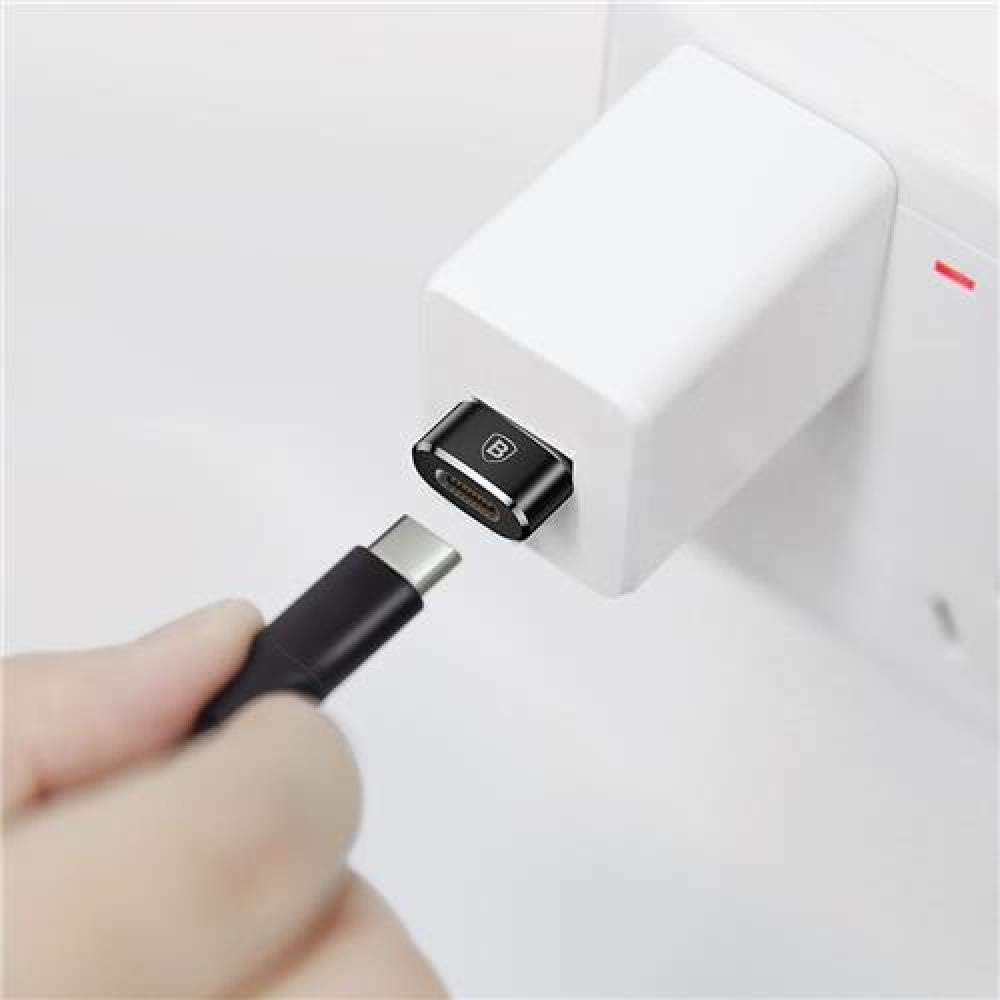
Baseus Mini Type-C to USB Adapter connected to a wall charger with a USB-C cable

Image 4.1: The adapter connected to a wall charger, ready to receive a USB-C cable for charging.

5. Operating Instructions

5.1 Data Transfer and Synchronization

To transfer data or synchronize devices:

  1. Connect the adapter to a USB-A port on your computer.
  2. Connect your USB-C device (e.g., smartphone, tablet) to the adapter using a USB-C cable.
  3. Your computer should recognize the connected device. You can now transfer files or synchronize data as usual.

5.2 Charging Devices

To charge a USB-C device:

  1. Connect the adapter to a USB-A wall charger, power bank, or computer USB-A port.
  2. Connect your USB-C device to the adapter using a USB-C charging cable.
  3. Ensure the power source is active. Your device should begin charging. The adapter supports fast charging up to 5A, depending on the capabilities of your charger and device.

6. Maintenance

  • Cleaning: Use a soft, dry cloth to clean the adapter. Avoid liquid cleaners or abrasive materials.
  • Storage: Store the adapter in a cool, dry place away from direct sunlight and extreme temperatures.
  • Handling: Avoid dropping the adapter or subjecting it to strong impacts. Do not force connectors into ports.

7. Troubleshooting

ProblemPossible CauseSolution
Device not recognized / No data transfer.
  • Loose connection.
  • Incompatible device/cable.
  • Faulty port on host device.
  • Ensure the adapter and cables are securely connected.
  • Verify that your devices and cables are compatible with USB-C and USB-A standards.
  • Try connecting to a different USB-A port on your host device.
  • Test the adapter with another USB-C device or cable.
Device not charging / Slow charging.
  • Insufficient power from the USB-A port.
  • Faulty cable or device.
  • Adapter not fully inserted.
  • Ensure the USB-A power source (charger/port) provides sufficient power (e.g., 5A for fast charging).
  • Try a different USB-C charging cable.
  • Ensure the adapter is fully inserted into the USB-A port.
  • Test with another USB-C device to rule out device issues.

8. Specifications

Model NumberCAAOTG-01
BrandBaseus
Product Dimensions (L x W x H)15 x 5 x 5 cm
Item Weight18.14 g
ColorBlack
Connector TypeUSB Type-A Male, USB Type-C Female
Data Transfer SpeedUp to 480 Mbps (USB 2.0)
Max Amperage5 Ampere
Compatible DevicesLaptops, Mobile Phones, Tablets with USB-C ports
MaterialAluminum Alloy

9. Warranty and Support

This product comes with a limited warranty. For detailed warranty information or technical support, please refer to the official Baseus website or contact their customer service.

  • Official Baseus Website: www.baseus.com
  • Customer Service: Refer to the contact information provided on the official website or product packaging.

Additional safety and usage instructions may be available in PDF format:

© 2023 Baseus. All rights reserved.

Related Documents - CAAOTG-01

Preview Baseus Pudding Series Fast Charging Cable Type-C to Type-C 100W แƒ›แƒแƒ›แƒฎแƒ›แƒแƒ แƒ”แƒ‘แƒšแƒ˜แƒก แƒกแƒแƒฎแƒ”แƒšแƒ›แƒซแƒฆแƒ•แƒแƒœแƒ”แƒšแƒ
แƒ”แƒก แƒ“แƒแƒ™แƒฃแƒ›แƒ”แƒœแƒขแƒ˜ แƒจแƒ”แƒ˜แƒชแƒแƒ•แƒก แƒ˜แƒœแƒกแƒขแƒ แƒฃแƒฅแƒชแƒ˜แƒ”แƒ‘แƒก แƒ“แƒ แƒฃแƒกแƒแƒคแƒ แƒ—แƒฎแƒแƒ”แƒ‘แƒ˜แƒก แƒ›แƒ˜แƒ—แƒ˜แƒ—แƒ”แƒ‘แƒ”แƒ‘แƒก Baseus Pudding Series Fast Charging Cable-แƒ˜แƒกแƒ—แƒ•แƒ˜แƒก, 100W Type-C-แƒ“แƒแƒœ Type-C-แƒ›แƒ“แƒ” แƒ™แƒแƒ‘แƒ”แƒšแƒ˜แƒกแƒ—แƒ•แƒ˜แƒก, แƒ แƒแƒ›แƒ”แƒšแƒ˜แƒช แƒ›แƒฎแƒแƒ แƒก แƒฃแƒญแƒ”แƒ แƒก แƒ›แƒแƒœแƒแƒชแƒ”แƒ›แƒ—แƒ แƒ’แƒแƒ“แƒแƒชแƒ”แƒ›แƒแƒก แƒ“แƒ แƒแƒฆแƒญแƒฃแƒ แƒ•แƒ˜แƒšแƒ˜แƒ E-Marker แƒฉแƒ˜แƒžแƒ˜แƒ— แƒฃแƒกแƒแƒคแƒ แƒ—แƒฎแƒ แƒ™แƒ•แƒ”แƒ‘แƒ˜แƒกแƒแƒ—แƒ•แƒ˜แƒก.
Preview Baseus Dura Series Fast Charging Cable: แƒ›แƒแƒ›แƒฎแƒ›แƒแƒ แƒ”แƒ‘แƒšแƒ˜แƒก แƒกแƒแƒฎแƒ”แƒšแƒ›แƒซแƒฆแƒ•แƒแƒœแƒ”แƒšแƒ
Baseus Dura Series Fast Charging Cable (Type-C to Lightning, 20W) แƒ›แƒแƒ›แƒฎแƒ›แƒแƒ แƒ”แƒ‘แƒšแƒ˜แƒก แƒกแƒแƒฎแƒ”แƒšแƒ›แƒซแƒฆแƒ•แƒแƒœแƒ”แƒšแƒ. แƒแƒฆแƒ›แƒแƒแƒฉแƒ˜แƒœแƒ”แƒ— แƒ™แƒแƒ‘แƒ”แƒšแƒ˜แƒก แƒ’แƒแƒ›แƒซแƒšแƒ”แƒแƒ‘แƒ, แƒฃแƒกแƒแƒคแƒ แƒ—แƒฎแƒ PD 20W แƒ“แƒแƒขแƒ”แƒœแƒ•แƒ แƒ“แƒ แƒกแƒแƒฃแƒ™แƒ”แƒ—แƒ”แƒกแƒ แƒžแƒ แƒแƒฅแƒขแƒ˜แƒ™แƒ แƒ’แƒแƒ›แƒแƒงแƒ”แƒœแƒ”แƒ‘แƒ˜แƒกแƒ—แƒ•แƒ˜แƒก.
Preview Baseus Bend Angle No.7 Multifunctional Type-C HUB Converter User Manual
Comprehensive user manual for the Baseus Bend Angle No.7 Multifunctional Type-C HUB Converter (Upgrade). Provides detailed information on product introduction, specifications, appearance, interface functions, feature instructions for iPad Pro and other devices, disclaimers, and essential product precautions.
Preview Baseus Metal Gleam Series 6-in-1 Type-C HUB Docking Station User Manual
User manual for the Baseus Metal Gleam Series 6-in-1 Type-C HUB docking station, detailing specifications, features, usage instructions, and precautions for connecting to MacBook and other Type-C laptops.
Preview Baseus StarJoy 8-Port Type-C HUB Adapter User Manual
Comprehensive user manual for the Baseus StarJoy 8-Port Type-C HUB Adapter (Model BS-OH101), detailing its specifications, port functions, usage instructions, and troubleshooting tips for various devices and operating systems.
Preview Baseus WKWG000003, WKWG000103: 6-in-1 USB-C Hub Docking Station User Manual
Discover the Baseus WKWG000003 and WKWG000103, a 6-in-1 USB-C hub docking station designed to boost productivity for Type-C laptops. It offers high-definition display expansion, USB 3.0, Gigabit Ethernet, and PD charging, enhancing the user's workspace and workflow. Compatible with MacBook and other Type-C devices.

Ask a question about this manual

Ask about setup, troubleshooting, compatibility, parts, safety, or missing instructions. Manuals+ will review the question and use this pageโ€™s manual context to help answer it.