
1. Introduction
The TP-Link AC1350 Wireless Access Point (EAP225) is designed to provide reliable and high-speed Wi-Fi connectivity for various environments, including offices and public spaces. This device features dual-band Wi-Fi with MU-MIMO technology, offering speeds up to 1350 Mbps (450 Mbps on 2.4 GHz and 867 Mbps on 5 GHz). It supports Power over Ethernet (PoE) for flexible installation and can be centrally managed through the Omada platform.
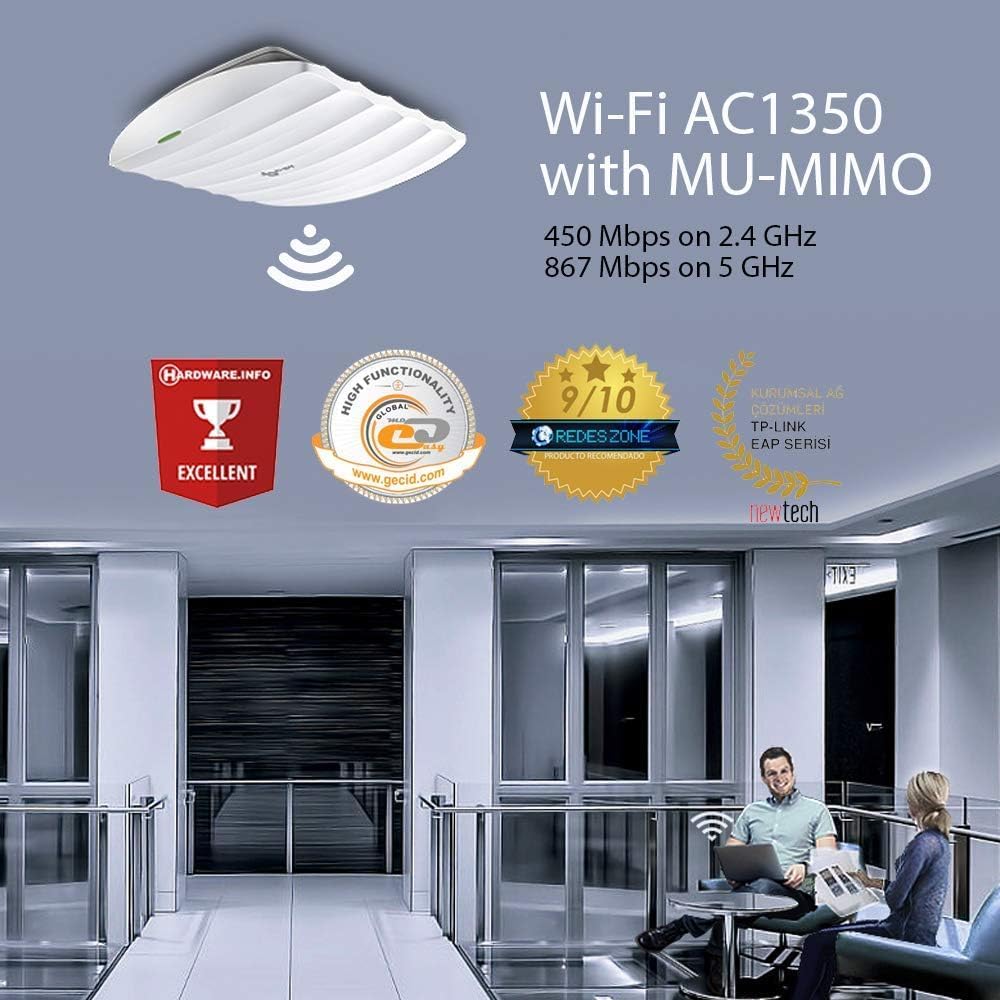
Figure 1: TP-Link EAP225 Wireless Access Point highlighting AC1350 Wi-Fi with MU-MIMO.
2. Package Contents
Verify that all items listed below are included in your package:
- AC1350 MU-MIMO Gigabit Wireless Access Point (EAP225)
- Passive PoE Adapter
- Installation Guide
- Mounting Kit
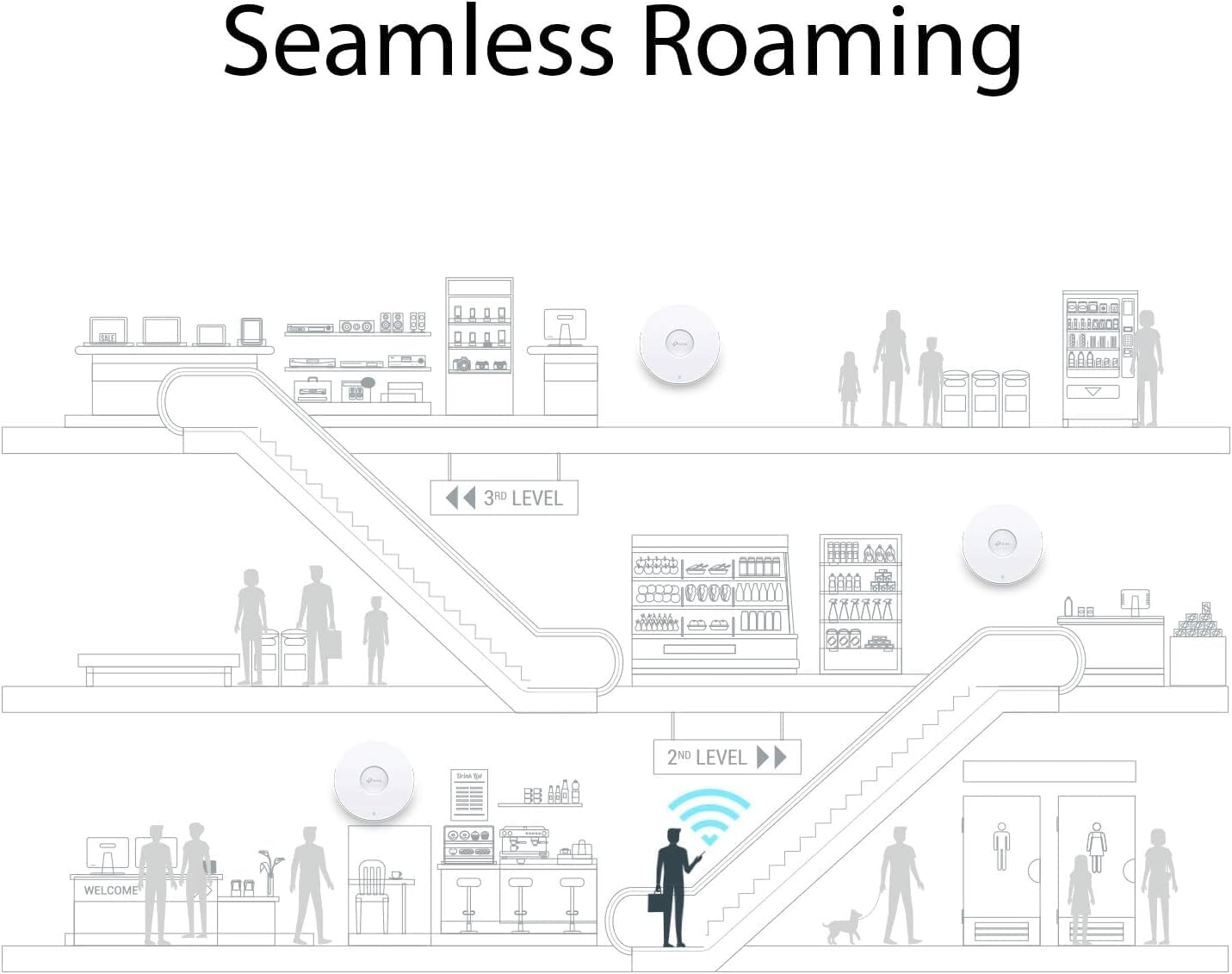
Figure 2: EAP225 Package Contents.
3. Product Overview
The EAP225 features a compact design suitable for ceiling or wall mounting. Key components include:
- Gigabit Ethernet Port: Supports 802.3af/at PoE and 24V Passive PoE for power and data transmission.
- Mounting Points: Designed for secure installation on ceilings or walls using the provided mounting kit.
- LED Indicator: Provides status information (e.g., power, Wi-Fi activity).
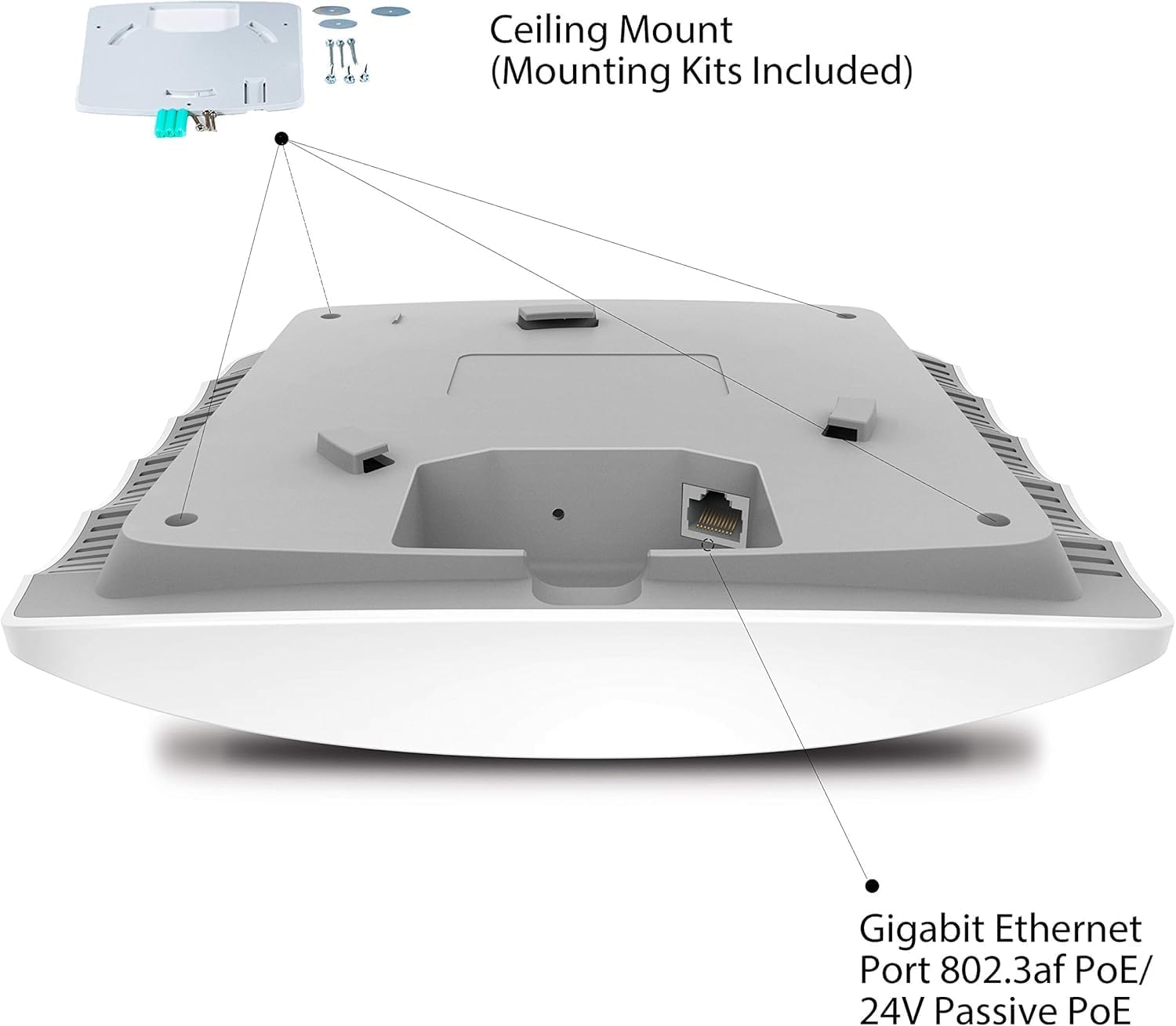
Figure 3: EAP225 Underside with Ethernet Port and Mounting Points.
4. Setup
4.1. Mounting the Access Point
The EAP225 can be mounted on a ceiling or wall. Use the included mounting kit and follow the instructions in the Installation Guide for secure attachment. Ensure the chosen location provides optimal Wi-Fi coverage.
4.2. Powering On
The EAP225 supports two power options:
- 802.3af/at PoE Switch: Connect an Ethernet cable from a compliant PoE switch to the Gigabit Ethernet port on the EAP225.
- Passive PoE Adapter: Connect the provided Passive PoE adapter to a power outlet, then connect an Ethernet cable from the adapter's PoE port to the EAP225's Gigabit Ethernet port.
4.3. Initial Configuration
To configure the EAP225, use the TP-Link Omada Controller software or the Omada App. These tools allow for centralized management and setup of your network.
5. Operating
5.1. Omada Centralized Management
The Omada platform provides centralized management for your EAP devices, offering features such as:
- Cloud Access for remote management.
- Real-Time Monitoring of network status and client activity.
- Client Policy Deployment for managing user access.
- Statistics and Reports for network analysis.

Figure 4: Omada App Interface for network management.
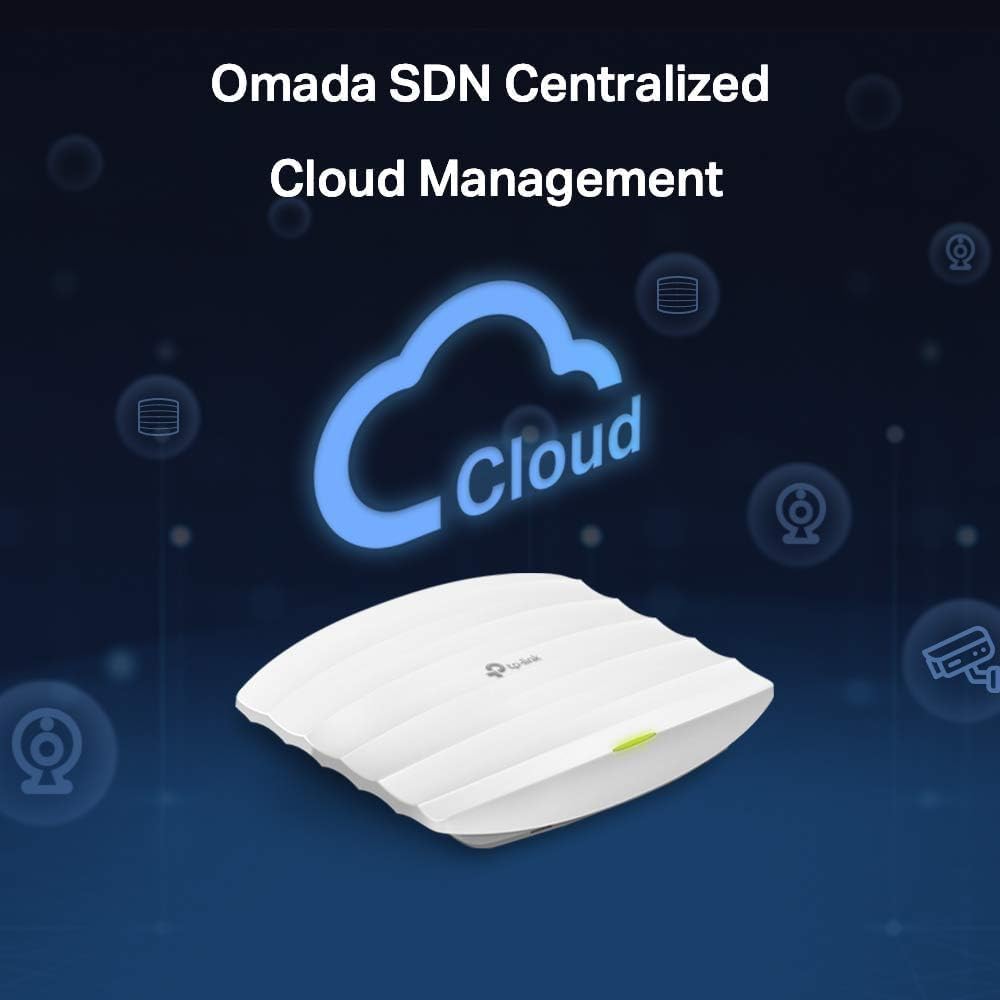
Figure 5: Omada SDN Centralized Cloud Management concept.
5.2. Guest Network
The EAP225 supports the creation of secure guest networks with multiple SSIDs (up to 16, 8 per band). Various authentication options are available, including SMS, Facebook Wi-Fi, and voucher-based access.
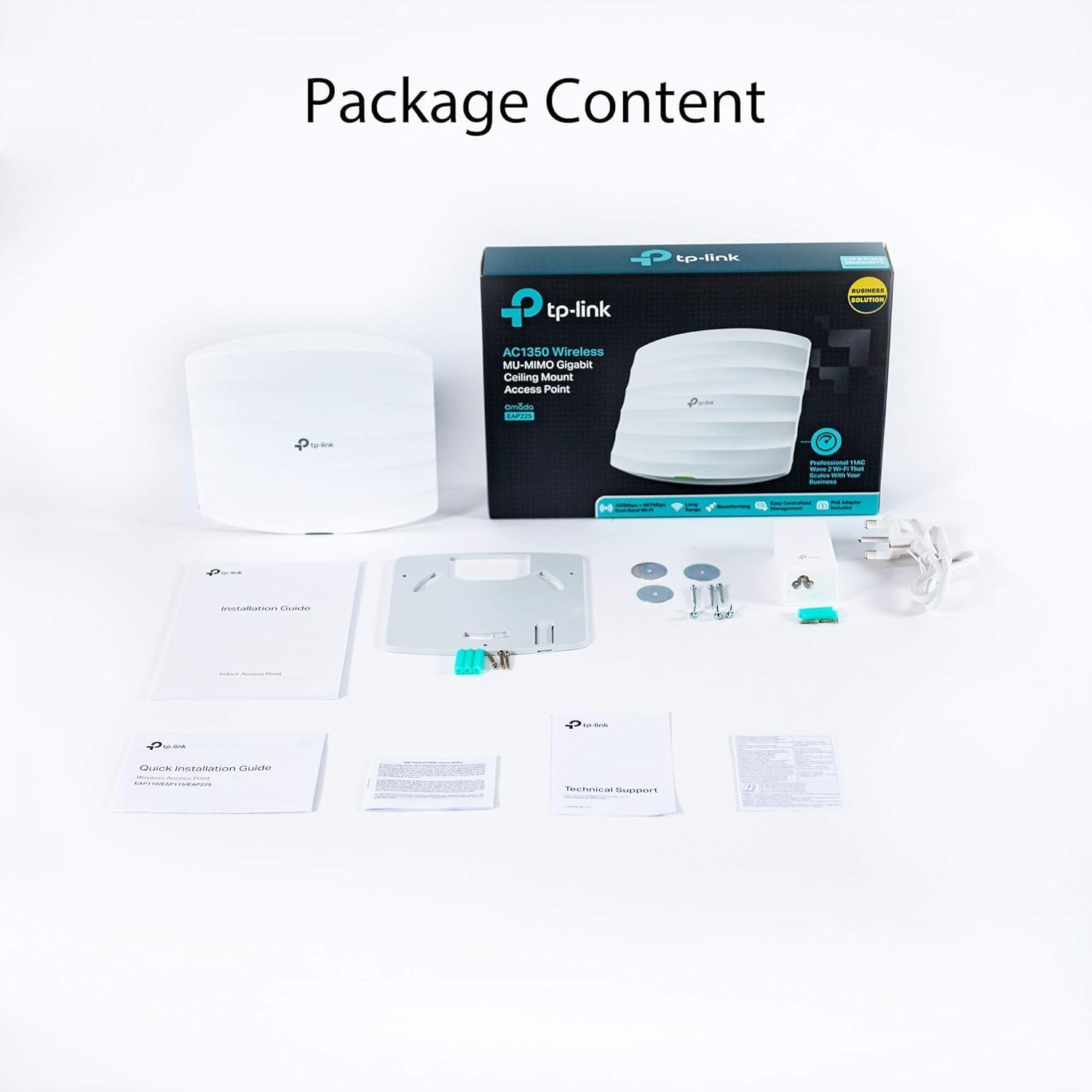
Figure 6: Example of Guest Network Facebook Check-in.
5.3. Seamless Roaming
When multiple EAP devices are deployed and managed by the Omada Controller, the EAP225 supports seamless roaming. This technology ensures that users can move between different access points without experiencing interruptions in video streams or voice calls.

Figure 7: Seamless Roaming illustration.
6. Maintenance
To ensure optimal performance and security of your EAP225, consider the following maintenance practices:
- Firmware Updates: Regularly check for and install the latest firmware updates from the TP-Link official website to benefit from new features, performance improvements, and security patches.
- Physical Cleaning: Keep the device clean and free from dust accumulation, especially around ventilation openings, to prevent overheating. Use a soft, dry cloth for cleaning.
- Network Monitoring: Utilize the Omada Controller or App to monitor network health and client activity, addressing any anomalies promptly.
7. Troubleshooting
If you encounter issues with your EAP225, try the following basic troubleshooting steps:
- No Power: Ensure the Ethernet cable is securely connected and the PoE source (switch or adapter) is functioning correctly and providing power. Check the LED indicator on the EAP225.
- No Wi-Fi Signal: Verify that the EAP225 is powered on and configured correctly through the Omada Controller. Check for any disabled SSIDs or incorrect Wi-Fi settings.
- Slow Wi-Fi Speed: Check for network congestion, interference from other devices, or outdated firmware. Ensure the EAP225 is placed in an optimal location.
- Cannot Access Management Interface: Confirm your device is connected to the network and has a valid IP address. Ensure the Omada Controller software or app is running and accessible.
- Factory Reset: If issues persist, you may perform a factory reset. Refer to the Installation Guide for instructions on how to reset the device. Note that this will erase all custom configurations.
For more detailed troubleshooting or persistent issues, refer to the TP-Link support website or contact technical support.
8. Specifications
| Feature | Specification |
|---|---|
| Brand | TP-Link |
| Model Name | EAP225 |
| Special Feature | Access Point Mode |
| Frequency Band Class | Dual-Band |
| Wireless Communication Standard | 802.11a, 802.11ac, 802.11b, 802.11g, 802.11n |
| Compatible Devices | PC, Tablet |
| Recommended Uses | Office, Public |
| Connectivity Technology | Ethernet, USB, Wi-Fi |
| Color | Red (Note: Product is typically white, 'rosso' might be a data entry error) |
| Operating Systems | TP-Link OS |
| Security Protocol | WEP (Note: Modern devices support WPA/WPA2/WPA3, WEP is outdated) |
| Number of Ports | 1 (Gigabit Ethernet) |
| Control Method | Voice (Note: Likely refers to smart home integration, not primary control) |
| Data Transfer Rate | 1.3 Gigabit per second (1300 Mbps) |
| LAN Port Bandwidth | 1000 Mbps |
| Voltage | 48 Volt (DC) |
| Max Upstream Data Transfer Rate | 1300 Megabit per second |
| Router Network Type | Wireless |
| Modem Compatibility | No |
| Connectivity Protocol | Wi-Fi, Ethernet, USB |
| Coverage | Long-range Wi-Fi |
| Control Unit Type | Button |
| Frequency | 5 GHz |
| Item Weight | 460 grams |
| Item Dimensions (L x W x H) | 18.1L x 20.5W x 3.7H cm |
9. Warranty and Support
TP-Link provides local technical support for its products. If you require assistance, you can contact TP-Link UK via their hotline or email. For detailed warranty information, including terms and conditions, please refer to the official TP-Link website or the warranty card included with your product.
Always ensure you are using official TP-Link support channels for accurate and reliable assistance.


