
1. Introduction
This manual provides instructions for the installation, operation, maintenance, and troubleshooting of the Juniper EX Series EX2300-C-12P Managed Switch. The EX2300-C-12P is a compact, fanless, high-performance Ethernet switch designed for small branch offices, workgroup environments, and enterprise access deployments. It features 12 Gigabit Ethernet ports and advanced Layer 2 and basic Layer 3 capabilities.
2. Safety Guidelines
Observe the following safety precautions to prevent injury and damage to the equipment:
- Ensure proper grounding of the device.
- Use only the power cable supplied with the switch.
- Do not operate the switch in wet or excessively humid environments.
- Avoid blocking ventilation openings to prevent overheating.
- Disconnect power before cleaning or servicing the device.
3. Package Contents
Verify that your package contains the following items:
- Juniper EX2300-C-12P Managed Switch
- Power cable
- Documentation (Quick Start Guide, Safety Information)
4. Hardware Overview
The Juniper EX2300-C-12P switch features 12 RJ45 Gigabit Ethernet ports for network connectivity. It includes status LEDs on the front panel to indicate power, system status, and port activity. The rear panel typically houses the power input and a console port for initial configuration.
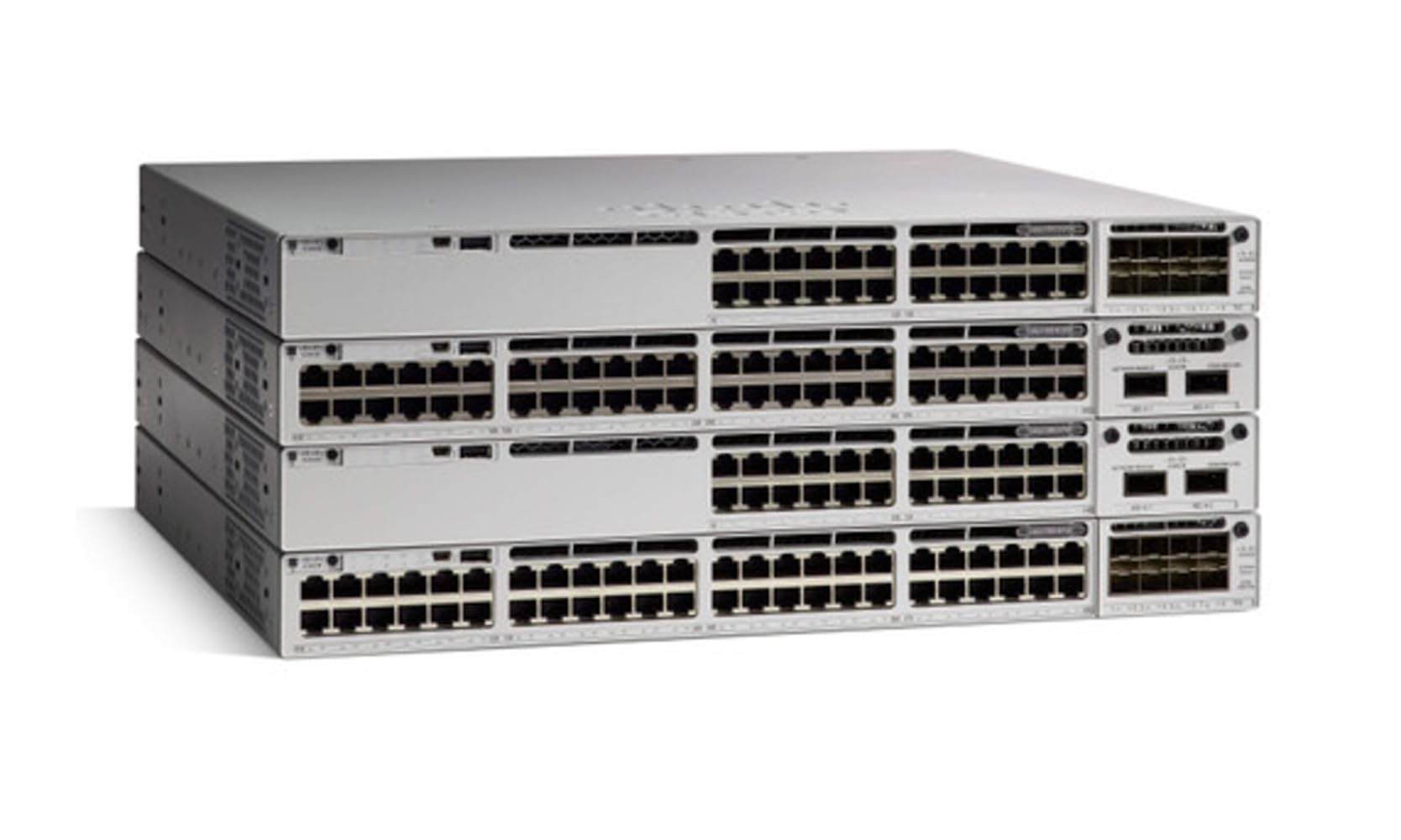
Figure 1: Front view of the Juniper EX2300-C-12P Managed Switch, showing 12 RJ45 ports and system status indicators.
5. Setup
5.1 Site Preparation
Before installation, ensure the chosen location meets the following criteria:
- Adequate ventilation to maintain operating temperature within 0°C to 40°C (32°F to 104°F).
- Protection from direct sunlight, excessive dust, and moisture.
- Stable surface for desktop placement or suitable wall-mounting point.
5.2 Mounting the Switch
The EX2300-C-12P is designed for desktop placement or wall mounting.
- Desktop Placement: Place the switch on a flat, stable surface. Ensure sufficient space around the device for airflow.
- Wall Mounting: Use appropriate screws and anchors (not included) to secure the switch to a wall. Refer to the Quick Start Guide for specific mounting hole dimensions.
5.3 Connecting Power
- Connect the supplied power cable to the power input on the rear panel of the switch.
- Plug the other end of the power cable into a grounded electrical outlet.
- The switch will power on automatically. Observe the Power LED on the front panel.
5.4 Connecting Network Cables
Connect Ethernet cables from your network devices (computers, servers, other switches) to the RJ45 ports on the front panel of the EX2300-C-12P switch. The Link/Activity LEDs for each port will illuminate when a valid connection is established and blink during data transmission.
6. Operating
6.1 Understanding System LEDs
The front panel LEDs provide status information:
- PWR (Power) LED: Indicates power status. Solid green for normal operation.
- SYS (System) LED: Indicates system health. Solid green for normal operation, blinking for boot-up or minor issues, amber for critical issues.
- Link/Activity LEDs (per port): Solid green indicates a valid link. Blinking green indicates data activity.
6.2 Initial Configuration Access
To configure the switch, you can use the console port or a management IP address.
- Console Port: Connect a serial cable from your computer to the console port on the switch. Use a terminal emulation program (e.g., PuTTY) with settings: 9600 baud, 8 data bits, no parity, 1 stop bit, no flow control.
- Management IP: By default, the switch may obtain an IP address via DHCP or have a default static IP. Refer to Juniper documentation for the default IP or DHCP behavior. Access the web-based management interface or SSH/Telnet to the IP address.
6.3 Basic Network Configuration
Once logged in, you can perform basic configurations such as:
- Setting the management IP address.
- Configuring VLANs.
- Adjusting port settings (speed, duplex, flow control).
- Setting up user accounts and passwords.
Refer to the Juniper Junos OS documentation for detailed configuration commands and procedures.
7. Maintenance
7.1 Cleaning the Device
Regularly clean the exterior of the switch with a soft, dry, lint-free cloth. Do not use liquid or aerosol cleaners directly on the device. Ensure ventilation openings are free from dust accumulation.
7.2 Firmware Management
Periodically check the Juniper Networks support website for firmware updates. Keeping the firmware updated ensures optimal performance, security, and access to new features. Follow the instructions provided by Juniper for firmware upgrade procedures.
7.3 Environmental Considerations
Maintain the operating environment within specified temperature and humidity ranges to ensure the longevity and reliable operation of the switch. Avoid placing the switch near heat sources or in areas with poor air circulation.
8. Troubleshooting
8.1 Power Issues
- No Power LED: Check the power cable connection to the switch and the electrical outlet. Verify the outlet is functional.
- SYS LED Amber: Indicates a system fault. Consult the Juniper documentation for specific error codes or patterns.
8.2 Connectivity Problems
- No Link/Activity LED: Ensure the Ethernet cable is securely connected at both ends. Verify the connected device is powered on and functioning. Try a different cable or port.
- Slow Performance: Check for duplex mismatches or port errors. Verify cable quality and length.
8.3 Factory Reset
If the switch is unresponsive or configuration issues persist, a factory reset may be necessary. Refer to the Juniper documentation for the exact procedure, which typically involves pressing a reset button or using a specific command via the console port. Warning: A factory reset will erase all configurations and restore the switch to its default settings.
9. Technical Specifications
| Feature | Specification |
|---|---|
| Model Number | EX2300-C-12P |
| Brand | Juniper Networks |
| Number of Ports | 12 |
| Interface Type | RJ45 |
| Data Transfer Rate | 1000 Megabits Per Second |
| Product Dimensions | 10.98 x 9.41 x 1.73 inches |
| Item Weight | 6.99 pounds |
| Upper Temperature Rating | 40 Degrees Celsius |
| Case Material | Plastic |
| UPC | 832938070899 |
10. Warranty and Support
For warranty information, technical support, and additional resources, please visit the official Juniper Networks website. You can find detailed product documentation, software downloads, and contact information for customer service and support.


