
1. Introduction
The AmpliFi HD (High-Density) WiFi Router is designed to provide robust and seamless wireless internet coverage throughout your home. This device features an intuitive touchscreen display, 4 Gigabit Ethernet ports, and 1 WAN port, serving as the core of an expandable mesh Wi-Fi system. It delivers high throughput for streaming, gaming, and other demanding network activities.
This manual provides essential information for setting up, operating, and maintaining your AmpliFi HD Router, ensuring optimal performance and connectivity.
2. Package Contents
Verify that your package contains the following items:
- AmpliFi HD Router (Model AFI-R)
- Ethernet Cable
- Power Adapter
3. Setup Instructions
Follow these steps to set up your AmpliFi HD Router:
- Prepare Your Existing Network: If you are replacing an existing router, it is recommended to put your current modem/router combo into bridge mode if applicable.
- Connect the Router:
- Connect one end of the included Ethernet cable to the WAN port on the AmpliFi HD Router.
- Connect the other end of the Ethernet cable to your modem.
- Plug the power adapter into the router's power port and then into a power outlet.
- Download the AmpliFi App: Download the AmpliFi app from the iOS App Store or Google Play Store on your smartphone or tablet.
- Launch the App and Follow On-Screen Instructions: Open the AmpliFi app. It will guide you through the process of detecting your new router, configuring your Wi-Fi network name (SSID), and setting a password.
- Network Compatibility: The AmpliFi HD Router is compatible with major Internet Service Providers (ISPs) including AT&T, Comcast, Time Warner, Spectrum, and Verizon FiOS.
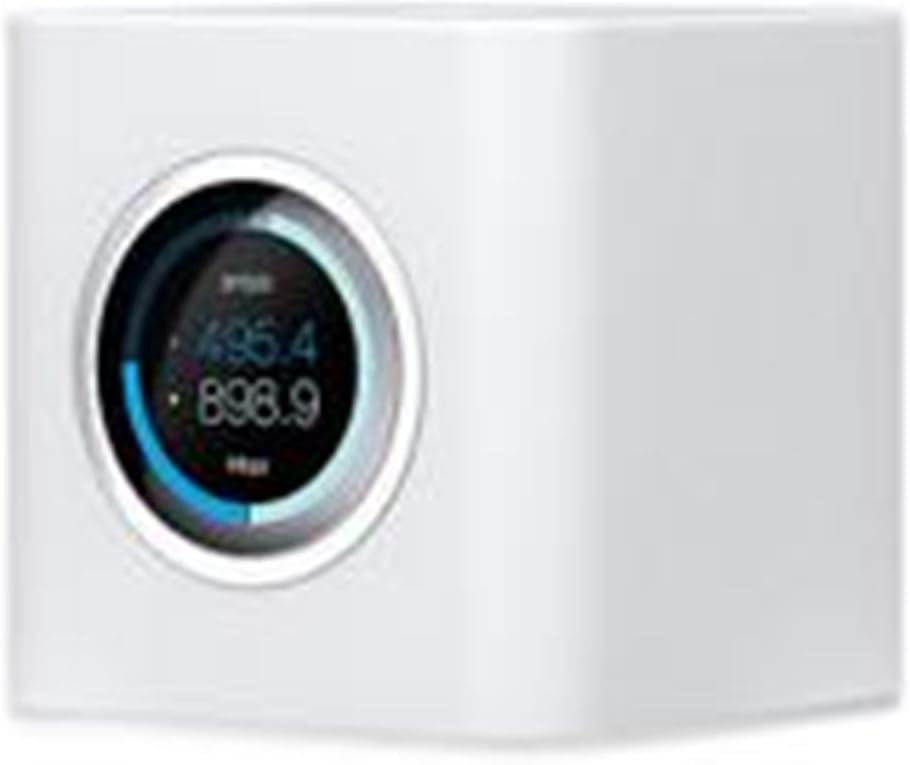
Figure 3.1: Front view of the AmpliFi HD WiFi Router, highlighting its touchscreen display.

Figure 3.2: The AmpliFi HD WiFi Router integrated into a home setting, demonstrating its compact design.
4. Operation
4.1. App Control and Management
The AmpliFi app provides comprehensive control over your network:
- Network Status Monitoring: View real-time network performance and connected devices.
- Device Prioritization: Assign priority to specific devices for optimal performance during critical tasks like gaming or streaming.
- Parental Controls: Create family profiles, set internet schedules, or pause internet access for specific devices.
- Guest Access: Easily create and manage a separate guest Wi-Fi network without sharing your main network password.
- Remote Access: Monitor and manage your network from anywhere using your smartphone.
4.2. Touchscreen Display
The router's touchscreen display provides quick access to essential information without needing the app:
- Time and Date: Displays current time.
- Bandwidth Usage: Shows real-time upload and download speeds.
- Network Status: Provides an overview of your internet connection status.
- Port Information: Details about active Ethernet ports.
- Sleep Mode: The display can be configured to enter sleep mode automatically during specific hours.
4.3. Mesh Technology and Expansion
The AmpliFi HD Router utilizes mesh technology, allowing you to expand your Wi-Fi network coverage by adding additional AmpliFi MeshPoints or Routers. This creates a single, unified Wi-Fi network that provides seamless connectivity as you move throughout your home, eliminating dead spots.
5. Maintenance
5.1. Firmware Updates
The AmpliFi HD Router supports automatic firmware updates. When a new update is available, a notification will appear on the router's touchscreen display and within the AmpliFi app. It is recommended to install updates promptly to ensure optimal performance, security, and access to new features. Updates can typically be initiated with a single tap on the touchscreen or through the app.
5.2. General Care
- Keep the router in a well-ventilated area to prevent overheating.
- Clean the device with a soft, dry cloth. Avoid using liquid cleaners.
- Ensure all cables are securely connected.
6. Troubleshooting
If you encounter issues with your AmpliFi HD Router, consider the following troubleshooting steps:
- No Internet Connection:
- Check that your modem is working correctly and has an active internet connection.
- Ensure the Ethernet cable from your modem is securely connected to the WAN port of the AmpliFi router.
- Restart both your modem and the AmpliFi router by unplugging them from power for 30 seconds and then plugging them back in.
- Weak Wi-Fi Signal:
- Relocate the router to a central location in your home, away from obstructions and interference sources (e.g., microwaves, cordless phones).
- Consider adding AmpliFi MeshPoints or additional Routers to expand your mesh network coverage.
- Device Cannot Connect to Wi-Fi:
- Verify that you are entering the correct Wi-Fi password.
- Check the AmpliFi app to ensure the device is not paused or blocked by parental controls.
- Restart the device attempting to connect.
- App Issues:
- Ensure your AmpliFi app is updated to the latest version.
- Use the diagnostic tools available within the AmpliFi app to identify network issues.
For more detailed troubleshooting or advanced configurations, please refer to the official user manual PDF: AmpliFi HD Router User Manual (PDF).
7. Specifications
| Model Name | AFI-R |
| Wireless Type | 802.11ac |
| Frequency Band Class | Dual-Band |
| Ethernet Ports | 4 Gigabit Ethernet, 1 WAN Port |
| USB Ports | 1 USB 2.0 Port (functionality may vary) |
| Dimensions (LxWxH) | 3.85 x 3.92 x 3.91 inches |
| Item Weight | 14.4 ounces |
| Color | White |
| Manufacturer | Ubiquiti Networks |
8. Warranty and Support
For information regarding product warranty, technical support, or additional resources, please visit the official AmpliFi website or refer to the warranty card included with your product.
You can also access the full user manual in PDF format here: AmpliFi HD Router User Manual (PDF).


