
AdirOffice 680-40-BLK
AdirOffice 40-Key Digital Lock Key Cabinet
Instruction Manual
Product Overview
The AdirOffice 40-Key Digital Lock Key Cabinet provides a secure and organized solution for managing multiple keys. Constructed from durable 16-gauge steel with a scratch-resistant powder coating, this cabinet is designed for optimal protection and longevity. It features a programmable electronic lock for enhanced security, making it suitable for various professional and personal applications.

Figure 1: Front view of the AdirOffice 40-Key Digital Lock Key Cabinet.
Key Features:
- High-Quality Construction: Manufactured using 16-gauge steel with a scratch-resistant powder coating inside and out, along with continuous hinges for optimal protection.
- Secure Digital Lock: Features a programmable electronic lock with a 3-8 digit PIN code and includes two override keys for emergency access.
- 40-Key Capacity: Equipped with 40 key holder hooks and comes with 40 key tags for efficient organization.
- Easy Installation: Outfitted with pre-drilled holes and includes mounting hardware for stable wall installation.
- Versatile Use: Ideal for hotel owners, car dealerships, repair shops, valet parking services, and other professionals requiring secure key management.
What's in the Box
Upon opening your AdirOffice 40-Key Digital Lock Key Cabinet package, please verify that all the following components are included:

Figure 2: Included components: Key Cabinet, Two Override Keys, Four AA Batteries, Key Tags, and Mounting Hardware.
- AdirOffice 40-Key Digital Lock Key Cabinet
- 2 Override Keys
- 4 AA Batteries
- 40 Key Tags
- Mounting Hardware (screws and wall anchors)
Setup
1. Battery Installation
- Locate the battery compartment on the back of the digital lock keypad.
- Insert the four (4) AA batteries, ensuring correct polarity.
- Close the battery compartment cover securely.
2. Initial Code Setup
The cabinet comes with a default factory code. It is highly recommended to change this code immediately for security purposes.
- Open the cabinet using the default code or one of the override keys.
- Locate the red reset button inside the cabinet, usually near the hinge.
- Press the reset button. The keypad will beep, and the indicator light will flash.
- Enter your new 3-8 digit PIN code on the keypad.
- Press the 'START' or '#' button to confirm. The keypad will beep again, indicating successful programming.
- Test your new code with the cabinet door open to ensure it works correctly before closing.
3. Wall Mounting
The key cabinet is designed for wall mounting to ensure stability and security. Use the provided mounting hardware.
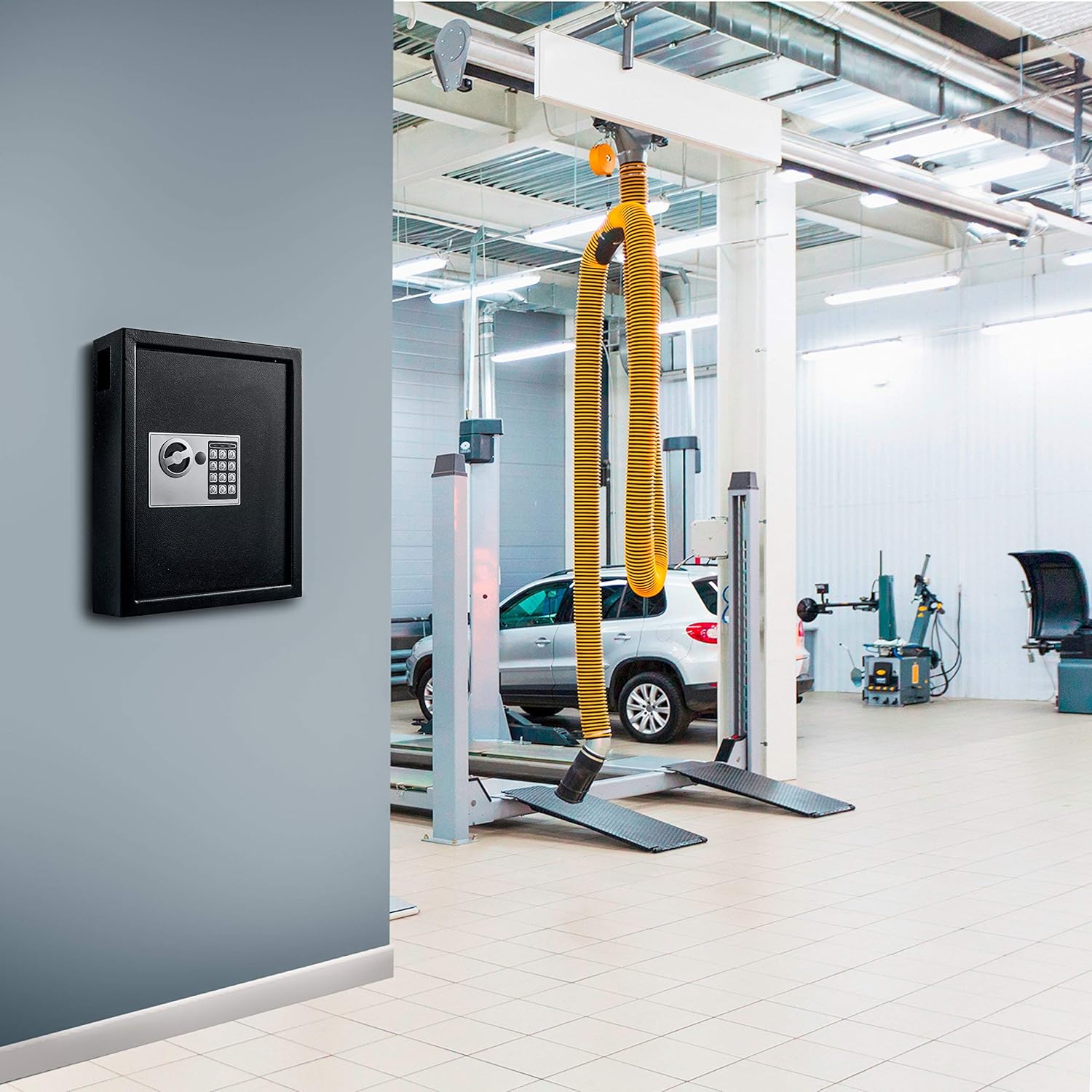
Figure 3: The key cabinet can be securely mounted to a wall.
- Choose a suitable location on a sturdy wall, away from excessive moisture or heat.
- Hold the cabinet against the wall at the desired height and mark the positions of the pre-drilled mounting holes.
- Drill pilot holes at the marked locations. For drywall, insert the provided wall anchors.
- Align the cabinet with the drilled holes and secure it to the wall using the provided screws. Ensure it is firmly attached and does not wobble.
Operating Instructions
Opening the Cabinet with Digital Lock
- Enter your programmed 3-8 digit PIN code on the keypad.
- Press the 'START' or '#' button.
- Within 5 seconds of successful code entry, turn the knob clockwise to open the door.

Figure 4: Entering the PIN code to access the key cabinet.
Opening the Cabinet with Override Key
In case of forgotten PIN code or battery failure, the override keys can be used.
- Locate the cover for the emergency keyhole, usually next to the digital keypad.
- Gently remove the cover.
- Insert one of the override keys into the keyhole and turn it counter-clockwise.
- While holding the key turned, turn the knob clockwise to open the door.
Closing and Locking the Cabinet
- Close the cabinet door firmly.
- Turn the knob counter-clockwise to engage the locking bolts. The cabinet is now securely locked.
Maintenance
Regular maintenance ensures the longevity and proper functioning of your key cabinet.
- Cleaning: Wipe the exterior with a soft, damp cloth. Avoid abrasive cleaners or solvents that could damage the finish.
- Battery Replacement: Replace the AA batteries when the low battery indicator appears on the keypad display or if the keypad becomes unresponsive. Always replace all four batteries at once.
- Hinge Lubrication: Periodically apply a small amount of lubricant to the door hinges to ensure smooth operation.
- Keypad Care: Keep the keypad dry and clean. Avoid pressing buttons with excessive force.
Troubleshooting
| Problem | Possible Cause | Solution |
|---|---|---|
| Keypad is unresponsive or display is blank. | Dead or low batteries. | Replace all four AA batteries. Ensure correct polarity. |
| Cabinet does not open after entering correct code. | Incorrect code entered, or knob not turned within 5 seconds. | Re-enter the code carefully. Ensure you turn the knob immediately after successful code entry. If issues persist, use the override key. |
| Key stuck in override lock. | Mechanism misalignment or foreign object. | Do not force the key. Try gently wiggling it while turning. If it remains stuck, contact customer support. |
| Beeping sound is too loud. | Normal operation, but user preference. | The beeping volume is fixed and cannot be adjusted. |
Specifications
| Feature | Detail |
|---|---|
| Brand | AdirOffice |
| Model Number | 680-40-BLK |
| Product Dimensions | 4"D x 12"W x 14.3"H |
| Lock Type | Electronic Combination Lock |
| Color | Black |
| Capacity | 40 Keys |
| Material | 16-gauge heavy duty steel |
| Mounting Type | Wall Mount |
| Included Components | 2 Override Keys, 4 AA Batteries, Key Tags, Mounting Hardware |
| Item Weight | 17 Pounds |
| Water Resistance Level | Not Water Resistant |
Warranty and Support
For warranty information and customer support, please refer to the official AdirOffice website or contact their customer service directly. You can also visit the AdirOffice Store on Amazon for additional product details and contact options.
Related documents680-40-BLK


Ask a question about this manual
Ask about setup, troubleshooting, compatibility, parts, safety, or missing instructions. Manuals+ will review the question and use this page’s manual context to help answer it.