
Introduction
The TC Electronic SUB 'N' UP OCTAVER is an advanced effects pedal designed to enrich your guitar tone with octave effects. It offers versatile control over upper and lower octaves, along with innovative TonePrint technology for custom sound creation and access to a library of artist presets. This manual provides comprehensive instructions for setting up, operating, and maintaining your SUB 'N' UP OCTAVER pedal.

Figure 1: Top view of the TC Electronic SUB 'N' UP OCTAVER pedal, highlighting the control knobs and footswitch.
Setup
Power Connection
The SUB 'N' UP OCTAVER requires a 9V DC 100mA power supply (center negative). Connect the power adapter to the DC IN jack on the pedal. Ensure the power supply meets the specified requirements to prevent damage.
Audio Connections
- Connect your guitar to the INPUT jack on the right side of the pedal using a standard 1/4 inch instrument cable.
- Connect the OUTPUT jack on the left side of the pedal to your amplifier or the next pedal in your signal chain using another 1/4 inch instrument cable.
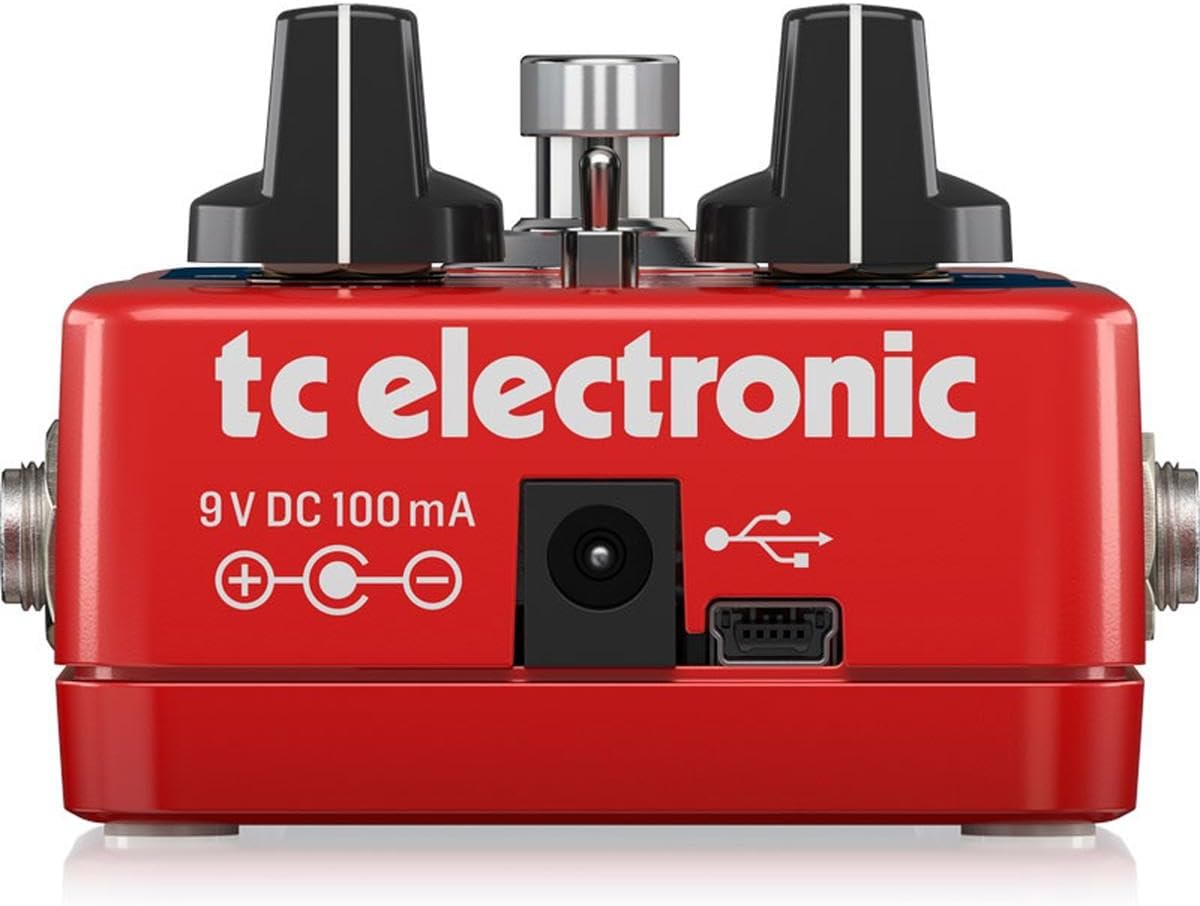
Figure 2: Rear view of the pedal, illustrating the 9V DC power input and USB port for connectivity.
Operating Controls
The SUB 'N' UP OCTAVER features intuitive controls for shaping your octave sound:
- DRY Knob: Controls the level of your original, unprocessed guitar signal.
- UP Knob: Adjusts the level of the octave-up effect.
- SUB Knob: Controls the level of the first octave-down effect.
- SUB 2 Knob: Adjusts the level of the second octave-down effect.
- Mode Switch (POLY/TONEPRINT/CLASSIC): Selects between different octave modes:
- POLY: Polyphonic mode, suitable for chords and complex passages.
- TONEPRINT: Activates a custom TonePrint preset loaded via the TonePrint app.
- CLASSIC: Monophonic mode, ideal for single-note lines and a vintage octave sound.
- Footswitch: Engages or bypasses the effect. The pedal features True Bypass for signal integrity when off.

Figure 3: Angled view of the pedal's controls, including the DRY, UP, SUB, SUB 2 knobs, and the mode switch.
TonePrint Technology
TonePrint allows you to customize your octave sounds or load presets created by renowned artists. This feature significantly expands the pedal's sonic capabilities.
Using TonePrint
- Download the free TC Electronic TonePrint App for your smartphone or computer.
- Connect your SUB 'N' UP OCTAVER pedal to your device via the USB port (for computer) or by holding your phone's speaker to your guitar pickup (for smartphone beaming).
- Browse the extensive library of artist TonePrints or create your own custom settings.
- Upload your chosen TonePrint to the pedal. Once uploaded, select the TONEPRINT mode on the pedal's switch to activate your custom sound.

Figure 4: The TonePrint app interface on a smartphone, used for customizing pedal settings.
Product Videos
Electro-Harmonix Pico POG Poly Octave Generator Pedal Overview
This video provides an overview of the Electro-Harmonix Pico POG Poly Octave Generator Pedal, demonstrating its features and sound capabilities. While not the exact model, it showcases similar octave pedal functionalities.
JOYO XVI Octave Effect Pedal (R13) Demonstration
A demonstration of the JOYO XVI Octave Effect Pedal, highlighting its octave effects and controls. This video offers insights into the general operation and sound of octave pedals.
JOYO Voodoo Octave Pedal (JF-12) Overview
This video presents the JOYO Voodoo Octave Pedal, showcasing its features and the octave effects it produces. It serves as a reference for understanding octave pedal functionalities.
Electro-Harmonix/JHS Lizard Queen Octave Fuzz Pedal Demonstration
A demonstration of the Electro-Harmonix/JHS Lizard Queen Octave Fuzz Pedal, illustrating its unique blend of octave and fuzz effects. This video provides context for combined octave and distortion sounds.
Specifications
| Feature | Detail |
|---|---|
| Item Weight | 9.2 ounces (0.26 Kilograms) |
| Product Dimensions | 4.8 x 1.97 x 2.87 inches |
| Body Material | Plastic |
| Connector Type | 1/4 inch audio jack |
| Hardware Interface | 1/4-inch Audio |
| Signal Format | Analog |
| Power Source | Corded Electric |
| Voltage | 9V |
| Amperage | 0.1 Milliamps |
| Item Model Number | Subnup |
Maintenance
To ensure the longevity and optimal performance of your SUB 'N' UP OCTAVER pedal, follow these maintenance guidelines:
- Keep the pedal clean by wiping it with a soft, dry cloth. Avoid using abrasive cleaners or solvents.
- Protect the pedal from extreme temperatures, humidity, and direct sunlight.
- Disconnect the power supply when the pedal is not in use for extended periods.
- Handle the footswitch and knobs gently to prevent mechanical damage.
Troubleshooting
If you encounter issues with your SUB 'N' UP OCTAVER, refer to the following common troubleshooting steps:
- No Sound:
- Ensure the power supply is correctly connected and functioning.
- Check all audio cables for secure connections and proper functionality.
- Verify that the pedal is engaged (footswitch LED is on).
- Adjust the DRY, UP, SUB, and SUB 2 knobs to ensure they are not set to minimum.
- Poor Sound Quality/Noise:
- Check for faulty cables or power supply.
- Ensure proper impedance matching with other pedals and your amplifier.
- Reduce the gain on your amplifier or preceding pedals if distortion is unwanted.
- TonePrint Issues:
- Ensure the pedal is in TONEPRINT mode.
- Verify that the TonePrint App is updated and the pedal is correctly connected for beaming/uploading.
Warranty and Support
TC Electronic products are designed for reliability and performance. For detailed warranty information and technical support, please refer to the official TC Electronic website or contact their customer service. Keep your proof of purchase for any warranty claims.


