
Fujitsu fi-7030
Fujitsu fi-7030 Document Scanner User Manual
Model: fi-7030 | Brand: Fujitsu
1. Introduction
This manual provides essential information for the safe and efficient operation of your Fujitsu fi-7030 Document Scanner. Please read this manual thoroughly before using the scanner and keep it for future reference.
The Fujitsu fi-7030 is designed as a compact and efficient front office scanner, suitable for lighter duty cycles while offering the versatility to scan various document types, including IDs and cards.

Figure 1.1: Front view of the Fujitsu fi-7030 Document Scanner, showcasing its compact design and open paper trays ready for document feeding.
2. What's in the Box
Upon unpacking, please verify that all the following items are included:
- Fujitsu fi-7030 Scanner Unit
- AC Cable (Power Cord)
- USB Cable
- Setup DVD-ROM (containing drivers and software)
- 1D Barcode for PaperStream Setup (web download instructions)
3. Setup Guide
3.1 Unpacking and Placement
Carefully remove the scanner from its packaging. Place the scanner on a stable, flat surface with adequate space for document feeding and output. Ensure proper ventilation around the unit.
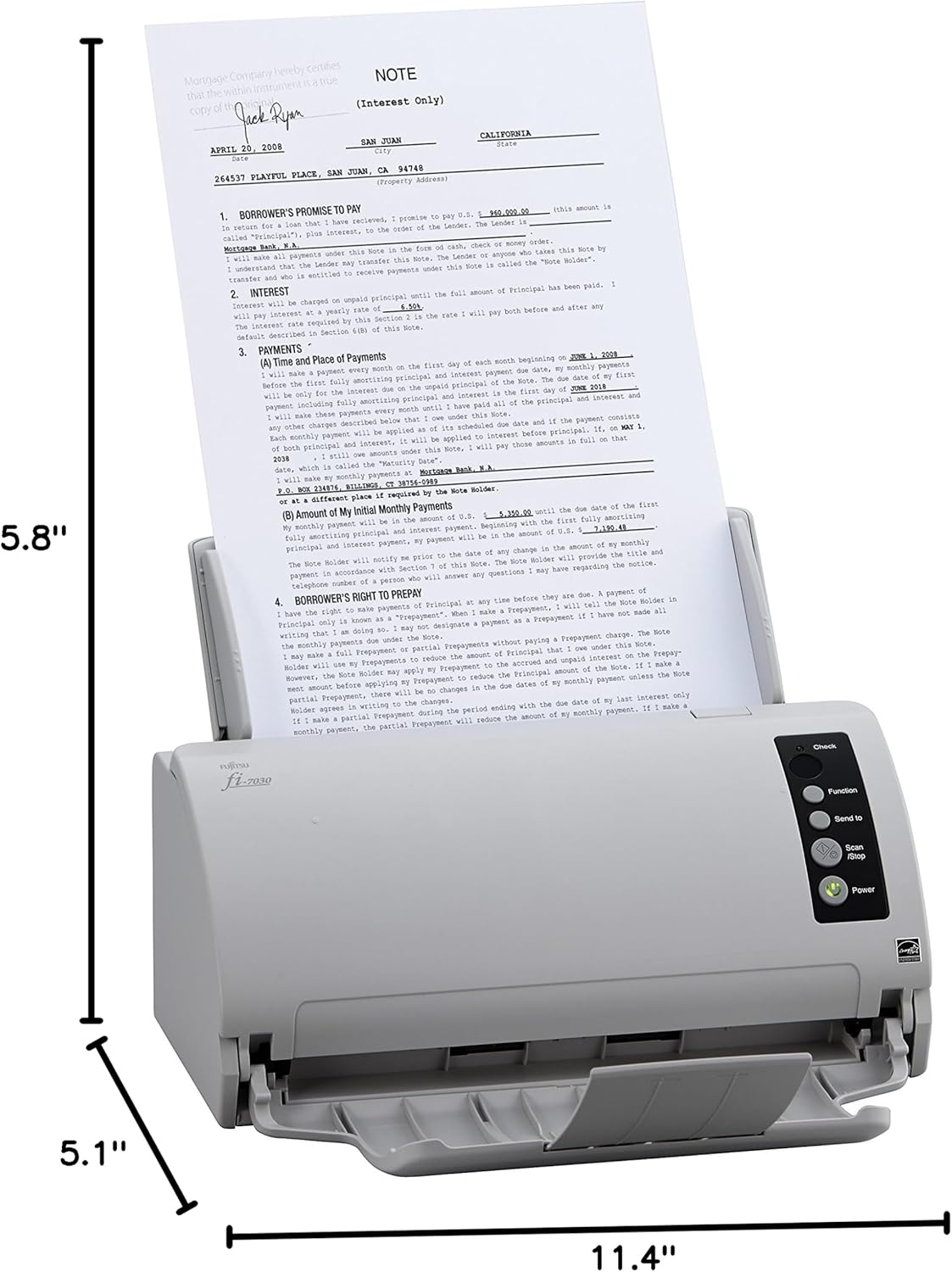
Figure 3.1: The Fujitsu fi-7030 scanner with its dimensions (5.8"D x 11.4"W x 5.1"H) highlighted, illustrating its compact footprint for office environments.
3.2 Connecting the Scanner
- Connect the USB cable from the scanner to an available USB port on your computer.
- Connect the AC cable to the scanner's power input, then plug the other end into a power outlet.
- Press the Power button on the scanner to turn it on.
3.3 Software Installation
The Fujitsu fi-7030 scanner requires driver and software installation for full functionality. Use the provided Setup DVD-ROM or download the latest software from the official Fujitsu support website.
- PaperStream ClickScan: This software simplifies the scanning process, allowing you to scan documents with a single button press and send them to various destinations like email, print, or a folder.
- PaperStream IP (TWAIN/ISIS): These drivers ensure compatibility with a wide range of document management and imaging applications.
- PaperStream Capture: Provides advanced scanning and image processing capabilities.

Figure 3.2: The three-step workflow of PaperStream ClickScan: Push 'Scan', Select Destination (Folder, E-mail, Printer, Application), and Save.

Figure 3.3: The scanner supports TWAIN and ISIS drivers, ensuring broad compatibility with various imaging applications.
4. Operating Instructions
4.1 Loading Documents
The fi-7030 features an Auto Document Feeder (ADF). Prepare your documents by removing staples, paper clips, and ensuring pages are not folded or torn. Fan the stack of documents to prevent misfeeds.

Figure 4.1: A stack of documents loaded into the automatic document feeder of the Fujitsu fi-7030 scanner, ready for scanning.
Adjust the paper guides to fit the width of your documents. The scanner supports various media types including receipts, ID cards, paper, and photos, with sheet sizes ranging from 2x2 inches to 8.5x14 inches.
4.2 Scanning Documents
- Load the documents into the ADF.
- Open the PaperStream ClickScan software on your computer or use the scanner's control panel buttons.
- Select your desired scanning profile or destination (e.g., scan to folder, email, or specific application).
- Press the 'Scan' button on the scanner or initiate scanning from the software.
The scanner features stable feeding with a brake roller separation system and Skew Reduction technology to ensure accurate and reliable document feeding.
5. Maintenance
Regular maintenance ensures optimal performance and longevity of your scanner.
5.1 Cleaning the Scanner
- Exterior: Wipe the exterior with a soft, damp cloth. Avoid abrasive cleaners.
- Rollers and Glass: Periodically clean the feed rollers and the glass scanning surface with a lint-free cloth and a mild, non-abrasive cleaner specifically designed for electronics or glass. Refer to the full user manual for detailed instructions on accessing internal components.
5.2 Consumables
The feed rollers and brake rollers are consumable parts that will wear over time and require replacement. Consult the Fujitsu support website or your dealer for replacement parts and instructions.
6. Troubleshooting
This section addresses common issues you might encounter with your Fujitsu fi-7030 scanner.
| Problem | Possible Cause | Solution |
|---|---|---|
| Scanner not recognized by computer | USB cable disconnected, drivers not installed, power off | Check USB connection, ensure scanner is powered on, reinstall drivers. |
| Paper jams | Documents not properly prepared, worn rollers, misaligned paper guides | Remove staples/clips, fan documents, clean/replace rollers, adjust guides. |
| Poor scan quality | Dirty scanning glass, incorrect software settings | Clean the scanning glass, adjust resolution and image settings in software. |
For more detailed troubleshooting, refer to the comprehensive software manual or visit the Fujitsu support website.
7. Technical Specifications
| Feature | Specification |
|---|---|
| Model Name | fi-7030 |
| Item Model Number | PA03750-B005 |
| Scanner Type | Receipt, Document |
| Media Type Supported | Receipt, ID Card, Paper, Photo |
| Connectivity Technology | USB |
| Resolution | 600 dpi |
| Product Dimensions (D x W x H) | 5.8 x 11.4 x 5.1 inches (14.7 x 29 x 13 cm) |
| Item Weight | 6.4 pounds (2.9 kg) |
| Wattage | 17 watts |
| Sheet Size Range | 2 x 2 inches to 8.5 x 14 inches |
| Manufacturer | PFU Limited |
| First Available Date | August 9, 2016 |
8. Warranty and Support
For warranty information and technical support, please refer to the documentation included with your scanner or visit the official Fujitsu support website. Keep your purchase receipt as proof of purchase for warranty claims.
Online Resources:
- Fujitsu Global Support: www.fujitsu.com/global/support/
- Product-specific drivers and manuals can typically be found by searching for "Fujitsu fi-7030" on their support portal.
Related documentsfi-7030


Ask a question about this manual
Ask about setup, troubleshooting, compatibility, parts, safety, or missing instructions. Manuals+ will review the question and use this page’s manual context to help answer it.